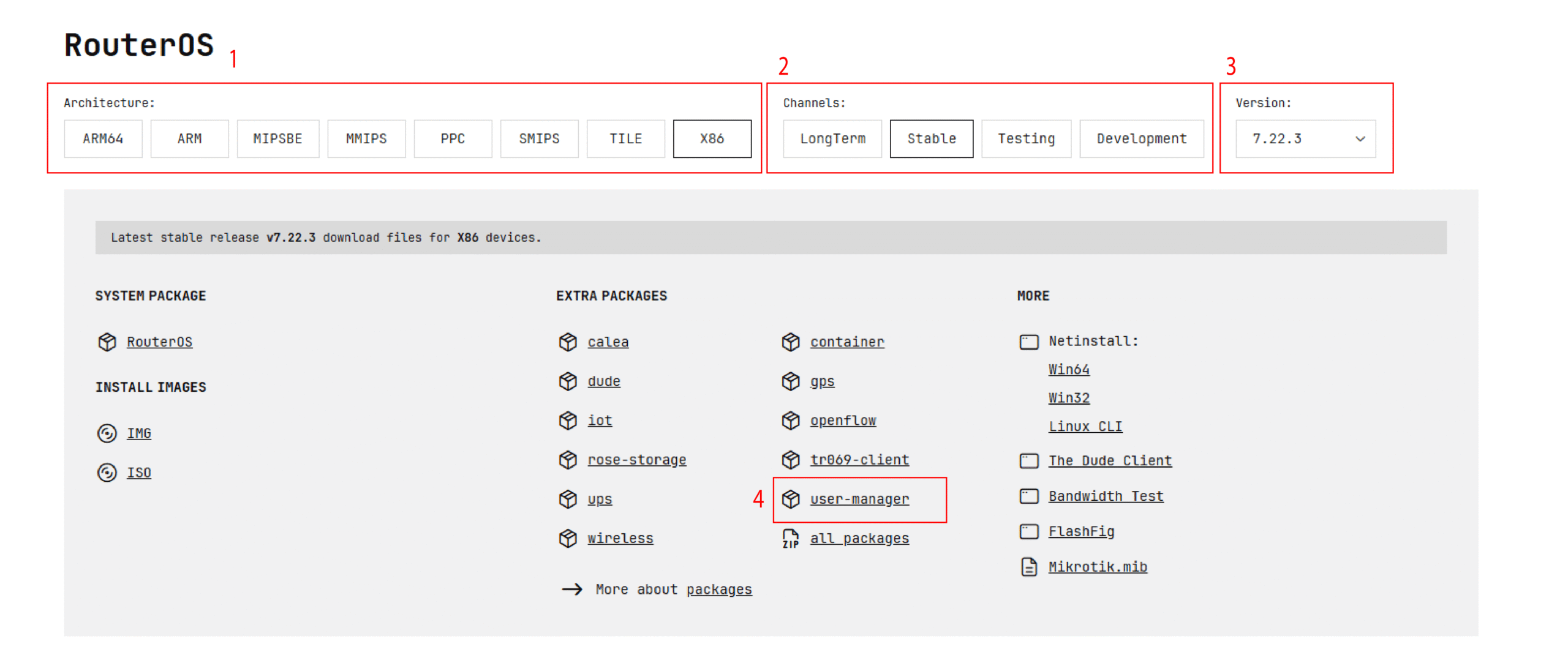
To install the user manager package on Mikrotik, you need to download the version that matches your router OS build and your device architecture from MikroTik’s official website.
Choosing the correct package is important; installing an incompatible package can lead to errors, or the package may not be recognized by the device.
User Manager is a RADIUS server implementation that provides centralized user authentication, authorization, and accounting (AAA) in certain services. You need to configure the RADIUS server on MikroTik and link it together to use the User Manager.
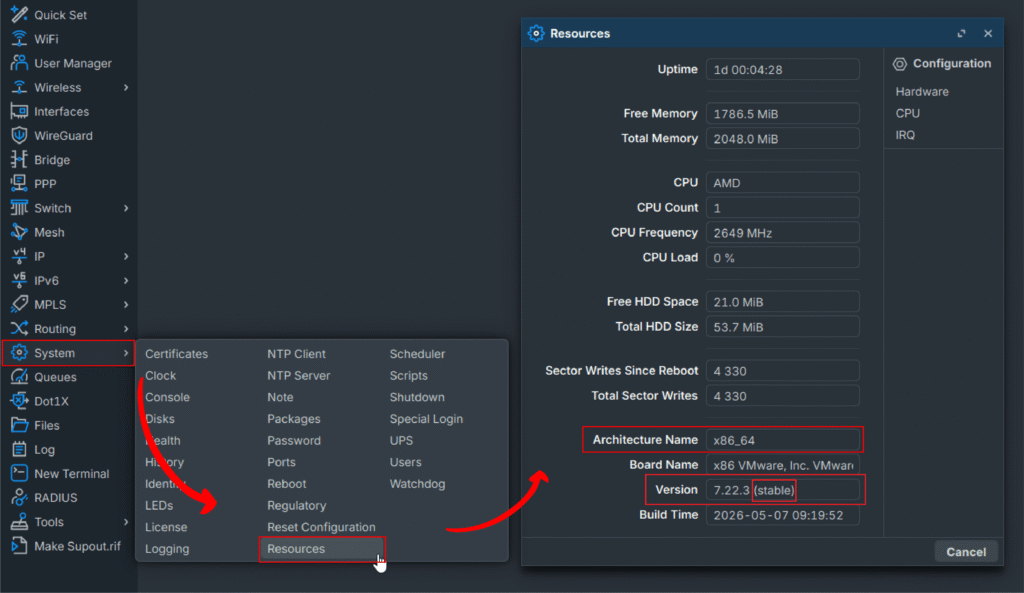
To download the user manager package compatible with your device, you need to know your device’s architecture, and then you can download the compatible package from MikroTik’s official website.
If you don’t have a MikroTik router, you can purchase a pre-configured and well-optimized MikroTik VPS.
Here you can see all your device’s specifications, including the board architecture, which we need.
Click on “System > Resources”.
check your architecture name, and check the version and channel you are using, for example: Stable or LongTerm.

Go to MikroTik’s official download page and download the package that suits your device.

Before starting the steps, make sure to back up your MikroTik router to avoid potential issues.
If you want to use a more secure and stable version of the user manager package, you can update your MikroTik firmware. Or you can install older, tested, and reliable versions by downgrading Mikrotik Router OS.
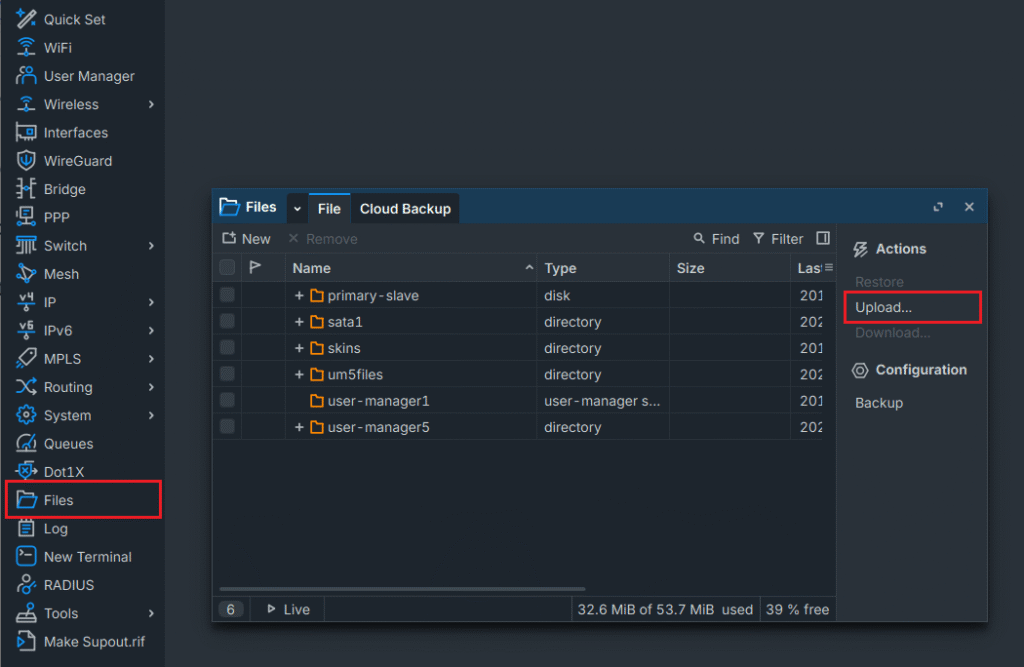
You can upload the downloaded file easily by dragging and dropping, or you can follow the steps below:
Click on “Files > Upload“.
Select the package file with the .npk format and upload it.

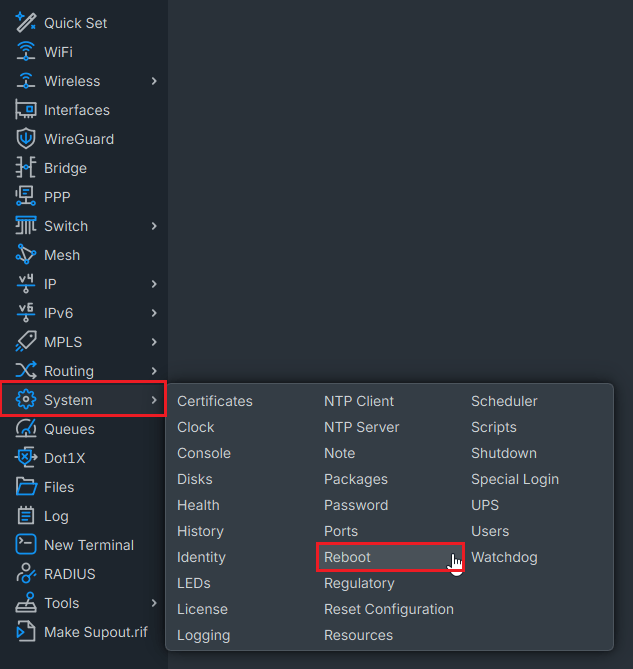
To install it, you need to reboot the MikroTik router OS. It will automatically install the package.
Click on “System > Reboot”.

Now we have finished the installation. Next, we need to create a user and log in to User Manager to check whether it is working correctly or not.
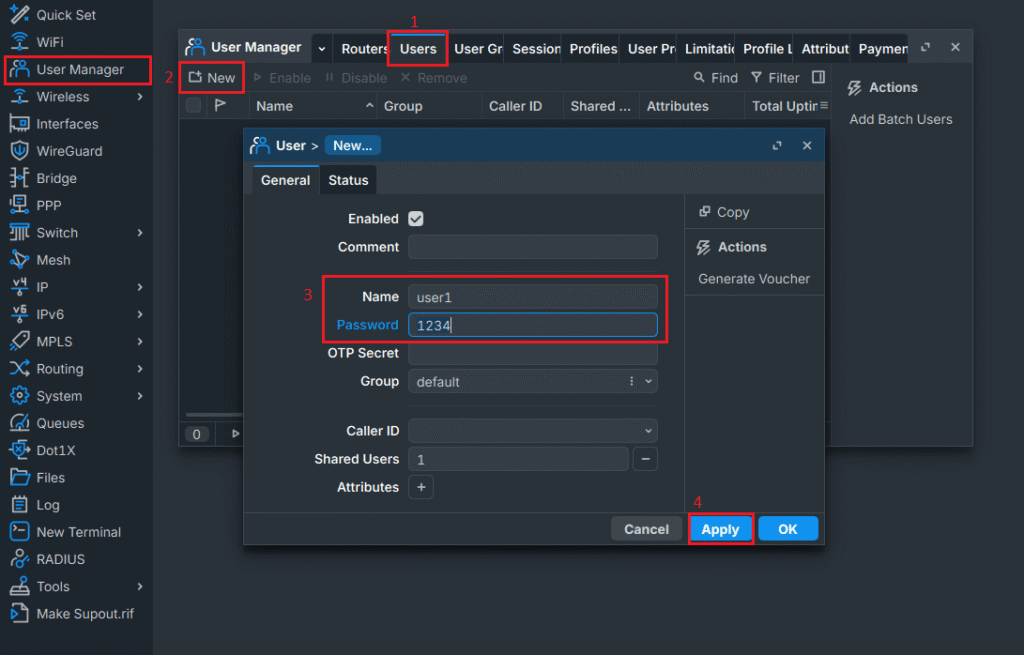
To access the User Manager web interface, you need to create a user through the User Manager panel in WinBox.
In RouterOS version 6, this step was not required; a default user named “admin” (with no password) was available, allowing you to log in directly to the web interface and manage everything from there. However, this behavior has changed in RouterOS version 7 .
If you are using MikroTik router version 6, you can easily “Upgrade MikroTik router 6 to 7” and upgrade your MikroTik to the latest version.
To create a new user in Mikrotik, follow the steps below:

Now you can log in with the user you created. You can open your browser and go to http://your-server-ip/um or in older versions of MikroTik like version 6, go to http://your-server-ip/userman.

In RouterOS v7, User Manager administration has been integrated into Winbox and the command-line interface (CLI), and there is no longer a full-featured web-based admin panel as seen in earlier versions.
The web interface is primarily intended for end users to view their profiles and account information, while all configuration and management tasks must be performed through Winbox or the CLI.
Additionally, User Manager is best suited for small to medium-sized deployments. While it provides a convenient built-in RADIUS solution, it may not offer the scalability and flexibility required for large-scale ISP environments.
In such cases, using an external RADIUS server like FreeRADIUS is often a better choice, or you can configure your own RADIUS server on your Mikrotik.
If you want to use the admin panel that MikroTik offered in RouterOS v6, you can downgrade your router firmware to version 6 to access it.
Installing the User Manager package in MikroTik is so simple, requiring only a few steps to download, upload, and enable the package, allowing you to quickly set up centralized user authentication and management on your router.
In RouterOS v7, the User Manager admin web interface was removed. Now the web interface is only for users to view their profiles, and admins must use Winbox or CLI for management.
1- Why do we need a RADIUS server to use the user manager?
You don’t strictly need a RADIUS server to use the user manager. The user manager in Mikrotik is itself a built-in RADIUS server that stores user data, user authentication, user authorization, and accounting, but for using services like PPTP/L2TP/Hotspot/Wireless, which they aren’t designed to talk directly to the user manager, you need to use a RADIUS server to control users.
2- What is the port of the user manager in MikroTik?
User manager itself doesn’t use a single web port; instead, it relies on RADIUS server ports. UDP 1812 for authentication and UDP 1813 for accounting; these ports are part of the RADIUS server protocol, and they are standard across many systems. and make sure they are allowed in your firewall.
3- How many users can Mikrotik handle?
Mikrotik does not have a fixed number of users; the number of users it can handle depends on the device’s hardware, traffic load, and configuration. Small routers can handle hundreds of users, while high-end CCR devices can handle thousands of users at once when properly configured.
The Author Richard.M
Richard started out as a member of the support team and is now a full-stack web developer and support team lead at VPS Makers. He is passionate about providing people with top-notch technical solutions based on his 5 years of experience in web hosting, but as much as he enjoys coding and creating new works, he secretly dreams of becoming a sports star.
More from Richard.M