How to update MikroTik router OS firmware manually V7?
If you want to fix MikroTik OS bugs, improve security, and access new features, you need to keep your RouterOS up to date. Updating your MikroTik regularly is essential to ensure stability and optimal performance.
If you want to update your MikroTik OS to the same version, the process is simple. Just follow this guide
After updating, if your MikroTik doesn’t work properly, you can downgrade its OS to older versions.
Update MikroTik router OS via Winbox
Before starting, take a backup
If you have other important configurations on your MikroTik, it’s better to take a backup from it to be sure your other configurations don’t get damaged while updating.
In most cases its OK to update and nothing happens, but during installation, if you face power loss or install corrupted update files, it may cause deletion in your configurations.
To get backup, you can follow the guide below:
How to back up MikroTik configuration via Winbox
Step-by-Step of Updating via Winbox
To start, you need to have Winbox to connect to your MikroTik and control it, if you don’t have Winbox, you can download Winbox from MikroTik’s own website and install it.
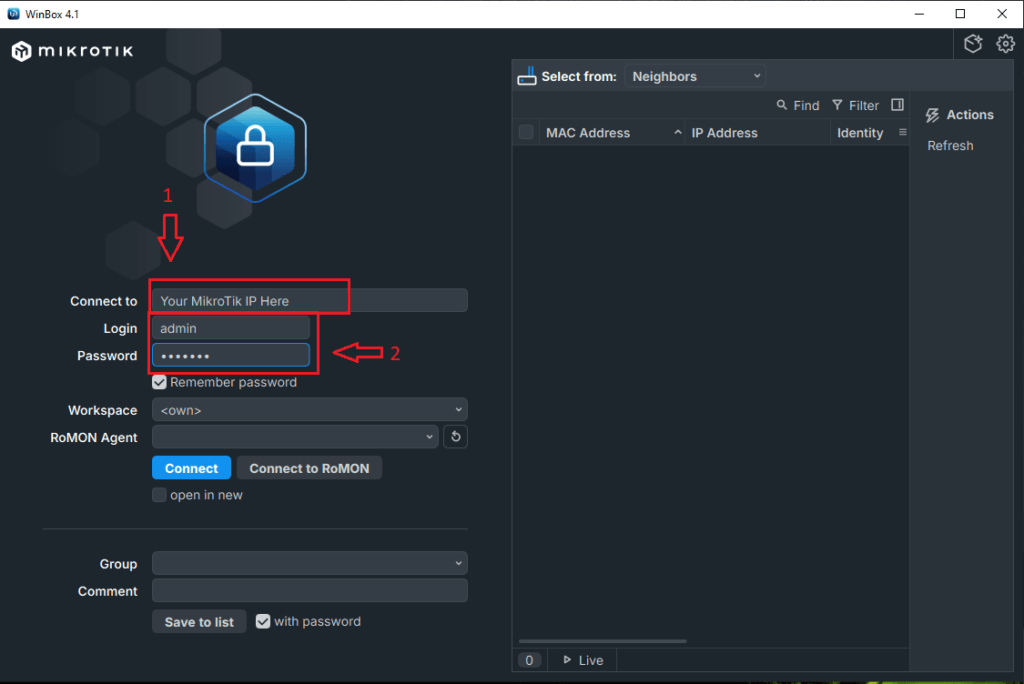
Step 1: Connect to your MikroTik
Open the Winbox app and enter your MikroTik IP and your login information to connect.
If you are using MikroTik in your local network, you can find it on the right side in “Neighbors” too.
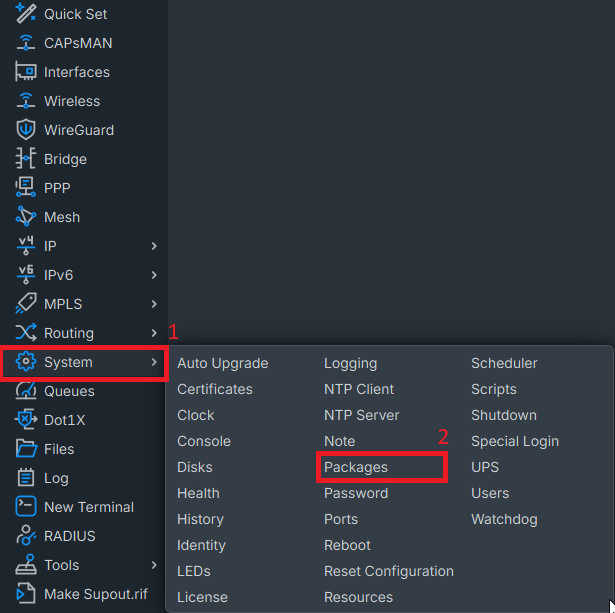
Step 2: Access system/packages
- Click on System in the sidebar
- In the opening menu, click on Packages
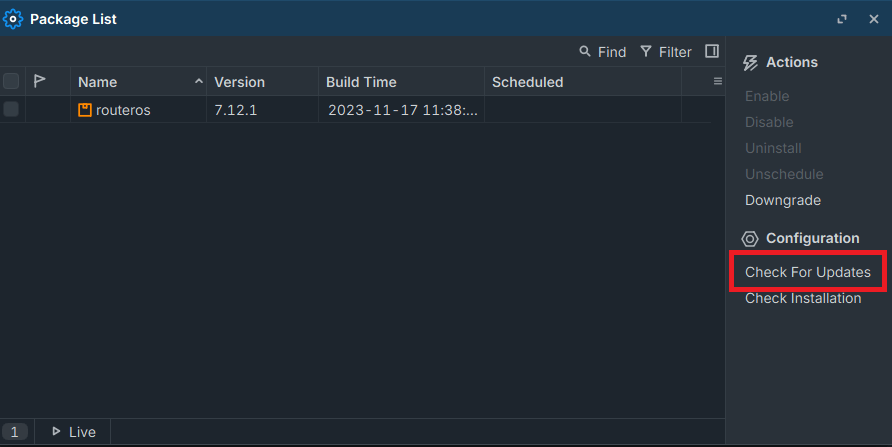
Step 3: Download and install the latest router OS
In the packages tab, all your packages installed on MikroTik will appear here, and you can see you exisiting router OS pack here too.
1. Click on Check for update.
Note: while checking for an update, you may encounter Error: could not resolve DNS

You can easily fix it by adding DNS from IP -> DNS or by running this command in terminal
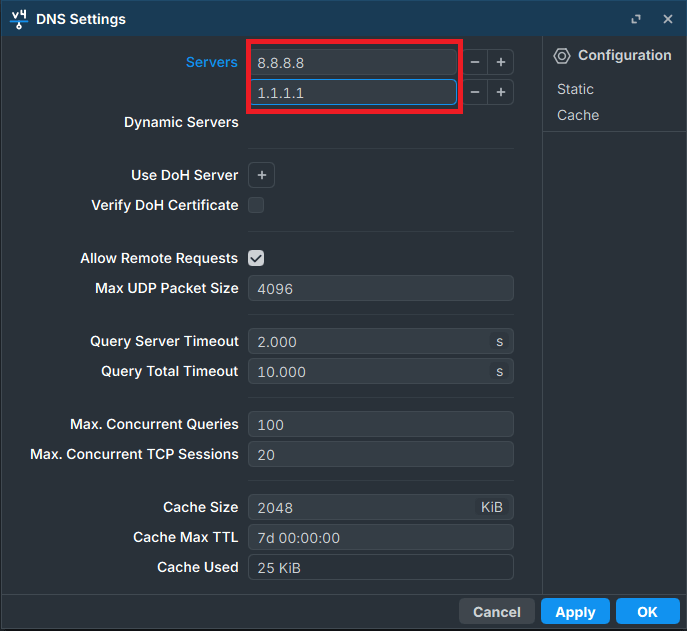
/ip dns set servers=8.8.8.8,1.1.1.1 allow-remote-requests=yes
2. Click on the download and install button
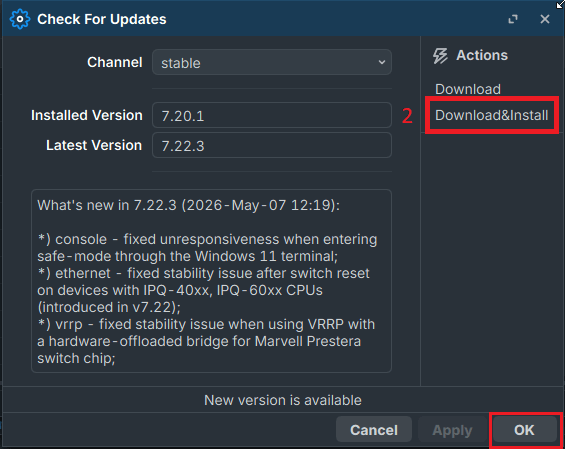
It will start downloading after the download ends, it will automatically install and reboot your device.
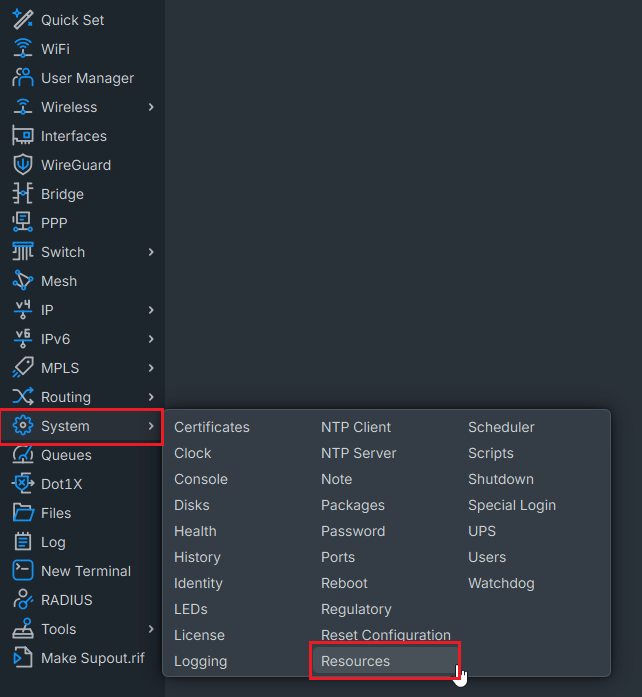
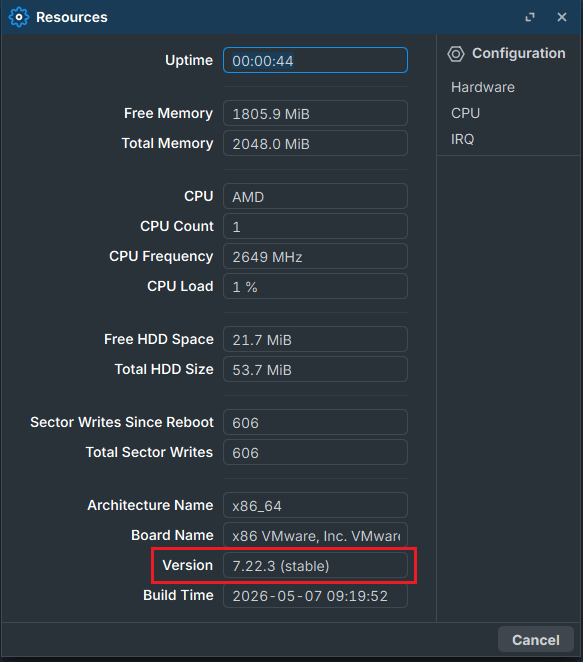
Now you can check your version from System / Resources
- Click on System
- Click on Resources

3. Check your version
Update MikroTik router OS via CLI
Some users may not work with Winbox or the web, and they are working with SSH. Just log in to your MikroTik VPS and enter the following commands in terminal to update your router OS
With this command, check for updates:
/system package update check-for-updates
If an update is available with this command, download the update
/system package update downloadAfter downloading, run the reboot command to reboot and install the update
/system reboot
summery
To update MikroTik, first you need to get a backup of your MikroTik. It is optional but recommended, then just with using Winbox and CLI you can easily download and install the update following this guide.
FAQ
Why should we update MikroTik OS?
Updating MikroTik router OS is important, especially for security, better performance, and reliability. Like any other network device, these routers have vulnerabilities that attackers and hackers could find and exploit, and MikroTik regularly releases new updates to fix these issues, and in some updates, they may add new features, so keep your router up to date.
Is MikroTik OS free?
MikroTik router OS is not completely free, but in most cases you don’t need to pay for it separately.
If you buy a MikroTik router physically, its licence is included, or you can buy MikroTik VPS, which is licensed too.
But if you install it virtually, it has a free trial for 24 hours of runtime, and after reaching the limit, you need to buy a license.
How to reset MikroTik OS?
If you own MikroTik physically, turn it off and unplug it, then hold the reset button, while holding it, plug it back in, and one of the LEDs will start blinking when it starts blinking, release the button.
You can reset it from the Winbox application too, but if you are using MikroTik VPS, don’t reset it yourself and contact the admins.

The Author Jacob R
i am Jacob a developer and cybersecurity enthusiast with strong skills in web development and a passion for building practical digital solutions,Working on web development for 4 years. Hope my guides be helpful
More from Jacob R