
Internet Information Services (IIS) is Microsoft’s web server software for hosting websites, web applications, and APIs on Windows Server. There are two main ways to install IIS: using Server Manager or Windows PowerShell. Both methods allow you to add the Web Server role and select the features required for your hosting environment.
In this guide, we’ll walk you through both installation methods (Server Manager, PowerShell), explain how to verify that IIS is running correctly, and show you how to access the default welcome page. Depending on your preference, choose the method you are most comfortable with and follow along to set up IIS on your Windows Server VPS.
Install IIS on Windows Server using Server Manager
Using Server Manager on Windows Server is the easiest way to install IIS without dealing with command-line tools, using the graphical interface. First, connect to your Windows VPS and follow these steps to add the web server role and install required components.
Add IIS Role in Add Roles and Features Wizard
Once logged in, open Server Manager from the Windows Start menu. On most Windows Server versions, Server Manager automatically opens after login or on first boot, but if it doesn’t open, open it from the Start menu yourself.
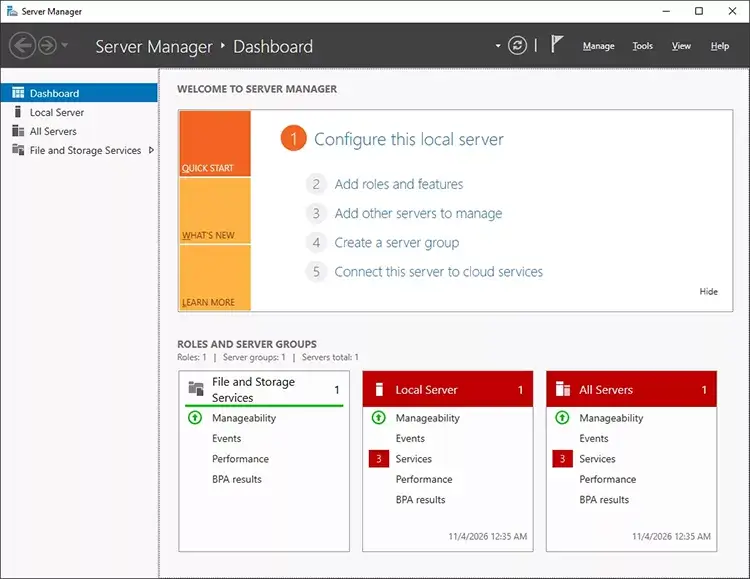
In Server Manager, click Manage in the top-right corner and select Add Roles and Features from the drop-down menu.
Once the Add Roles and Features wizard starts, the first page introduces the wizard and explains its purpose. Click Next to skip this introduction, or read the information if you want to learn more before proceeding.
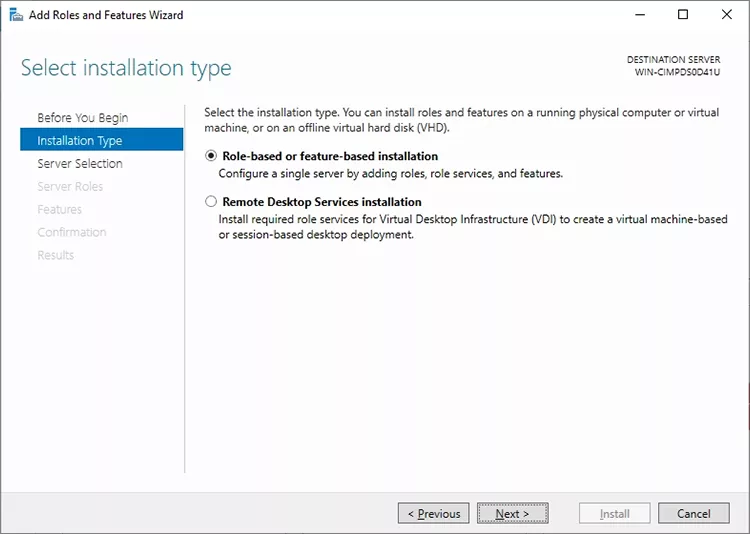
Select IIS installation type
On the installation type page, select Role-based or feature-baesd installation and click Next. This option allows you to install server roles and features on your Windows VPS.
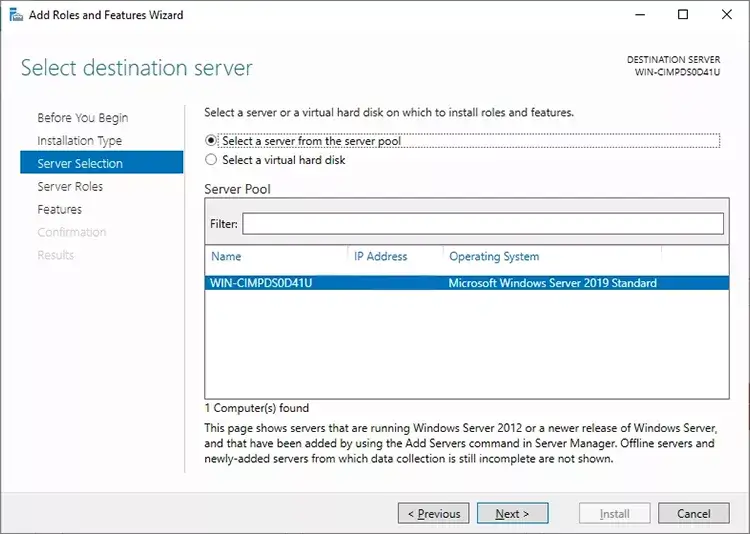
Select Destination Server from Server pool
On the Server selection page, choose a server from the server pool, and select your Windows VPS from the available list. If nothing else is configured, there will be only one option, so you should only need to click Next to continue.
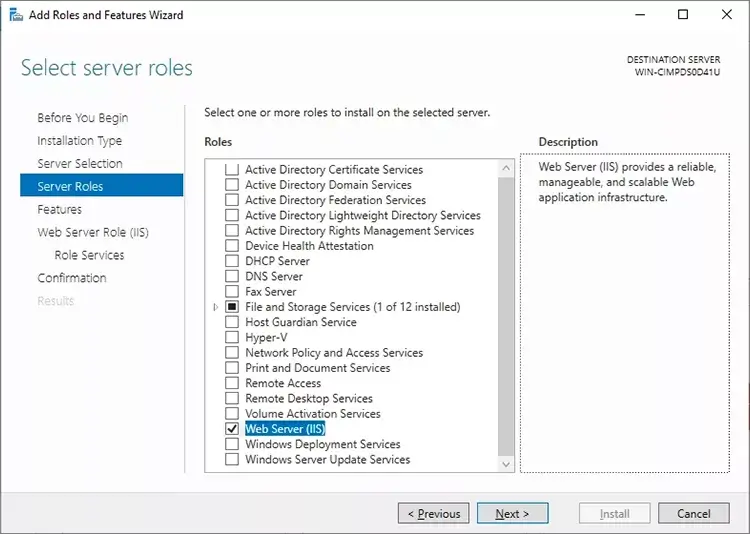
Select the Web Server (IIS) Role
On the server roles page, find and check Web Server (IIS). A confirmation windows may apear asking you to install additioanl features required by IIS. Click Add Features to include them, then click Next.
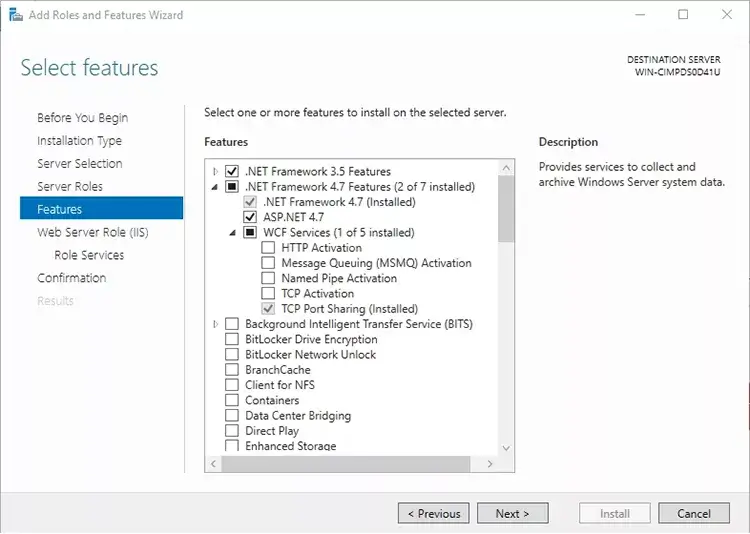
Select IIS Additional Features
On the Features page, you can install additional Windows Server features. NET-specific versions or ASP.net. For basic IIS installation, you can leave the default selection unchanged and click Next.
Review and Confirm IIS Installation on Windows Server
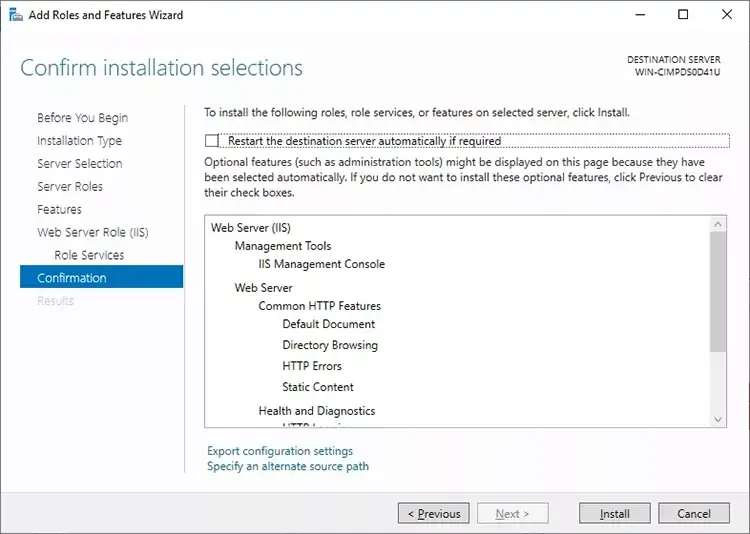
On this page, you can review the selected components and make sure everything is correct. Once confirmed, click Install to continue.
Note:
You can enable restarting the destination server it will restart your Windows VPS if required after installation is completed. However, in a basic IIS installation, it doesn’t need a restart.
Verify IIS Installation on Windows Server
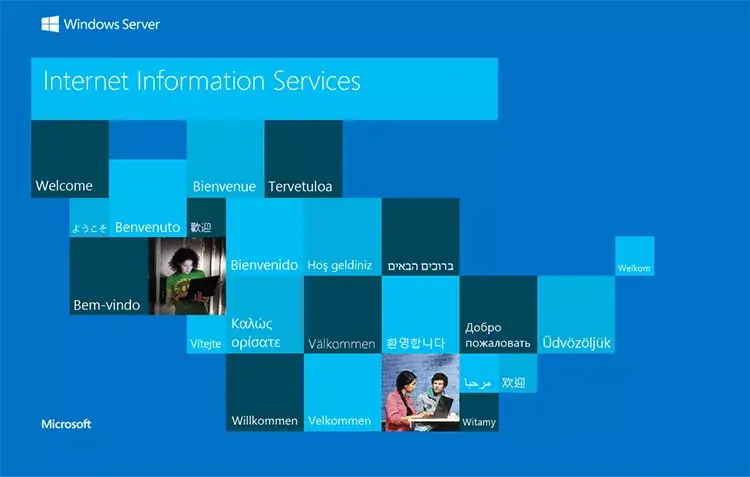
To verify IIS on Windows Server, open your web browser and enter https://localhost/:
Install IIS on Windows Server using PowerShell
You can also install IIS on your Windows VPS using PowerShell. This method is faster than using Server Manager and allows you to install the Web Server role with just a few commands.
Open PowerShell as Administrator
First, open the Start menu, search for Windows PowerShell, right-click it, and select Run as administrator. or press Win + R to open Run powershell and press Ctrl + Shift + Enter to run it as administrator.
Important:
You need administrator privileges to install Windows Server roles and features. Otherwise, it can’t be installed without admin privileges.
Install the IIS Web Server Role
Once PowerShell is open, run the following command to install IIS:
Install-WindowsFeature -Name Web-Server -IncludeManagementToolsThis command installs the IIS Web Server role along with its management tools, including IIS Manager.
Wait for the installation process to finish. PowerShell will display the installation status and indicate whether the operation was successful.
Success Restart Needed Exit Code      Feature Result
------- -------------- ---------      --------------
True    No             Success        {Common HTTP Features, Default Document, D....
After the installation is complete, run the following command to check whether the IIS Web Server role was installed successfully.
Verify IIS installation on Windows Server with PowerShell
If the installation was successful, the Install State column should show Installed like the output example below:
Get-WindowsFeature -Name Web-ServerDisplay Name Name Install State ------------ ---- ------------- [X] Web Server (IIS) Web-Server Installed You can also check whether the IIS web service is running using:
Get-Service -Name W3SVCStatus Name DisplayName ------ ---- ----------- Running W3SVC World Wide Web Publishing Service You can also test IIS in your browser by entering http://localhost . If everything is working correctly, you should see the default IIS welcome page.
Frequently Asked Questions About IIS Installation
Is IIS Free on Windows Server?
Yes, Internet Information Services (IIS) is free to install and use on Windows Server. It is included as a built-in server role, so you don’t need to purchase a separate IIS license or pay additional fees to use its web server features.
Does IIS Require a Server Restart After Installation?
No, IIS usually does not require a Windows Server restart after installation. Once the installation is complete, the IIS services start automatically, and you can access the default IIS welcome page through a web browser.
However, during installation, if you’ve selected some additional features to be installed, they can require the Windows VPS to be restarted. Make sure, before restarting anything, you’ve set the other services running on your VPS to start automatically to don’t face downtimes in other services.
What Ports Does IIS Use by Default?
By default, IIS uses standard web ports, including 80 (HTTP) and 443 (HTTPS). Windows Server may automatically configure the required firewall rules during installation, but you should check Windows Firewall to ensure these ports allow incoming connections from external devices.
Can I Install IIS on Windows Server Core?
Yes, you can install IIS on Windows Server Core. Server Core supports the IIS Web Server role, and you can install and manage it using PowerShell without a graphical interface.
To install it, you can follow the PowerShell installation section, which describes how you can install it through PowerShell.