
There are several ways to connect to a Windows VPS server, depending on your preferred tools and operating system.
You can use nearly any device that supports RDP (Remote Desktop Protocol) to connect to a remote Windows device, whether it’s an online home computer or a cloud-hosted Windows VPS.
In this guide, we’ll walk you through connecting to a Windows Server or Windows client using RDP and other connection methods, including the command line (CLI) and web browser.
Prerequisites for Connecting to a Windows VPS Server
Before connecting to your Windows VPS, or any other remote Windows desktop device, make sure you have its IP address, administrator login credentials, and access to Remote Desktop. These details are provided to you by VPS providers like VPSMakers after your VPS is deployed.
Find Your Windows VPS IP Address
First, to connect to Windows with Remote Desktop, you need its IP address. If you bought a Windows VPS, you may have received its credentials through email. Check the email address you used for purchase, check any email, or if you are using a local Windows computer or already have a VPS but don’t know the IP address, you can follow our guide for this purpose:
To verify IP assigned to Windows VPS you can use windows setting, control panel, or tools like cmd and powershell by running some commands.
Read the full articleGet Your Administrator Username and Password
To log in, you also need the Windows administrator account or another account with administrive privilages, when purchasing VPS you commonly get the main admin credentials for logging in here you will need them.
Connect to Windows VPS Server Using Remote Desktop
The main and most used method to connect Windows devices remotely is the Remote Desktop Connection (RDC) app, which is a built-in app on all Windows systems; it provides you with a smooth and reliable connection to the remote device and lets you work with the remote computer as if you were sitting in front of it.
First, search for Remote Desktop Connection in the Start menu or press Win + R to open the Run application.
mstcs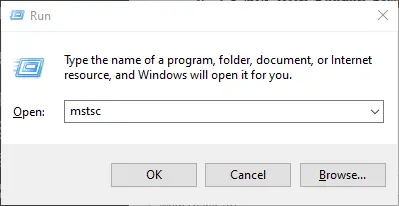
Enter your VPS IP address or hostname if you bind any in the Computer field and click Connect. In RDC options, you can also configure how your local computer interacts with the remote device; the options include sharing clipboard data, sharing existing printers, audio settings, etc.
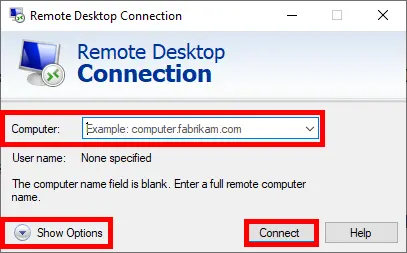
You will get an alert that this remote connection can harm your device. If you trust this device and are sure of the remote device’s security, press Connect to continue.
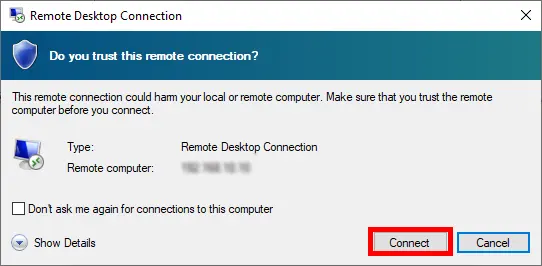
After confirming, you will be prompted to enter your username and password for your RDP Server; fill in the inputs and press Enter so you can connect to the remote Windows environment.

If your credentials are correct, a certificate warning may appear. Verify that you are connecting to the correct VPS, then accept the certificate to establish the connection to your Windows VPS using Remote Desktop Connection (RDC).
Caution:
If you see the error “The connection was denied because the user account is not authorized for remote login,” it may mean that the account you’re using is not authorized to connect through Remote Desktop. The account must either have Administrator privileges or be a member of the Remote Desktop Users group, with the appropriate login permissions.
If this is your first time logging in and you cannot access your Windows VPS through another method, contact your VPS provider and ask them to resolve the RDP login permissions issue.
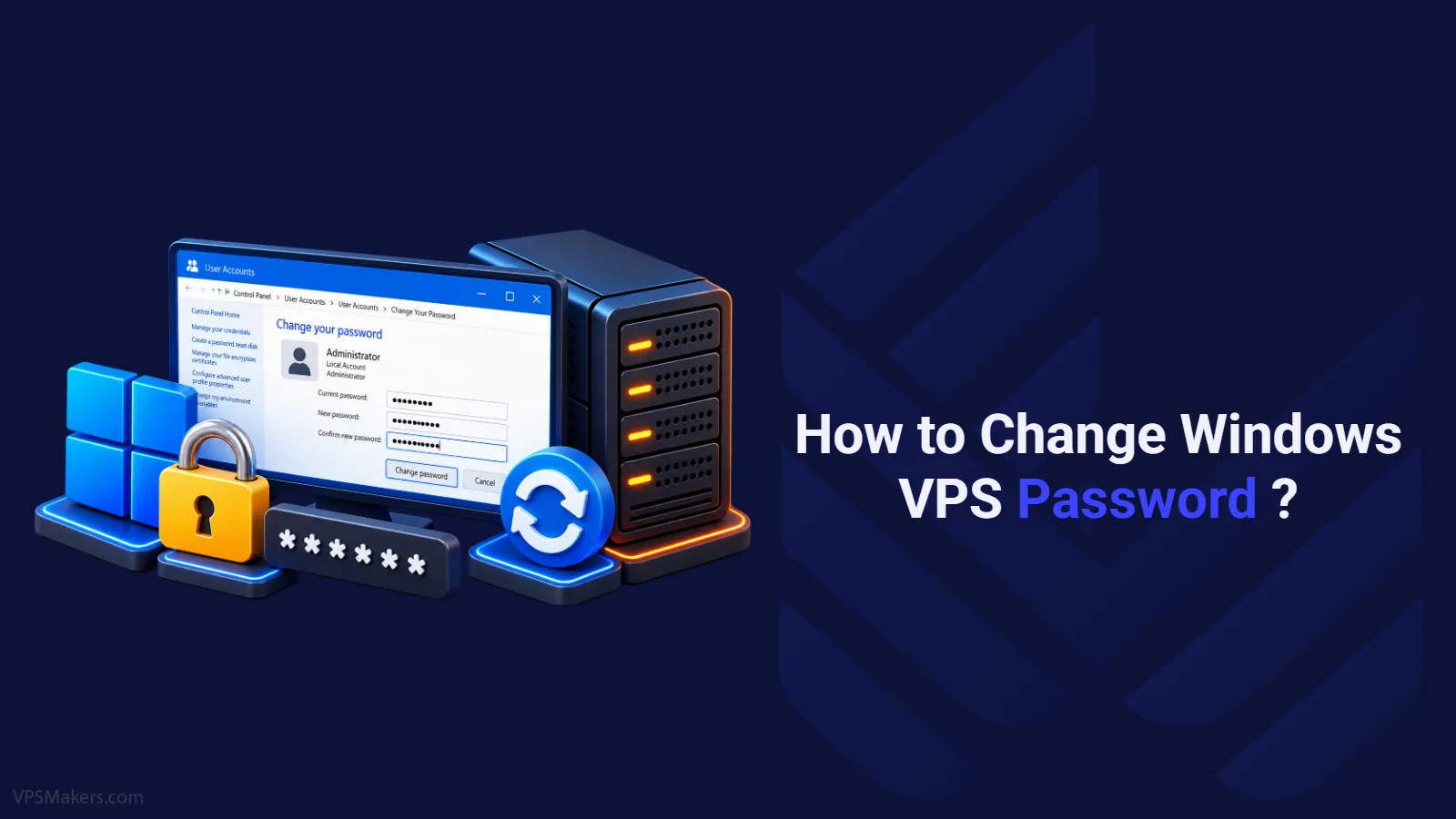
After connecting to the Windows VPS, you can change its password and manage it as if you are working with a local computer. If you don’t know how to change your password to make the Windows Server more secure, you can follow this guide.
Connect to Windows VPS Through Web Browser
You can also connect to your Windows VPS through a web browser without installing a traditional Remote Desktop client. However, the available methods depend on your VPS configuration and the software installed on the server. Since most browser-based solutions require prior setup, you may need to establish the initial connection using the traditional Remote Desktop Connection (RDC) client.
Use Chrome Remote Desktop
Chrome Remote Desktop allows you to access a Windows computer remotely through a web browser, and also from an Android device. However, it requires installing and configuring Chrome Remote Desktop on the remote machine, but its setup is straightforward. Chrome Remote Desktop is not a full replacement for RDP in every VPS environment but for any reason if you want to use a browser-based connection method, it can be the right fit.
To set up Chrome Remote Desktop, you can follow this guide:
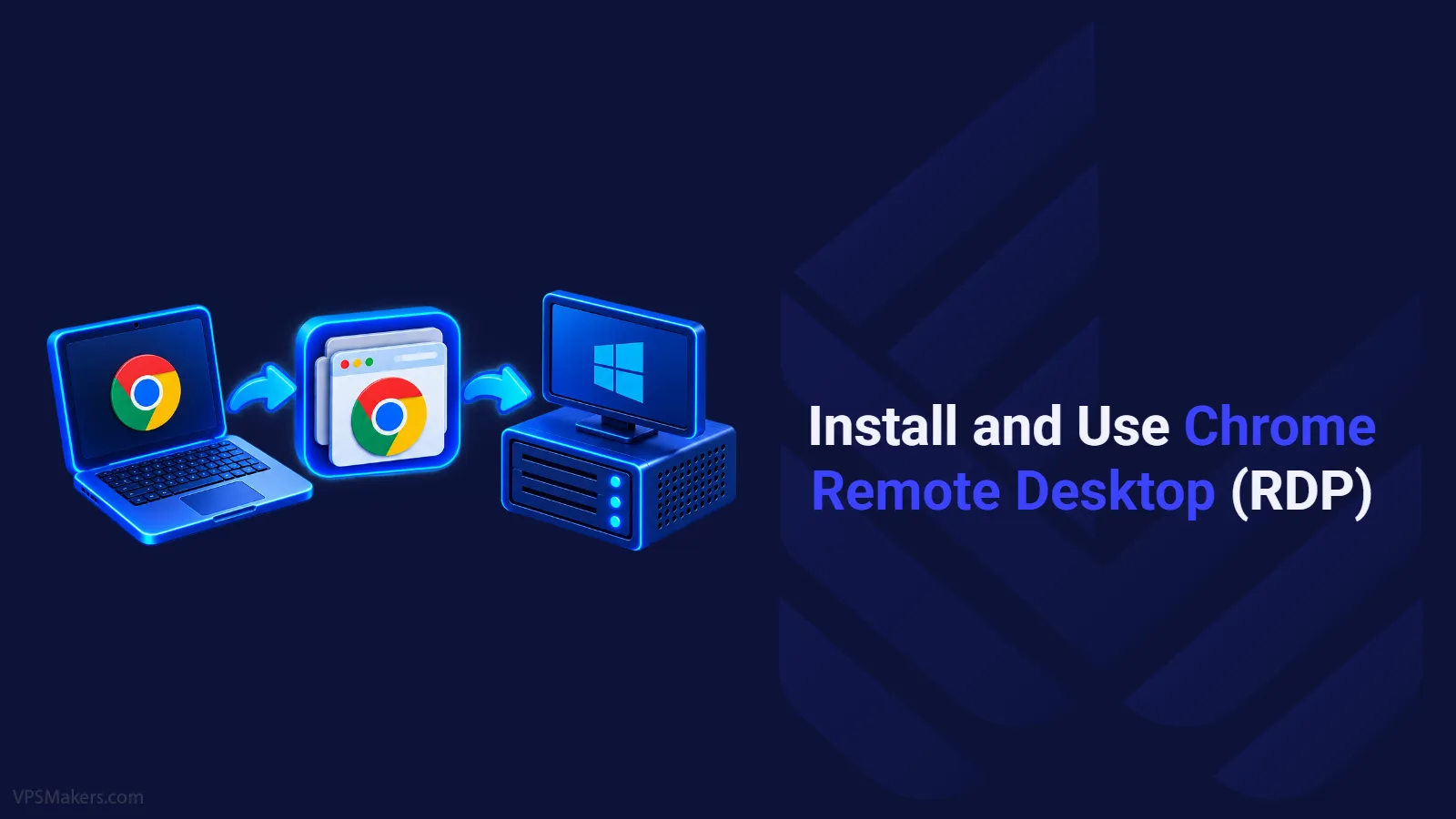
Chrome RDP provides you a simple remote desktop envionrmnet through browser, in this guide you learn to install and use it on Windows VPS.
Read the full articleBesides Chrome RDP, there are some other tools to use a browser to connect to Windows, including:
- Remote Desktop Web Client: Access remote desktops through a browser when RDS and the web client are configured.
- Apache Guacamole: An open-source gateway supporting RDP, VNC, and SSH through a browser. It requires separate installation and configuration.
These methods require additional setup. For a single Windows VPS, the built-in Remote Desktop Connection client is usually the simplest option.
Connect to Windows VPS Server Using CLI
You can connect to a Windows VPS through the command line using tools such as SSH and PowerShell Remoting. However, these methods are less commonly used for everyday desktop access because Windows is primarily designed for graphical interaction. If you need to manage your VPS through a terminal, you can use the following methods.
Connect to a Windows VPS Using SSH
To connect to Windows using SSH, you need to configure an SSH server on your Windows VPS by installing OpenSSH Server and configuring it. The SSH Server must be enabled on the destination Windows Server and allow the SSH connection through the Windows firewall.
After setting it up, you can use a normal SSH connection command to connect to your Remote Windows server:
ssh username@Windows_VPS_IPssh -p PORT username@VPS_IPConnect to Windows Using PowerShell Remoting
PowerShell Remoting lets you execute commands and manage a Windows VPS remotely without opening a graphical desktop. It uses Windows Remote Management (WinRM) by default, which must be enabled and configured on the VPS before you connect.
On your local Windows computer, open PowerShell and run:
$credential = Get-Credential
Enter-PSSession -ComputerName VPS_IP -Credential $credential
Replace VPS_IP with your VPS’s IP address. When prompted, enter the username and password of an account authorized for remote management.
Once connected, you can run PowerShell commands directly on the remote VPS. To end the connected session, use:
Exit-PSSessionNote:
PowerShell Remoting requires WinRM to be enabled and configured on your VPS, with the correct firewall rules. If it isn’t set up yet, connect using SSH or another available method to enable it.
Troubleshoot Windows VPS Connection Issues
Windows VPS Connection Issues
Remote Desktop Connection Failed
Incorrect Username or Password
Connection Timed Out
Remote Desktop Is Disabled
SSH or PowerShell Remoting Is Not Working
Conclusion
Choosing the right method depends on how you plan to use your Windows VPS. For everyday use, such as managing Windows settings, running applications, or configuring services, the built-in Remote Desktop Connection (RDC) client is usually the best option. If you prefer browser-based graphical access, you can use Chrome Remote Desktop after setting it up.
Command-line methods, such as SSH and PowerShell Remoting, are not recommended for everyone because they require technical experience and familiarity with Windows command-line tools. For most users, the graphical Remote Desktop Connection client is the easier option.
You can also connect to your Windows VPS from an Android device using an RDP client app. To learn how, follow our guide: