
Google Chrome Remote Desktop is a simple way to remotely access and control a computer from another device. It allows you to connect to your computer or even a Windows VPS without needing to install a traditional remote desktop client.
However, when you purchase a Windows VPS, you are typically provided with RDP access, which allows you to connect to your VPS from almost any device. Chrome Remote Desktop can still be useful when you want an alternative way to access your Windows VPS or computer remotely.
In this guide, we’ll show you how to install and set up Google Chrome Remote Desktop, enable remote access, connect to your Windows, and use it during a remote session.
Install Google Chrome Remote Desktop
Before you can use Google Chrome Remote Desktop, you need to have Google Chrome Browser installed on your device and set up Chrome Remote Desktop on the computer you want to access remotely.
Install Google Chrome on Windows
If Google Chrome is not installed already on your Windows computer, download and install it from the official Google Chrome website.
After the download and installation are complete, open Google Chrome and sign in to your Google account.
Open Chrome Remote Desktop
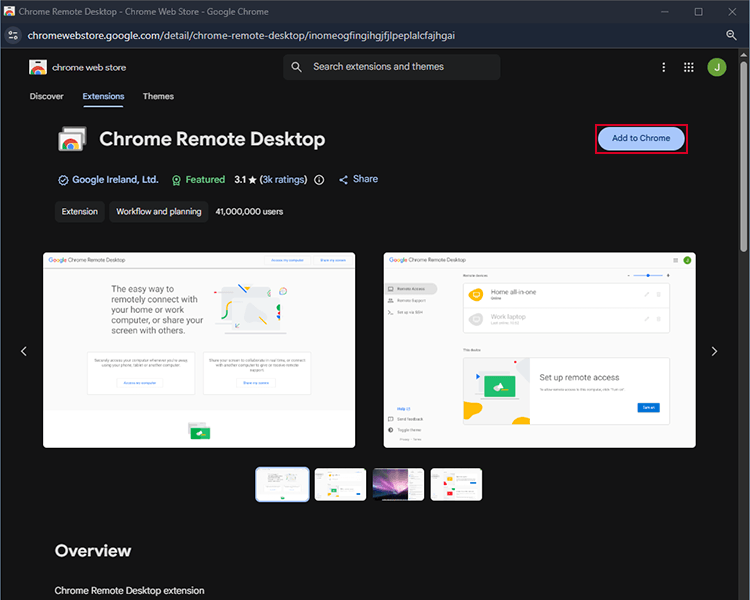
After logging in to your Google account in Chrome, you need to download Chrome Remote Desktop extension to start setting up remote access. This extension should be installed on both the host and client sides to set up remote access.
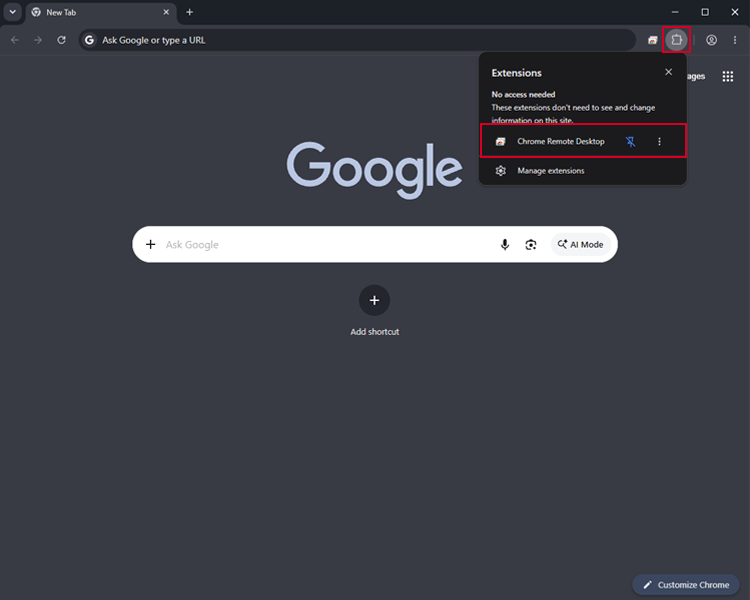
After installing the extension, you can find it in the extensions menu in the top-right corner of your browser. Click on it to open it.
Install Chrome Remote Desktop on Your Computer
When you open the Chrome Remote Desktop website, you’ll see a page with information about the service and two options: share your screen or access another computer. Since we’re setting up a new remote device, click Share my screen on the host computer.
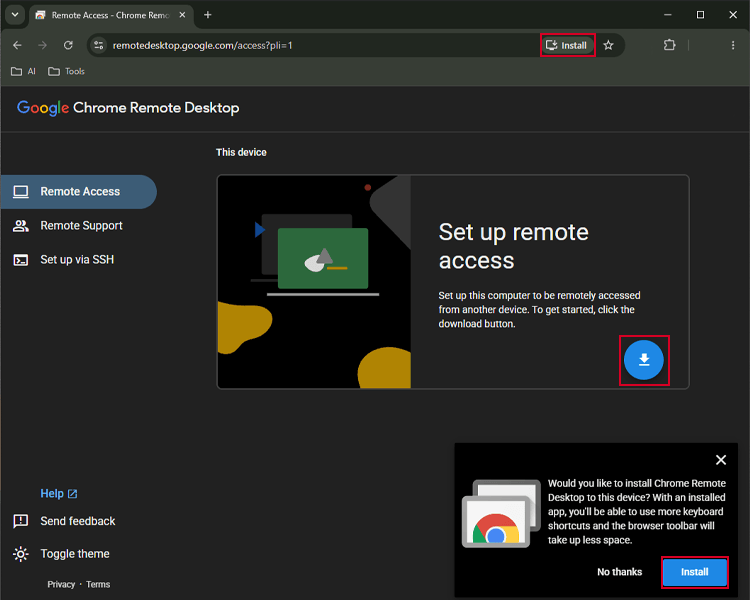
You may be prompted to download and install the Chrome Remote Desktop Host software. Allow the download and complete the installation on your system. If the pop-up didn’t open in the Remote Access tab, you can click the download button to download the host software.
Setup Chrome Remote Access
After clicking Install, follow the installation steps prompted by Chrome. Then, click Turn On in the Set up remote access section.
Set a Remote Access PIN
You’ll be asked to enter a name and PIN for the remote device. Choose a name, set a PIN, and click Next. Once the setup is complete, the remote desktop will be ready to use. You can connect to it anytime through a browser signed in to the same Google account.
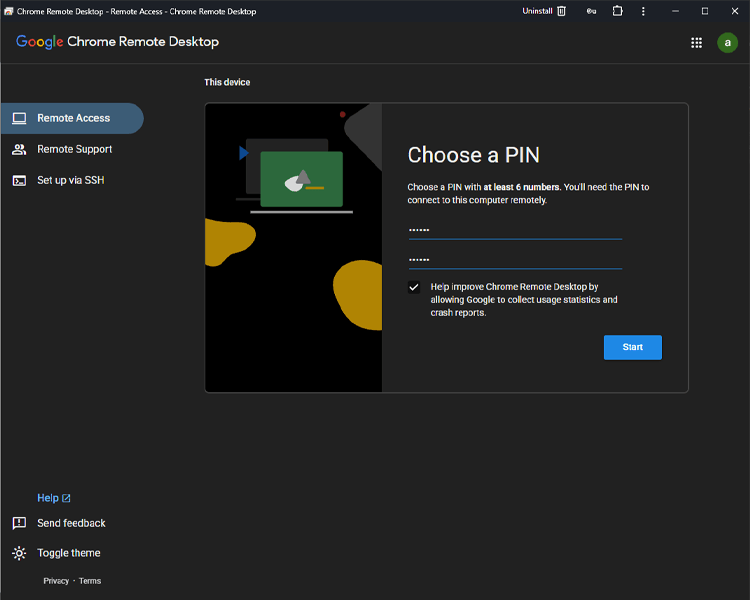
Note: The PIN must contain numbers only, so make sure you don’t enter any letters or special characters.
How to Use Google Chrome Remote Desktop
Using Chrome Remote Desktop is very simple. After setting it up, you can access the created remote session from every device that you have your Google account connected to. Using it is so simple too; it provides you with a simple sidebar while connecting to a remote session with several options.
Follow the sections below to get to know more about how you should control it.
Control the Remote Computer
After setup, when entering the Chrome Remote Desktop page, you will see the remote devices set up, click on the one you want to connect enter the PIN you’ve set for it previously. Then you can connect to it.
When you connect, the Windows login screen will appear. To continue, you need to press Ctrl + Alt + Delete. However, pressing this shortcut on your local computer will affect your own system instead of the remote Windows VPS.
To send it to the remote computer, open the Chrome Remote Desktop sidebar, scroll down to Press Ctrl + Alt + Delete, and click it.
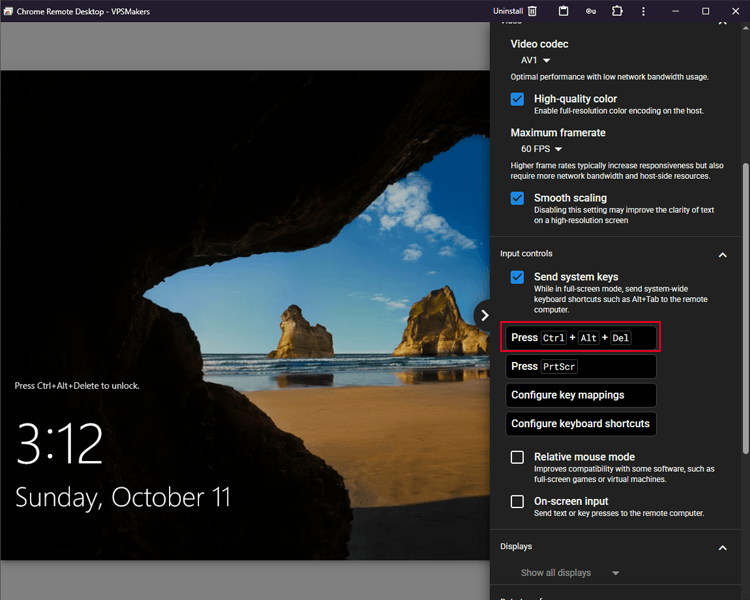
After connecting, you will be able to control the whole host computer as if you are sitting in front of it; you have access to its mouse, keyboard, files, applications, etc.
Your access level on the remote computer depends on the Windows user account you’re using to connect. This account can have administrator privileges or limited permissions.
If you want to grant remote access to other people without giving them full administrative control, you can create a separate standard user account on your Windows VPS and share access using that account.
Transfer Files Between Computers
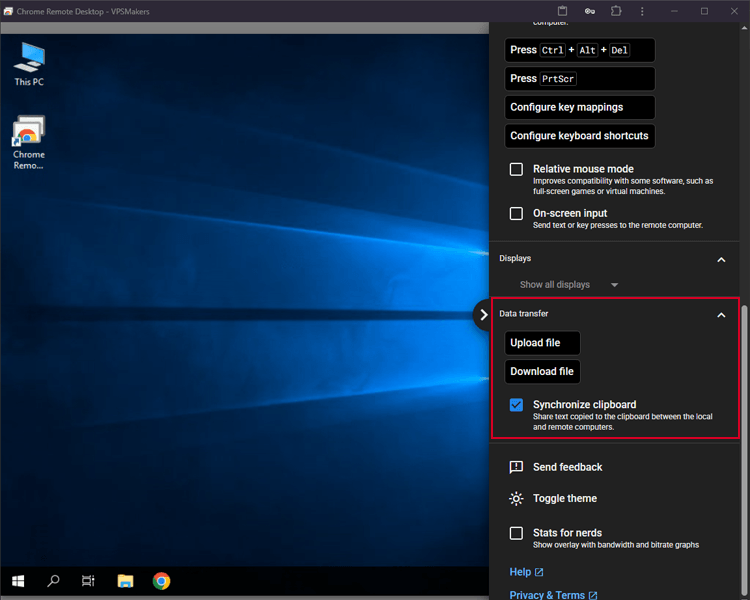
Chrome Remote Desktop, unlike a normal RDP connection, doesn’t support drag and drop or file copy, so it has built-in file transfer features. This feature lets you upload and download between your local device and the remote computer.
Open the session sidebar by clicking on the arrow icon on the right side of the window, scroll down, and look for the file transfer option. Select whether you want to download or upload a file to the remote computer, then choose the files you want to transfer.
Adjust Remote Session Settings
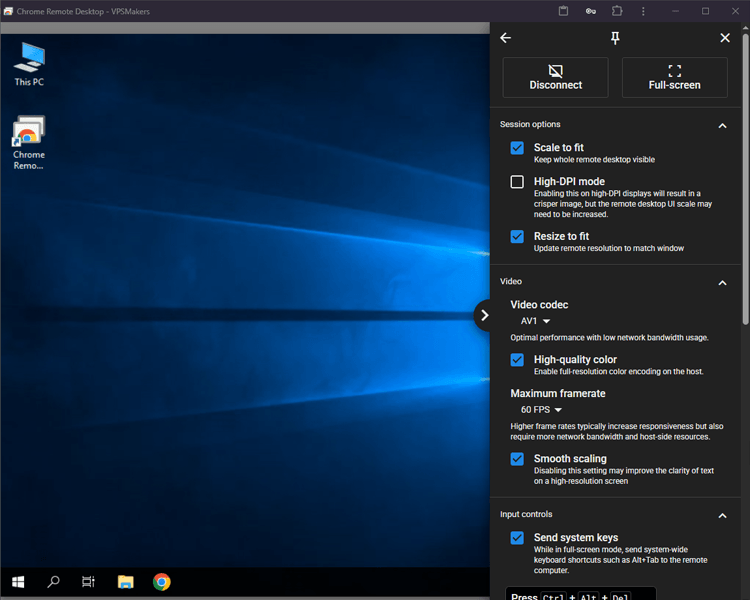
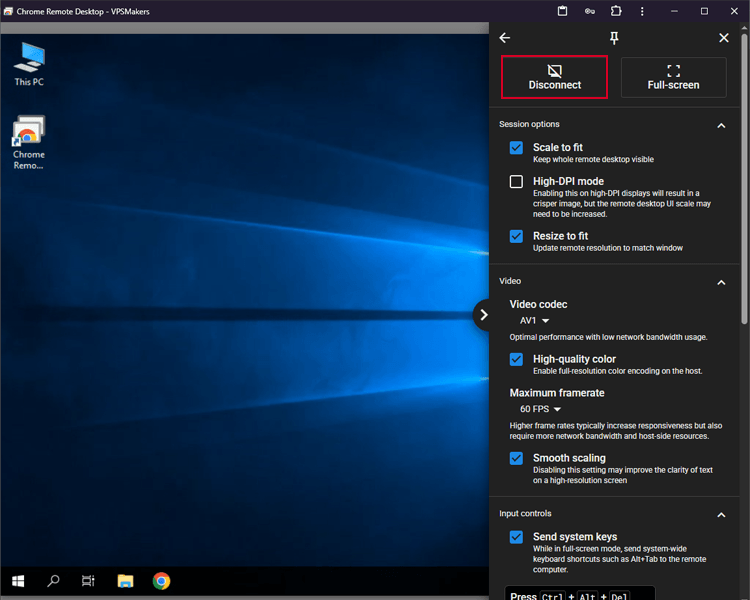
You can use the sidebar options to customize certain aspects of your remote session. Depending on your device and browser, available options may include changing the display resolution, switching between full-screen and windowedmode, or setting up key mapping and keyboard shortcuts.
These options help you customize your remote session for a more comfortable experience. For the recommended configuration, refer to the settings shown in the image below.
Disconnect From the Chrome Remote Desktop
When you’ve finished your work, you can disconnect from the remote session using the Disconnect option in the session menu or sidebar. This ends the current connection without shutting down the remote computer, so you can reconnect later when needed.
If you are using Windows on a VPS hosting, make sure you don’t shut down the remote server to be able to reconnect to it when required without requiring to turn the server on each time.
Troubleshooting Chrome Remote Desktop
Although Chrome Remote Desktop is generally easy to set up and use, sometimes you may encounter connection problems or performance issues. The following section covers some common problems and the steps you can take to resolve them.
Remote Computer Is Offline
If Chrome Remote Desktop shows that your remote computer is offline, first make sure your Windows VPS is powered on and has an active internet connection. Then check whether the Chrome Remote Desktop service is running properly on Windows.
You can also restart the remote computer and the Chrome Remote Desktop service and verify that remote access is enabled in the Chrome Remote Desktop settings.
Unable to Connect to the Remote Computer
If your remote computer appears online but you cannot connect to it, the issue can be related to the network, the Chrome Remote Desktop service, or your browser.
Ensure that the remote computer has access to the internet, but if the problem persists, check the VPS’s firewall and network security settings and make sure the 443 port is not blocked in the firewall.
Conclusion
With Chrome Remote Desktop, you can connect to a remote Windows computer or VPS, control its applications, transfer files, and adjust your session settings with just a few steps.
Just make sure remote access is enabled and your computer or VPS remains powered on so you can reconnect to it when needed.