How to Install Visual C++ Redistributable package on Windows Server?
Microsoft Visual C++ Redistributable is a set of runtime libraries and DLL files that applications built with Visual C++ rely on its shared components instead of including each library in their application individually. Without it, apps may fail to start or show DLL errors.
Installing the Visual C++ Redistributable package ensures both modern and legacy applications run correctly and smoothly.
There are many ways to install Visual C++ packages, and you need to select the method based on your needs.
1- All-in-one installation AIO (Recommended)
2- Manual download and GUI installation (Classic)
3- PowerShell installation
Install Visual C++ Redistributable package on Windows server
To start the installation, you need to have access to your Windows Server with administrator privileges. You can connect to your Windows server using RDP, or if you have it in a local machine in a VM environment, open it.
If you’re planning to purchase a fully optimized and professionally configured Windows VPS server, consider using our services for a reliable experience with on-demand support.
Visual C++ redistributable runtime all in one installation Windows VPS server
Server administrators commonly use an all-in-one installation to install all the required components needed for applications on a Windows server. It will install both X86 and X64 packages.
If you plan to install WAMP or install XAMPP web servers, this method is especially useful because these apps often requires visual C++ Redistributable package as a prerequisite during installation.
Download Visual C++ all-in-one package
Visual C++ all-in-one packages are not Microsoft’s official releases, and they are provided by other websites to save time for administrators to install the package at once on multiple Windows Servers. While it’s not an official Microsoft release, it’s totally safe to use.
Considering this, you can download Visual C++ an all-in-one package. To download the package, follow the steps below:
1- Click on the Download button
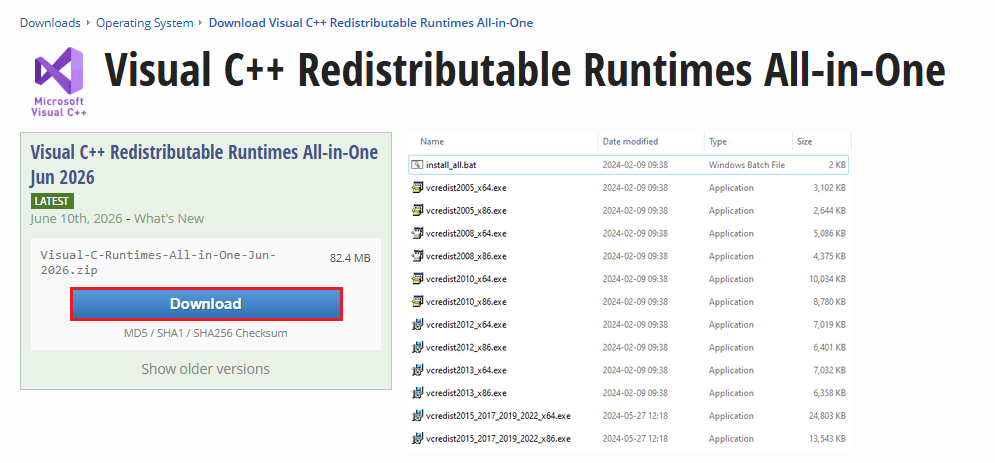
2- Select the server you want to download from:

Extract Visual C++ Compressed File
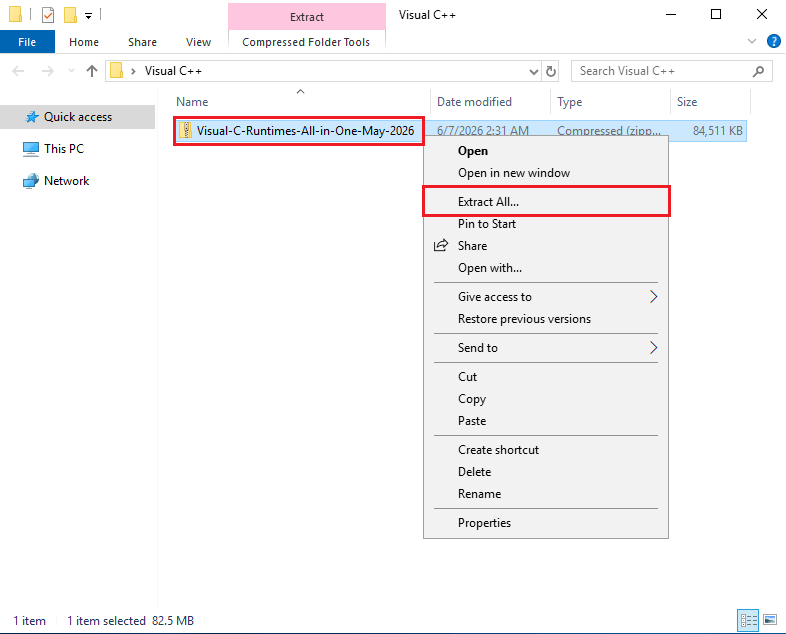
1. Find the file you downloaded; it should be located in the downloads folder of your Windows
2. Right-click on the desired file > Click Extract All
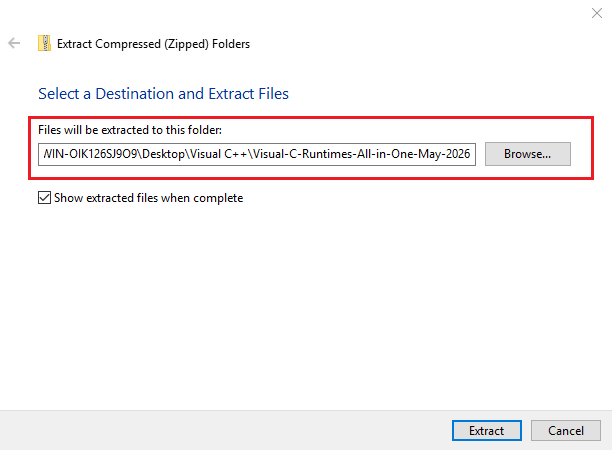
 3. Select a destination folder to extract the compressed file. Then click on Extract.
Install Visual C++ all in one package
After extracting, click on the “install_all” file to start the full installation.
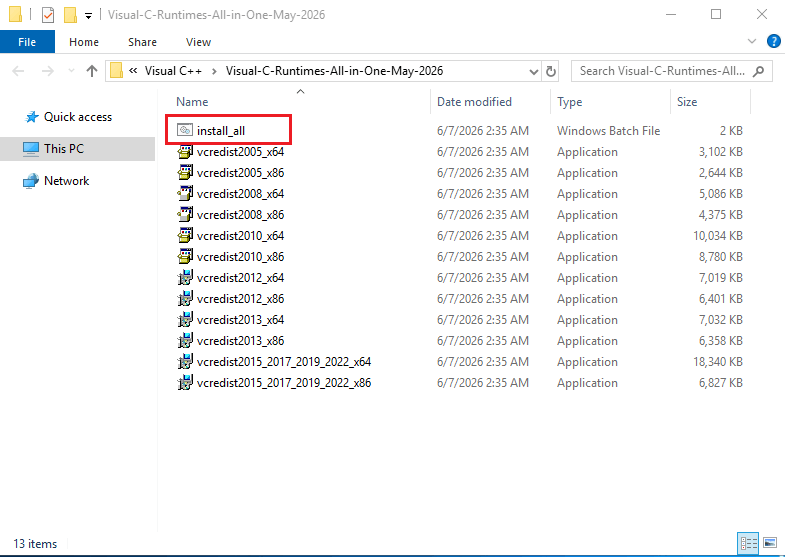
The installation is done, now you can check the installed files from the Control Panel > Programs> Programs and Features.
Install vcredist (Visual C++ redistributable) specific version for Windows
In this method, you need to go to Microsoft’s official website and manually download the package based on your needs and according to your CPU architecture, and install it.
Check CPU architecture
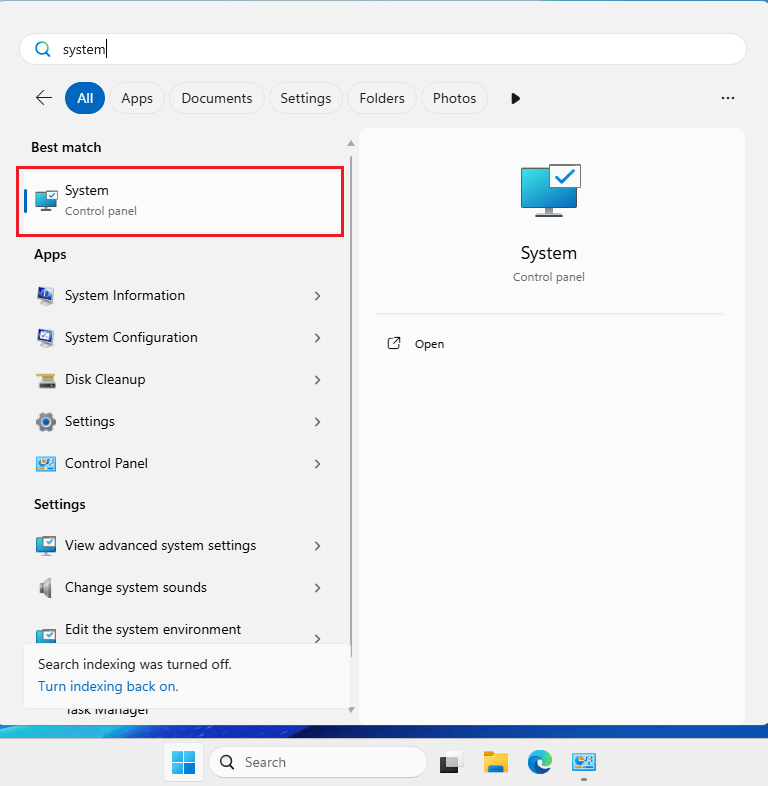
In the Start menu, search for System
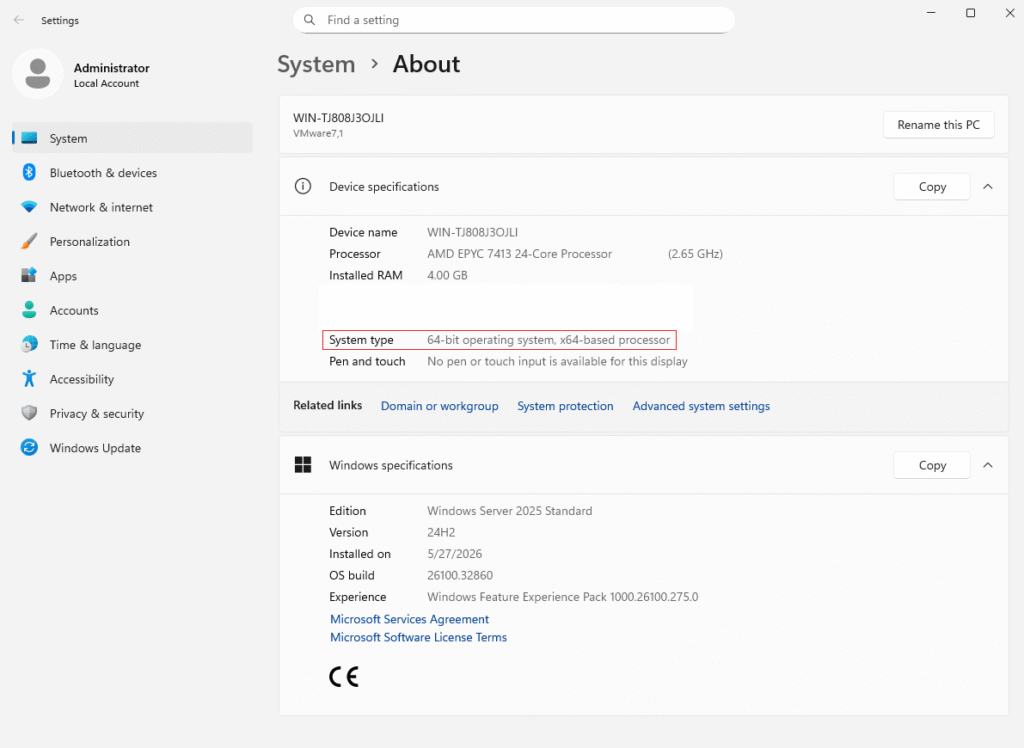
Here you will see your device specifications, including detailed Windows information and your CPU architecture.
Download the package
Now download the package you need according to your CPU architecture. Most of the new devices are using X64 (64-bit).
Now go to the Microsoft official download page and click on the Visual C++ package version you want.
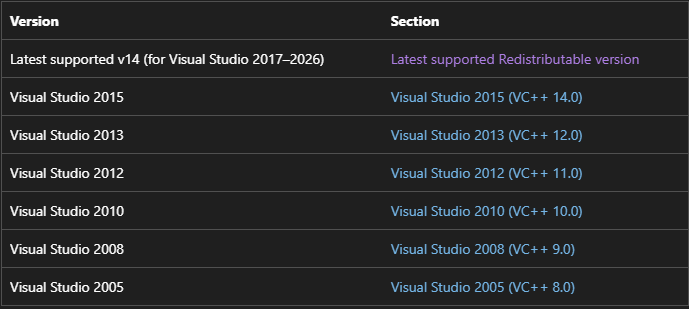
Select the Architecture your want.

Install Visual C++ 2015-2022 (latest version)
After downloading, locate the file you’ve downloaded and open it. Read the license terms and conditions, then enable the “I agree to the license terms and conditions” and click install.
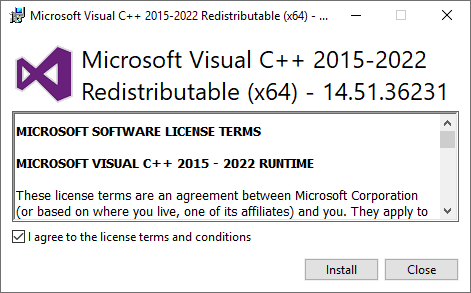
Now the installation will proceed. Once it is complete, you can verify whether the package is installed by checking the Control Panel.
Install Visual C++ with PowerShell on Windows Server
For server administrators and developers, installing VC++ Redistributions manually for multiple users and multiple versions can be time-consuming. Using PowerShell, you can automate the installation process and ensure that all required packages are installed correctly.
In PowerShell, you can download and run the installer in silent mode by including the /quiet argument in your command, and you can set it to norestart to avoid restarting after installation with the /norestart argument.
Create a temporary directory
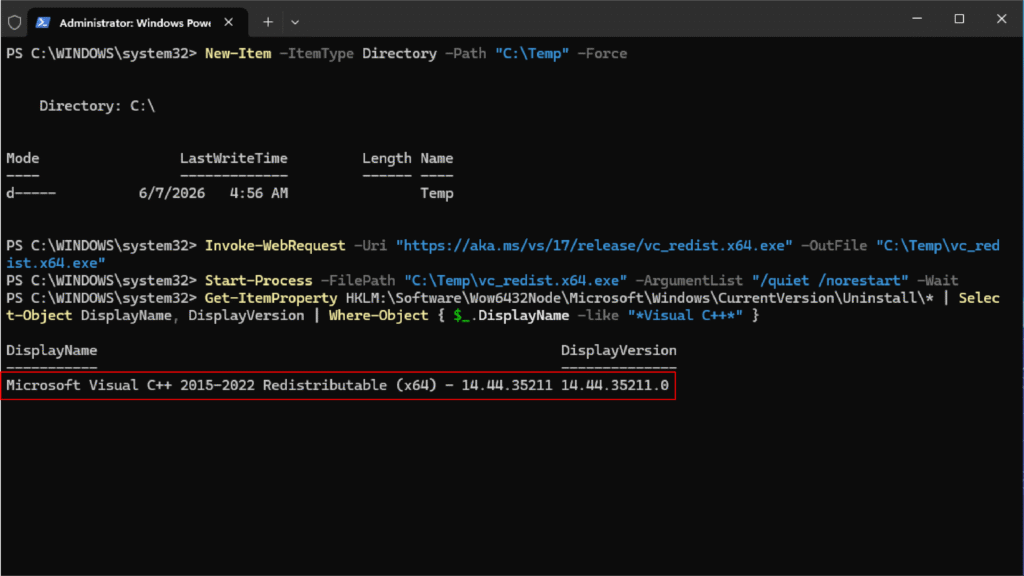
New-Item -ItemType Directory -Path "C:\Temp" -Force
Download both X64 and X86 files:
X64:
Invoke-WebRequest -Uri "https://aka.ms/vs/17/release/vc_redist.x64.exe" -OutFile "C:\Temp\vc_redist.x64.exe"
X86:
Invoke-WebRequest -Uri "https://aka.ms/vs/17/release/vc_redist.x86.exe" -OutFile "C:\Temp\vc_redist.x86.exe"
These commands will download the latest version – Visual C++ Redistributable (2015 – 2026).
Install the downloaded packages silently
Install X64 (64bit) version:
Start-Process -FilePath "C:\Temp\vc_redist.x64.exe" -ArgumentList "/quiet /norestart" -Wait
Install X86 (32bit) version:
Start-Process -FilePath "C:\Temp\vc_redist.x86.exe" -ArgumentList "/quiet /norestart" -Wait
Note: Some older applications may require the x86 (32-bit) version. You can still install and run it even if your CPU architecture is x64.
How to check the installed Visual C++ Redistributable on Windows Server?
You can check which versions of the Visual C++ Redistributable are installed on your system using two different methods: through the Control Panel or by using PowerShell commands.
Each method provides a quick way to view installed packages and their versions. Follow the steps below to learn how to use both approaches.
Check Visual C++ Version with Control Panel
Click on Start on your taskbar or press the Windows button on your keyboard. Then search for “control panel“.
In the control panel, go to Programs -> Programs and features
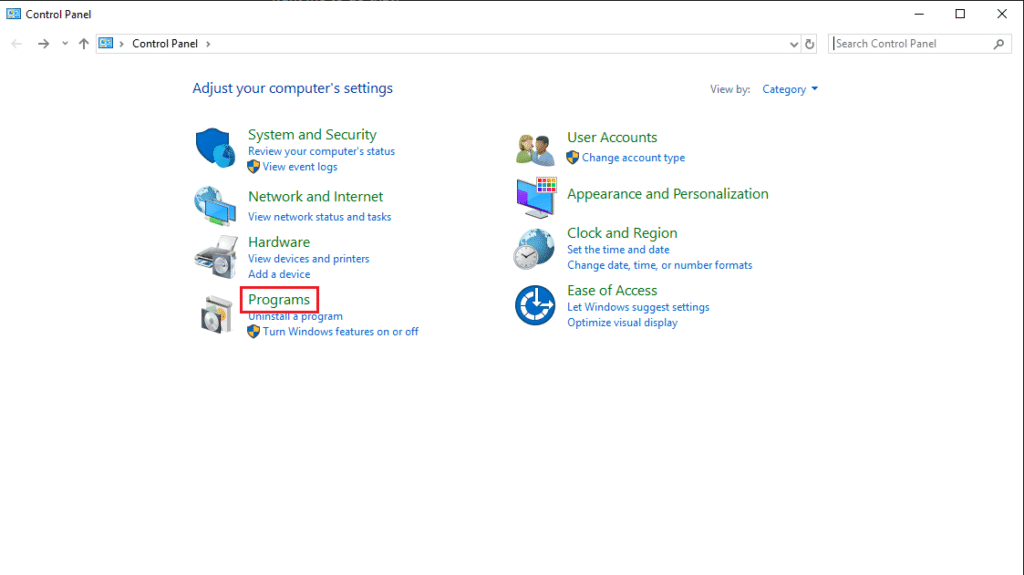
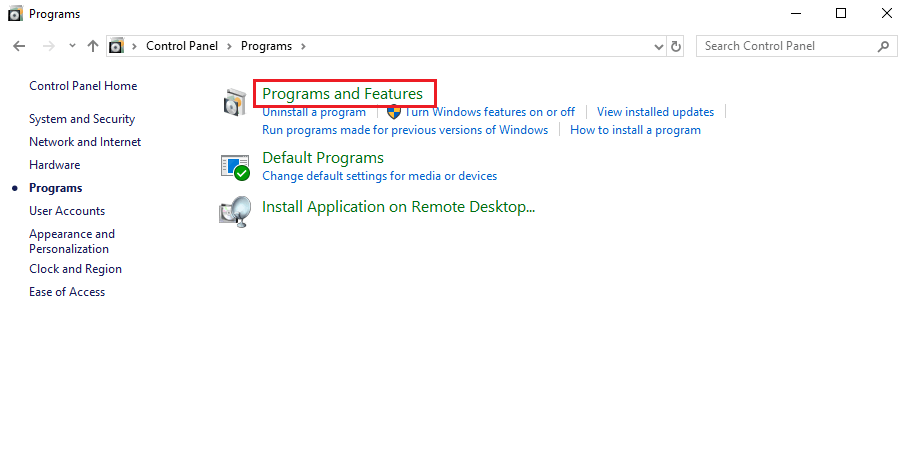
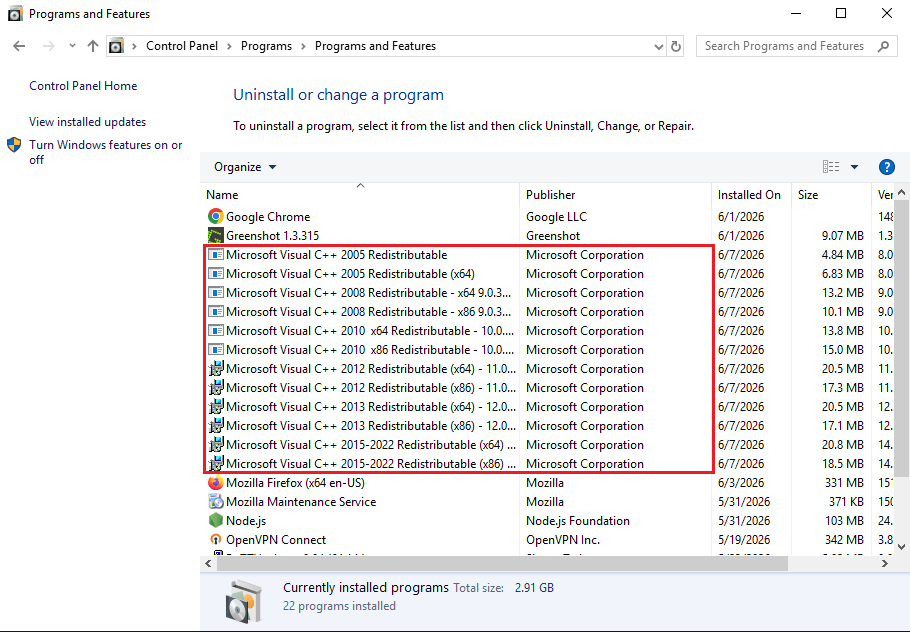
Here you will see a list of all applications installed on your device, and check for Visual C++ redistributables.
Note: If you wanted to uninstall it too, you can easily uninstall it by clicking on the specific version and selecting the uninstall option.
Check Visual C++ Version with PowerShell
Running this command in PowerShell will show the installed Visual C++ versions on your device.
Get-ItemProperty HKLM:\Software\Wow6432Node\Microsoft\Windows\CurrentVersion\Uninstall\* | Select-Object DisplayName, DisplayVersion | Where-Object { $_.DisplayName -like "*Visual C++*" }
Why is Visual C++ redistributable required?
The Visual C++ redistributable package contains essential components and libraries needed for applications built with Microsoft Visual C++.
Many programs, instead of including each library and function they need in their application, use the packages and libraries provided by vcredist, which,
If the correct Visual C++ Redistributable package is not installed for an application, it may fail to launch or display errors such as missing DLL files. To avoid these issues, make sure to install the appropriate version based on your application’s requirements by following the steps provided.
Visual C++ supported Windows server versions
Visual C++ redistributable package comes with a wide range of Windows server versions support, including Windows Server 2008 to 2025.
If you need more detailed information, you can visit Microsoft documentation, where you’ll find comprehensive documentation, release notes, and additional guidance about Visual C++ Redistributable packages.
Summery
In this guide, we showed how to install Visual C++ on Windows Server step by step. Manually by downloading individual files from Microsoft and installing them. Installed it using all-in-one packages and with PowerShell. So your apps have all the required libraries and run without errors.
I hope this guide has helped you solve your problems, and if you encounter any problems, please let us know in the comments.

The Author Robert Smite
Hello! I'm Robert, specializing in virtual servers and cloud technology. With expertise in managing and optimizing virtual servers, my focus is on delivering understandable and practical content in this field. My goal is to enhance knowledge and assist individuals in selecting the best virtual services for their needs.
More from Robert Smite