How to Install Chrome on Ubuntu 22.04?
Google Chrome is a feature-rich web browser favored by various operating systems, including Linux. Although Chrome is not available in the software centers of Ubuntu, it is possible to install Chrome on Ubuntu 22.04 using the terminal.
In this tutorial, you will learn how you can install Google Chrome manually, with the snap package manager, and using a GUI solution. This helps you to install Chrome on your Linux VPS or dedicated Linux device.
Install Google Chrome on Ubuntu Using Terminal
In this method, you need to download Google Chrome deb package file from the official Google Chrome website, which ensures you get the latest stable released version.
Update Linux System Packages
Before running the installation command, make sure you update your Ubuntu packages to ensure that all packages needed for installing Google Chrome are up to date.
sudo apt update
Download Official Google Chrome deb Package
To download the latest stable version of Chrome; use the following command:
wget https://dl.google.com/linux/direct/google-chrome-stable_current_amd64.deb
Install Chrome deb Package
Once the download is finished, you can run this command in the directory you’ve downloaded to install Chrome and its dependencies:
sudo apt install ./google-chrome-stable_current_amd64.deb
During the installation, APT will prompt you with a message showing Chrome will use this much space and ask you for confirmation. Type Y and press Enter to continue.
Note: Using apt install instead of dpkg -i is recommended, as it will also automatically install the dependencies required by the browser.
If you also used the sudo dpkg -i google-chrome-stable_current_amd64.deb command to install the Chrome deb file, you should use the following command to fix the dependencies:
sudo apt install -f
Launch Google Chrome
After the installation is complete, if you are using Ubuntu with a graphical interface on a local machine, you can run this command in the terminal to open Chrome:
google-chrome
But if you’ve installed Chrome on an Ubuntu Server, you will get this error while running Chrome:
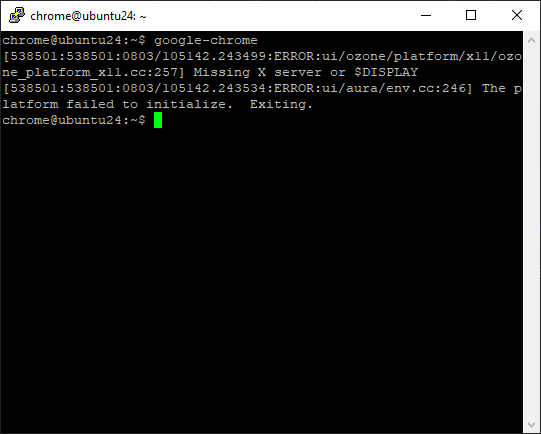
This error occurs because Chrome tries to run a graphical interface, which in most server enviornment its not installed by default, but you can fix this issue by installing gnome on Ubuntu Server.
Or you can use Chrome as a headless browser, which is mostly used for web automation, web scraping, testing websites, etc. For testing it you can run this command:
google-chrome --headless --dump-dom https://example.com
Replace “https://example.com” with a real URL. It will give you the website HTML as output.
Install Chrome With Snap on Ubuntu
Snap packages are containerized software packages that work across different Linux distributions. The snap version of Chrome is called Chromium, which is an open source version of Chrome.
The Chromium project is developed by Google and the open source community. It is the open source version of Google Chrome, meaning all of its code is available for everyone to access and review. Many browsers are built on Chromium, including Microsoft Edge, Brave, and Vivaldi.
Check Snap Version on Ubuntu
In most modern versions of Ubuntu, the snap package is installed by default, but in some versions it’s missing. Check if you have it installed or not by running the command below:
snap --version
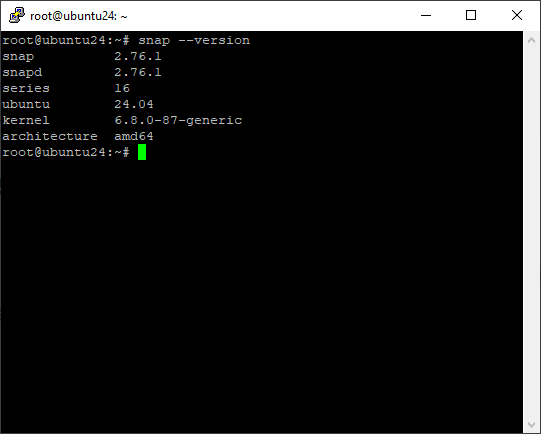
If you see output like the image above, it means snap is installed; otherwise, run the commands below to install it:
sudo apt update
sudo apt install snapd
sudo systemctl enable --now snapd
Install Chromium with Snap Package on Ubuntu
After verifying that snap is installed on your system, run this command to install Chromium on your Ubuntu server using the snap package, and wait for it to be installed.
sudo snap install chromium
Note: Using snap install chrome is not correct when installing Chrome through the Snap package manager because the package available in Snap is named chromium, not chrome.
Run Chromium from Terminal
Like Chrome, you can run Chromium from the terminal too, but if you don’t have a GUI installed on your server, you will get an error again.
If you GUI installed, run this command:
snap run chromium
Otherwise, run the Chrome headless version:
chromium --headless
Install Google Chrome on Ubuntu Via GUI
Using the graphical interface, you can download the Chrome installation file, open it with Ubuntu’s Software Installer, and simply install it, just like installing other software on Windows or macOS.
This method is not only fast and easy but also very suitable for new Ubuntu users as it doesn’t require learning terminal commands.
Open Google Chrome Official Website
Go to the Google Chrome download page and select the “Download Chrome” button. Select the “64-bit .deb (for Debian/Ubuntu)” option and confirm the download.
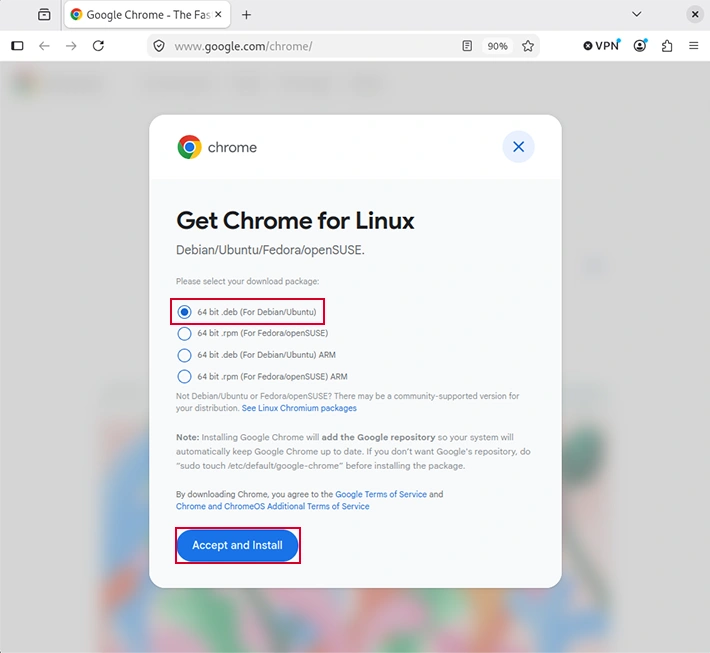
Then, in your terminal, change the directory where the download package is stored by typing the following command:
cd ~/Downloads
Command to Install Chrome on Ubuntu 22.04
Now, install the Chrome package using the dpkg or apt command:
sudo dpkg -i google-chrome-stable_current_amd64.deb
Or
sudo apt install ./google-chrome-stable_current_amd64.deb
Launch Chrome on Ubuntu
Enter “Google Chrome” into the search bar and click on its icon to start the program. Alternatively, you can launch the stable version of Google Chrome from the command line by typing:
google-chrome-stable
Upon launching Google Chrome for the first time, a window will pop up asking you to set Chrome as your default browser and to choose whether to send usage and crash statistics reports to Google. Select your preferred options and click “OK” to continue.
Once the default Chrome welcome page appears, sign in to Chrome using your Google account, customize browser settings and install extensions to enhance your browsing experience.
How to Uninstall Google Chrome in Ubuntu
Uninstalling Chrome from Ubuntu involves multiple methods depending on how you’ve installed it previously. Below you can see the method for uninstalling for each case.
Remove Chrome but Keep User Data
If you want to remove Google Chrome while keeping your user data (such as bookmarks, history, and settings), use the following command:
sudo apt remove google-chrome-stable
This command will uninstall Chrome but leave your configuration files intact.
Remove Chrome Installed via .deb File
If you’ve installed Chrome manually using a downloaded .deb file, you can remove it using the commands below:
sudo dpkg -r google-chrome-stable

sudo apt autoremove
The autoremove command helps to remove every unneeded dependency file too.
Remove Chrome Completely
If you want to completely remove Google Chrome from your device, including all configuration files and anything else, use the command below:
sudo apt purge google-chrome-stable

sudo apt autoremove
This command ensures that there are no leftover files on your system.
Remove Chromium Installed via Snap
If you’ve installed Chromium, the free and open-source version of Chrome using the snap package, use the commands below to remove it fully from your system:
sudo snap remove chromium
Verify Chrome Has Been Removed
To check whether Chrome has been removed successfully after running the previous command, run the command below:
which google-chrome
If no output is returned, it means Chrome has been successfully removed from your system.
Conclusion
Google Chrome is a popular and fast web browser that is valued for its speed and security. However, since it’s not open source, it’s not part of Ubuntu’s standard software repositories. But instead, you can use an open source solution like Chromium, or you can install Firefox instead.
In this article, you’ve learned how to install Chrome in Ubuntu 22.04 using multiple methods, including installing with the snap package, deb file, and GUI Installation.
FAQ
How much disk space does Chrome .deb installation require?
The .deb package is approximately 80MB, and Chrome requires about 250-300MB of installed space, plus additional space for user profiles and cache.
Can I install Chrome without sudo privileges?
No, installing .deb packages requires administrator privileges. However, you can extract and run a portable version manually (not recommended for security reasons).
The download URL isn’t working. Are there alternative sources?
Yes, use this command:
wget https://dl.google.com/linux/chrome/deb/pool/main/g/google-chrome-stable/google-chrome-stable_current_amd64.deb
The installation says “package architecture (i386) does not match system (amd64)”. What’s wrong?
You downloaded the 32-bit version by mistake. Make sure you download the amd64.deb file for 64-bit Ubuntu systems.
Does Chrome auto-update when installed via .deb package?
No, .deb installations require manual updates. You need to download and install the latest .deb file periodically, or set up Google’s APT repository for automatic updates.

The Author Robert Smite
Hello! I'm Robert, specializing in virtual servers and cloud technology. With expertise in managing and optimizing virtual servers, my focus is on delivering understandable and practical content in this field. My goal is to enhance knowledge and assist individuals in selecting the best virtual services for their needs.
More from Robert Smite