
PHP can run on a Windows VPS server using IIS; this allows you to host PHP-based websites and applications without installing any third-party web server software. However, IIS needs to be configured to process PHP files correctly.
To host PHP websites, most developers use a Linux VPS, but if you already have a Windows VPS, you can host your websites with Internet Information Services (IIS).
In this guide, we’ll walk you through installing PHP on Windows Server and configuring IIS to run PHP applications. You’ll also learn how to install the PHP Manager extension for IIS, which provides a graphical interface for managing PHP settings and configurations without manually editing configuration files.
Note:
Since IIS has not undergone any major changes across supported Windows Server versions, you can use this tutorial to install PHP regardless of which version you are running, from older releases like Windows Server 2012 to the latest versions.
Install IIS Web Server In Windows Server
First, you need to set up IIS Web Server on your Windows VPS Server to be able to install PHP on it. Installing IIS is straightforward; you can install it through Server Manager on Windows Server or using command-line tools like PowerShell. If you don’t have IIS installed, you can follow this guide to install it on your Windows Server.
Install PHP on IIS Windows Server 2022
After setting up IIS on your Windows Server, the next step is to download the latest PHP version or the specific version you want to install.
Download PHP For Windows Server
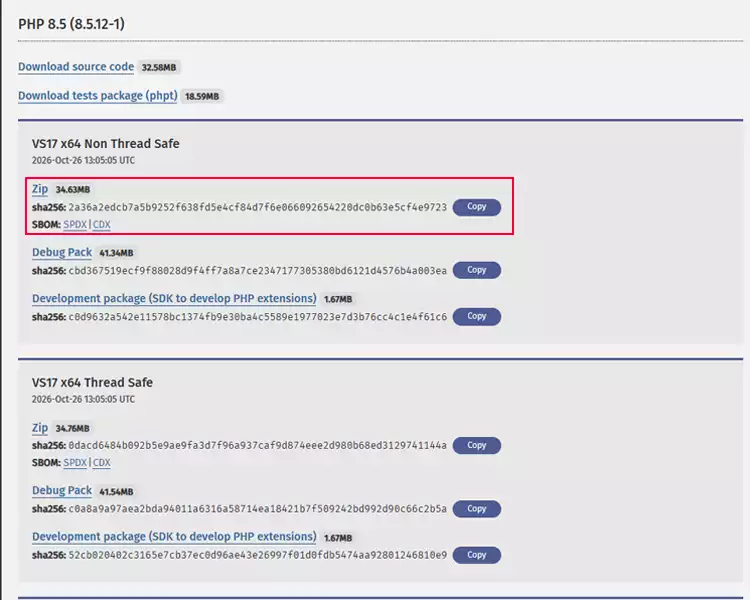
To download PHP, visit the official PHP website and select the version you want to install. Make sure to download the Windows version that matches your server configuration, and make sure to download the non-thread-safe version because you are going to install it on IIS.
The Thread Safe (TS) version of PHP is designed for multi-threaded environments and is typically used with Apache. For Windows Server running IIS, download the Non-Thread Safe (NTS) version, as IIS uses FastCGI to run PHP in separate processes. If you download the TS version, you generally won’t notice any differences when running PHP with IIS FastCGI compared to the NTS version.
Security Recommendation:
Always download the latest stable PHP release that is compatible with your applications. Older PHP versions may contain security vulnerabilities, including critical flaws such as CVE-2026-109618 and CVE-2026-109619, reported in November 2026. After installation, make sure to keep PHP and all installed applications up to date with the latest security patches.
Extract PHP ZIP File in Windows
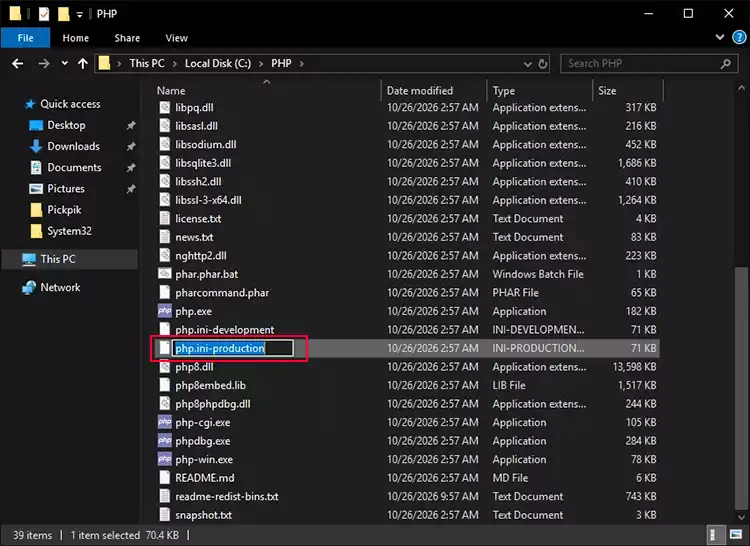
Once the download is complete, locate the ZIP file and extract its contents to a directory on your Windows Server. It’s recommended to create a dedicated folder, such as C:\PHP and extract the files there.
After extraction, locate the php.ini-production file, make a copy of it, and rename the copy to php.ini.
Configure IIS to Run PHP Using FastCGI
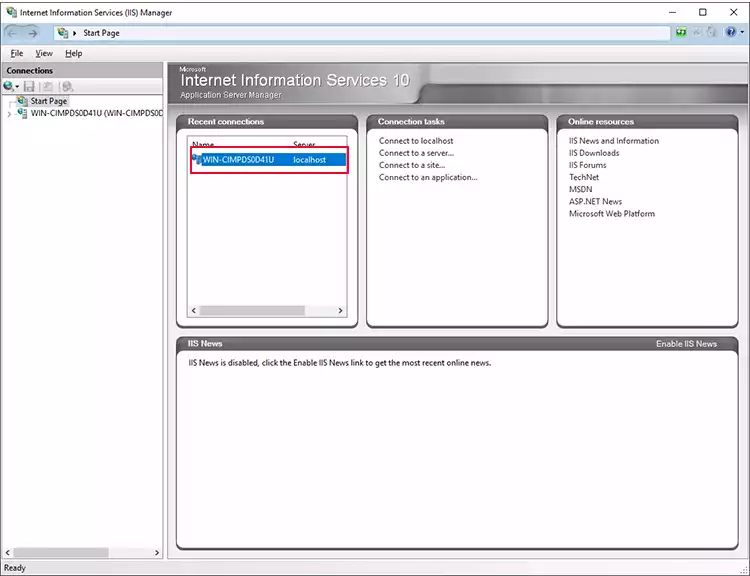
Next, to configure IIS, first open Internet Information Services (IIS) Manager on your Windows server by searching for IIS Manager in the Start menu or press Win + R and type inetmgr then press Enter.
Open IIS Server Settings:
Then, on the opening page, click on your server name to open its settings:
Open Handler Mapping
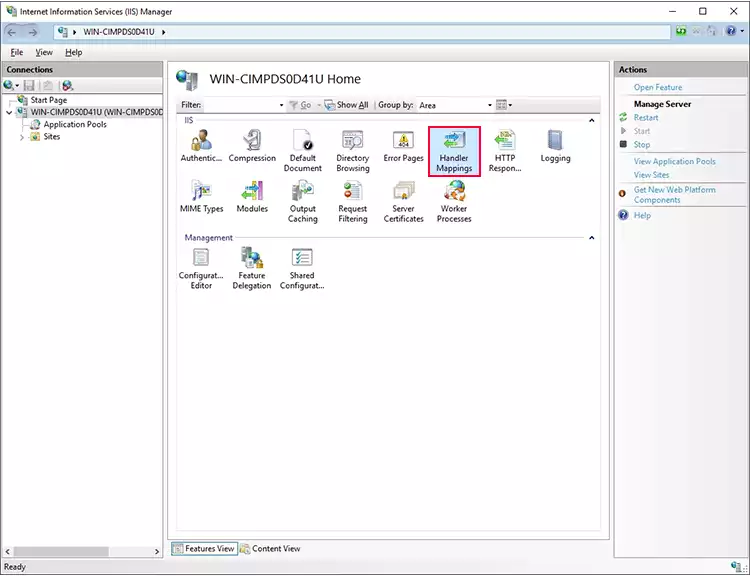
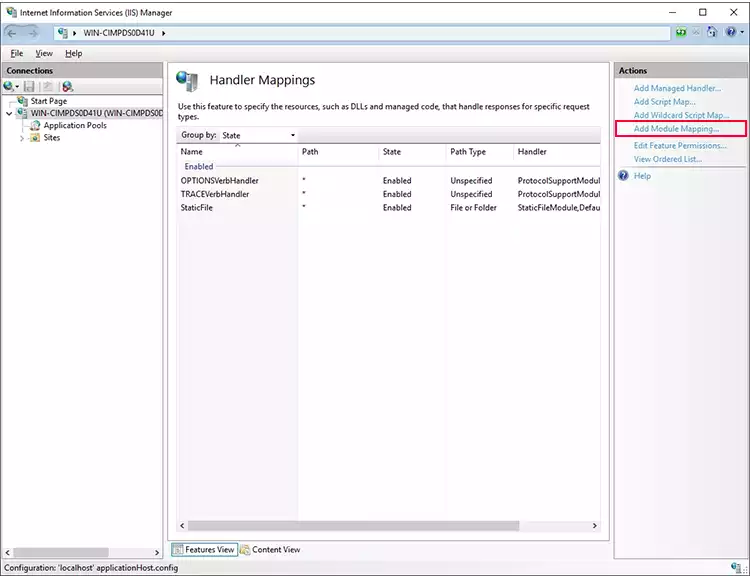
In the middle pane, double-click Handler Mappings to access the IIS configuration for handling different file types.
Add a Module Mapping
In the Actions pane on the right, click Add Module Mapping… to create a new mapping for PHP files.
Configure the PHP Handler
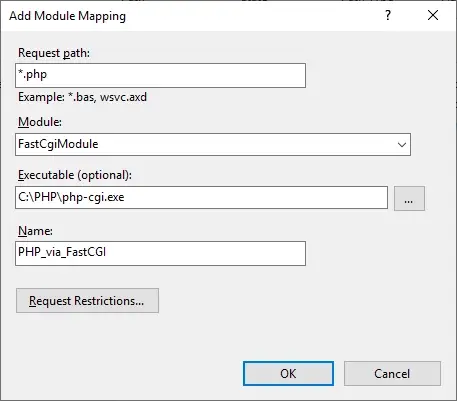
After clicking Add Module Mapping, IIS opens a window with several fields. Enter the following values:
| Field | Value |
|---|---|
| Request Path | *.php |
| Module | FastCgiModule |
| Executable (optional) | C:\PHP\php-cgi.exe |
| Name | PHP_via_FastCGI |
Don’t See FastCGIModule in Module Dropdown?
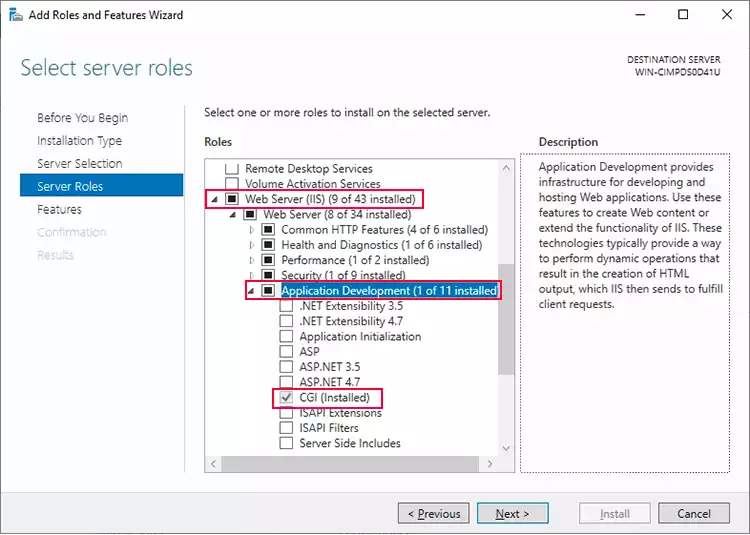
If you don’t see FastCGIModule in the Module dropdown list, it means the CGI feature is not installed in IIS. To install it, follow our IIS installation guide. When selecting the Web Server (IIS) role, expand Application Development and make sure to enable CGI before proceeding with the installation. Instead, you can run the following command in PowerShell with administrative privileges.
Run this code in PowerShell instead:
Install-WindowsFeature Web-CGINote:
If you later change the PHP installation directory after configuring the IIS module mapping, PHP will stop working until you update the module mapping. So, if you change the PHP folder you’ve created, C:\PHP you should change the module mapping setting again.
Install PHP Manager for IIS on Windows Server
After installing PHP on IIS, you can manage PHP settings and configurations manually by editing the configuration files, or use PHP Manager for IIS to manage them through a graphical interface.
PHP Manager for IIS is an extension tool, so follow the steps below to download and install it on your IIS web server.
Download PHP Manager For IIS
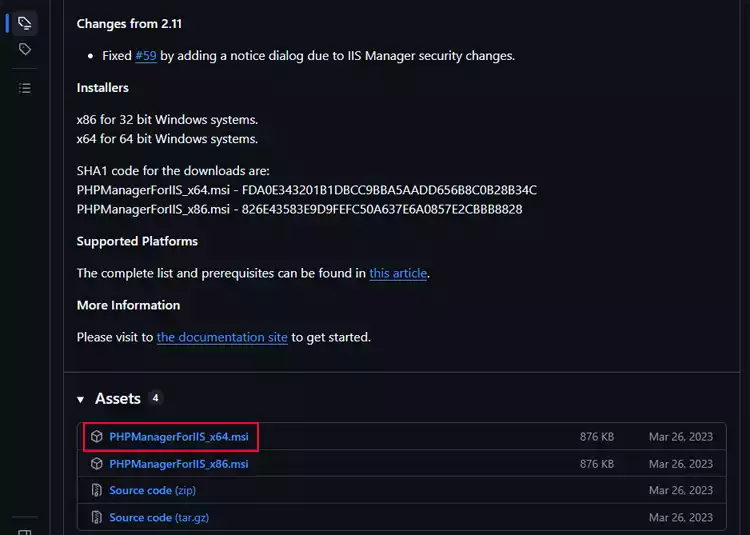
To download the PHP Manager, you can download it from IIS’s official website, but the download mechanism on the official website is not working correctly, so you can download it from its GitHub repository directly using the link below:
Install PHP Manager On Windows Server
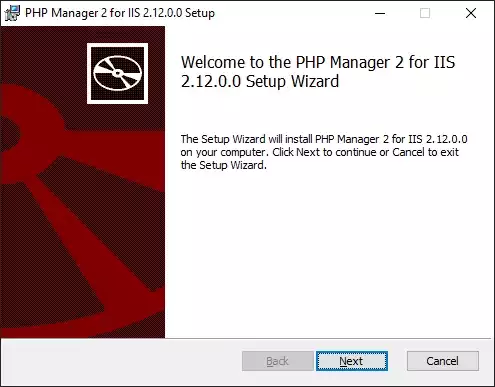
Once the download is complete, locate the installer in your Windows Downloads folder and run it. Follow the installation wizard by clicking Next, then click Install to complete the installation.
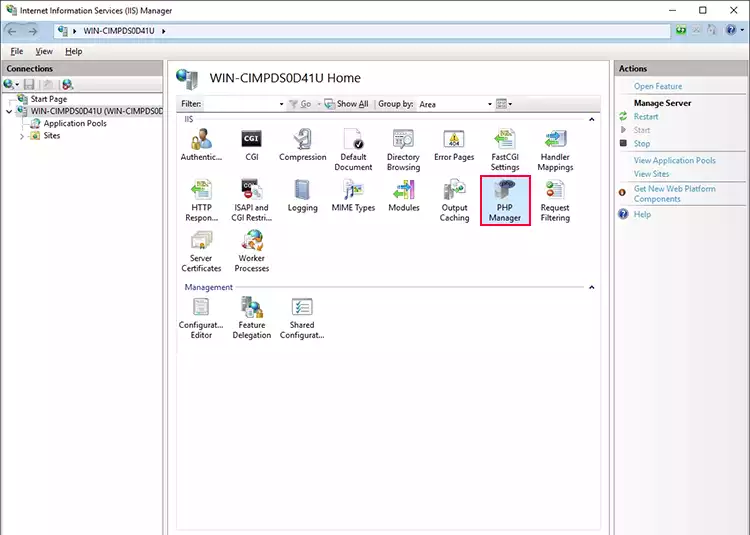
Once the installation is complete, open IIS Manager. You should now see the PHP Manager option in the Features View. Double-click it to open PHP Manager.
Note:
If you didn’t rename php.ini-production to php.ini during the PHP installation steps, PHP Manager may not recognize your PHP installation correctly. Go back to your PHP installation directory, make a copy of php.ini-production, and rename the copy to php.ini.
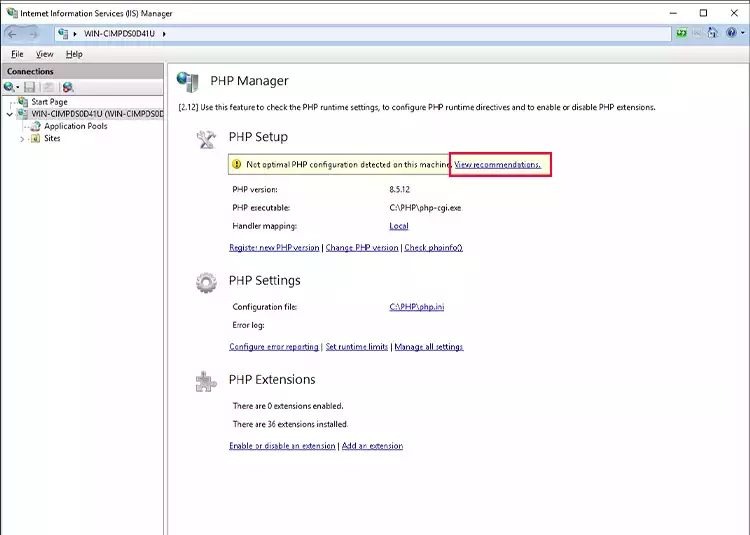
On this page, you may see a warning message stating, “Not optimal PHP configuration detected on this machine.” Click View Recommendations to review the suggested changes.
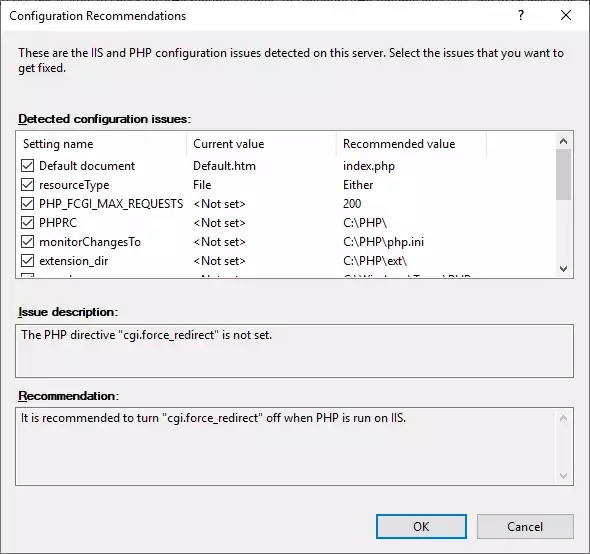
Select the recommended options you want to apply and click OK to update the PHP configuration.
Now you can manage the PHP configurations by clicking on Manage All PHP and configuring your server as you want.
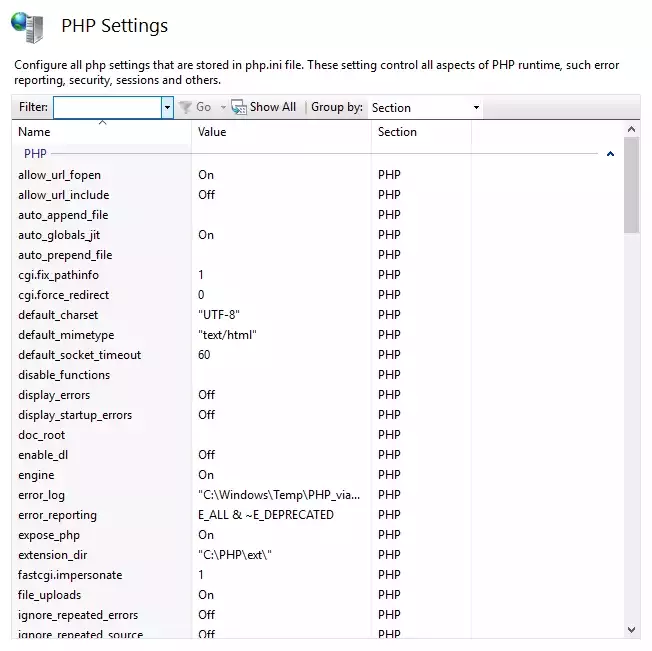
Test PHP installation on Windows Server
To test PHP, you can upload your PHP website files to C:\inetpub\wwwroot and visit http://localhost/your_web_folder/ in your browser.
Alternatively, open Notepad on your Windows Server and paste the following code:
<?php
echo "PHP installed successfully";
?>
Click File → Save As and save the file as check.php in the C:\inetpub\wwwroot directory. Then open http://localhost/check.php in your browser to test PHP.
Note:
If you encounter the error “C:\PHP\php-cgi.exe – The FastCGI process exited unexpectedly,” the issue may be caused by an incompatible version of the Microsoft Visual C++ Redistributable installed on your server. PHP requires a compatible runtime version to run correctly.
To learn how you can install the Visual C++ Redistributable, you can follow this guide:
How to Install Visual C++ Redistributable package on Windows Server?
Summary
PHP can run on Windows Server using third-party web servers or Internet Information Services (IIS), allowing you to host PHP-based websites and applications on your Windows VPS.
In this guide, we’ve walked you through downloading and installing PHP on a Windows Server VPS, configuring it to work with IIS using FastCGI, installing the PHP Manager extension, and testing your PHP installation to make sure everything is working correctly.