
Docker installation on CentOS distributions has several methods, including installing with a shell script, RPM packages, and the Docker repository itself. Running Docker for some projects requires a stable connection on secure infrastructure to give you the best experience.
To run projects easily on Docker, it’s better to use a CentOS system with enough resources and a stable network connection to make sure the project you are running does not experience downtime. If you want to run dockerized project on CentOS you can use a VPS which is available in our Website.

The methods for installing Docker are:
Method 1: Install Docker using the RPM repo on CentOS.
Method 2: Install Docker from the RPM package on the CentOS server.
Method 3: Install Docker with a shell script on CentOS Linux.
Docker works on CentOS Stream 9 and 10. It needs at least 2 GB of RAM, 1 CPU core, and 2 GB of free disk space to install. These are the basic needs for Docker. If you want to run many containers or heavy tasks, you will need more CPU, memory, and storage depending on what you are doing.
Configure DNS Server on CentOS
To update your CentOS packages and download any other package first you need to configure your system’s DNS to make sure you won’t face any connection problems later in setup process.
Run the command below to list the NICs (Network Interface Controllers) of your server to find the Ethernet name you are using.
nmcli connection showAfter listing the network interfaces, find the main one that you are using and take not of its device name. Then you need to configure the DNS server with the command below, replace the ens192 with your network interface name.
sudo nmcli connection modify ens192 ipv4.dns "8.8.8.8 8.8.4.4"
sudo nmcli connection modify ens192 ipv4.ignore-auto-dns yes
Next, to apply the DNS server configuration, you have to reboot the server to apply the DNS server settings:
sudo rebootAfter rebooting, use the command below to verify the DNS configuration:
nmcli device show | grep DNSYou should see the DNS servers 8.8.8.8 and 8.8.4.4 set up on your NIC.
Update Packages of CentOS 9 Stream
Now, to install the latest available version of Docker, you have to update your CentOS repository package database. To update them, run the command below.
sudo dnf check-updateIf you want to learn more about updating and upgrading packages on CentOS and other Linux distributions, you can follow our dedicated tutorial for this purpose:
Install Docker Using RPM Repository on CentOS
To install Docker without any issues or errors, it’s better to use this methods it uses the RPM repository to install the docker and it has the most compatibility.
Set up DNF Repository on CentOS
First, you need to install the dnf plugin for managing dnf external repos.
To install the DNF plugin, use the command below:
sudo dnf -y install dnf-plugins-coreAdd Docker Repository to dnf
Then you have to add the official Docker repo. By default, you don’t have a Docker repo; use this command:
sudo dnf config-manager --add-repo https://download.docker.com/linux/centos/docker-ce.repoInstall Docker Latest Version
If you want to install the latest available Docker packages without specifying a version, you can use the package manager to automatically fetch and install the newest stable releases from the Docker repository.
This method ensures you always get the most up-to-date features, security patches, and improvements for Docker Engine and its related tools. Run the command below:
sudo dnf install docker-ce docker-ce-cli containerd.io docker-buildx-plugin docker-compose-plugin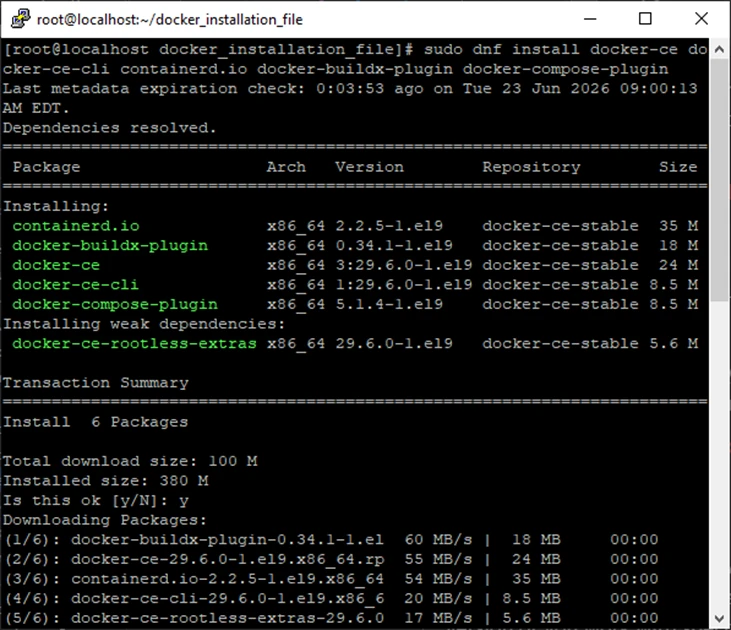
Install Docker Specified Version
You can install Docker with a specified version. If you want, for example, a specified version or you work with a specified version, you can choose which version you want to install.
The list returned depends on which repositories are enabled and is specific to your version of CentOS (indicated by the .el9 suffix in this example).
Start by listing available versions in the repository:
dnf list docker-ce --showduplicates | sort -r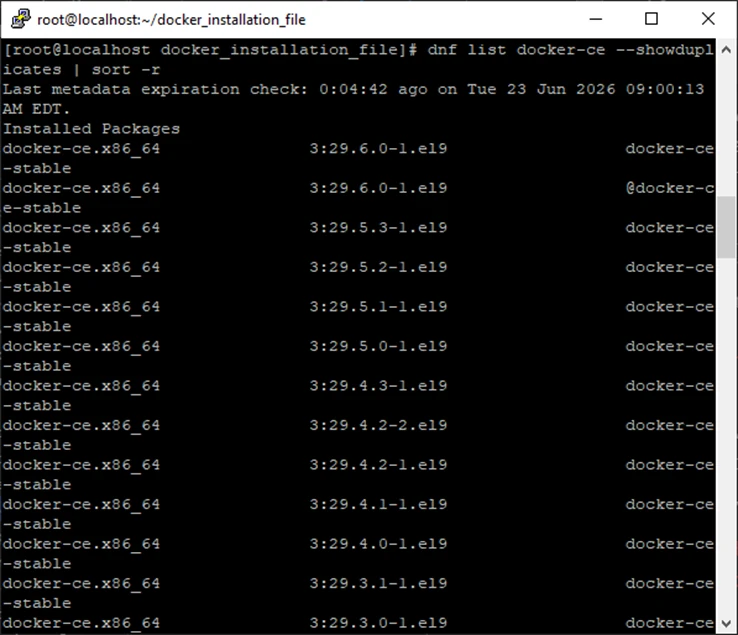
Note:
Docker-ce and docker-ce-cli versions must be the same.
Replace <VERSION_STRING> with the desired version and then run the following command to install:
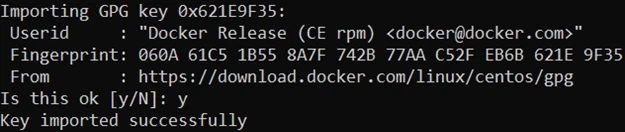
sudo dnf install docker-ce-<VERSION_STRING> docker-ce-cli-<VERSION_STRING> containerd.io docker-buildx-plugin docker-compose-pluginWhen you want to install Docker, it asks you to import the Docker repo key; enter y:
Install Docker From RPM Package on CentOS Server
If you can’t use Docker’s RPM repository to install Docker Engine, you can download the .rpm file for your release and install it manually. You need to download a new file each time you want to upgrade Docker Engine.
Navigate to the Docker Archive on CentOS Stream9:
Go to Docker Archive for CentOS 9 and choose your version. Whether your CentOS architecture is x86 or 64, you can install it.
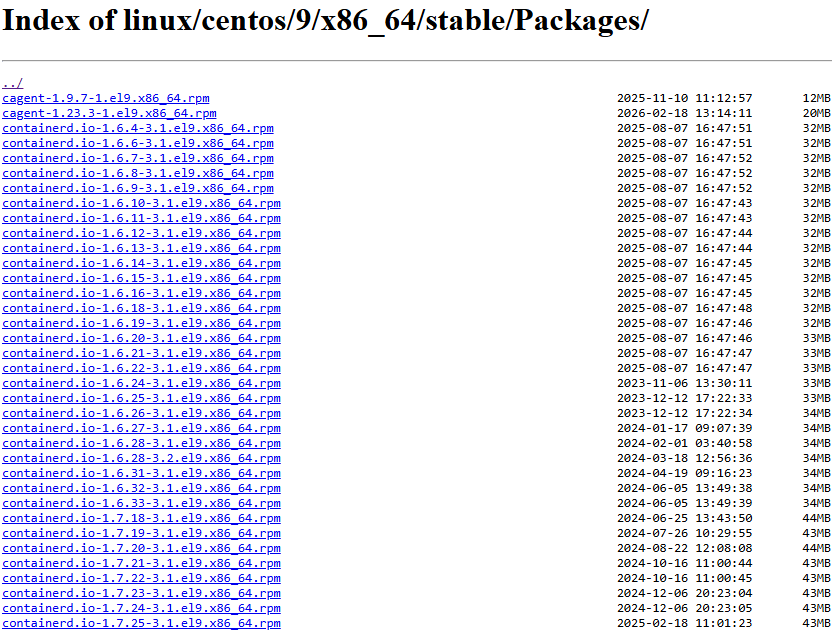
You have to download these packages to install Docker Engine:
1. docker-ce-VERSION_STRING
2. docker-ce-cli-VERSION_STRING
3. docker-ce-rootless-extras-VERSION_STRING
4. containerd.io
5. docker-buildx-plugin
6. docker-compose-plugin
Download Package From Docker Archive for CentOS 9
You have to download the 3 main packages in the same version, and the other packages must be the latest version, the table below indicates which packages must be same and the main packages:
| Package Name | Version |
|---|---|
| docker-ce(main) | 29.6.0-1 |
| docker-ce-cli(main) | 29.6.0-1 |
| docker-ce-rootless-extras(main) | 29.6.0-1 |
| containerd.io | 2.2.5-1 |
| docker-buildx-plugin | 0.34.1-1 |
| docker-compose-plugin | 5.1.4-1 |
Note:
It’s better to make a directory and download .rpm files in that directory:mkdir docker_installation_filecd docker_installation_file
With the commands below, we download the latest version of Docker .rpm packages. You can download another version.
Copy the commands below to download all 6 packages together.
wget https://download.docker.com/linux/centos/9/x86_64/stable/Packages/docker-ce-29.6.0-1.el9.x86_64.rpm -O docker-ce.rpm && \
wget https://download.docker.com/linux/centos/9/x86_64/stable/Packages/docker-ce-cli-29.6.0-1.el9.x86_64.rpm -O docker-ce-cli.rpm && \
wget https://download.docker.com/linux/centos/9/x86_64/stable/Packages/docker-ce-rootless-extras-29.6.0-1.el9.x86_64.rpm -O docker-ce-rootless-extras.rpm && \
wget https://download.docker.com/linux/centos/9/x86_64/stable/Packages/containerd.io-2.2.5-1.el9.x86_64.rpm -O containerd.rpm && \
wget https://download.docker.com/linux/centos/9/x86_64/stable/Packages/docker-buildx-plugin-0.34.1-1.el9.x86_64.rpm -O docker-buildx-plugin.rpm && \
wget https://download.docker.com/linux/centos/9/x86_64/stable/Packages/docker-compose-plugin-5.1.4-1.el9.x86_64.rpm -O docker-compose-plugin.rpm
You have to see 6 rpm packages, use the command below to list files in the current directory:
ls -ltrh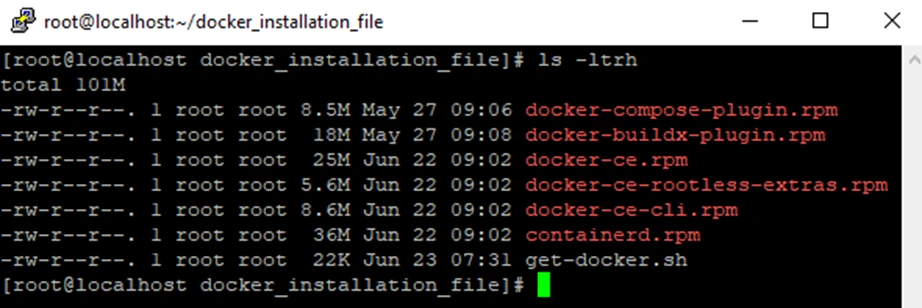
Install Downloaded Packages on CentOS Stream 9
After downloading the .rpm packages, you should install all 6 packages together, because if you don’t install 1 of the 6 packages, it’s automatically downloaded. Use the command below to install Docker:
sudo dnf -y install ./docker-compose-plugin.rpm ./docker-buildx-plugin.rpm ./docker-ce.rpm ./docker-ce-rootless-extras.rpm ./docker-ce-cli.rpm ./containerd.rpm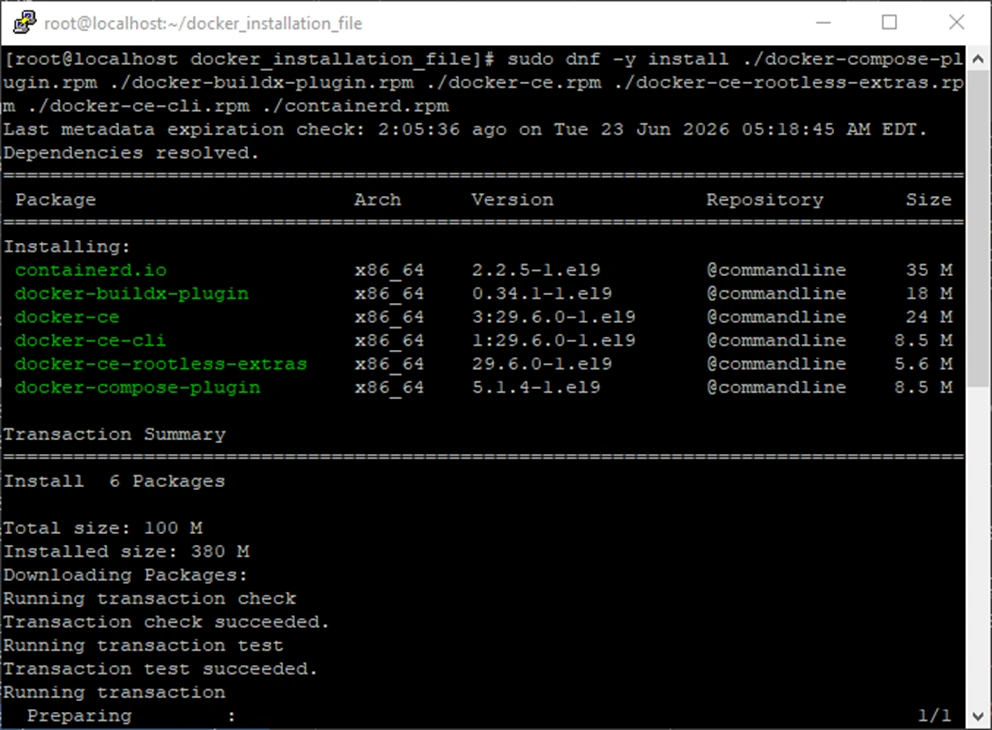
Note:
These commands install Docker, but they don’t start Docker. It also creates a Docker group; however, it doesn’t add any users to the group by default.
Start Docker Engine on CentOS VPS server
After installing Docker with Methods 1 and 2, we have to enable and start the Docker service on systemd, for this, use the following command:
sudo systemctl enable --now docker
sudo systemctl enable --now containerd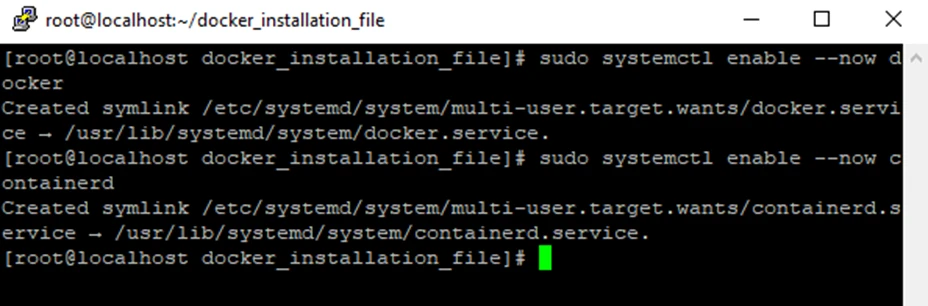
Install Docker with Shell Script on CentOS Linux
The Docker convenience script is the fastest way to install Docker Engine on CentOS. While it works well for testing and development, it is not recommended for production systems. For production deployments, install Docker using the official Docker repository.
Download Shell Script from Docker
With curl, download the shell script from Docker:
curl -fsSL https://get.docker.com -o get-docker.shRun Docker Installation Shell Script in CentOS
After downloading the shell script, run it with sh:
sh get-docker.shVerify Docker Installation on CentOS Stream9
To ensure that the Docker installation is successful, we have to run a test image on Docker.
The command below downloads a test image and runs it in a container, when the container runs, it prints a confirmation message and exits. For this, run the command below:
sudo docker run hello-world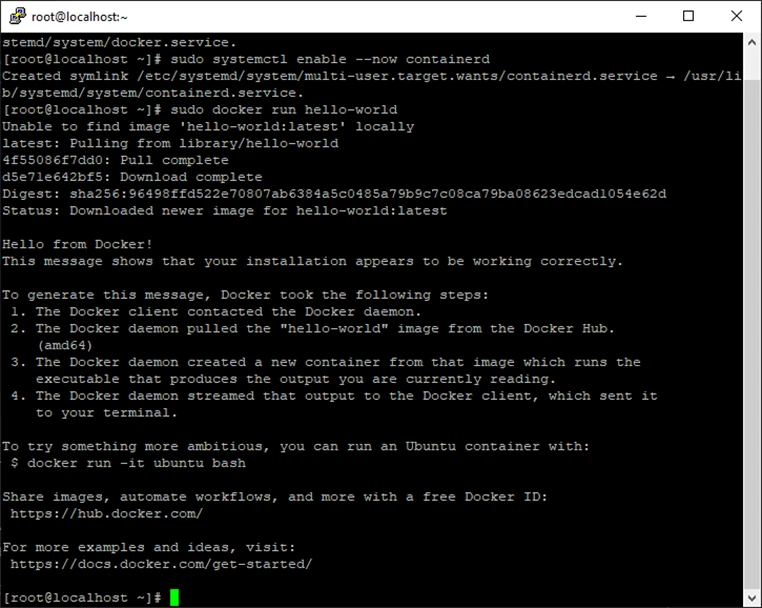
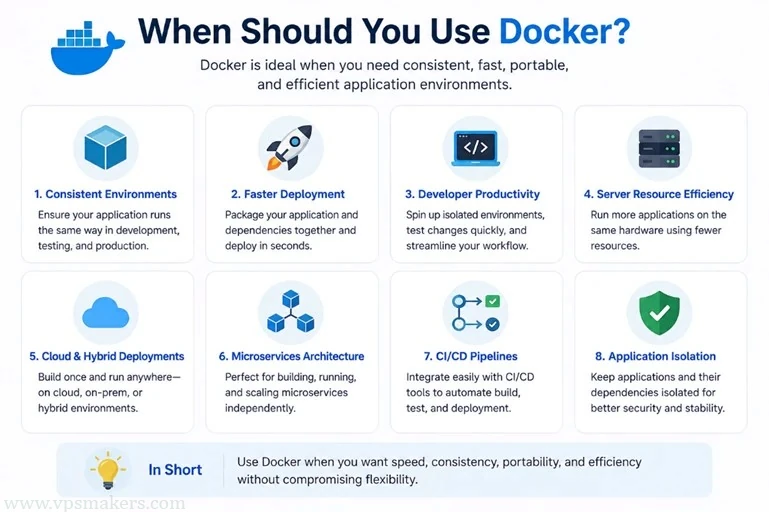
When Should You Use Docker?
Docker is used when you want speed, consistency, portability, and efficiency without compromising flexibility.
1. Consistent Environments: Ensure applications run the same way
2. Faster Deployment: Package everything together and deploy it.
3. Developer Productivity: Isolate Environments and test changes quickly.
4. Server Resource Efficiency: Run more applications with the same hardware using fewer resources.
5. Cloud Deployments: Build once and run anywhere, like on the cloud.
6. Microservices Architecture: Building, running and scaling microservices independently.
7. CI/CD Pipelines: Integrate easily with CI/CD tools to automate build, test, and deployment.
8. Application Security: Applications isolated for better security and stability.
Docker vs Virtual Machines
Docker used for portable application environments. Virtual Machines are used for stronger isolation or a different OS.

| Features | Docker (Containers) | Virtual Machines (VMs) |
|---|---|---|
| Architecture | OS-level virtualization. Shares the host OS kernel. | Hardware-level virtualization via a Hypervisor. |
| Size and Footprint | Very Lightweight. Images are usually 100MB | Heavy. Virtual disks require Gigabytes depend of OS |
| Performance | Near-native performance | Lower performance because of emulation |
| Portability | Highly portable. Runs on any system with a compatible container engine | Less portable. Tied to specific hypervisor formats (OVF, VMDK) |
| Isolation and Security | Process-level isolation. Higher risk if host OS is compromised. | Strict hardware-level isolation. Highly secure boundaries between VMs. |
Common Issues in Docker Installation on CentOS
Docker Installed But Container Doesn’t Run and Is Installed
You have to enable the Docker service if you haven’t started it yet:
sudo systemctl enable --now docker
sudo systemctl enable --now containerd
Permission Denied When Running Docker
Add user to Docker group:
sudo usermod -aG docker $USERLog out or run this command to update group policy:
newgrp dockerDocker Command Not Found
Check if docker is installed with the command below:
rpm -q docker-ceIf not installed, reinstall it:
sudo dnf install docker-ce docker-ce-cli containerd.io docker-buildx-plugin docker-compose-pluginConclusion
After you install Docker on CentOS Stream, you can start making and managing containers for your apps and services. The repository method is best because it makes updating Docker easier. The RPM package and shell script methods can be helpful in certain cases. Pick the installation method that works best for you. Once Docker is set up right, your CentOS server can run container workloads well.
FAQ
How Widely Is Docker Used?
Docker is the most widely used containerization tool, with an 82.84% market share. Docker is so popular today that “Docker” and “containers” are used interchangeably.
How Many Users Does Docker Have?
There are now 7.3 million total Docker Hub accounts, up approximately 45% year-over-year.
Why is Docker Used in Production?
Docker has an option for setting CPU and memory limits to avoid exhausting system resources.