
There are 3 ways to connect to the online MikroTik router OS: graphical (Winbox), command line (SSH), and web connection (WWW).
After you have buy Mikrotik VPS server and the login details have been sent to you by the VPS provider, you now need to connect to the MikroTik server via remote connection to get started.
Now let’s look at how to connect to a Mikrotik VPS using different methods.
Methods of connecting to a Mikrotik router server:
These are some ways of online connecting to Mikrotik CHR and you can use each of them.
1. Connect via Winbox
2. Connect via SSH (Putty)
3. Connect via Web (www)
Connect to Mikrotik VPS via Winbox
Connecting to a Mikrotik router via Winbox is a simple and easy process that allows you to easily set up and manage the router.
Winbox is a GUI (Graphical User Interface) tool that provides a user-friendly interface for configuring and managing Mikrotik routers.
Steps to connect Mikrotik VPS Through Winbox:
1- Download and run Winbox software from the official site.
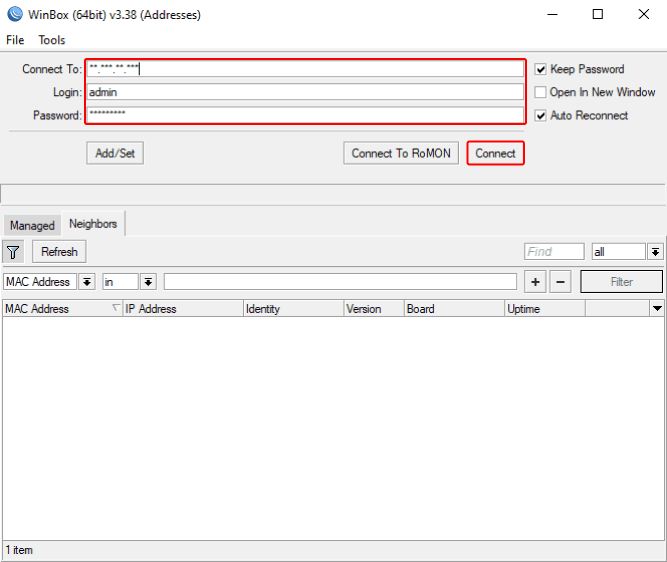
2- Now paste the Mikrotik VPS login details in the relevant sections.
Connect To: In this section, you must enter the IP address of the MikroTik server along with the port number. For example: 192.168.1.1:5421
Login: The default MikroTik username is admin, which you should put in this section.
Password: To log in to the server, you must put the password in this section.
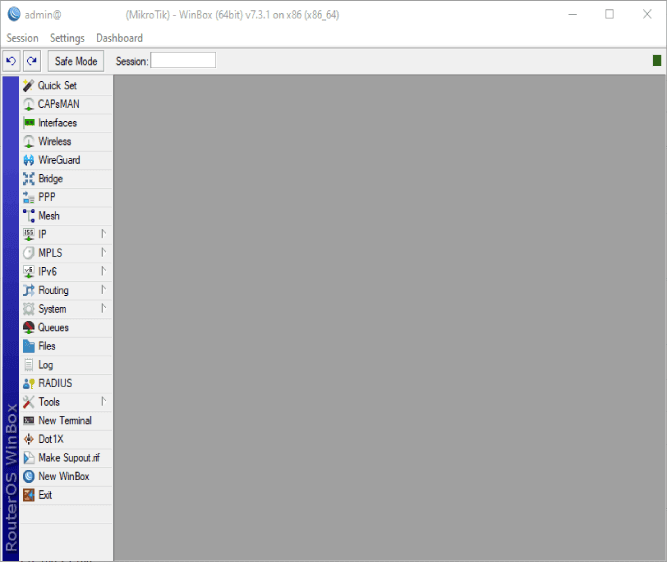
Now all features of the Mikrotik router are available to you and you can manage all parts of the Mikrotik VPS through the left panel.
Connect Mikrotik VPS via Web (WWW)
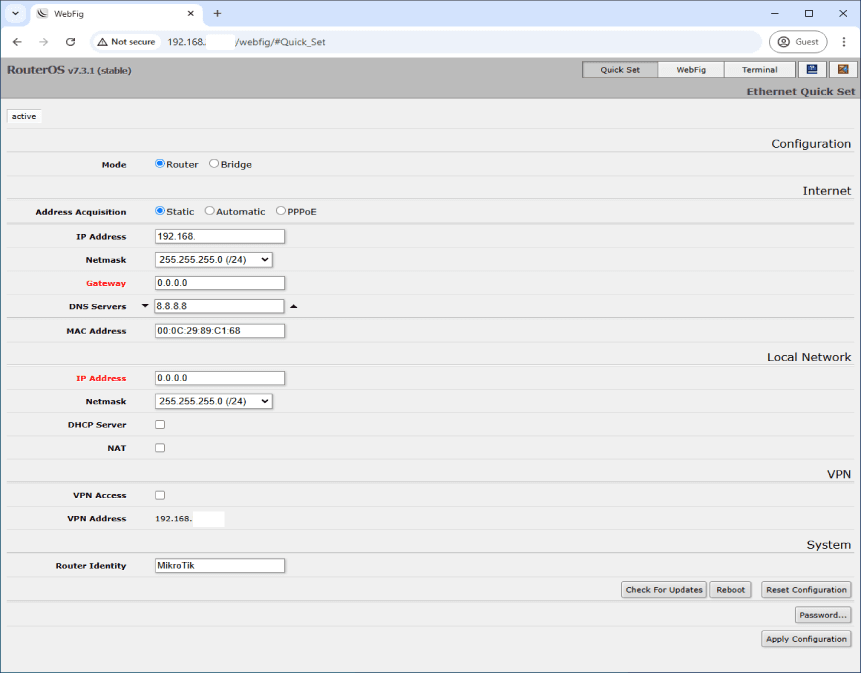
Connecting to a Mikrotik VPS via the web is done using port 80. To connect, enter your server’s IP address along with port 80 in your browser box.
Then enter your username and password to connect to your Mikrotik server.
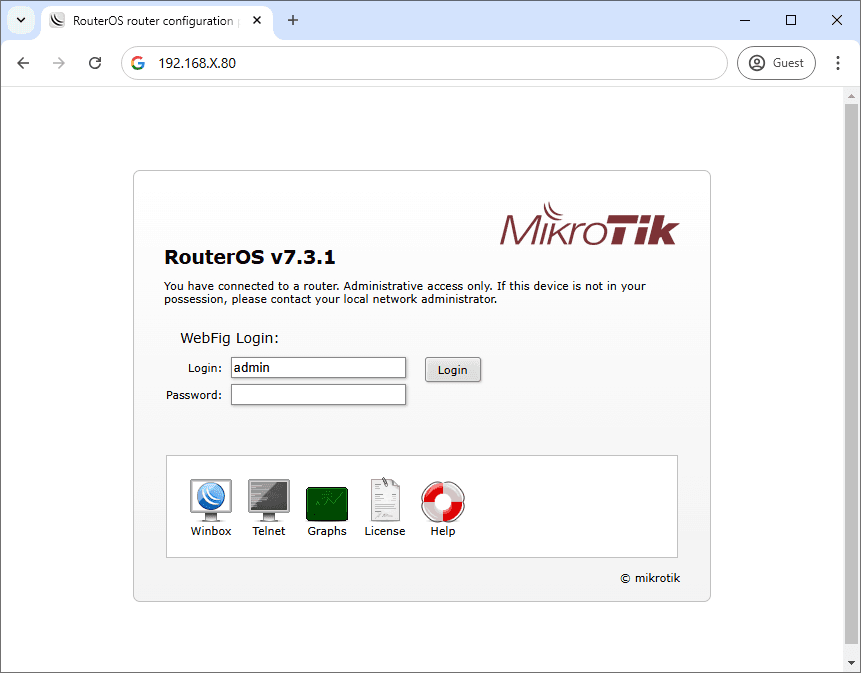
In the window that opens, you will have access to all the features of your MikroTik router.
Connect via SSH (PuTTY)
MikroTik agent server is based on Linux, and you can connect to your MikroTik server via SSH and manage it
All SSH client software can connect, but we recommend using PuTTY software. The method of connecting is given below:
How to Connect to a Linux Server From Windows Using SSH?
Connecting to MikroTik VPS is very easy, but if you encounter any problems connecting, you can let us know for free in the comments section.