
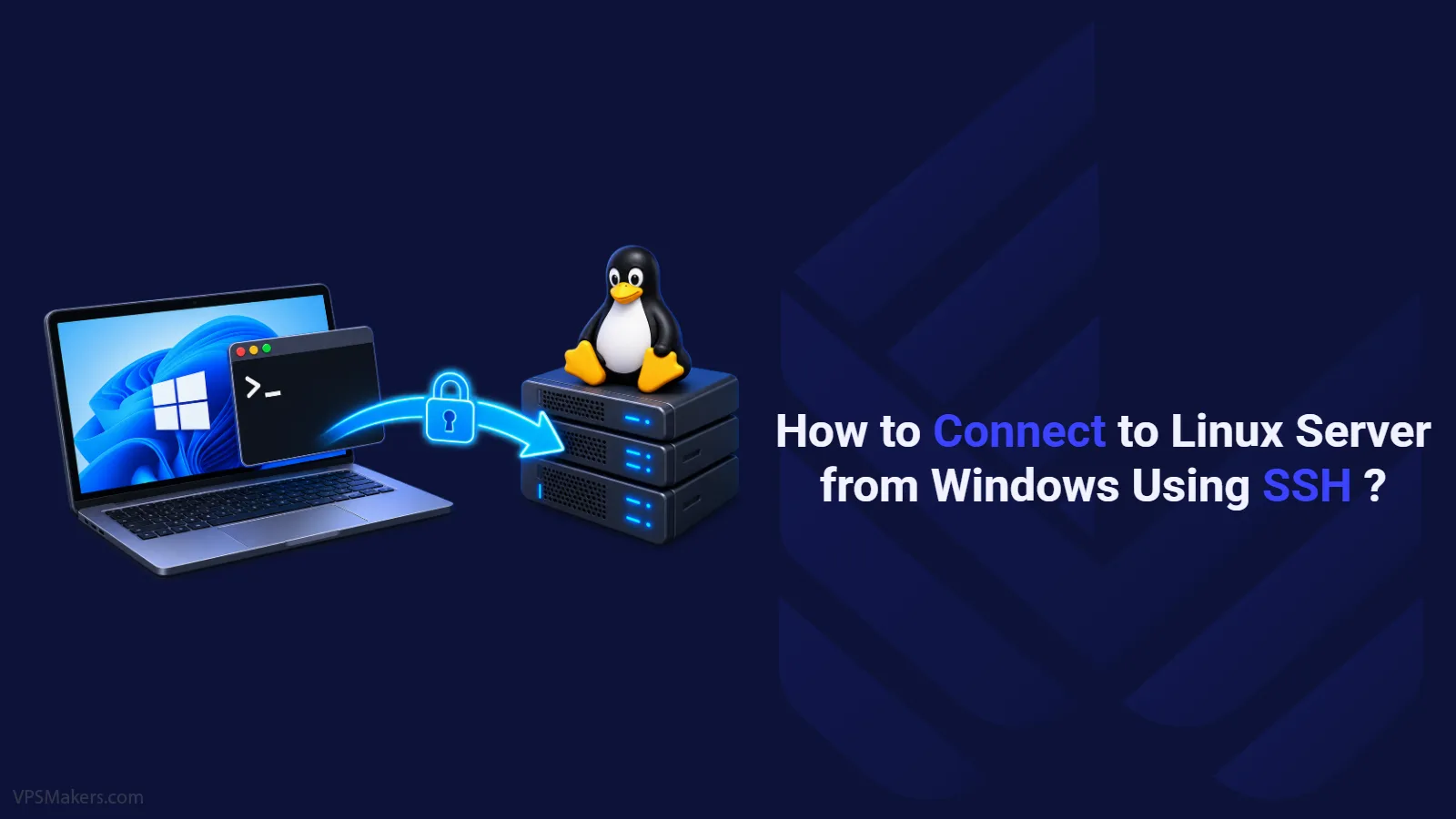
To connect to the Linux server in Windows, we can use the Windows command line or PowerShell, and we can also easily connect to the Linux VPS through the Putty software.
There are also many software to connect to Linux VPS through SSH client.
Prerequisites for connecting to a Linux VPS
Before connecting to the Linux VPS server, you need to prepare the following items:
- SSH client to connect
- IP address or Host name for connect to VPS
- Username and password to enter the server
When you order a Linux VPS, you will be provided with server login details.
How to connect to Linux VPS server with Putty?
Unlike the RDP software that is installed by default on Windows, we have to download the Putty software from its official website.
Now enter server IP along with port number and connection method and select Open.

And enter your username and password that you got from your virtual private server provider.

Note: Due to the greater security of the server when entering the password, it is not possible to view the password on the screen.
If you do not want to use a password to connect to your Linux server and you are also looking for more convenience and security, you can follow the tutorial on how to create SSH key on Linux VPS.
How to connect to Linux server windows using command prompt?
If you don’t want to install Putty software, you can connect to your Linux server via SSH from the CMD section of Windows and manage your server.
Step 1- In Windows CMD or PowerShell, enter the following command
ssh [username]@[ip-address]Instead of [username], enter the server username, and instead of [ip-address], enter the Main IP address of your server and press enter.
Step 2- Now you can enter your server password and connect to your server through SSH client with port 22.
Note:
If you have changed the default port of your Linux VPS, you must use the following command:
ssh [username]@[ip-address] -p [port-number]By default, the SSH port is 22, which is known and available for intrusion. To increase security, you need to change Linux VPS SSH port.
Best free SSH client for windows
One of the main uses of SSH is remote Linux server management. The SSH protocol is used to establish a secure connection between the client and the server, which is done using SSH client software.
Let’s go to examine some of them.
1- PuTTY

PuTTY is one of the most famous and popular free SSH clients for Windows OS, which is used among Linux server users due to its open-source and lightness.

Features of PuTTY software:
- Availability for free
- Support for various protocols such as SSH, Telnet, Rlogin
- Light implementation without installation
- Providing multiple SSH connection options
- Using SSH 1 and SSH 2 protocol version
ِِDownload link: PuTTY
2- WinSCP

WinSCP is one of the most popular and powerful file management software that can be used on the Windows operating system, which uses secure SSH, SFTP, SCP protocols to transfer files between systems.

Features of WinSCP software:
- Free and open source
- High security
- Very convenient and user-friendly
- Powerful and automatic file transfer
- File management on servers
- Support for all web protocols
- Ability to transfer files from Windows to Linux
Download link: WinSCP
3-MobaXterm

It is a powerful and versatile management tool for remote access and control. It is also possible to apply supervisory and control orders in several systems simultaneously.

Features of MobaXterm software:
- It has a free version with full features and a paid version with more professional features.
- Support various protocols such as: SSH, RDP, VNC, FTP, SFTP, X11, …
- It has a built-in X server that enables running Linux on Windows.
- Open and manage multiple connections in one environment.
Download link: MobaXterm
4- Bitvise SSH Client

It is a lightweight, simple, and efficient management tool that gives secure access to servers on Windows.

Features of Bitvise software:
- Support SSH1, SSH2 protocol for secure connection.
- Very simple and user-friendly.
- Has SFTP for transferring files between systems.
Download link: Bitvise
5- Multi-Remote Next Generation Connection Manager

An open-source remote administrator that can be used using SSH, RDP, VNC, ICA, Telnet, HTTP/HTTPs, and RLogin protocols.

Features of mRemoteNG software:
- Free and open source.
- Simple and user-friendly.
- Support for different protocols.
- Light and fast software.
- Ability to save and manage connections.
Download link: mRemoteNG
The software introduced above is one of the best software for connecting to a Linux server, each of which can have unique features, and you need to do more research to choose each of them.
Summary
Connecting to Linux VPS through Windows is possible using various software such as PuTTY, WinSCP, MobaXterm and other SSH connection software. You can also connect to a Linux server through Windows command prompt(CMD).