
To set up a remote file storage server on a Windows VPS or local Windows Server, there are multiple options available. You can use the built-in FTP Server in Windows Server provided by Internet Information Services (IIS) or install third-party applications such as FileZilla Server.
Both options allow you to configure user accounts, manage file access permissions, and transfer files between the server and a remote computer. The best choice depends on your requirements.
In this guide, we will walk through installing FTP Server as a third-party FTP server on Windows. If you want to set up the Windows Server’s own FTP Server on a Windows Server VPS, you can follow our dedicated tutorial:

To Install FTP Server in Windows Server you need to add its role in windows server and then you can setup & manage FTP sites with IIS manager.
Read the full articleFileZilla Server System Requirements
Before installing FileZilla Server, make sure your Windows VPS meets the basic system requirements and has a stable network connection. If you plan to make your FTP server accessible to multiple users for uploading and downloading files, pay attention to your VPS provider’s bandwidth limits.
Some providers impose monthly data transfer limits, so you may need a plan with higher or unlimited bandwidth. For a typical FTP server with moderate traffic, 1 TB of monthly data transfer may be sufficient, depending on the number of users and the volume of files transferred.
Download FileZilla Server on Windows Server
Download FileZilla Server from the official FileZilla website. Make sure you download the server version, and to connect to this server, you may need the FileZilla client version too, which you will need to download and install on the client side from which you want to connect to this server.
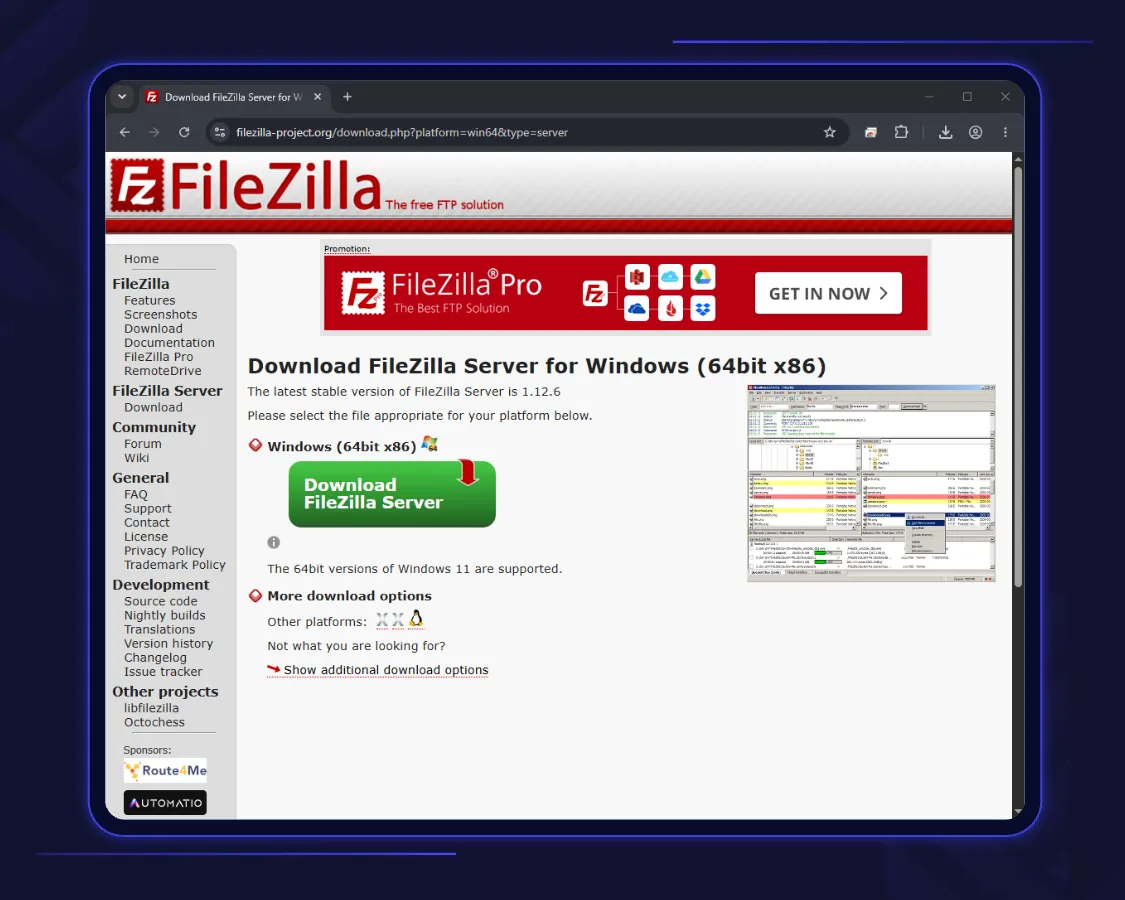
Install FTP Server on Windows Server
The FileZilla FTP Server is straightforward; follow the steps below to install and configure the server.
Run the FileZilla Server Installer
Locate the downloaded installer and run it with administrator privileges to start the installation process. When opening the installer app you may face with Windows Defender error which says this app is not recognized app, and it can be harmful ignore it and click on run anyway.
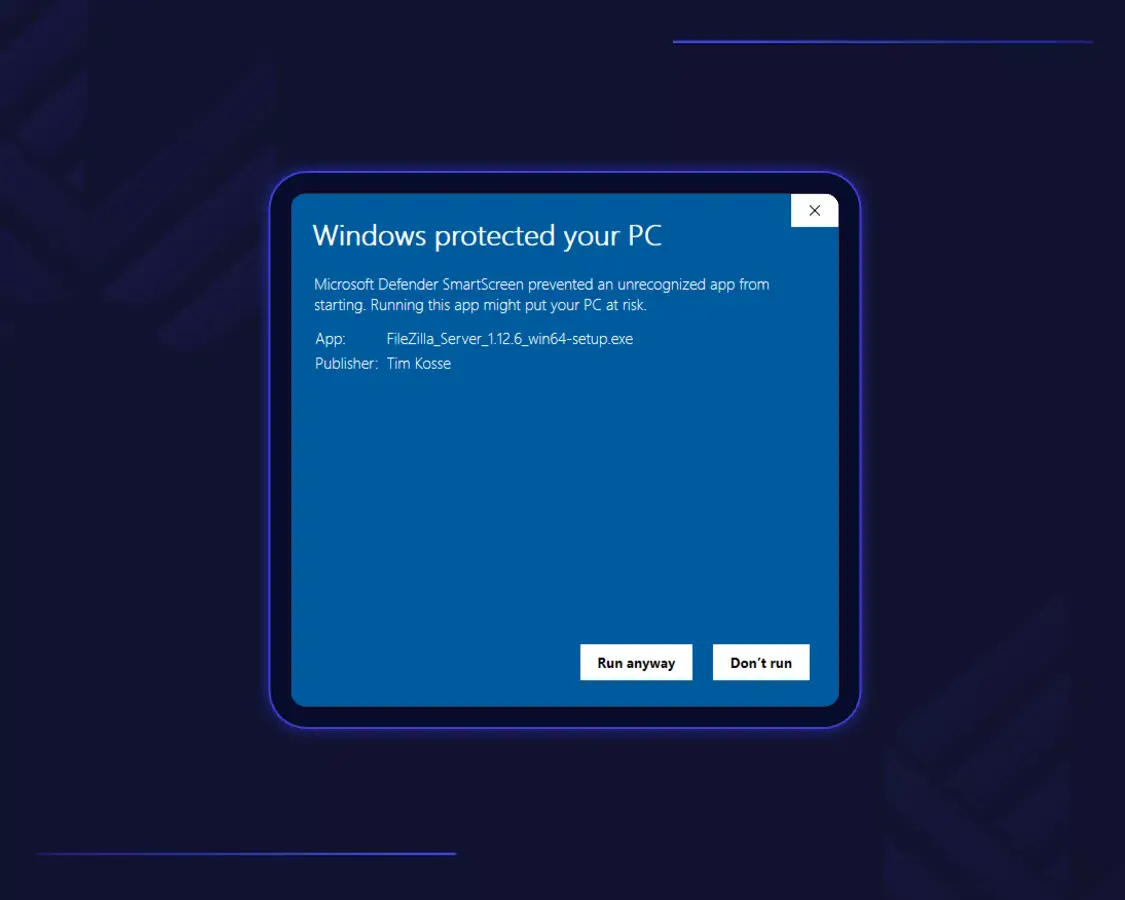
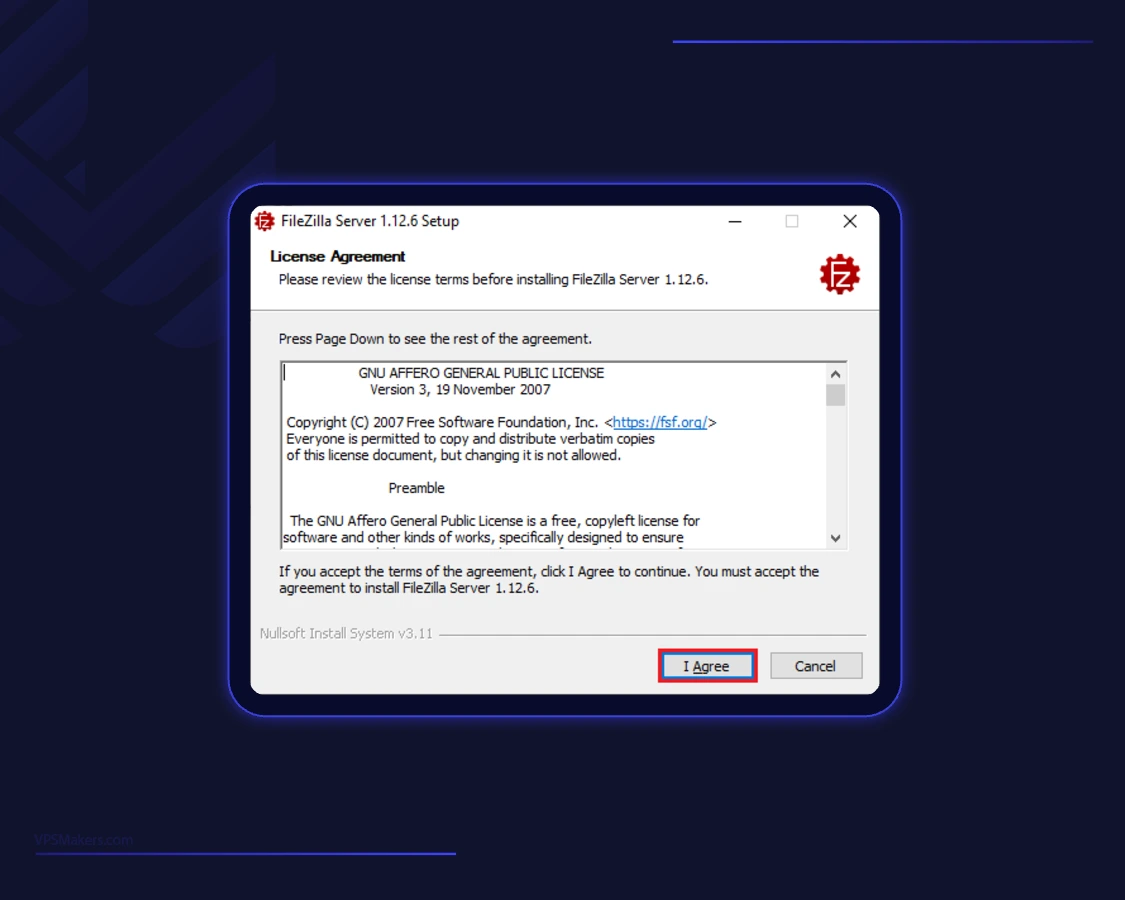
Accept the license agreement
After confirming to run the installer, the first page is the license agreement of the FileZilla Server. Read it and click I Agree to continue the installation.
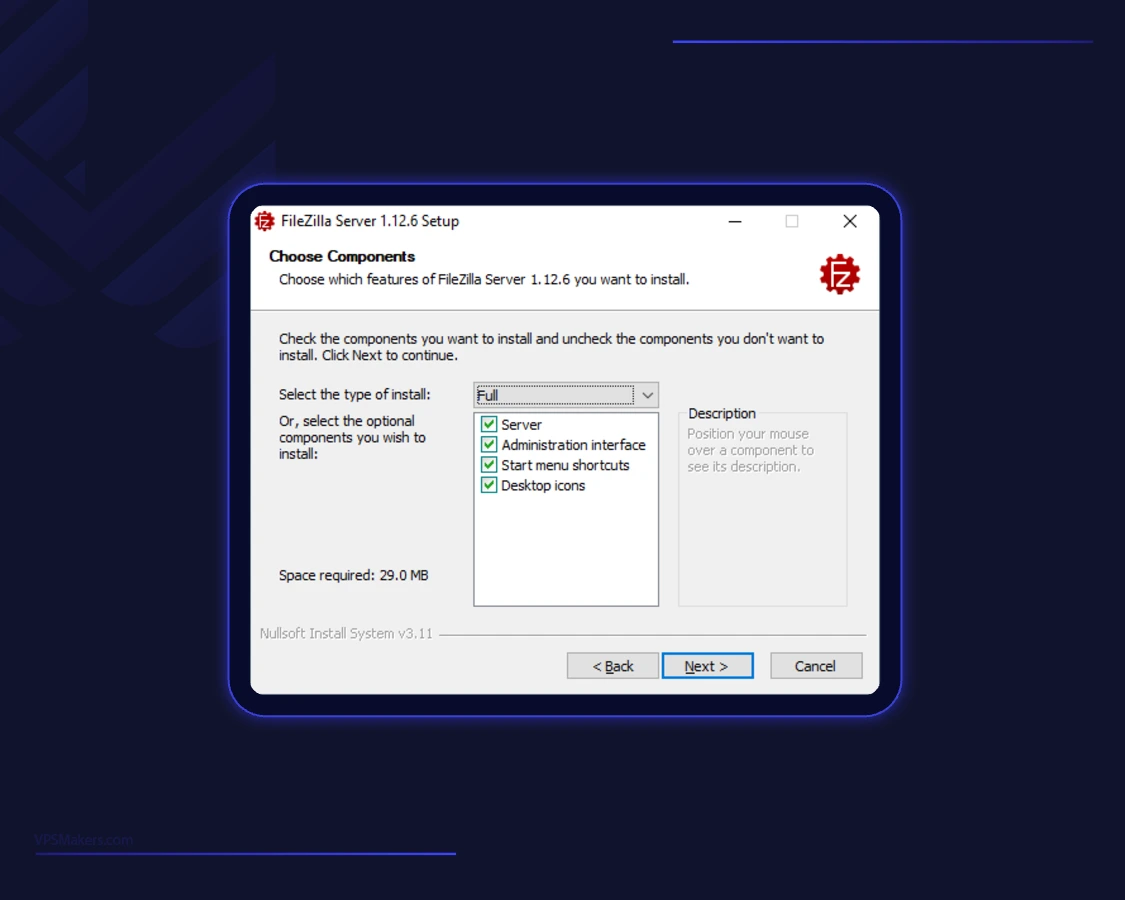
Choose Features of FileZilla Server
Here in this step, you can manage which options and features of FileZilla Server you want to install and use; it’s better to install with full features because you may need all of them.
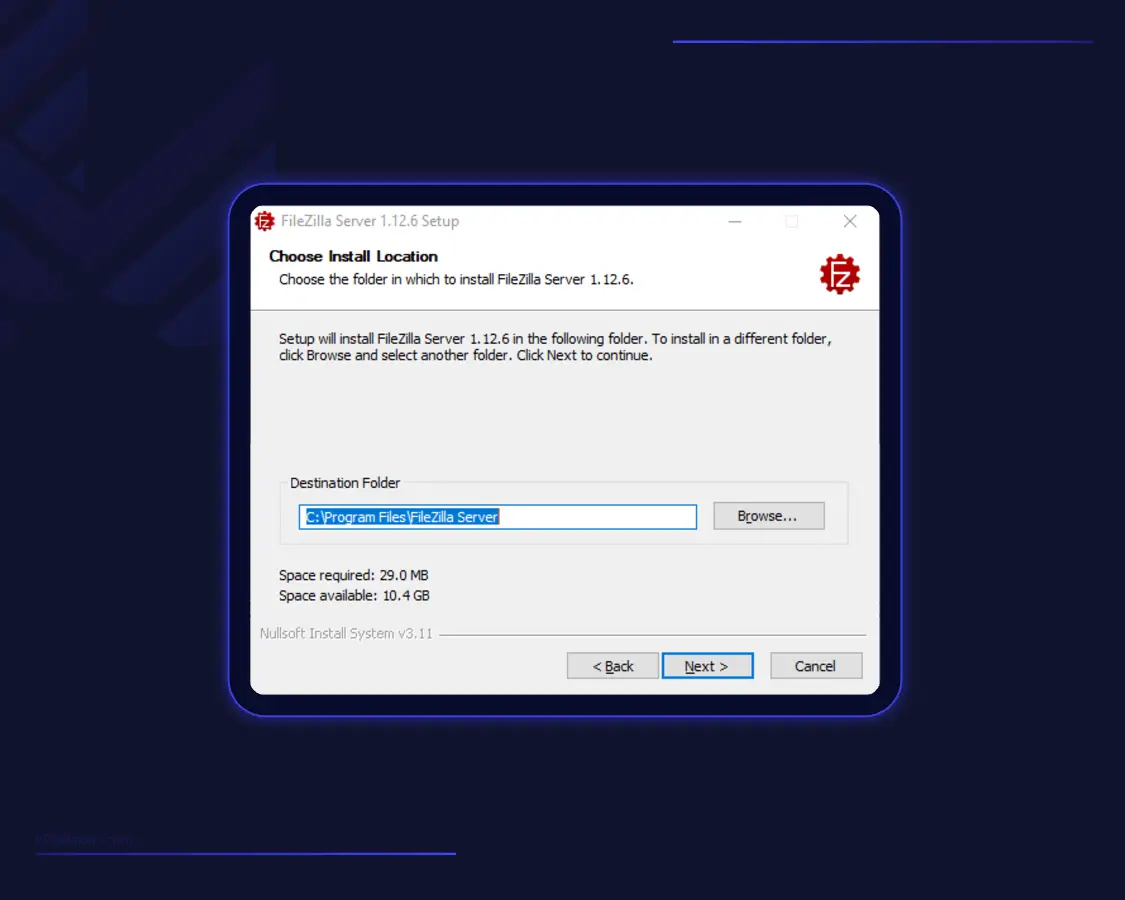
Choose FileZilla Server installation location
Select the folder where you want to install FileZilla Server, or keep the default location, then proceed to the next step.
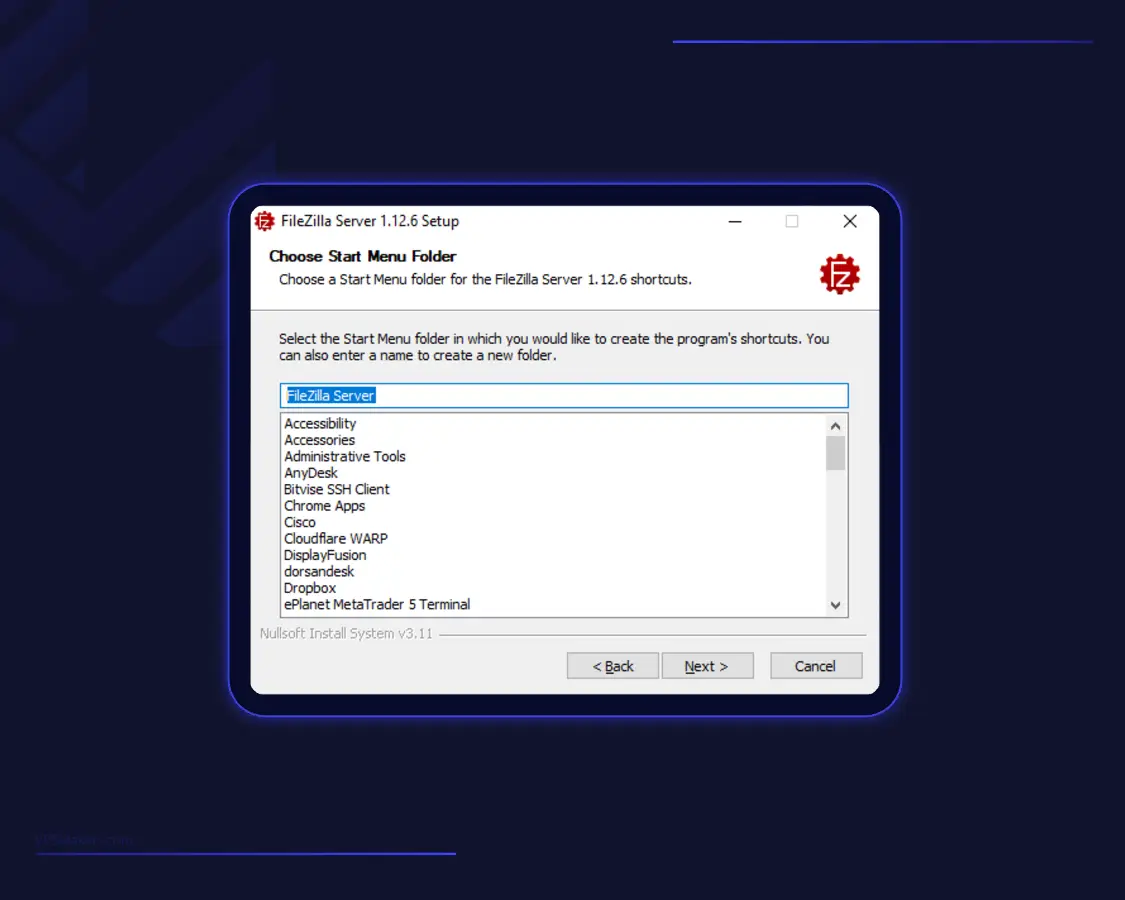
If in the previous step you’ve checked the Start Menu shortcut, it requires you to choose a name for the FileZilla folder to show it with this name in the Start Menu.
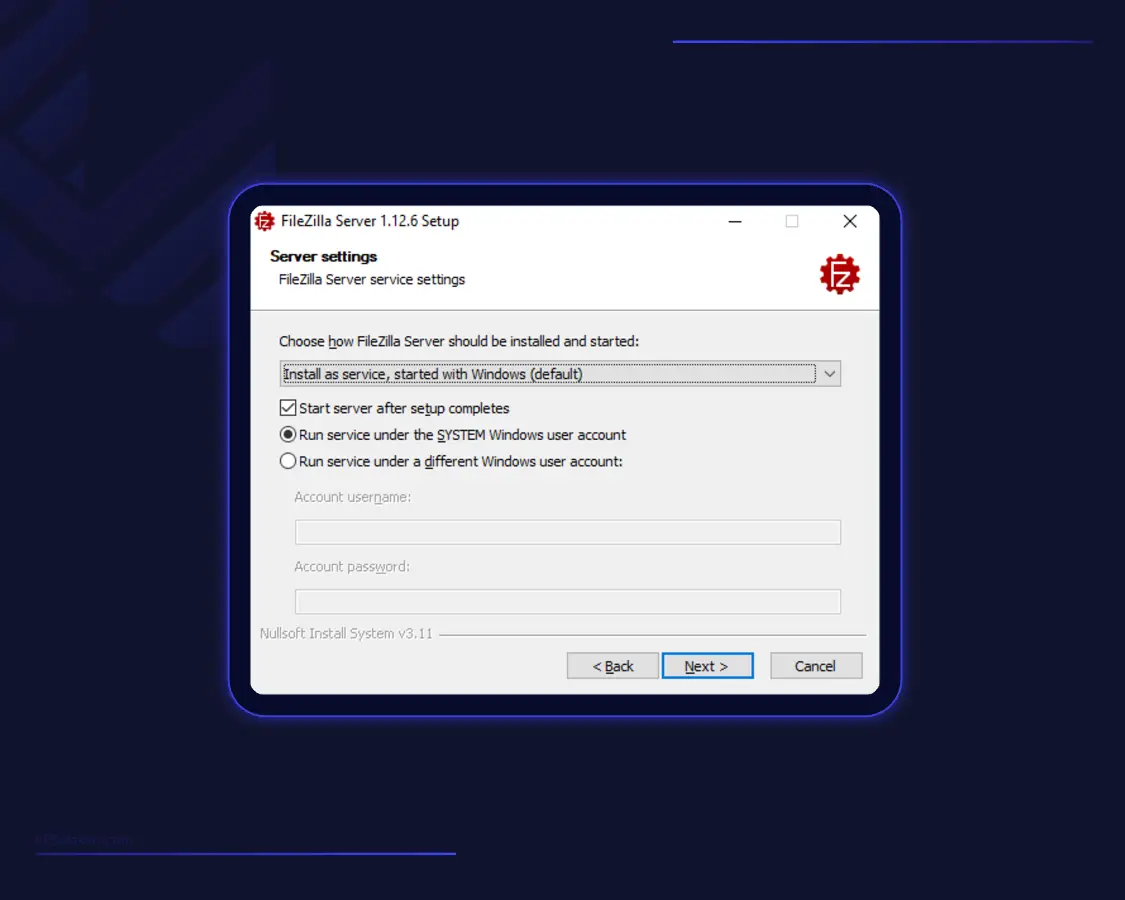
Configure the FTP service startup
Choose how the FileZilla Server service should start. By default, it is configured to start automatically with Windows, keeping the FTP server available after a reboot. Make sure the default option is selected.
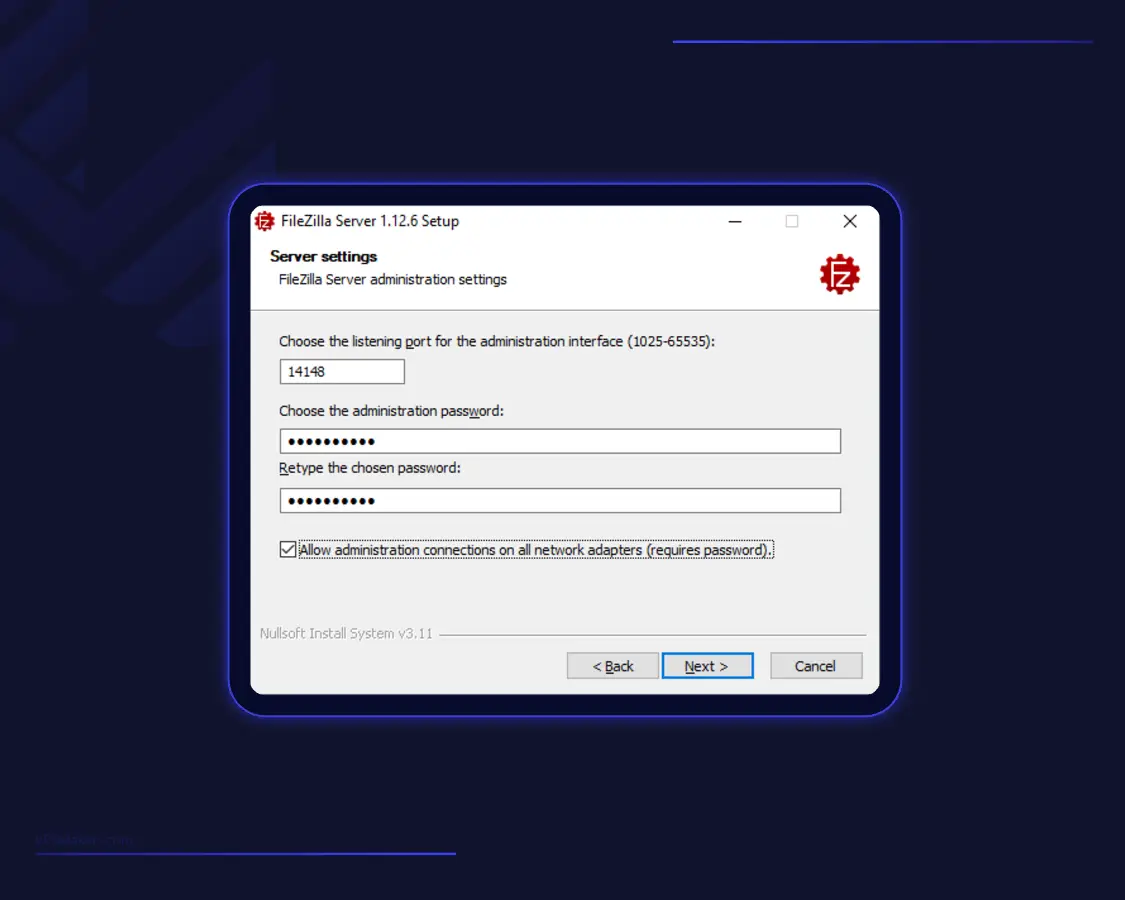
Configure FTP Server Settings
In this step, configure the FTP server’s administration settings, including the administration port and password. The checkbox allows you to enable remote access to the administration interface from computers outside the local server.
Tip:
If you want to manage FileZilla Server from another computer, enable this option. Otherwise, leave it disabled to restrict administration to the local server.
Note:
If your password is weak, FileZilla Server will display a warning that it does not meet the recommended security standards. Click No to choose a stronger password, or click Yes to continue with your current password.
Then you will be asked how to start the administration interface; choose the option that works for you and click Install to continue the installation. When the installation finishes, you will get a fingerprint code; copy it somewhere safe or take a screenshot.
Connect to the local server instance
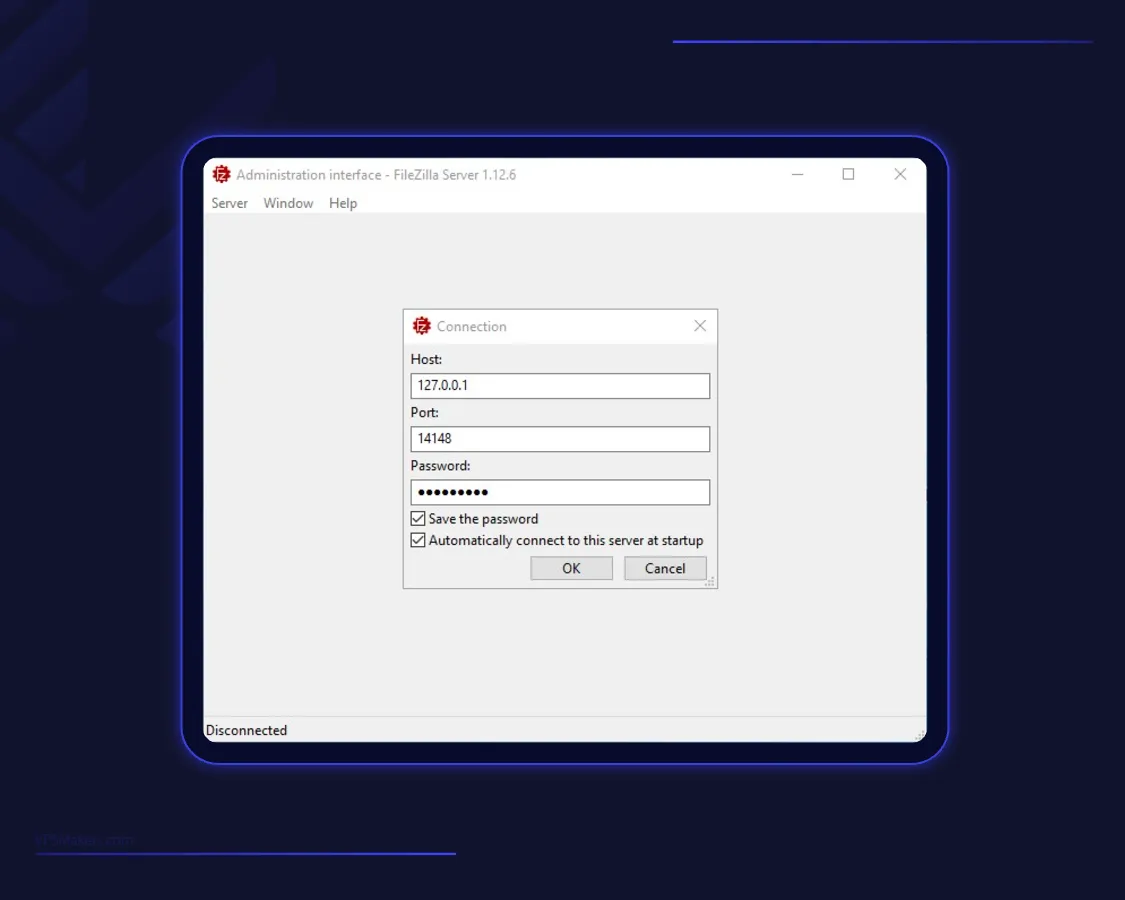
After installation is completed, open the administration interface and press the Connect Server button, then use the loopback IP 127.0.0.1 and the default port, and enter the password to connect to the local server.
Conclusion
Installing FileZilla Server on Windows Server allows you to create an FTP Server for transferring files between your server and remote computers. By completing the installation and configuring the necessary settings, you can manage user accounts, control folder permissions, and provide remote access to your Remote File Storage Server.
For better security, configure FTPS to use encrypted file transfers and allow only the required ports through Windows Firewall.