
Automating package updates is useful for maintaining server security and stability. Both Debian and RHEL distributions offer tools to manage this process automatically. By default, these tools check for updates once a day.
In this guide, you’ll learn to enable and disable your Linux updates automatically and restart the package services that are needed to restart after an upgrade.
Enable Auto Updates on Ubuntu and Debian
To ensure your Ubuntu system stays secure without manual setup, you can use the unattended-upgrades package. This tool automatically installs available updates and security patches without manual input.
Also configure needrestart to automatically restart a package’s service that uses old code after the upgrade to apply the upgrade.
Install unattended upgrades on Ubuntu
Unattended upgrades does the same thing as apt update and apt upgrade, but it does it automatically. First, it updates the list of packages to see what is new. Then, it checks for available upgrades and installs them.
1. Install the unattended-upgrades Package:
sudo apt install unattended-upgrades2. Enable the unattended-upgrades service and configure the update:
sudo dpkg-reconfigure --priority=low unattended-upgradesConfigure needrestart on Ubuntu
Some services need to be restarted after an update, or they keep running the old version. needrestart automatically restarts those services.
needrestart is installed by default on Debian and Ubuntu, but if necessary, install it with this command:
sudo apt install needrestartNow all you need is to edit the config file at /etc/needrestart/needrestart.conf:
sudo nano /etc/needrestart/needrestart.confLook for the following line, scroll down to find it, uncomment it, and change from i to a.
a = restart automatically, no prompt, good for unattended-upgrades:
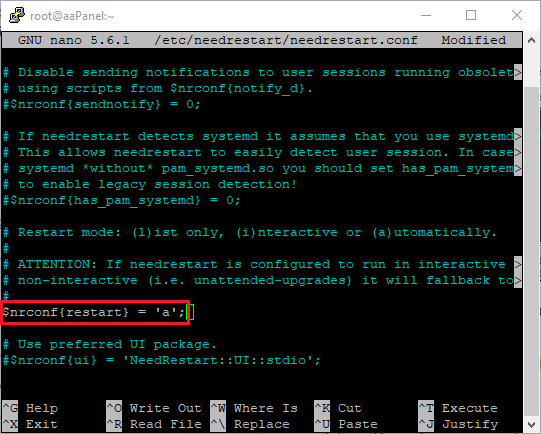
Like before, save the file (Ctrl+O, Enter) and exit Nano (Ctrl+X).
Enable Automatic Updates on CentOS Server
On RHEL-based systems like CentOS, the dnf-automatic package provides a service that automatically executes package upgrades. You can configure it to only download updates or to download and install them automatically.
Install dnf-automatic on CentOS
DNF Automatic is a simple command-line tool for DNF that works well for automatic tasks using systemd timers, cron jobs, and similar tools. It updates package information when needed, checks for updates, and then does what you set it up to do.
1. Install dnf-automatic:
sudo dnf install dnf-automatic2. Edit the configuration file located at /etc/dnf/automatic.conf using a text editor such as Nano or Vim to set apply_updates = yes:
sudo nano /etc/dnf/automatic.conf3. Scroll down to find the apply_updates line (it is usually on line 22):
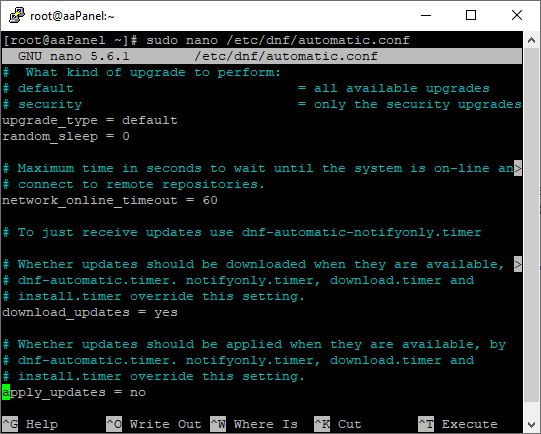
4. Change apply_updates to yes and write out the file using CTRL+O, then press Enter to apply the change:
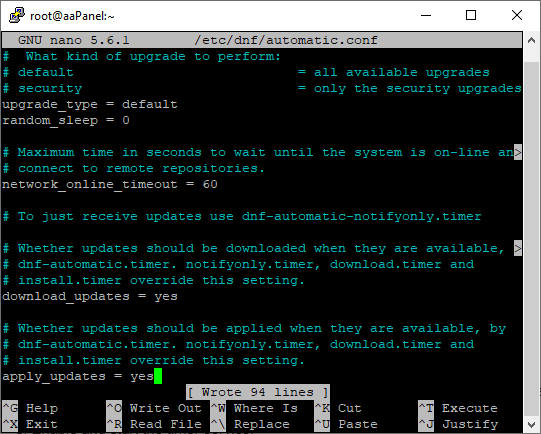
5. Exit the nano environment using CTRL+X
6. Enable and start the timer service:
sudo systemctl enable --now dnf-automatic.timerEnable Automatic Restart After Upgrade on CentOS
CentOS and RHEL distros have their own packages on the dnf plugin for automatic restart after services need restarting. First, enable the dnf plugin with the command below:
sudo dnf install dnf-plugins-coreneeds-restarting only lists the services that need restarting, so use the command below for listing those services:
sudo dnf needs-restarting -s(advanced) If you want to automate the process, you can create a dnf post-transaction action that runs a Bash script after every package installation or upgrade.
dnf post-transaction actions allow you to automatically run custom commands or scripts after a package transaction has completed.
Note:
Updates to packages such as the kernel, glibc, and systemd usually need a system reboot. These updates cannot be fully handled by automatically restarting services.
This automation needs dnf-plugins-core, which you installed before.
1. First, create a Bash script file and open it with Nano:
nano restart-needed-services.sh2. Paste the script below into the file:
#!/bin/bash
dnf needs-restarting -s | awk '{print $1}' | while read -r service; do
if systemctl list-unit-files --type=service | grep -q "^${service}"; then
echo "Restarting $service"
systemctl restart "$service"
fi
done
3. Save the file (Ctrl+O, Enter) and exit Nano (Ctrl+X).
4. Install the script into /usr/local/bin with executable permissions:
sudo install -m 755 restart-needed-services.sh /usr/local/bin/restart-needed-services.sh5. Next, create the action directory:
sudo mkdir -p /etc/dnf/plugins/post-transaction-actions.d6. Create the action file with Nano:
sudo nano /etc/dnf/plugins/post-transaction-actions.d/restart-needed-services.action7. Paste the rule below into the file:
*:*:in:/usr/local/bin/restart-needed-services.shThis rule tells dnf to run the script after any successful package transaction that installs or upgrades packages.
Save the file (Ctrl+O, Enter) and exit Nano (Ctrl+X).
Disable Automatic Updates on Ubuntu and Debian Server
If you need to disable unattended-upgrades or optionally remove unattended-upgrades, and also remove the needrestart.
Disable unattended upgrades Service on Ubuntu Server
To disable the unattended upgrades service on an Ubuntu Server, disable this service using the command below:
sudo systemctl disable --now unattended-upgradesNote:
This command stops the unattended-upgrades service immediately and prevents it from starting automatically after reboot.
Update the APT Periodic Configurations
Stopping the systemd service stops the active process, but APT settings or systemd timers can still cause automatic updates to run in the background. APT uses scripts to check for and run upgrades. Turning off these settings makes sure that background updates do not happen at all.
The apt package manager depends on APT::Periodic and apt’s timers too, so you have to check the apt timer with the command below:
apt-config dump APT::Periodic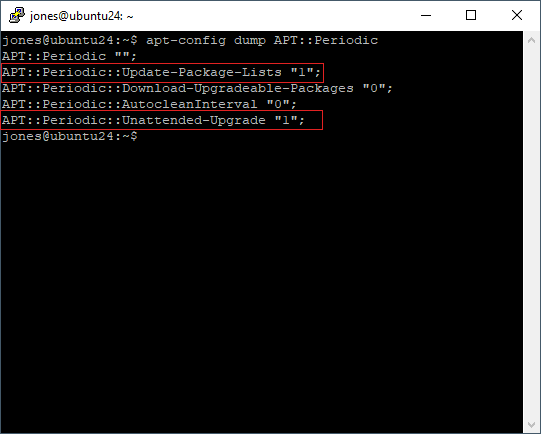
After checking the timer, replace the value of Update-Package-Lists to 0 & Unattended-Upgrade to 0, so open the file below with the nano text editor:
sudo nano /etc/apt/apt.conf.d/20auto-upgrades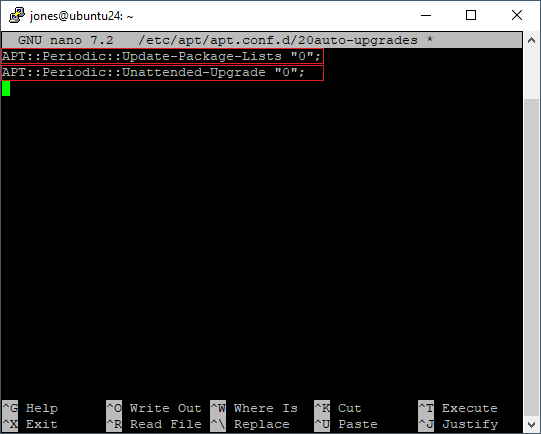
Save the file (Ctrl+O, Enter) and exit Nano (Ctrl+X).
After disabling and stopping the service, verify that it is correctly done:
systemctl status unattended-upgradesActive: inactive (dead)(optional) Removing the package does not remove manually installed updates. It only removes the automatic update management tool.
Using the command below, delete the packages:
sudo apt remove unattended-upgradesRemove needrestart from Ubuntu
apt alone only restarts services from the updated package itself, not services that depend on a library that got updated. Removing needrestart may leave you exposed to security risks without you noticing.
To remove Needrestart, use the command below on Ubuntu:
sudo apt remove needrestartDisable Automatic Updates on CentOS Server
Just like Ubuntu, you have to disable and stop the CentOS automatic update handler [dnf-automatic.timer], and remove the dnf post-transaction scripts.
Disable and Remove dnf automatic from CentOS
To turn off and remove dnf-automatic from CentOS, stop its timer, uninstall the package using dnf, and delete leftover configuration files.
To stop and disable this service, run the command below:
sudo systemctl disable --now dnf-automatic.timerVerify the status of the timer with the command below:
sudo systemctl status dnf-automatic.timerActive: inactive (dead)(optional) If you no longer need automatic update functionality, run the command below to delete dnf-automatic.timer:
sudo dnf remove dnf-automaticDisable Automatic Restart After Upgrade on CentOS
If you don’t want services restarting automatically after package updates anymore, just remove the dnf post-transaction action or delete the script it runs.
To remove the action file:
sudo rm /etc/dnf/plugins/post-transaction-actions.d/restart-needed-services.actionIf you also want the restart script gone:
sudo rm /usr/local/bin/restart-needed-services.shAfter the action file’s removed, dnf won’t run the script anymore after installs or upgrades.
If you’re not using dnf-plugins-core for anything else, remove it.
Note:
removing dnf-plugins-core will impact other services that you’re running with. If you’re using needs-restarting or other plugins like config-manager, copr, and builddep from that package, just leave it installed and only remove the post-transaction action instead.
The following command will remove dnf-plugins-core:
sudo dnf remove dnf-plugins-coreSummary
Both Debian and RHEL-based systems have tools for the automated package upgrade process. On Ubuntu and Debian, you install and configure unattended-upgrades, while CentOS and RHEL use dnf-automatic with apply_updates = yes and its systemd timer enabled.
Because some services keep running old code after an upgrade, needrestart can restart them automatically on Debian systems, and on CentOS you can pair needs-restarting with a dnf post-transaction script to do the same, kernel, glibc, and systemd updates still require a reboot.
To turn any of this off, disable and stop the related service or timer, adjust the APT periodic settings, remove the post-transaction action, and optionally uninstall the packages.