How to Delete User in Ubuntu Server?
To reduce possible attacks and keep your system safe and organized, you need to remove unused users from time to time.
To remove users, Ubuntu offers two tools to use: deluser and userdel, which work the same way same, but in this article, you will learn how you can remove a user in your Ubuntu Server using deluser, which offers additional options.
To start the deletion process, you need to have root access on your server. Connect to your Linux server using SSH.
Check Users in Ubuntu Server
When managing users its important to know which user accounts exist in your server and which ones are active. Listing users helps you to know their role and access level on the server and ensures only the authorized users have access to your system.
List All Users in Ubuntu
This command will generate a list of users on the system and display each user along with its corresponding user type. It classifies users based on their UID, allowing you to specify users with their types on our server.
awk -F: '{ if ($3 == 0) type="root"; else if ($3 >= 1000) type="normal user"; else type="system user"; print $1 " - " type }' /etc/passwd
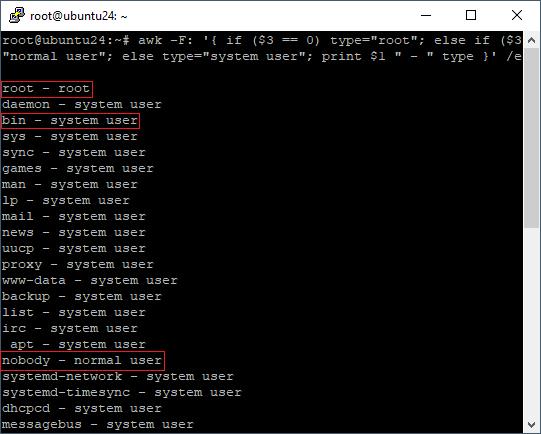
When listing users with the command above, you will see users alongside their roles (types):
Root: administrator of the server who has full access.
System user: users who are used by system services.
Normal User: The standard normal user without any access, which, when you Create a user in Ubuntu Server is the normal user by default.
Note: When removing users, make sure you know what this user is being used for. For example, if you remove one of the system users, you will face a corrupted service on your server. So don’t remove users blindly.
And in some cases, if you face security problems, setting permissions for users is a better way than removing them totally from your server.
Log Out User In Ubuntu
During the deletion, if the user is still logged in or has an active running session, the system may prevent removal or leave behind incomplete cleanup. It is recommended to terminate the user you want to remove before deletion to ensure the cleanup is safe.
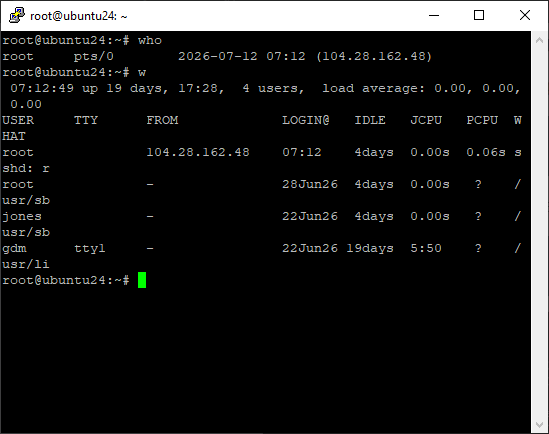
Step 1 – Check the Active Users in Ubuntu
It shows username, terminal, and login time.
who
It shows more information about users, like their IP address and what they are doing (process)
w
Step 2 – Log the user out
This command logs the user out completely and kills all their processes.
sudo pkill -u username
Force kill command – this one is like pkill, but more aggressively, closes all the session one user have with this username.
sudo killall -u username
Note: Make sure you are not killing your own session.
Remove User in Ubuntu Server
As we said, Ubuntu offers two commands for user removal, which they are serving for same purpose but differ in some ways. Even though they are the same.
It’s recommended to use the deluser command because it’s easier to use because of some automatic cleanups that it does.
Using the command below, you can remove the user from your system entry and all groups, but it doesn’t automatically remove the home directory. For removing home directory alongside other user files in Ubuntu you need to use additional options which you will learn following this guide.
sudo deluser username
Back Up User Files in Ubuntu Server
Before removing any user or their files, it’s better to take a backup of your users home directory and files before removing or if you want to remove a range of users you can take a full back up of your Linux Server.
This command backup user home directory file to default backup folder “/var/backups/” of your server and then removes home directory.
sudo deluser --backup --remove-home username
Instead if you want, you can specify a backup path to output the backup file to by using –-backup-to /path
sudo deluser --backup --backup-to /your/path --remove-home username
Delete User and Home Directory in Ubuntu
When removing a user from your system, you need to remove their files stored in the home directory. With the userdel command, these actions must be done manually by deleting directories manually in Linux, but you can automate these steps with the deluser command.
Remove User and Home Directory in Ubuntu Server
Using deluser, you can use the (–remove-home) flag to remove the user’s home directory automatically, but before removing anything, make sure you don’t have any important things in the user’s home directory.
sudo deluser --remove-home username
Or you can use the (-r) flag, which removes both the user’s home directory and other personal files like their mail stored in the system.
sudo deluser -r username
Delete User and All Files Ubuntu
Using the “–remove-all-files” option, you can remove the user’s home directory, mail, and all other files owned by this user in any directory.
sudo deluser --remove-all-files username
Security Tips for Removing User in Ubuntu
In Linux servers, you don’t typically need to remove users, but there are some situations in which you may need to do user removal.
If one account is no longer needed (former employee, tester, etc), keeping it active may become a risk to your server. That account could still have access to your server if credentials are leaked or reused, and this action can damage your server.
If you are experiencing security problems and want to remove users, before removing any user, you should take preventive measures.
You can change your VPS password to prevent malicious connections.
You may also change the SSH port or block specific ports in Linux by configuring your server firewall to reduce potential security risks.
Conclusion
To delete a user on the Ubuntu server, you can use two methods: deluser or userdel. They are both doing the same thing, but using Deluser is easier and more beginner-friendly because it does some cleanups automatically.
If you want to remove users for security problems, you need to take preventive measures beforehand, in case you have a problem again. It’s better to remove the problematic user.
Hope this guide helps you to learn user removal on Ubuntu and solve any problems you have. If you have any other problems, you can contact us in the comments section. We will be happy to help you!

The Author Richard.M
Richard started out as a member of the support team and is now a full-stack web developer and support team lead at VPS Makers. He is passionate about providing people with top-notch technical solutions based on his 5 years of experience in web hosting, but as much as he enjoys coding and creating new works, he secretly dreams of becoming a sports star.
More from Richard.M