What is Linux Permission?
Linux user permissions are a system that controls who can access files and directories and what they can do with them. Every file and directory has a rule that defines which users can read, write, or execute it.
Linux user permissions are file-based, so every file created on your system has an owner and a group assigned to it, and users in that group have access to this folder. With user permissions, you can change the access level of each user category.
In this article, we focus on the technical details and a deeper explanation of Linux user permissions. If you are simply looking for a quick guide to set user permissions, this article may not be suitable for you. Instead, you can check our step-by-step guide on how to set permissions in Ubuntu.
If your goal is to manage users rather than understand permissions, check step-by-step guides about how to create new user in Ubuntu and how to delete a user in Ubuntu.
Linux Permission Basics
Before starting to dive deeply into what permissions are in Linux and how to set them, you need to understand some basics of permissions in Linux.
Linux distributions all use the same core Linux kernel, which means the commands for setting permissions in Linux are mostly the same.
You can use these commands in all Linux server distributions like Ubuntu Server, CentOS Server, and Debian Server.
Why Permissions Exist in Linux?
Linux is designed as a multi-user operating system, meaning multiple users can use the same system at the same time. Because of this, the system needs a strict way to control what users can access.
This is where permissions come in.
Permissions exist mainly to protect files, system data, and user behaviors on the server from each other. And another reason is for data privacy. Each user using the system should have a personal space where other users can access their files and directories.
This ensures that other users can’t simply open, modify, or remove other user’s files and data.
Access Control Structure in Linux Server
Linux, instead of treating all users at the same level, divides them into three distinct categories:
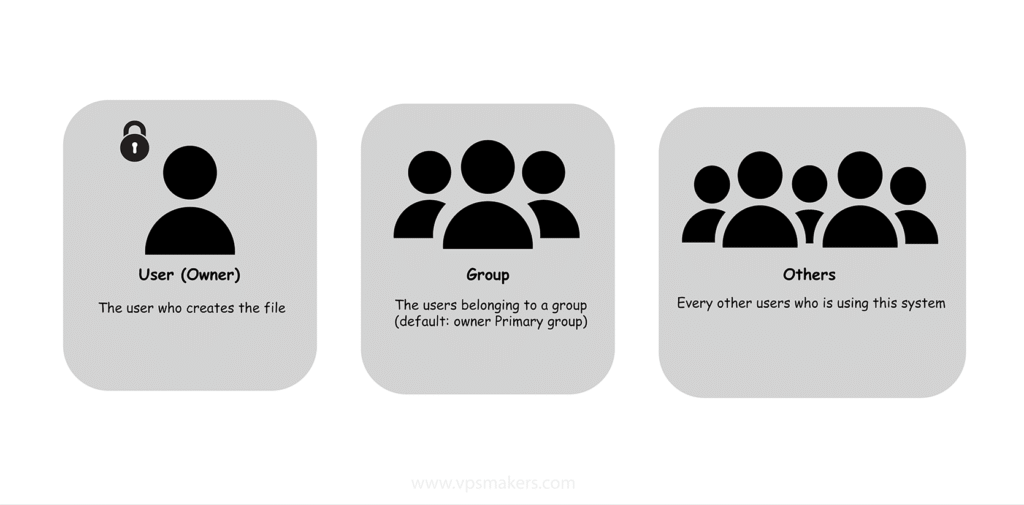
In this table, you can see the user categories and the identifier letter used to set permissions and their definitions.
| User | Identifier | Definition |
|---|---|---|
| User (Owner) | u | The owner of the file which created the file or directory or assigned to it. |
| Group | g | A collection of users who share the same access rights. |
| Others | o | All other users using this server except the file owner and group assigned to it. |
| All | a | All of the users using this device, including the file owner and other users |
Linux Permisions
There are 3 basic permissions in Linux that control the entire user and file permissions.
| Permission | Symbolic | Numeric | Access |
|---|---|---|---|
| Read | r | 4 | View file content |
| Write | w | 2 | Edit and modify file |
| Execute | x | 1 | Execute the script or shell files |
Linux Permissions Structure
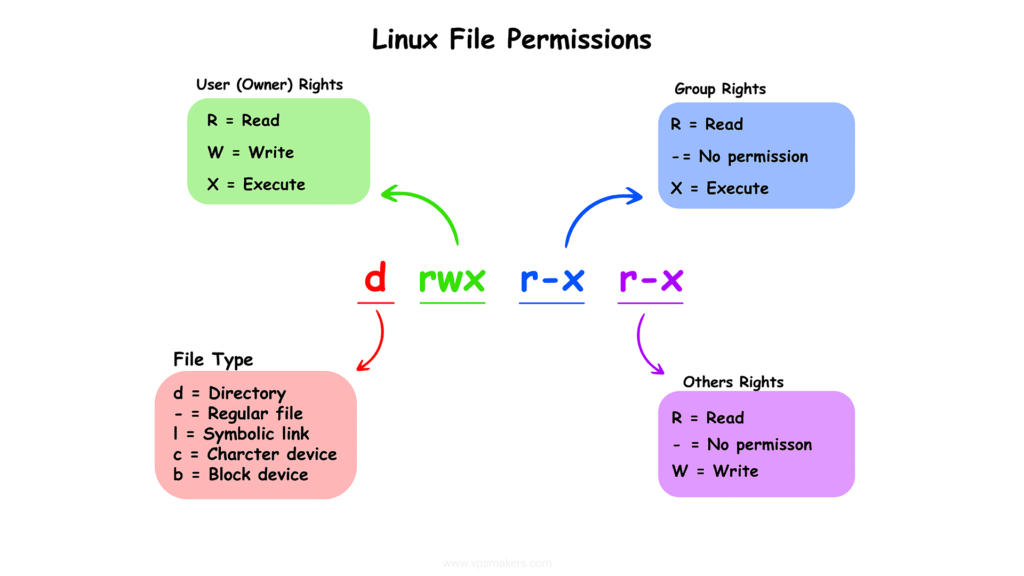
Linux file permissions are written in a structured format that includes both file type and access rights to different users, which you can see the structure of in the image below:
Check File Permissions in Linux Server
To understand permission structures in Linux better, you can check permissions on your files or directories using the command below. It shows details such as the file size, last modified date, permissions, and the user and group assigned to the file or directory.
ls -l
output:
drwxr-xr-x 2 username GroupName 4096 Jun 9 14:12 FileName
In this output, d rwx r-x r-x is the permission string that defines access levels for the file. It is divided into 4 main parts:
1- The first part letter (d) represents the file type, which here is a directory
2- The second part (rwx) represents the permissions for the user (owner of the file)
3- The third part (r-x) represents the permissions for the group (users who belong to the file’s group)
4- The fourth part (r-x) represents the permissions for other users (every other user in this system)
How to Set Permissions in Linux?
Setting user permissions involves multiple levels of control. You can manage file and directory permissions using the “chmod” command, handle ownership with the “chown” command, and control group access using the “usermod” command, which allows you to add users to groups and assign shared permissions to them.
The chmod (Change mode) is a Linux built-in command to set or modify user permissions on files and directories. It controls what actions users can perform on files.
To use the chmod command, there are two methods: using symbolic mode (a readable way) and numeric mode.
Chmod Symbolic Mode
Symbolic mode is a user-friendly way to manage file permissions in Linux. Instead of using numbers, it uses readable letters that clearly define who is affected and what action is being performed. This makes it much easier to understand and control permissions compared to numeric mode.
In symbolic mode, you always work with three main parts:
1- Who is affected
You must specify who is affected in this command (user, group, other, all).
2- What are you doing (Action)
You define the operation that you are doing:
- (+)-> add a permission
- (-)-> remove a permission
- (=)-> overwrite existing permission for that class (replace)
3- Permissions
Define the permissions you want to set
- (r)-> Read
- (w)-> Write
- (x)-> Execute
The chmod symbolic command syntax is like this:
chmod (who)(operator)(permissions) filename
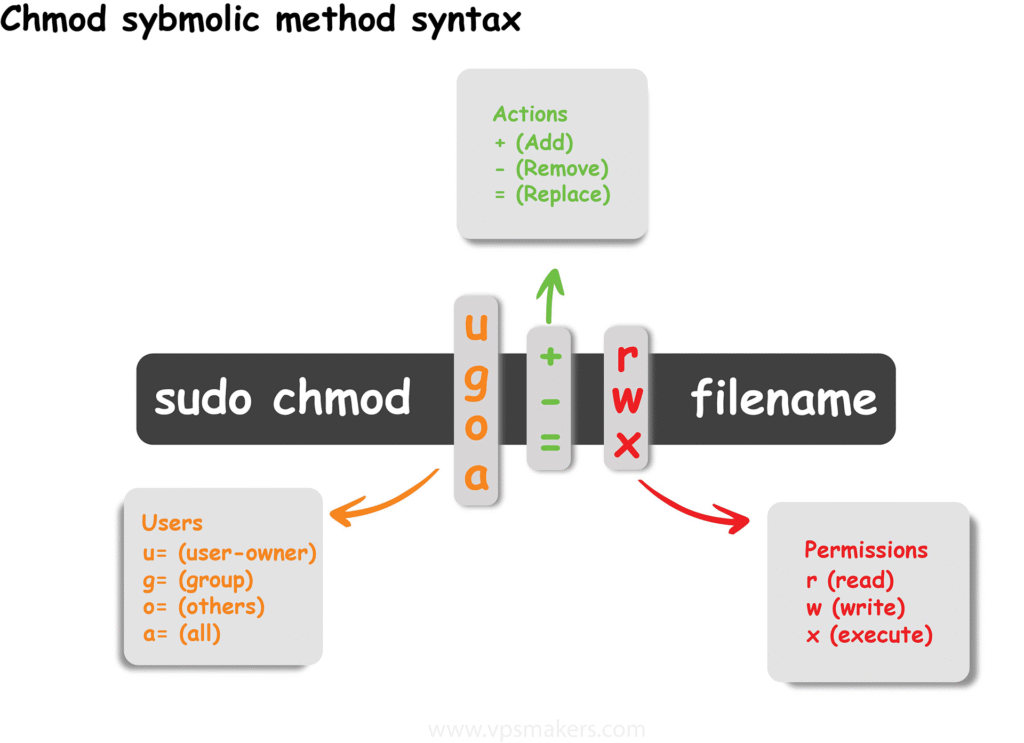
Here in this table, you can see examples of adding, removing, and replacing permissions for each user layer using the chmod symbolic mode:
| Permissions | User (owner) | Group | Other | All |
|---|---|---|---|---|
Add Permisison | ||||
| Read | u+r | g+r | o+r | a+r |
| Write | u+w | g+w | o+w | a+w |
| Execute | u+x | g+x | o+x | a+x |
Remove Permisison | ||||
| Read | u-r | g-r | o-r | a-r |
| Write | u-w | g-w | o-w | a-w |
| Execute | u-x | g-x | o-x | a-x |
Replace Permisison | ||||
| Read | u=r | g=r | o=r | a=r |
| Write | u=w | g=w | o=w | a=w |
| Execute | u=x | g=x | o=x | a=x |
Chmod Numeric mode
Chmod numeric mode, also called (Octal mode), is used in Linux systems to set permissions for users easily using numbers instead of letters, like symbolic mode we discussed.
And unlike the symbolic mode, it sets exact permission to user, which is more practical than adding or removing permissions.
When using chmod in numeric mode, permissions are calculated by adding specific values together. Each permission has its own number:
- Read (r) = 4
- Write (w) = 2
- Execute (x) = 1
To assign permissions, you simply add the values of the permissions you want.
For example:
rwx (full control) = 4 + 2 + 1 = 7
rw- (read and write) = 4 + 2 = 6
r-x (read and execute) = 4 + 1 = 5
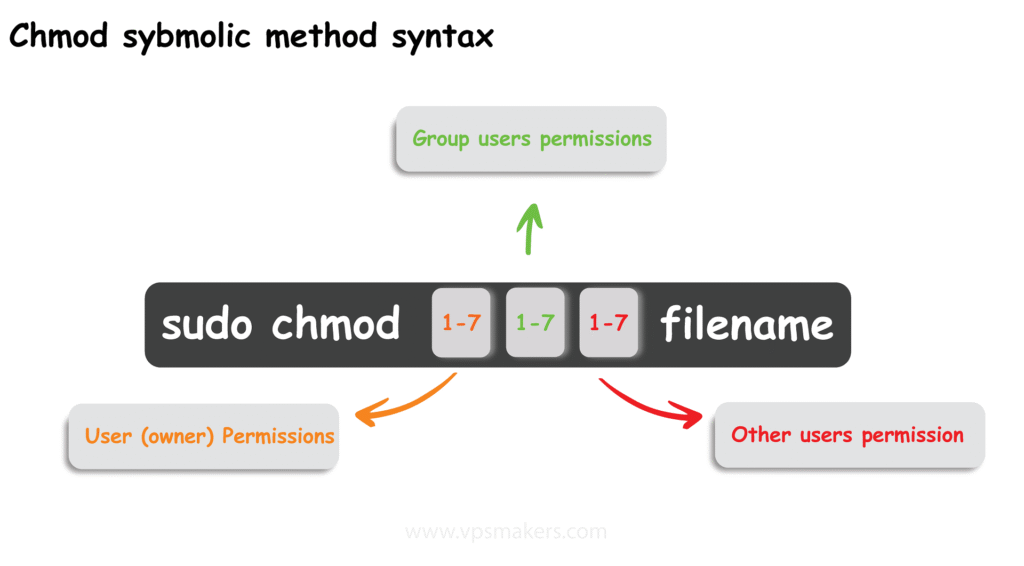
The table below shows the most commonly used chmod commands. You can use this table to set permissions for your files:
| Numeric | Symbolic | User Owner Permission | Group Permission | Other users Permissions | Common Usage |
|---|---|---|---|---|---|
| 777 | rwxrwxrwx | Full access | Full access | Full access | Quick testing or temporary setup |
| 770 | rwxrwx--- | Full access | Full access | No access | Shared projects |
| 760 | rwxrw---- | Full access | Read and Write | No access | Controled team environment (development team) |
| 755 | rwxrw-rw- | Full access | Read and Execute | Read and Execute | Script Files |
| 700 | rwx------ | Full access | No access | No access | Private scripts, SSH directory, or sensitive files |
| 644 | rw-r--r-- | Read and Write | Read | Read | Documents(PDF, Music, Downloads) |
| 444 | r--r--r-- | Read | Read | Read | Static, readable but not modifiable files (.env , wordpress config) |
| 400 | r-------- | Read | No access | No access | Sensitive Read only data that should not be modified |
Recursive Permission Change
When setting permissions to directories with chmod, you need to set permissions to both the directory itself and the files or subdirectories inside it. For this action, you need to use the -R flag in your chmod command to set permissions recursively, which affects both the directory and every content in it.
Here you can see the syntax:
sudo chmod -R 777 /directoryName
Change File Ownership in Linux
In Linux, every file and directory is assigned to an owner and group (the owner’s primary group by default), which means permissions are applied to these users.
But sometimes the default owner and group need to be changed. Especially in a shared server environment or while transferring files between users.
Or when you want to add permission to a range of users, you need to first create a group in your Ubuntu server, then add your users to the group, assign this group to your file, and apply permissions to it.
Changing the file ownership means transferring control of a file or directory to another user, which makes the new owner responsible for editing and managing the file or directory.
This is done by an ownership management tool called Chown.
Syntax of the Chown command:
sudo chown user:group file
This is commonly used when a file created by another user needs to be managed by another user, or when an administrator assigns files to specific users.
Recursive Ownership Change Linux
Recursive ownership change means applying ownership not only to one folder or file, but also to everything inside a directory, including subfolders and files.
This helps you to easily manage a directory and its content ownership with one command, and if you are working with directories, forgetting to use recursive change can cause problems.
This is the syntax for using the recursive chown command:
sudo chown -R username:groupName myfolder/
What is Root Access in Linux?
When talking about user permissions in Linux, it is important to know that they are different from root access. Both control access, but they are used for different things.
File permissions in Linux are used to control how users interact with specific files and directories. Here, permissions are about restricting or granting access to a user.
On the other hand, when granting a user root privilege in Linux server, it means this user has full administrator rights, which can manage other files, install packages, etc. This involves the ability to manage other user’s permissions, too. So they are both different.
Access Control List (ACL)
When working with basic Linux permissions tools, you will notice a limitation in how access control is handled. Using the standard permission methods, you can assign only one user (owner) and one group to it.
And the permissions can be defined for owner, group, and others. But this structure is fixed and cannot be changed.
That means if you want to give access to multiple users and groups with different permission levels, you can’t do it with basic user permissions methods. In this way, you should give too much access to others, which may cause problems with your data security.
To overcome these limitations, Linux provides a more advanced permission manager tool called Access Control List (ACLs). ACLs allow you to define multiple permission rules for different groups and users to access a file or directory.
Conclusion
Understanding user permissions is essential for Linux server administrators. Linux’s traditional permission system is simple and powerful, but it has some limitations in more complex scenarios.
This is where advanced features like ACLs(Access Control List) come into play, that offers more flexibility and control.
In this article, we have covered all the information on Linux users need to know about user permissions to work with. Hope it helps!

The Author Richard.M
Richard started out as a member of the support team and is now a full-stack web developer and support team lead at VPS Makers. He is passionate about providing people with top-notch technical solutions based on his 5 years of experience in web hosting, but as much as he enjoys coding and creating new works, he secretly dreams of becoming a sports star.
More from Richard.M