
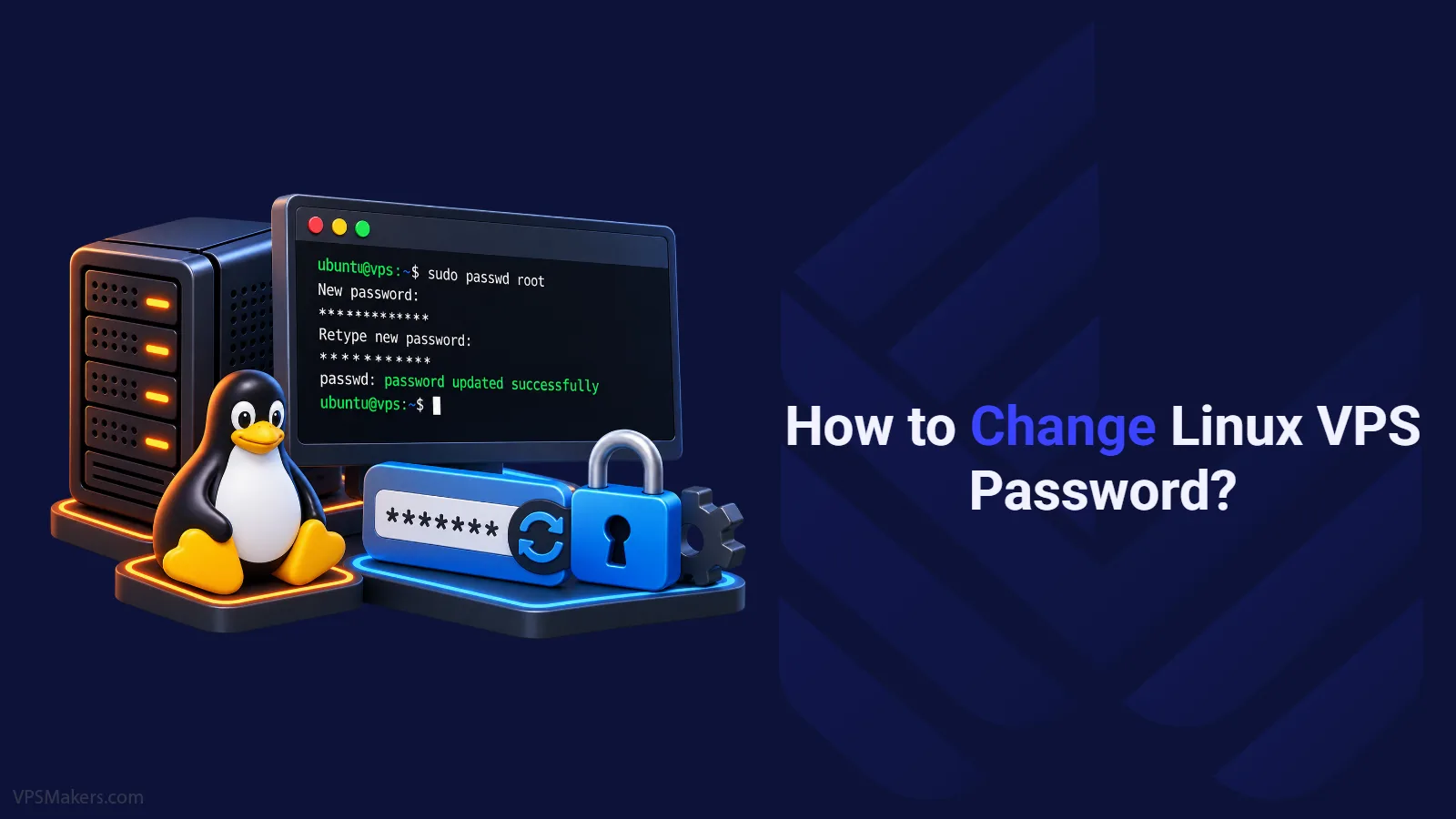
Linux provides a simple passwd command for changing user passwords. Setting a strong password avoids future attacks and improves security; it is also necessary to change passwords after purchasing a Linux VPS.
In this tutorial, you’ll learn how to change logged-in user passwords, root passwords, other user passwords, and create strong passwords.
Generate Strong Password
There are various methods for generating strong passwords, but a strong password must be longer than a minimum of 12 to 16 characters or more, especially for server accounts.
Also include a mix of uppercase and lowercase letters, numeric 0-9, symbol characters, and an underline.
If you want a much safer way to log in to your Server, use an SSH Key to log in to your Linux VPS instead. You have the SSH key on your own systems and log in with it.
Linux has OpenSSL, /dev/urandom, external tools called pwgen, and you can also use external tools on Password websites.
Generate Strong Password With OpenSSL
OpenSSL is a useful tool for generating cryptographically secure random data that can be used to create passwords; we use it to generate randomatic character includes a-z, A-Z, and 0-9.
Use the following command to generate 24-character passwords:
openssl rand -base64 32 | tr -dc 'A-Za-z0-9' | head -c 24; echoCopy and keep it somewhere secure temporarily because in the next steps we’re going to change the passwords.
Change Password in Linux VPS
After buying a Linux VPS, it’s smart to change the first password to a new one that only you know, especially if the provider gave you the first password.
If someone gets into your email and the first VPS login details were sent by email, they might get those details. Changing the first password lowers the chance of someone still being able to access your account if those details are leaked.
Also, it’s a better approach to change your password periodically, so that if some websites get hacked and users’ data is leaked, your older passwords don’t reveal your current password.
Step 1:
Before starting, you have to connect to your Linux VPS using the VPS IP address and the provided username and password.
Step 2:
To change the Linux VPS passwords, you have to use the command “passwd“, and you have to provide the user whose password you want to change, or you can change the current logged-in user’s password instead.
Change Current User Password in Linux
To change the current password, you have to use “passwd” without any flags.
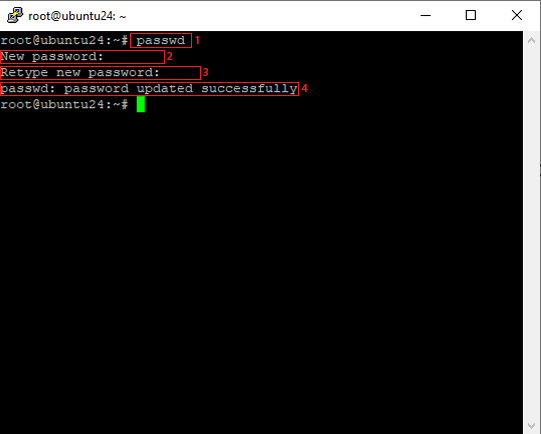
1. Enter “passwd” in your Command Line Interface
Note:
when entering a new password, you won’t see the password because of non-echoed password input, and it is for your own security.
2. Type your new password or paste the generated password from OpenSSL, then press Enter
3. Type your new password again or paste it; if you use OpenSSL, paste it, then press Enter on your keyboard
4. If the password is successfully changed, Linux displays a confirmation message
Change Another User Password in Linux
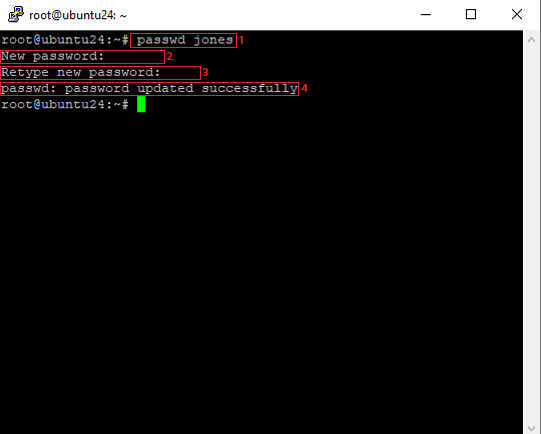
First, to change other users’ passwords, you should have access to it, and you also have to provide the username.
1. After the “passwd” command, enter the username and press Enter
2. Type your new password, or paste the password generated with OpenSSL, then press Enter on your keyboard
3. Provide your new password again, or if you use OpenSSL, paste it again, then press Enter on your keyboard
4. If Linux can change the password, you will see the success messages
Change Linux Root Password
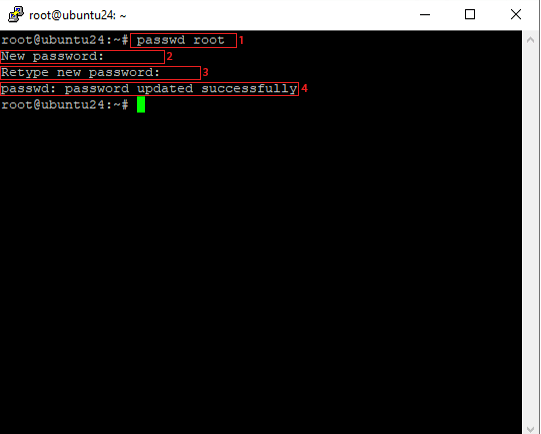
To change the root password, you have to log in as root or have sudo access for this. Be careful with changing root passwords; this user has the highest access in Linux.
1. Use the “passwd root” command, then press Enter to continue
2. Type your new password, or paste the OpenSSL-generated password, then press Enter on your keyboard
3. Again, you have to type the new password or paste the OpenSSL password, and press Enter
4. The Linux password changes will be shown with a success message
Tips For Creating Strong Passwords
A strong password contains uppercase, lowercase letters, numbers, and special characters. A strong password must not contain dictionary words or compromised passwords that have been leaked over the Internet.
Passwords should not include your personal information like your pet’s name, your national ID, your phone number, your favorite things, and your friend’s name. Also, a strong password doesn’t follow any patterns like “qwerty” on your keyboard or any other patterns.
You have to use different passwords for each site, and for better safety, use a trusted password manager to create and save different passwords instead of using the same password for all accounts.
Better actions for saving passwords are using Google Password Manager or any other password manager; Google can also provide and offer strong passwords.
Recently, social media and platforms have given more attention to passwords because of hackers and users’ data, so you have a guide when you want to create or manage your passwords.
Summary
A strong password is needed for systems, especially when you use a VPS and want security. Changing Linux passwords is simple and has a command called passwd; you can change your logged-in user, provide a specific username, or change the Linux root user.