How To Change Windows VPS password?
Windows Server has an administrator user, so when you buy a Windows VPS, you might log in as the administrator user and only need to change the administrator password, even if you purchase a Windows Client like 10 or 11.
Also, you have to be logged in as an administrator to change other user’s passwords; you can use it to change Active Directory user passwords.
Usually, the VPS provider provides you with the administrator account to log in. There are various methods for changing Windows passwords; it depends on your needs and setup, like you using automation, ADDS, or a graphical user interface to change it.
Passwords must be strong and unpredictable, and at least 12 characters long, so the first step is to choose a strong password for the system.
Create Strong Password for Windows Server
Passwords should not follow any pattern and should not include dictionary words, keyboard patterns like qwerty or qazwsx, birth dates, pet names, friend names, national ID, first and last name, phone number, and things that you like.
Also, avoid using passwords that have been exposed in data breaches, never reuse the same password across different websites or services, and change your passwords from time to time. For a better security approach, use
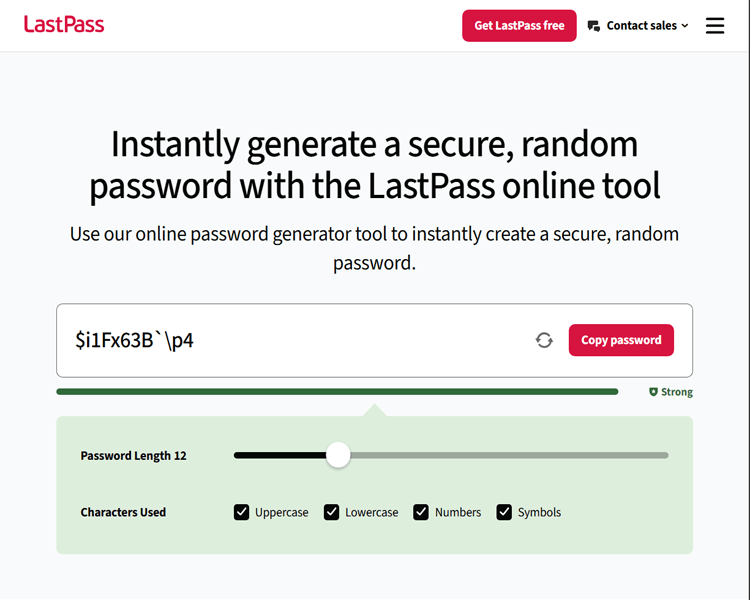
If you’re still confused and don’t have a password for yours, try creating a free password on some sites like LastPass, but we suggest changing some of the characters in the passwords created on these sites.
Change Remote Desktop Password
You can use the shortcut to change your administrator account password while connected to a Windows VPS via RDP.
If the VPS is part of an Active Directory domain, the password might be for a domain account, not a local account.
So follow the instructions below to change passwords:
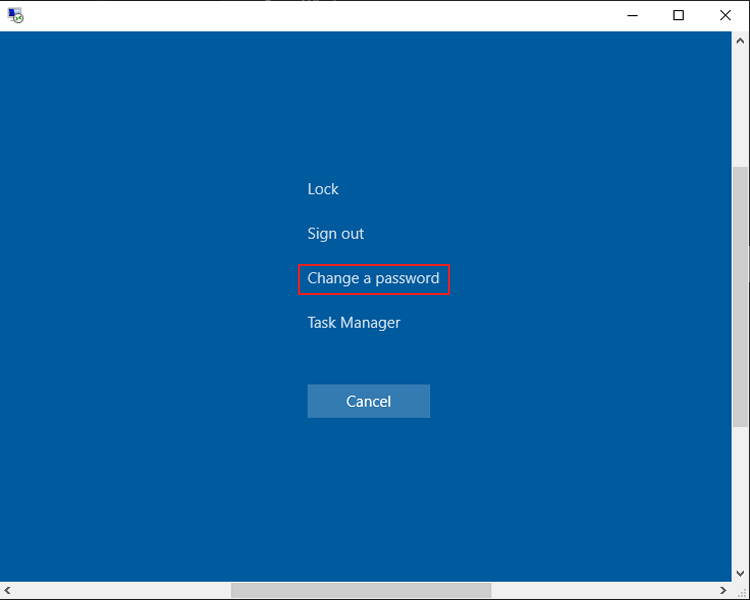
1. Press Ctrl + Alt + End
2. Select Change a password
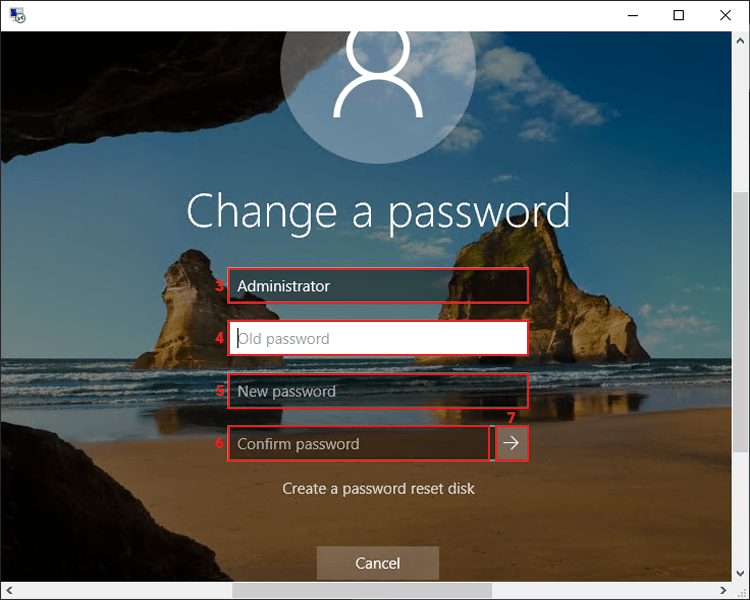
3. Provide your username, or leave it unchanged for the current username
4. Enter the old (current) Password
5. Provide a new password
6. Enter the new password again
7. Click the button to change the password
Note: You should use Ctrl + Alt + End, not Ctrl + Alt + Delete, because you are in RDP, not a local computer.
Change Password in Computer Management
Computer Management lets you manage local users and groups on Windows Server using a visual interface. You can change the password for your current local account or another local user without using Command Prompt or PowerShell.
This is helpful if you like using a graphical interface to manage Windows users. But you need admin rights to change another user’s password.
Note: The Local Users and Groups section is for local accounts only. If the computer is part of an Active Directory domain, use Active Directory tools to manage domain user passwords instead of Computer Management.
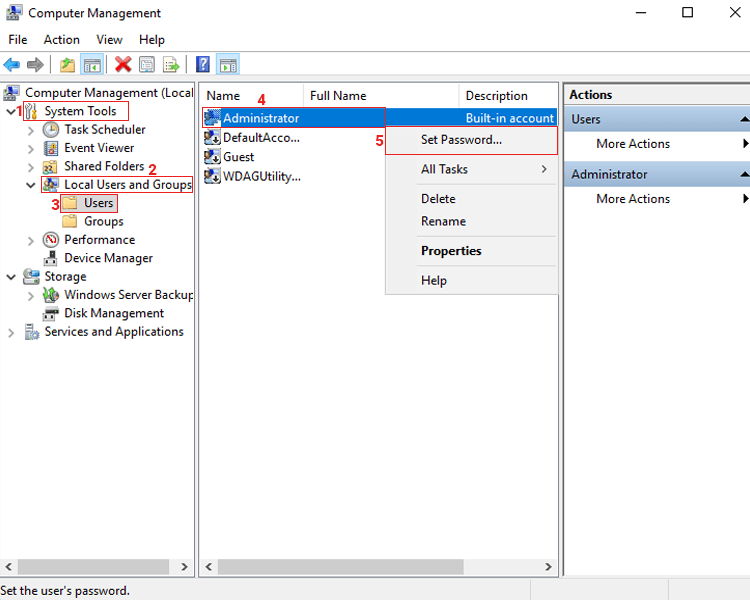
To change a user’s password in Computer Management, open it by pressing Windows + R and entering compmgmt.msc, and follow the instructions below:
1. Into the System Tools
2. Expand Local Users and Groups
3. Choose Users
4. Select the user you want and right-click on it
5. Click Set Password
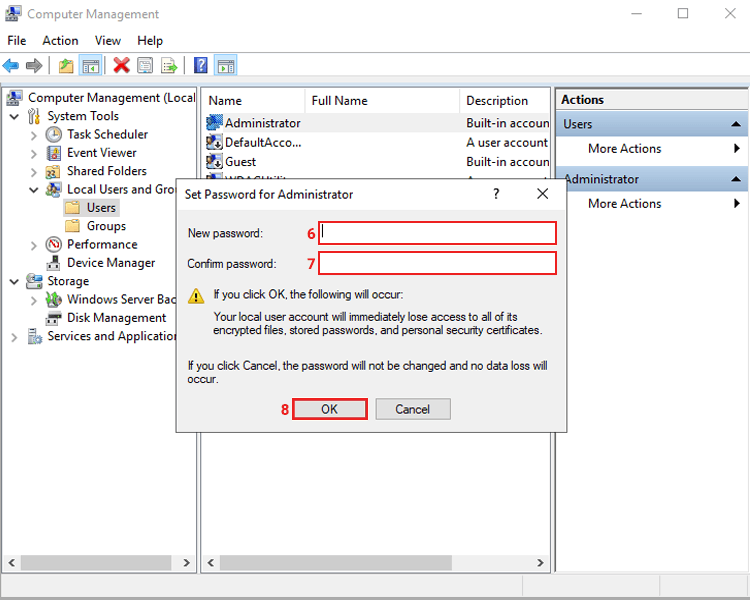
6. Provide a new password
7. Give New Password again
8. Click OK
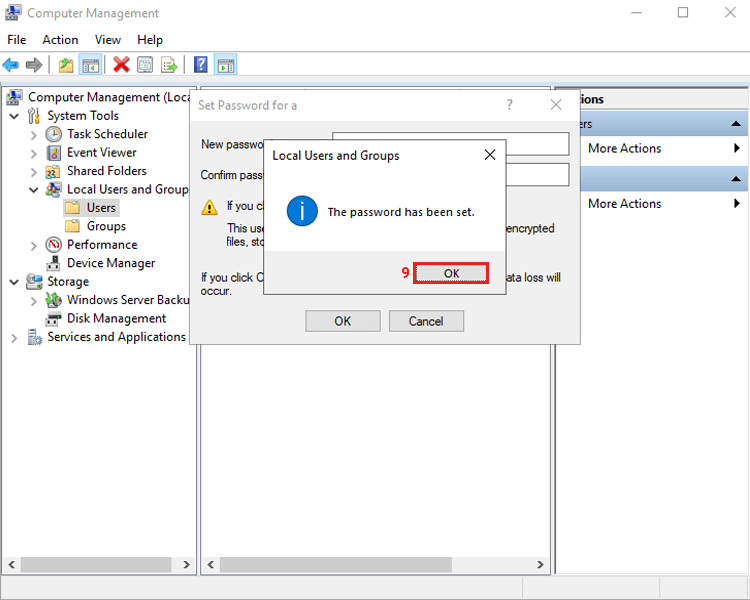
9. You’ll see an info box saying the password was set successfully
Change Windows Password in Settings
You can change the password for a local Windows account using the Windows Settings app. This is easy to do if you are logged in and don’t want to use Command Prompt or PowerShell.
The steps may differ based on your Windows version. For supported Windows Server versions, open Settings and go to the account and password options.
Here’s how to change your VPS password:
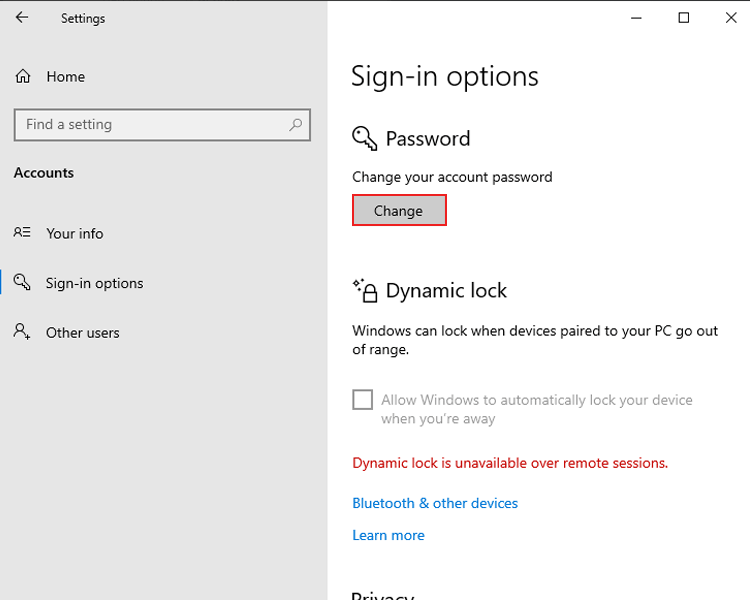
1. Open Sign-in Options from the Start menu, and scroll down to find Password
2. Under Password, click Change.
3. Enter your current password.
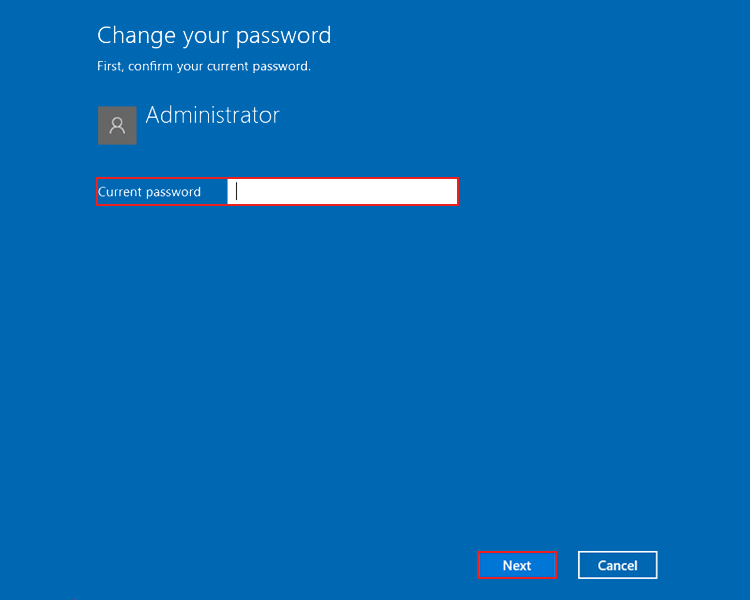
4. Type your new password.
5. Type the new password again to confirm.
6. Add a password hint if needed, but don’t give away the password.
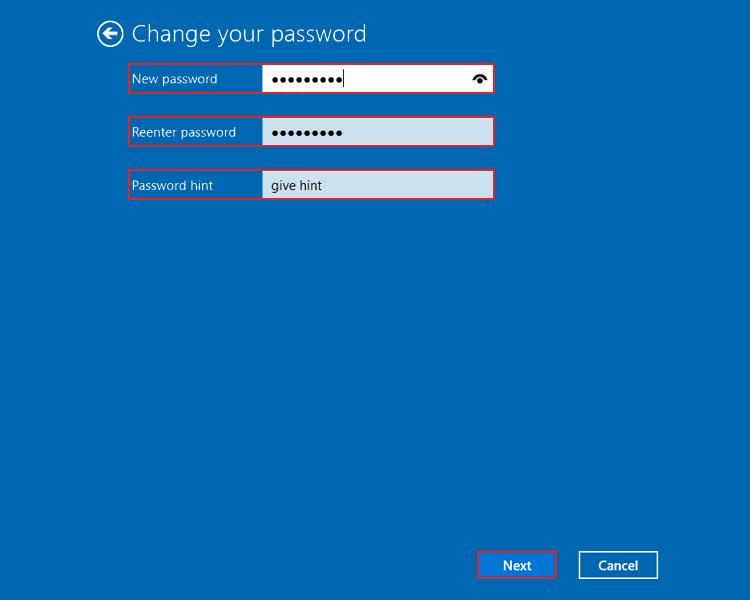
7. Click Next and then Finish to complete the change.
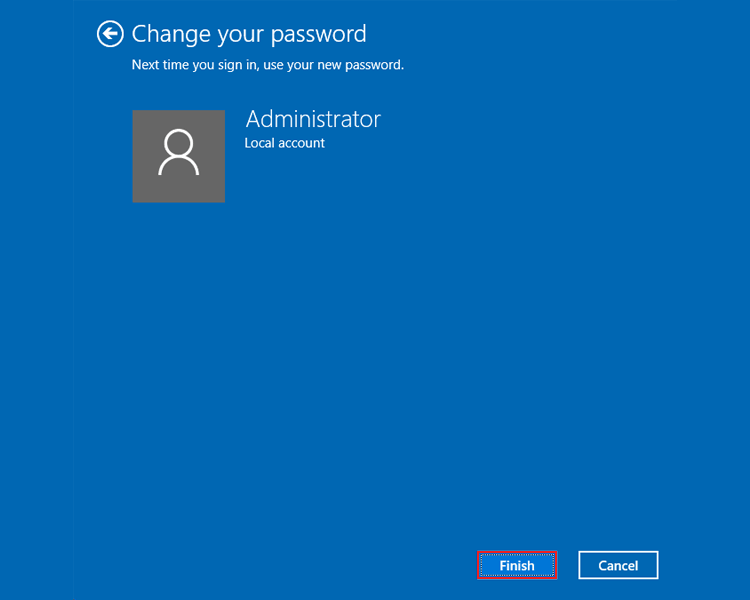
After these steps, you will use the new password the next time you sign in.
Note: This method is for changing the password of the account you are using. To reset another user’s password, use Computer Management, Command Prompt, or PowerShell with admin rights. For domain accounts, use the right Active Directory tools.
Change Windows Password With Command
You can change password with CMD and PowerShell on Windows Server to change the user’s password.
Also, using net user, it is possible to change the currently logged-in user’s password or a specific user’s password, as well as using PowerShell commands.
Change Current User Password With net user
To change the current user’s password, it needs to provide the current username. Since Command Prompt has a local variable, you can use “%username%” and change your password.
Use the command below to change the currently logged-in account password. Windows asks you to enter the new password without displaying it:
net user "%username%" *
Change Specific User Password Using net user
net user can change the specific username that you provided. If your username contains a space, make sure you write it in “”, so Command Prompt can read it.
Use the following command to change the specific username’s password; entering * will prompt you to enter the password:
net user Administrator *
You can also specify the password directly:
net user Administrator NewPassword123!
Note: Using an interactive password entry is better because typing a password directly in the command can show it in command history or other ways.
Change Windows Password With PowerShell
PowerShell is suitable for automation and admin management tools for changing user settings and details.
First, open PowerShell on Windows Server. Then, you have to use a script to change the password of a user by following the command below. After the first command, you’ll be prompted to provide passwords; then you have to enter them for the next command. Run it:
$Password = Read-Host "Enter new password" -AsSecureString

Set-LocalUser -Name "Administrator" -Password $Password
Also, you can change another user’s password by providing your specific username, so change the “username” with the desired value:
$Password = Read-Host "Enter new password" -AsSecureString

Set-LocalUser -Name "username" -Password $Password
Summary
You can change a Windows VPS password in different ways, based on your Windows version and account type. For a local account, you can use RDP, Computer Management, Windows Settings, Command Prompt, or PowerShell.
In Active Directory, use the right tools to manage domain user passwords. If you change another user’s local password, you usually need admin rights.
No matter how you change the password, always use a strong and unique password. Don’t use common patterns, personal info, or words from the dictionary. Don’t reuse passwords for different services, and think about using a password manager to create and save secure passwords.

The Author Robert Smite
Hello! I'm Robert, specializing in virtual servers and cloud technology. With expertise in managing and optimizing virtual servers, my focus is on delivering understandable and practical content in this field. My goal is to enhance knowledge and assist individuals in selecting the best virtual services for their needs.
More from Robert Smite