How To Change Mikrotik VPS Password?
One of MikroTik’s security concerns is that MikroTik uses the admin user as the default user when logging in to MikroTik, which can make it an easy target for brute-force attacks.
This makes changing the username and password in MikroTik an important task; whether you are using a MikroTik VPS or physical router, you should change the user and password if your router is accessible over the internet.
There are multiple ways to change the password in MikroTik using different connection methods. In the following guide, you will learn how to change your MikroTik password using WinBox, WebFig, and SSH, as well as what to do if you lose or forget your password.
How to Recover MikroTik Password?
Unfortunately, MikroTik doesn’t provide any option for password recovery either from WinBox or other connection solutions. If you don’t have any other user to log in to your MikroTik.
You may be locked out of your MikroTik router. If you are using a MikroTik VPS, you need to contact your VPS provider to reset your configurations, or if you are using it locally, you should hardware reset your MikroTik.
As a result, you should always have a backup of your MikroTik configurations to ensure that there won’t be any data loss in situations like this, or you should have an alternative user to access your MikroTik.
To learn how to take a backup of your MikroTik configuration, you can read our dedicated article:
How to backup Mikrotik configuration.
MikroTik Password Recovery Tool
According to the MikroTik RouterOS website, which is an unofficial website dedicated to Mikrotik:
Previously, there was a tool called MikroTik Password Recovery Tool. But it’s no longer operational after the MikroTik RouterOS v6.13 upgrade, which changed the encryption methods.
There is another method for recovering a MikroTik password, but it is an advanced and potentially unsafe method that requires physical access to the MikroTik device.
The method was published on November 28, 2012, so it is outdated, and there is no guarantee that it is safe or will work with newer RouterOS versions.
You can read the original guide here:
Change MikroTik VPS Password Using WinBox
As mentioned, if you have lost your password, you will need to reset your MikroTik. However, if you still have access, connect to your MikroTik using WinBox.
Change User Password in WinBox
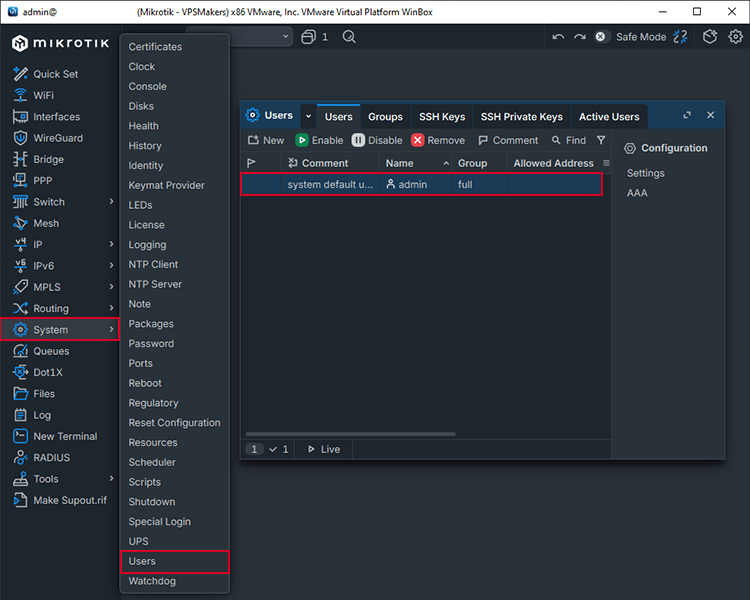
Step 1 – Click on System> Users, then double-click on the admin user to open the user settings.
Step 2 – Here, you can change all admin user settings. Click on Password, then on the opened page, enter the new password and confirm it. Finally, click Apply and OK to save the changes.
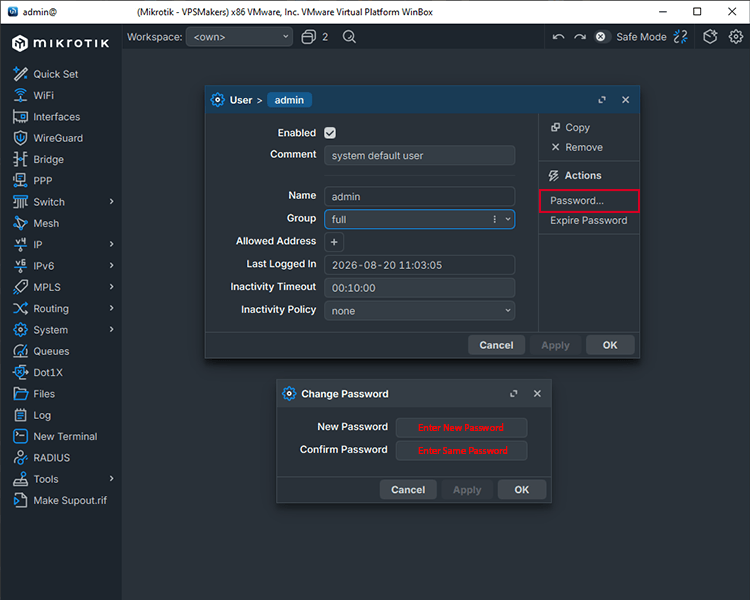
Note: If you are logged in with the admin user, you will be logged out, login again with the new password.
Change MikroTik VPS Password Using WebFig
You can use WebFig to connect to your MikroTik Router and manage its settings. Simply enter your MikroTik IP address in a web browser:
http://MikroTik_IP_Address
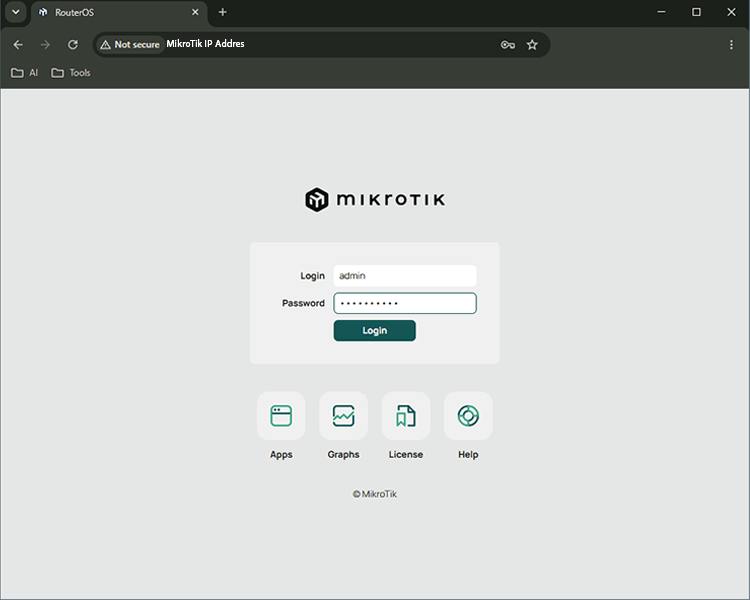
Change the Password in WebFig
1. Click on Advanced to switch the WebFig menu to advanced mode. Changing to advanced mode will change its theme to look like Winbox.
2. Go to System > Users.
3. Click on the user whose password you want to change.
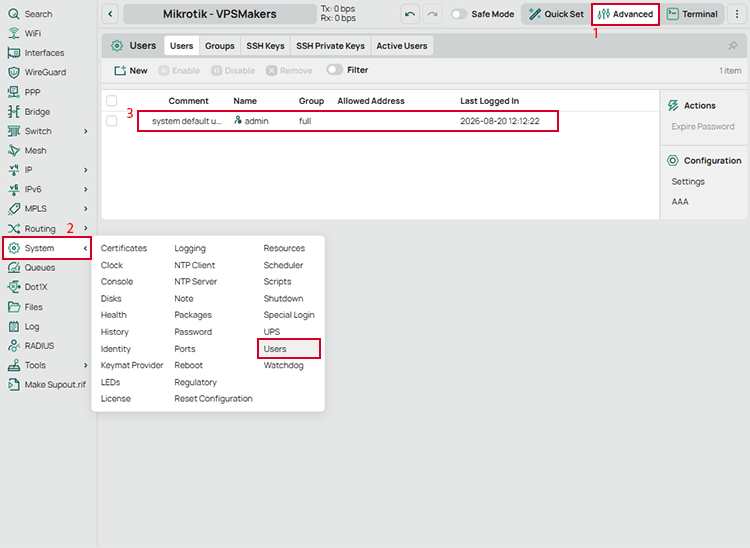
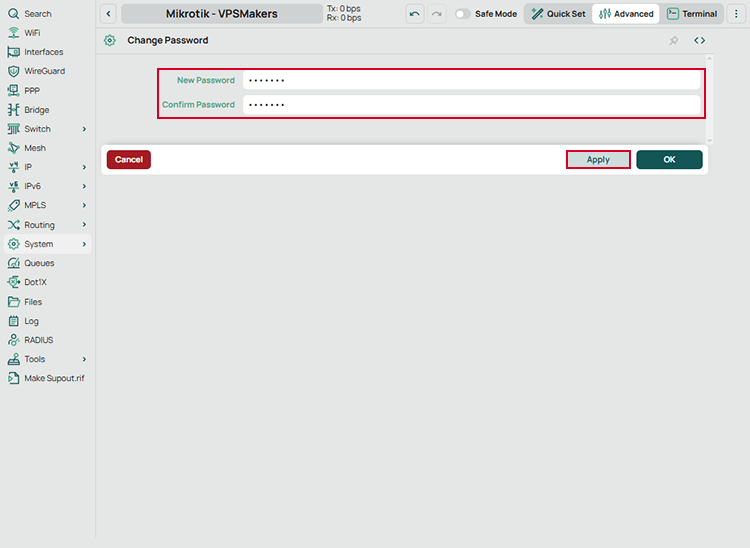
4. Click on Password; this will open another page to change the user’s password. Enter the new password and confirm it, and click on Apply.
How to Change MikroTik VPS Password Using Terminal?
You can change the MikroTik VPS password directly from the terminal using the RouterOS command line or connecting through SSH. Through the terminal, you can change either your own password or other user’s passwords. Follow the steps below to learn how.
Connect to the MikroTik VPS Through SSH
You can connect to your MikroTik VPS with SSH using applications like PuTTY or Bitvise, or directly using the ssh command in Windows PowerShell or Linux terminal.
You can use this command in Windows PowerShell:
ssh admin@MikroTik_IP_Address
In this guide, we’ve used PuTTY to connect to our MikroTik.
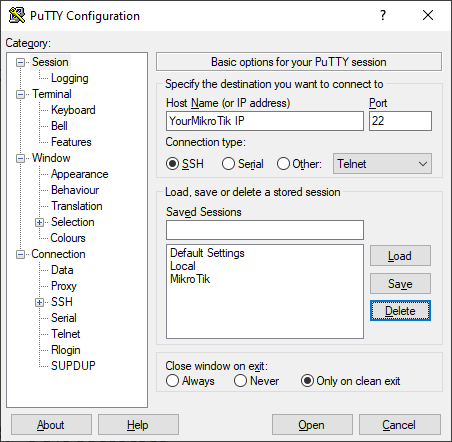
Note: If you failed to connect or MikroTik refused your connection, make sure you don’t block port 22 in the firewall, or verify SSH connection is enabled in IP > services.
List Users in MikroTik CLI
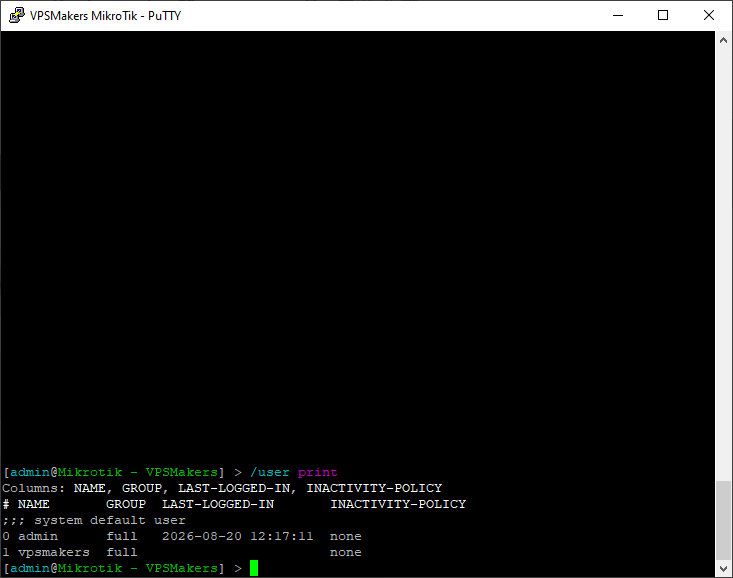
By listing the users on your MikroTik device, you can verify which accounts are available. This is especially helpful when changing another user’s password, as you can confirm the exact username required for the password change.
Run the command below to list users:
/user print
Change Own Password in MikroTik
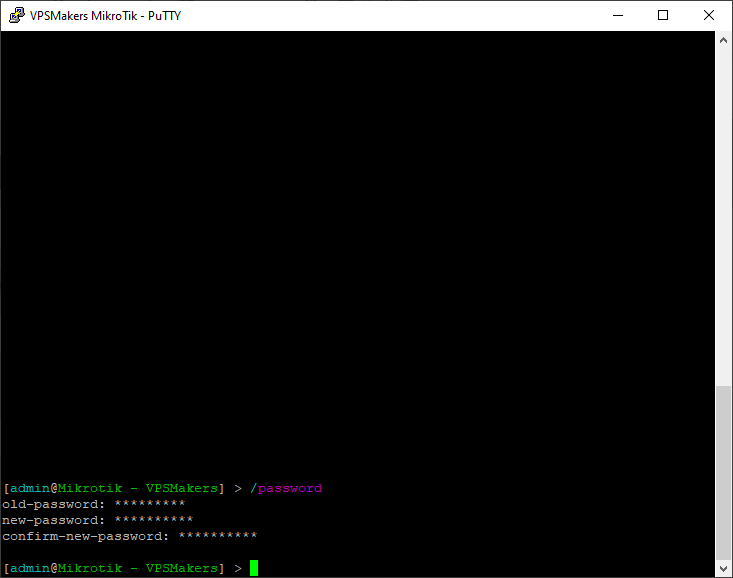
To change your own after logging in, run the command below. It will ask you to enter your old password, new password, and its confirmation, then if the passwords match, it will change your password.
/password
Change Another User’s Password in MikroTik
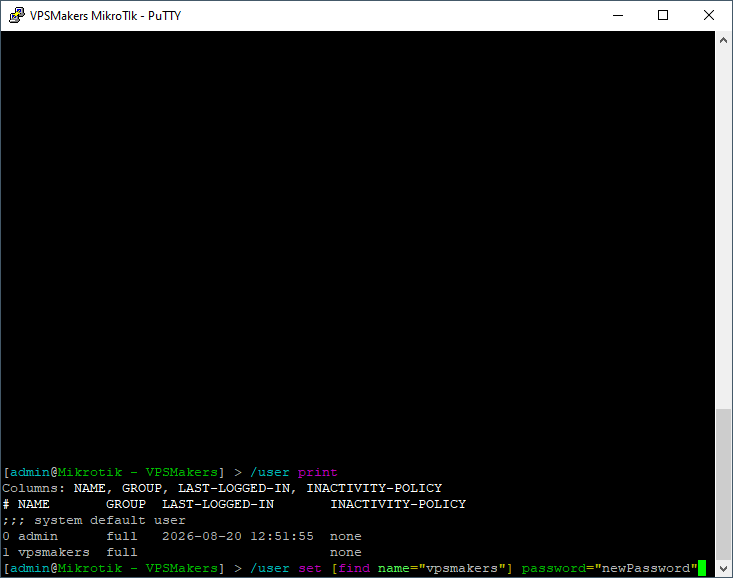
You can change another user’s password if you’ve logged in with the admin user and have access. First, you need to list the users exists on your MikroTik to verify the user’s name that you want to change the password.
Then, change the password of the desired user using the command below:
/user set [find name="username"] password="NewPassword"
Replace username and NewPassword with the target user’s username and new password that you want to set for the desired user.
How to Secure MikroTik VPS After Changing the Password?
Changing your MikroTik password is an important security step, but you should also apply some additional security measures to make your MikroTik VPS much more secure and reduce the risk of unauthorized access.
Use a Strong Password
Using a strong password is the main thing you should do; the password should be a unique combination of uppercase, lowercase, symbols, numbers, and special characters, and it should be more than 8 characters to make it hard to guess.
Avoid using common passwords, company names, the same password as your username, or other easily guessable passwords like “1234“.
Disable the Default Admin Account in MikroTik
It’s better to create another user in MikroTik with full access and use it instead of the admin account, and disable the admin account.
This approach can reduce brute-force risk. And make sure unauthorized users don’t have access to the administrator account.
Restrict Remote Access to MikroTik
You can restrict remote access methods to your MikroTik, which reduces attack points and makes your router secure. Disable unnecessary services and avoid exposing management services such as SSH or Winbox to the entire internet.
It’s better to keep the main services that you are using for management enabled and disable all others.
Conclusion
Changing the MikroTik password is an important step in securing your router or MikroTik VPS, especially when it’s accessible over the internet. You can change the password using Winbox, WebFig, or RouterOS terminal depending on how you connect to your router.
If you lose access to your account by forgetting the password, MikroTik doesn’t provide a simple password recovery option, so you should keep a backup of your configurations, or you should have an alternative administrator account.
After changing the password, you should consider disabling the default admin account for safety reasons and restrict remote access to your MikroTik by disabling unnecessary services.
FAQ
What is the Default Admin Password for MikroTik?
For a physical MikroTik device, the default username is usually admin, and the password is blank (empty). However, if you are using a MikroTik VPS, your provider should provide the username, password, and other required login details when you purchase or set up the VPS.
How to Reset a MikroTik Router?
If you have forgotten your MikroTik password or want to restore the device to its default configuration, you can reset the MikroTik router.
MikroTik offers a software reset, but if you are using a MikroTik VPS, its recommened to use it because some basic startup configuration would get lost and you will be locked out.
You should hardware reset your MikroTik, or in a VPS environment you should contact the providers to reinstall your RouterOS.

The Author Jacob R
i am Jacob a developer and cybersecurity enthusiast with strong skills in web development and a passion for building practical digital solutions,Working on web development for 4 years. Hope my guides be helpful
More from Jacob R