

Installing aaPanel on a CentOS server gives a graphical interface to manage websites, databases, web servers, and apps using a web control panel instead of doing it all by typing commands.
Before you start installing, you need to prepare the server by updating its software, installing the necessary tools, and ensuring there are sufficient system resources.
In this guide, you will learn how to install aaPanel on CentOS, configure the firewall, access the panel in a web browser, manage it via the command line, and resolve common installation issues.
But before starting make sure your server meets the following minimum requirements. If you don’t already have a server, you can start with a reliable CentOS VPS.
For production and operation servers, we recommend at least 2 CPU cores, 2 GB RAM, and 10 GB of free disk space for better stability and performance when hosting websites, databases, or multiple applications.
aaPanel Install Requirements on CentOS Server
First, you need to connect to your CentOS server via SSH, and keep in mind you should have administrator privileges over the server to install aaPanel.
After logging in, to install the latest release and bug-fixed packages, first update the CentOS packages, then install the required packages for aaPanel.
For updating, use the command below on your CentOS VPS:
sudo dnf update -yWith the following command, you can install the 3 required packages: wget, curl, and unzip:
sudo dnf install wget curl unzip -yInstall aaPanel using Installer Script
To install aaPanel, download the installer script, then run it with the following command. :
URL=https://www.aapanel.com/script/install_panel_en.sh && if [ -f /usr/bin/curl ];then curl -ksSO $URL ;else wget --no-check-certificate -O install_panel_en.sh $URL;fi;bash install_panel_en.sh ipsslit’s ensure if you have wget or curl and also ignores SSL errors.
The last argument automatically generates and enables a self-signed SSL certificate for the panel’s IP address.
You’ll be prompted to install WebFile for aaPanel right now; press y.
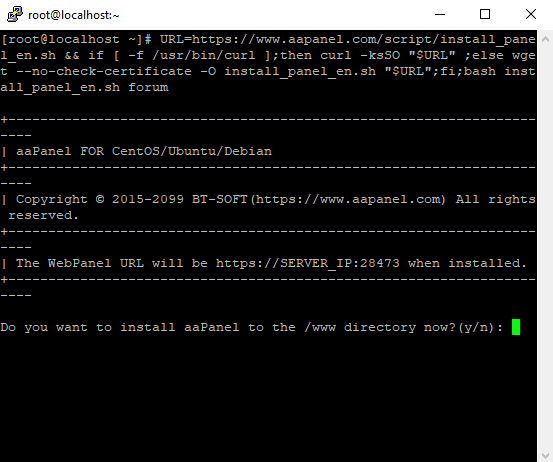
The shell script will now automatically install aaPanel. This process takes about 20 minutes, though download speeds will depend on your server’s bandwidth and port capacity.
Save aaPanel Default Credentials
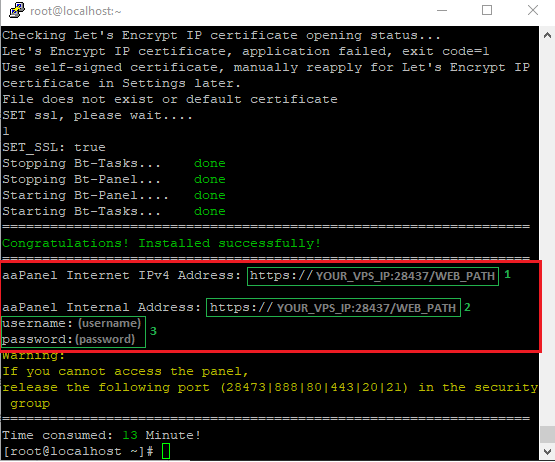
After Installation, aaPanel gives you randomly created credentials to use aaPanel and your IP address with the web path & port. It’s after the success message, so take note of or screenshot this section to access your aaPanel in a browser.
aaPanel randomly creates a web route with port panel/28473 on your CentOS server.
In this section, you can see the randomly generated credentials to log in to aaPanel:
1. aaPanel Internet IPV4 Address
2. aaPanel Internal Address
3. Username and password for login
Access aaPanel CLI Console
For managing aaPanel via CLI, you can use the bt command. bt can restart, stop, start, or reload the panel, and change usernames and passwords.
After using the bt command in the CLI, it shows a list of operations that bt can handle for managing aaPanel:
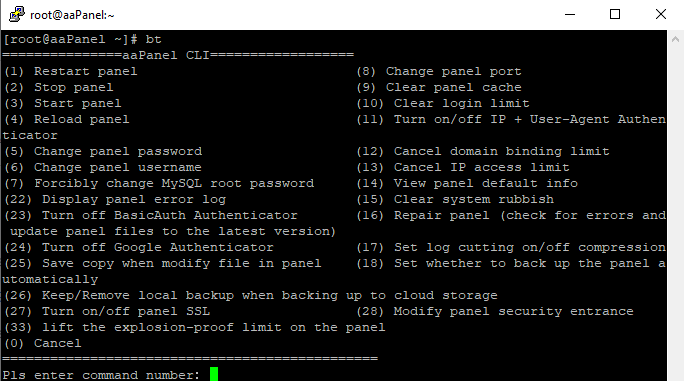
With the bt command, you have to enter the number of operations that you want to do.
Note:
If you forget to take notes on or take screenshots of your aaPanel credentials after successful installation, you can change them with the bt command in the CLI.
Open aaPanel Ports on CentOS Server
aaPanel uses Ports, 28473, 888, 80, 443, 20, and 21. You must configure your CentOS firewall to allow traffic through these ports. Use the firewall-cmd command below to open the ports:
sudo firewall-cmd --zone=public --add-port=20/tcp --add-port=21/tcp --add-port=80/tcp --add-port=443/tcp --add-port=888/tcp --add-port=28473/tcp --permanentBecause you are adding these with the –permanent flag, remember to reload the daemon afterward so the new rules take effect in your current session:
sudo firewall-cmd --reloadTo verify that the ports are now open and active, you can check your firewall’s current state with this command:
sudo firewall-cmd --zone=public --list-ports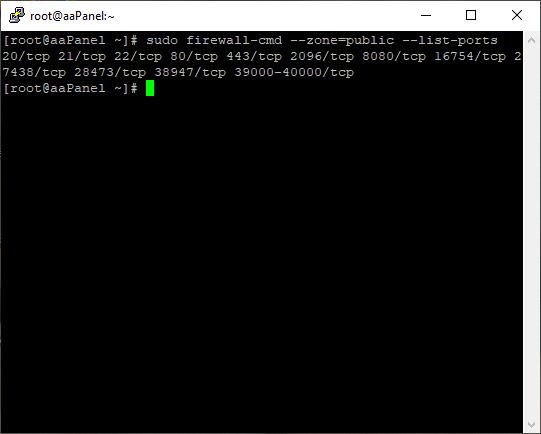
Login to aaPanel With Browser
To access the aaPanel control panel, you need to go to the aaPanel Internal Address link in your browser:
https://Your_VPS_SERVER:28473/WEB_PATHBecause you use a self-signed SSL certificate, you’ll get a warning from the browser, but proceed with the following diagrams below:
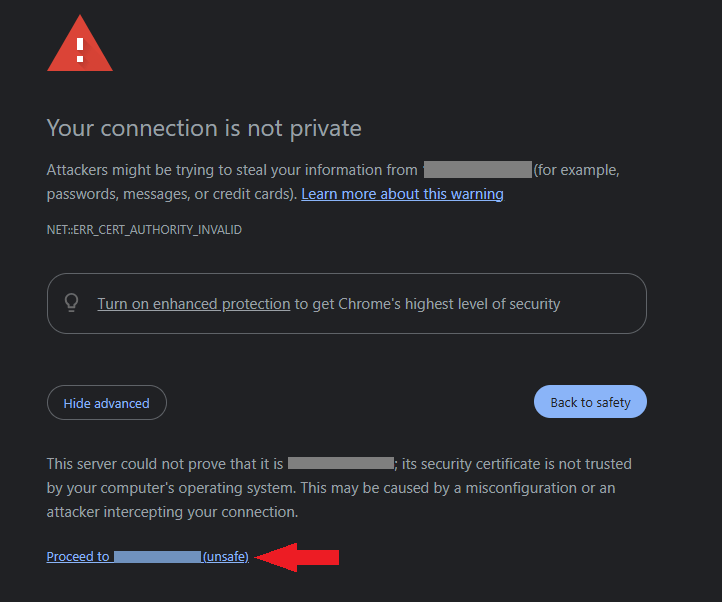
After viewing the login page, you can enter the login credentials that aaPanel created for you after the installation was complete:
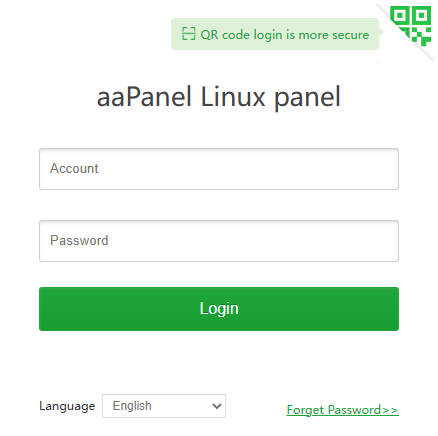
First, when you log in, you can see a setup wizard for deploying a website like a WordPress site, Node.js, or PHP:
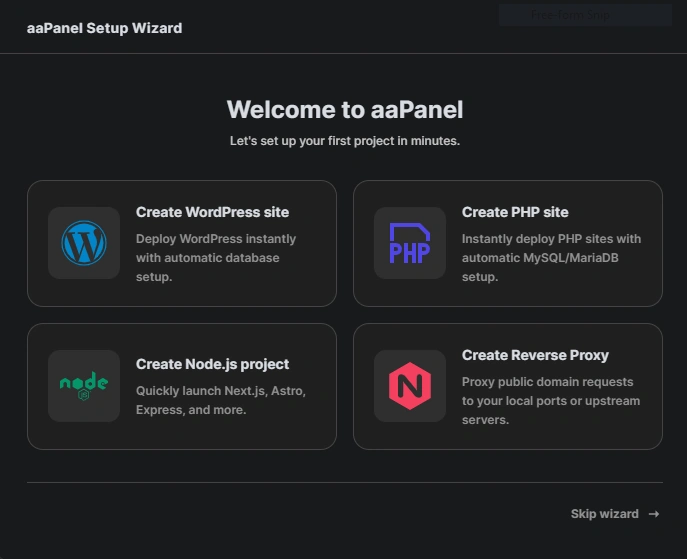
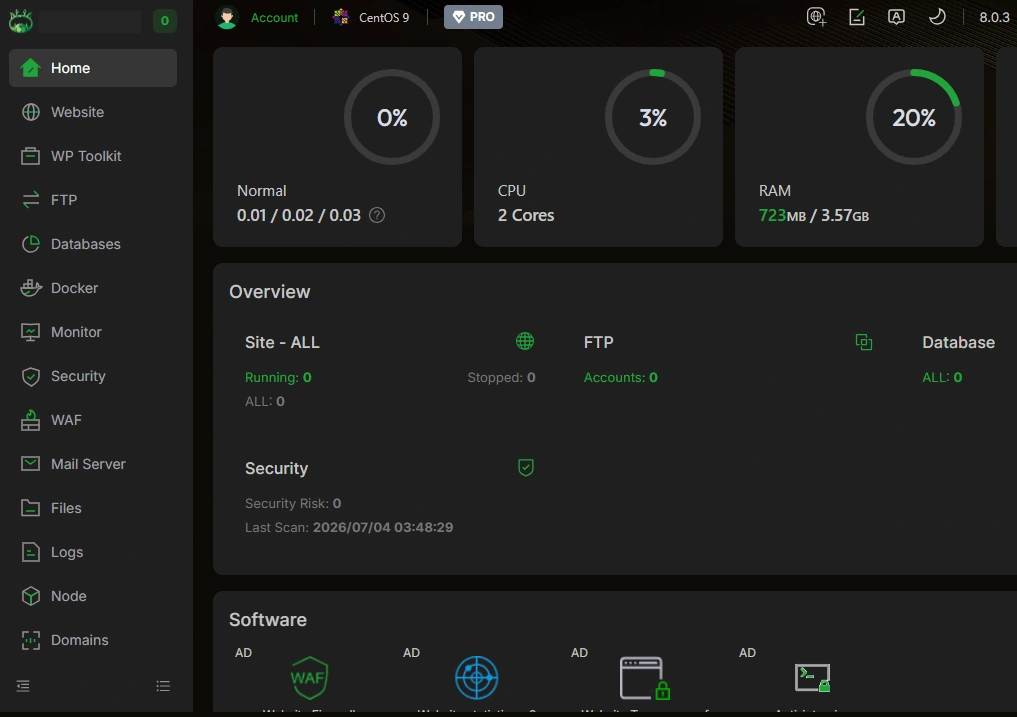
By skipping the Wizard, you can see the aaPanel Linux Panel in your browser:
Common Issues When Installing aaPanel on CentOS Server
Get Error in Installation with Normal User
If you install aaPanel as a non-root user, you may encounter an error:
Non-root install, please try the following solutions:
1.Please switch to [root] user install
2.Try executing the following install commands:
sudo bash install_panel_en.sh forum
To solve this problem and change the user’s access to root access, you can use the command below and then install aaPanel.
sudo -iSummary
preparing your server, installing the required dependencies, running the official installation script, configuring your firewall, and saving your login credentials, you can have aaPanel up and running in just a few minutes.
You installed a CMS with a free plan, Unlimited website creation, and WordPress management tools. aaPanel is an alternative to CPanel because CPanel doesn’t install on CentOS Stream 8 up to 10.
FAQ
Is aaPanel Supported on CentOS Stream 10?
Yes, according to the CentOS documentation, aaPanel is supported on CentOS 9 Stream and CentOS 10 Stream.
Before installing aaPanel, make sure you have the required operating system version and your server meets the panel’s minimum resource requirements.
It is also recommended to use a fresh CentOS installation for aaPanel because existing web servers, databases, or other control panels can cause conflicts during the installation process.
Does aaPanel Support Nginx?
Yes. aaPanel supports both Nginx and Apache, allowing you to choose the web server that best suits your hosting requirements. Nginx is commonly used as the default web server because of its performance and efficient resource usage, but you can install and use Apache if your applications require it.
You can select the web server and other software components during the aaPanel setup process. Instead, you can install Nginx on the Linux server itself without installing any panel.
How to Change aaPanel Password?
You can change your password in aaPanel using the bt command. This is included in aaPanel. The bt command provides several options for managing aaPanel, including changing the username and password.
Run the command below with admin access:
btThen select option 5 to change the panel password. Follow the prompts to enter and confirm your new password.
Note:
Make sure to save your new credentials in a secure location so you do not lose access to the aaPanel dashboard.
Is it Possible to Host Multiple Websites on aaPanel?
Yes, aaPanel allows you to host and manage multiple websites on a single server. You can create and manage websites from its dashboard.
But the number of websites you can host depends mainly on your server’s available CPU, RAM, storage, and network resources, as well as the resource requirements of each website.