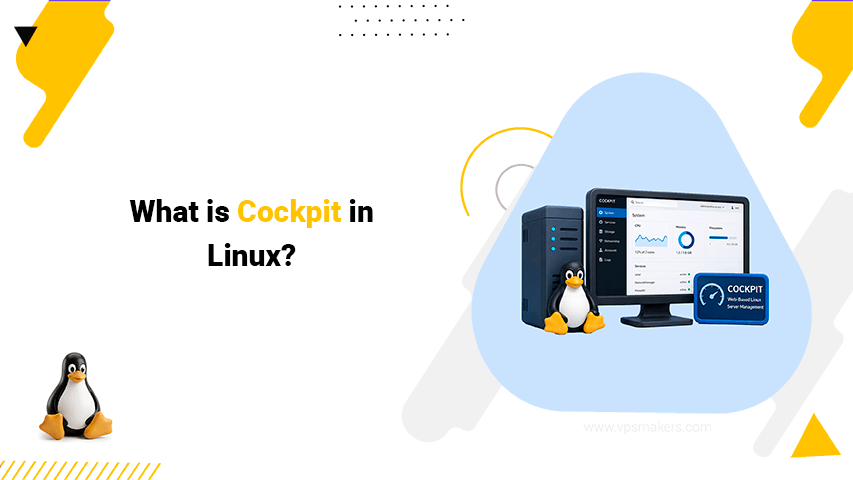
What is Cockpit in Linux?
Cockpit is an open-source, lightweight web-based tool designed to help administrators manage and monitor Linux servers directly from a browser. It provides various management and monitoring tools while using your existing server credentials.
Red Hat makes and supports it. It is mostly developed on Fedora, a RHEL-based Linux distribution. Cockpit is pre-installed on server versions of Fedora and gets new features first.
Cockpit Use Case in Linux Server
Cockpit can be installed on various Linux systems: RHEL and Debian-based, Arch, and SUSE. You can do various system administration tasks, such as managing systemd services, configuring storage and networks, troubleshooting network issues, and viewing system logs.
It’s a good choice for both beginners and experienced Linux users. It is useful for new Linux users who prefer a simple, web-based graphical interface, as well as Linux administrators who want an overview of their systems.
Linux Cockpit Applications
Cockpit provides various applications that extend its functionality. You can use the built-in features such as Overview, Logs, Accounts, and Services without installing additional applications. Other applications can be installed based on your requirements.
These applications include Podman for creating and managing containers, Network Manager for network configuration, Storage for managing storage devices, and Virtual Machines for creating and managing virtual machines.
You can also use Cockpit to update your server’s software, check your Linux server logs, and open Terminal for executing commands.
Linux System Info in Cockpit
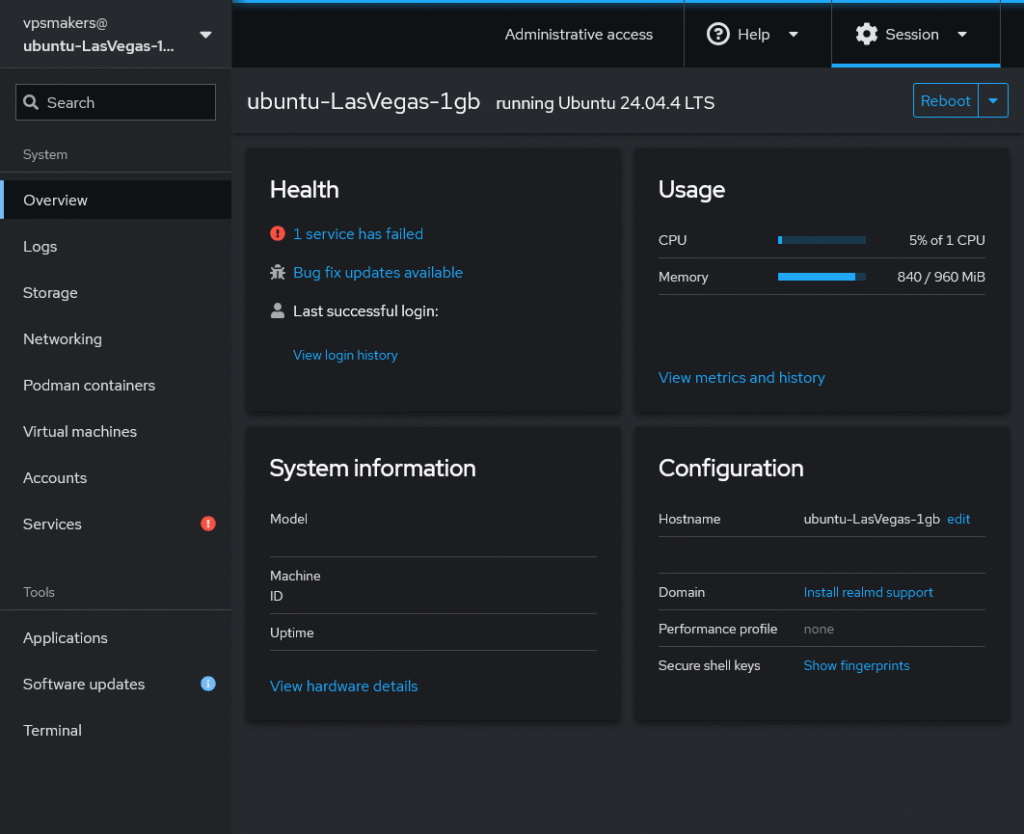
Cockpit provides an overview of your Linux server, including system health, hardware usage metrics, hardware details, and server configuration. From the Overview section, you can also easily reboot or shut down the server using the available controls.
the Overview section uses systemd-hostnamed, procfs, and sysfs to display system information such as the hostname, hardware details, and system resource metrics.
Check Server Logs in Linux Using Cockpit
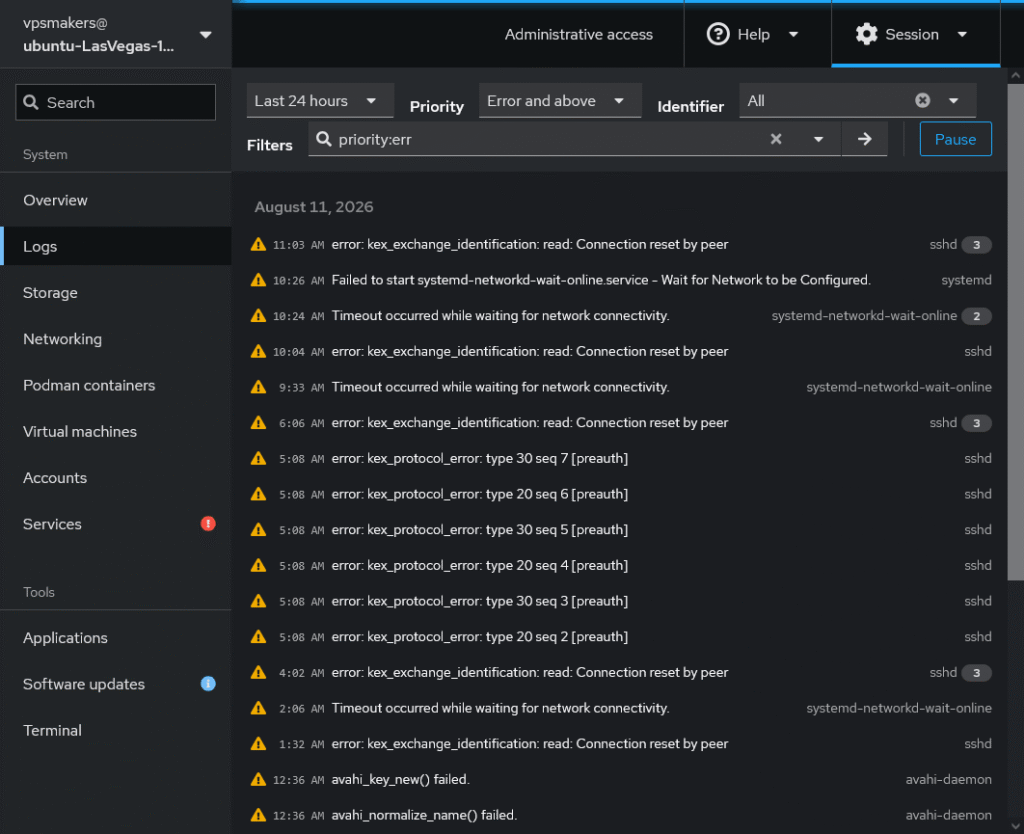
Cockpit has an advanced web-based log viewer with features such as filtering, searching, pausing the log stream, and inspecting specified log entries. It uses systemd-journald, which collects log data from the kernel, boot process, and background services into a binary format.
Cockpit Podman Manager
Cockpit supports Podman for managing containers like Docker. you can create and manage Podman containers, monitor their resource usage, and download and run container images from Docker and Quay registries.
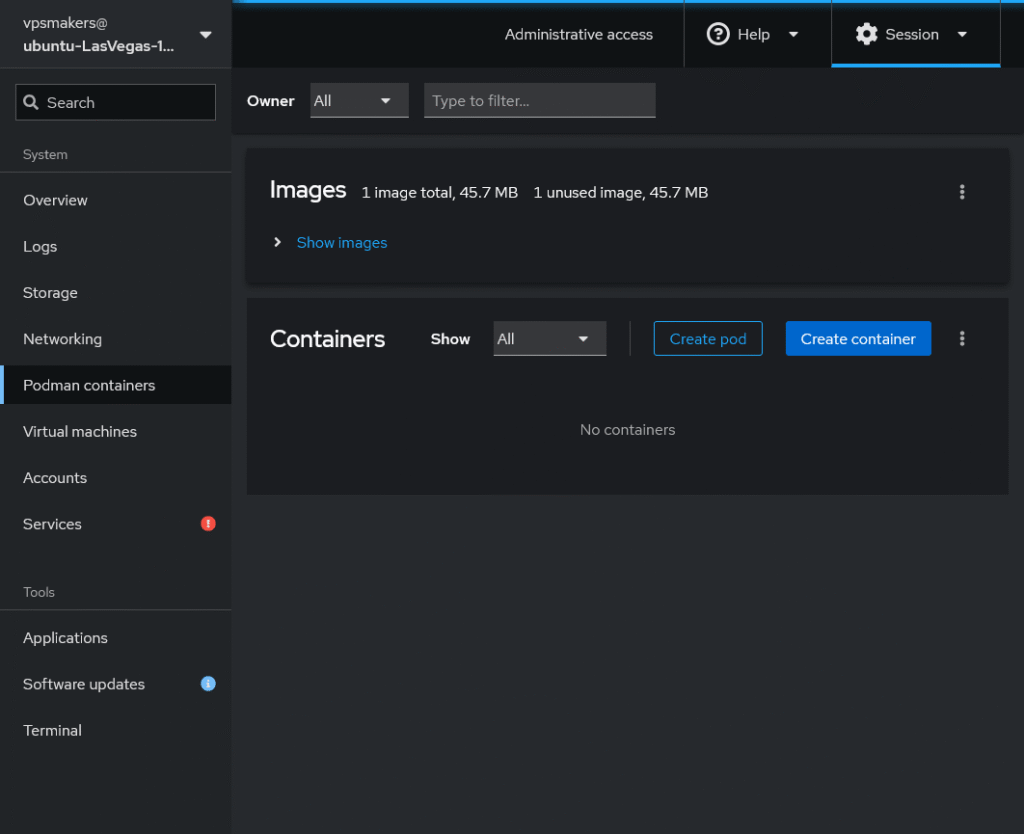
to create a container, you first need to download an image and then create a container based on that image. a container is an isolated environment that shares the host server’s kernel while running the applications and commands defined by its image in an isolated environment.
also, you can create a pod. a pod is a Kubernetes wrapper that holds one or more of these containers. the pod gives them a shared network IP and storage space.
so you have a web-based interface without relying on the command line for deploying, monitoring, and managing containerized applications directly from the Cockpit dashboard.
Checking Cockpit Installed Applications
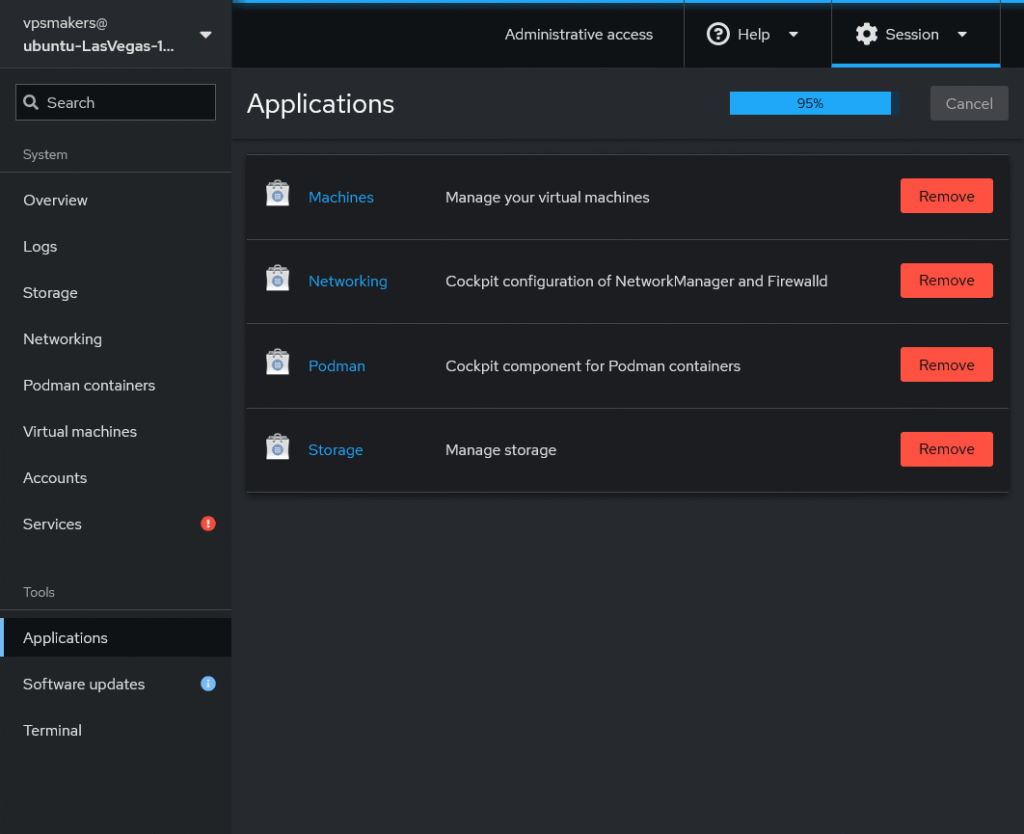
you can check the Cockpit installed applications on your server by navigating to Applications under the Tools section, and there is an option for removing any of the applications that you don’t want anymore.
Linux Cockpit Network Manager
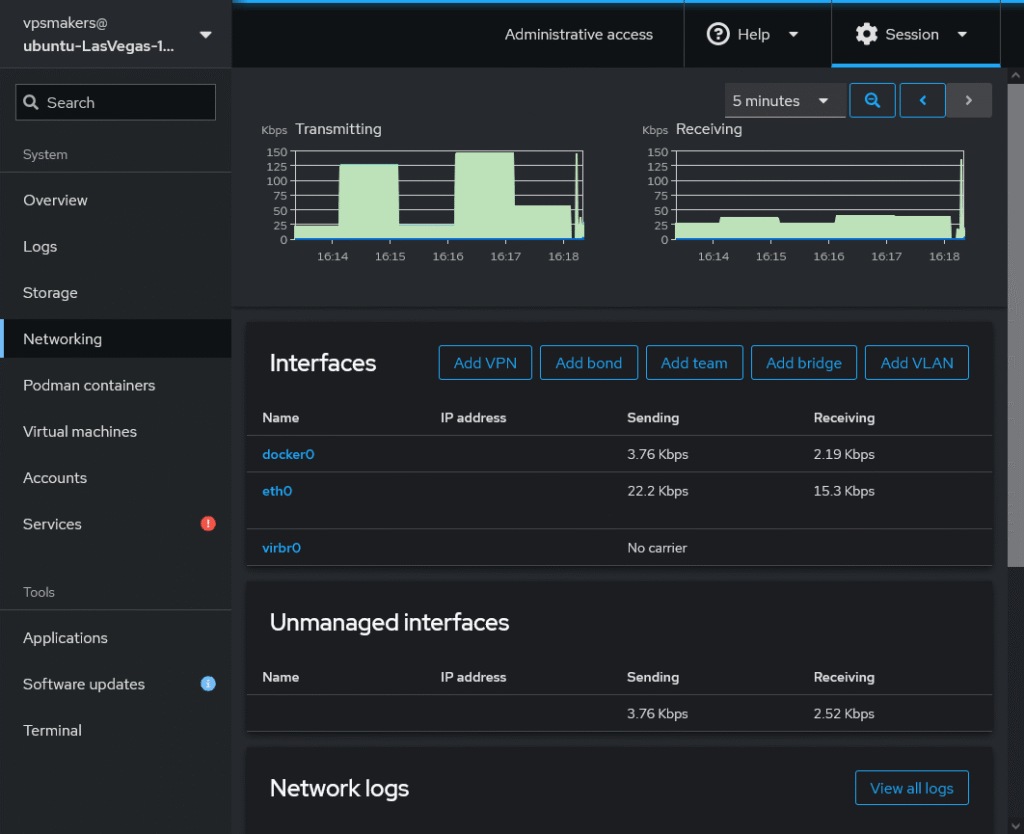
with Cockpit, you can monitor the bandwidth and usage of your network interfaces (NICs). all available network interfaces are listed in the Network section, where you can also view and analyze network logs.
you can add a VPN, create a VLAN, and make a team or bridge with Cockpit Network Manager. Cockpit can check and change specific NIC settings, such as turning the interface on or off, changing IP Addresses, and configuring DNS settings.
Cockpit Storage Manager
Cockpit allows you to manage your system storage, including creating, editing, and managing partitions. you can also view available disks, monitor disk usage, and inspect storage devices from the web interface.
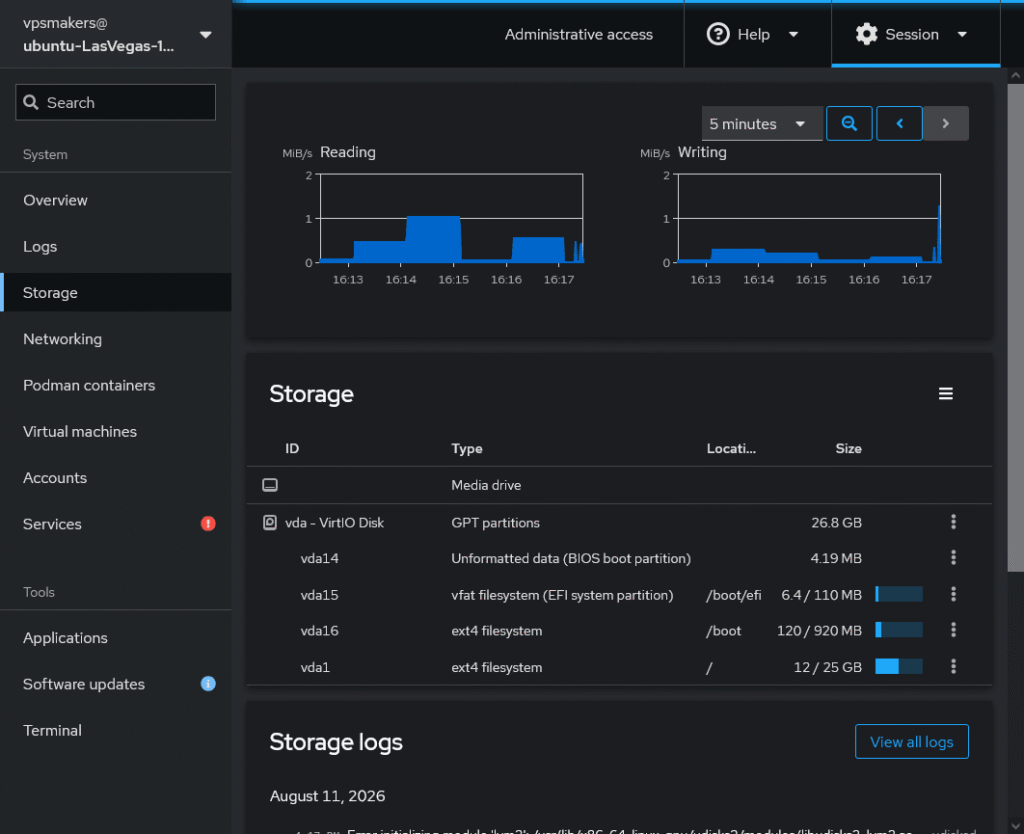
NFS storage and RAID can be configured with this option. Also, it can delete, shrink, or grow the specific partition.
Managing storage in Linux might be tricky, but because you have web-based server administrative tools, you can manage the storage without commands.
Linux Cockpit Virtual Machines
to use Cockpit’s Virtual Machines module, CPU virtualization must be enabled on your server. you also need a Linux VPS with virtualization support. with Cockpit, you can create and manage virtual machines, configure storage pools, and create virtual networks.
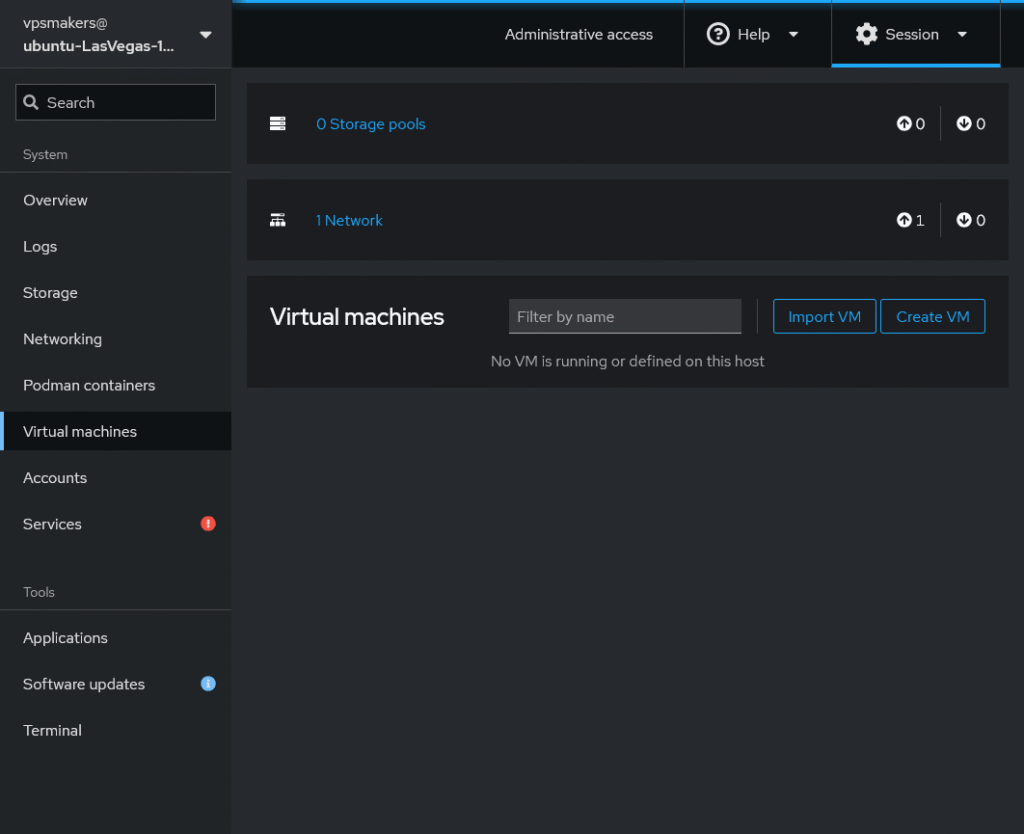
in Cockpit, VM management allows you to create and manage Virtual Machines (VMs) using KVM and libvirt with the cockpit-machines module. it offers a web-based interface for launching virtual machine management tasks without relying on the command line.
you can also import VMs by specifying the Image path on the Linux server, allowing you to use an existing virtual machine image instead of creating a new VM.
Manage Accounts on Linux Server Using Cockpit
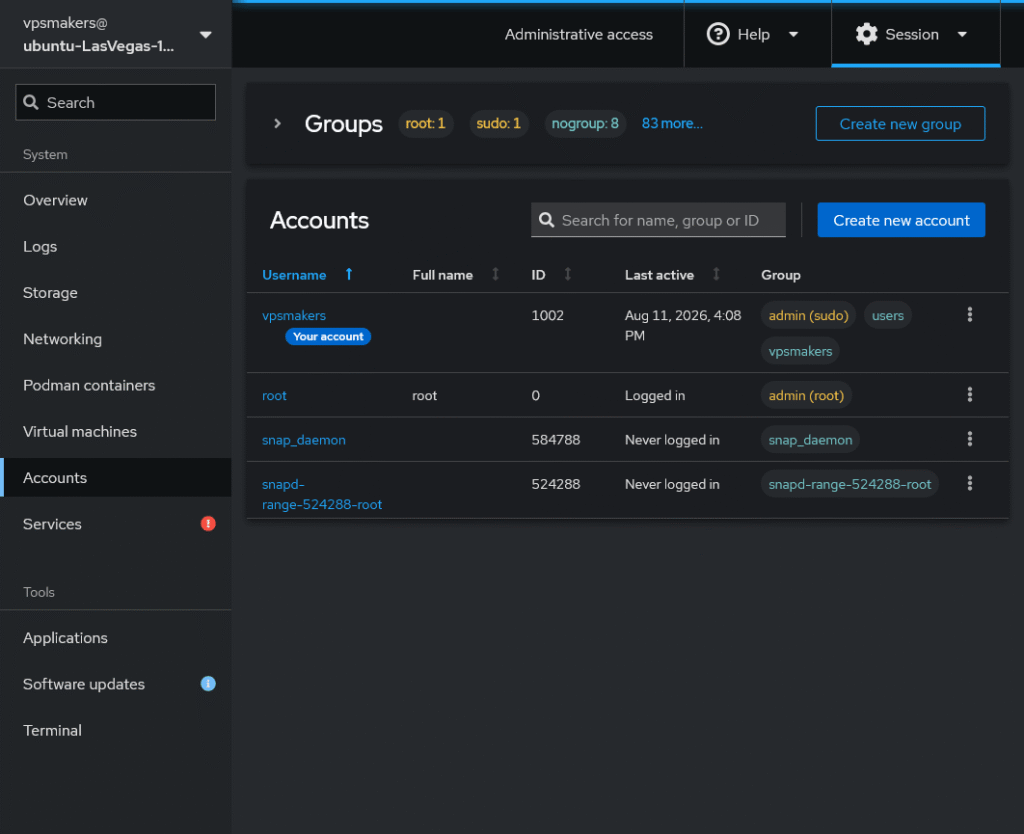
Cockpit can manage both users and groups with its web interface. you can create and edit users, change their passwords and full names, add or remove users from specific groups, and check when a user last logged in.
you can also configure password expiration, force users to change their passwords, check home directories and change shells, and manage SSH keys. Cockpit also allows you to review user login logs, so it’s easier to monitor and manage user access.
the group management section allows you to create new groups and monitor existing groups to see which users belong to each group. You can also delete groups that are not system groups, while system groups are protected from deletion.
Linux Service Management using Cockpit
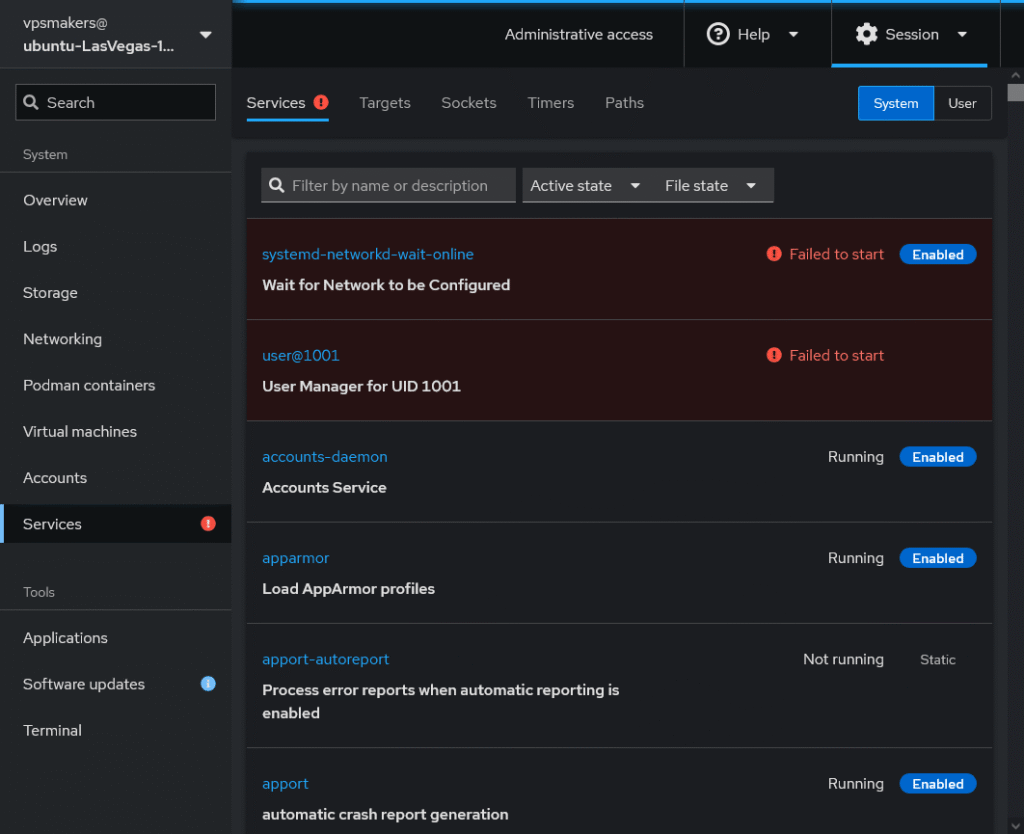
Cockpit allows you to manage Linux services and other systemd units, including Services, Sockets, Targets, Timers, and Paths.
you can inspect system or user services and do actions such as starting, stopping, enabling, and disabling them. Cockpit also lets you view service logs, check service dependencies and relationships, and search for specific services from the web interface.
Update Software in Linux with Cockpit
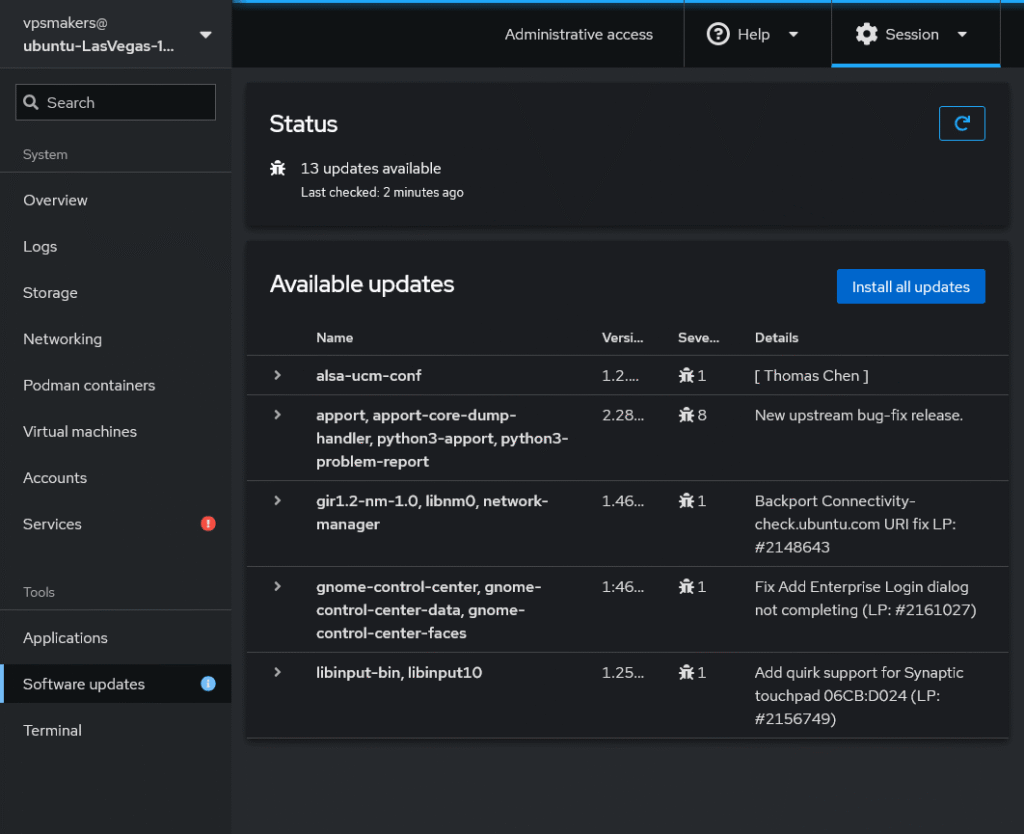
with Cockpit, you can check for available package updates and refresh the package information from the web interface. you can update all available packages or select and update single packages as needed.
Linux Terminal in Cockpit
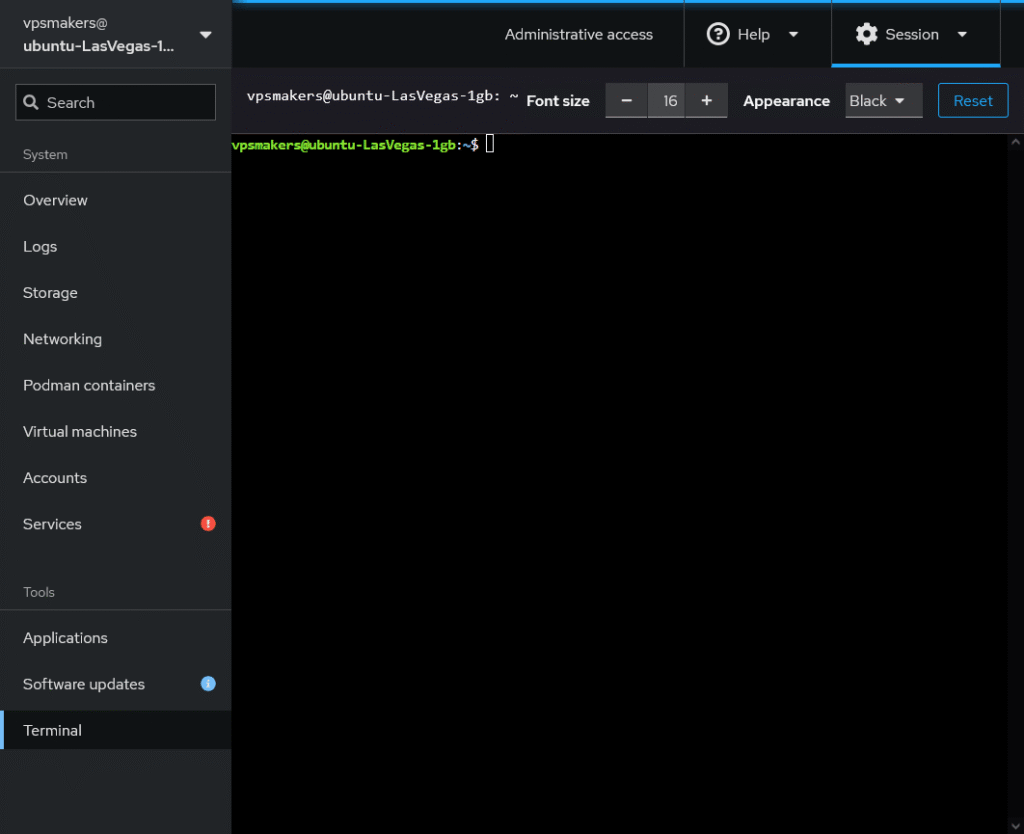
Cockpit also provides a built-in web-based terminal, allowing you to execute Linux commands directly from the Cockpit interface.
the terminal runs with the permissions of the user currently logged in to Cockpit, so you can run command-line tasks without opening a separate SSH session.
Manage Multiple Servers with Cockpit
after installing Cockpit on your server, you can add other servers to the same Cockpit dashboard and manage multiple Linux servers from a single web-based interface.
to add another server, Cockpit must also be installed on the destination server. so, first install Cockpit on your Linux server, then connect it to your existing Cockpit dashboard.
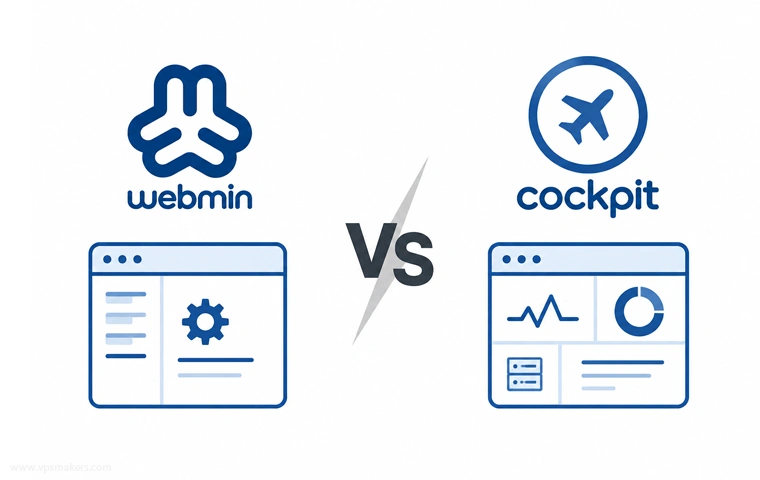
Cockpit vs Webmin
Webmin is a powerful web-based administration tool that provides control over Linux servers and their applications. it runs a service in the background and uses system resources even when you are not using the web interface.
Webmin can manage many settings by working with system configuration files, making it a good choice for detailed and advanced administrative tasks. however, these configuration changes can sometimes conflict with other automation or configuration management tools.
Cockpit is a simple web tool for managing and checking Linux systems. it only runs parts when needed, not all the time.
instead of just changing configuration files, Cockpit uses the system’s tools to make changes and show live information. this makes it easier for admins to see and manage things while still using Linux tools.
Summary
Cockpit is an open-source, lightweight, web-based administration tool for managing and monitoring Linux servers. it provides a simple graphical interface for performing common server management tasks, including:
1. Configuring disk partitions and managing storage
2. Managing network interfaces (NICs) and network connections
3. Creating and managing containers with Podman
4. Viewing and managing users and groups
5. Creating and managing virtual machines
6. Monitoring system health, services, logs, and resource usage

The Author Robert Smite
Hello! I'm Robert, specializing in virtual servers and cloud technology. With expertise in managing and optimizing virtual servers, my focus is on delivering understandable and practical content in this field. My goal is to enhance knowledge and assist individuals in selecting the best virtual services for their needs.
More from Robert Smite