How to configure RADIUS server in MikroTik router?
The RADIUS server in MikroTik is a built-in tool that authenticates user connections.
In this article, we are create a RADIUS server on MikroTik virtual server and pair it with the user management package to create a user authentication system in MikroTik for managing PPPoE, Hotspot and Wireless.
Set up a RADIUS server in MikroTik Router
Before making any changes on your Mikrotik VPS, if you have any other configurations, make sure you take a backup MikroTik router to ensure there won’t be any data loss.
Step 1- Create RADIUS Server on MikroTik Router
To create a RADIUS Server, your MikroTik server must have a level 6 license to use it. You must purchase the license from MikroTik or you can buy MikroTik VPS that has a license.
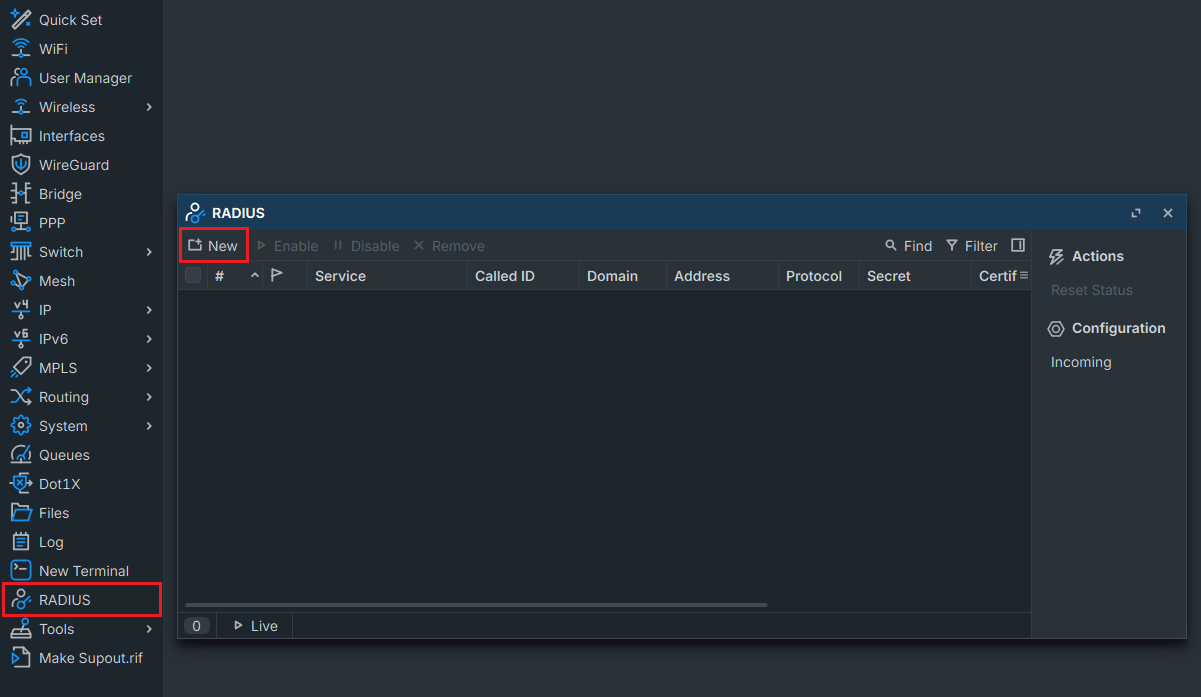
Now connect to Mikrotik VPS and click on RADIUS > New.
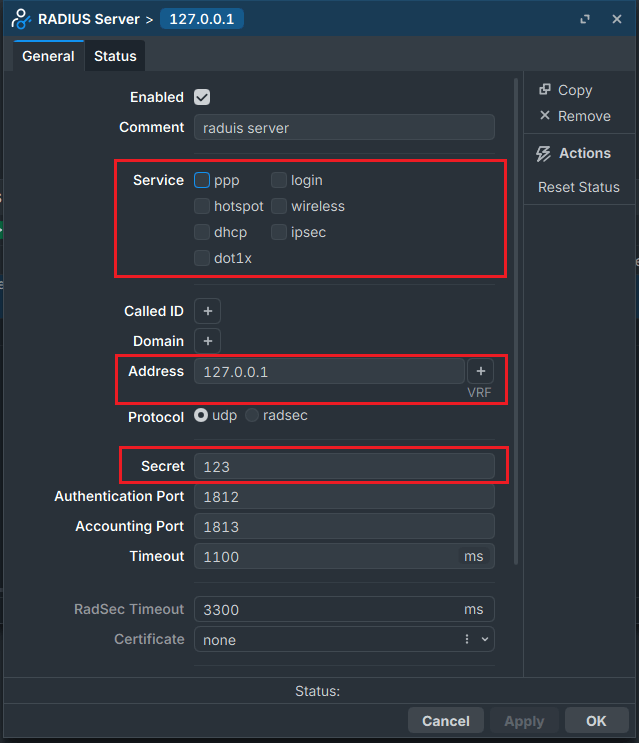
Enter your required setting:.
- In service section, choose what services you want to manage with the RADIUS server.
- In address section , set loopback IP: 127.0.0.1.
- In password section and write it down; you will need it later.
Step 2- Enable Incoming RADIUS Connections to MikroTik
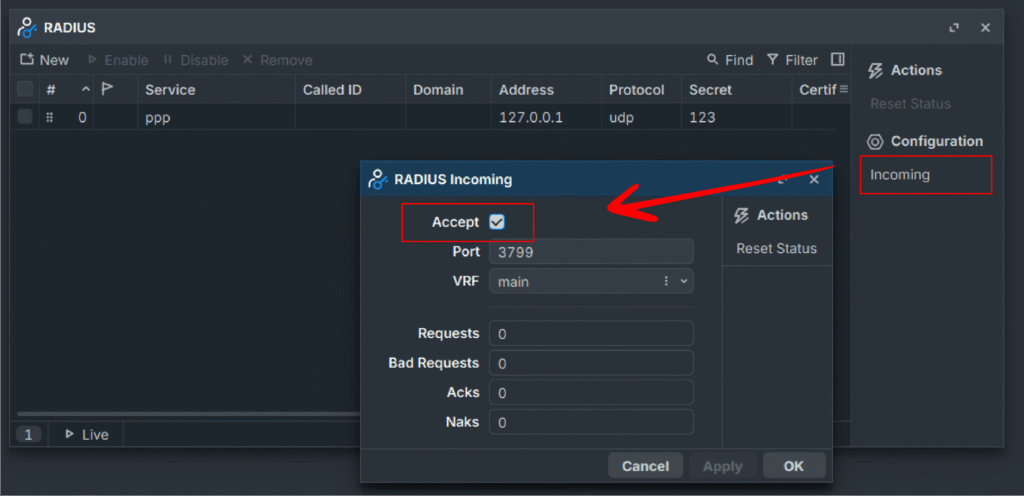
By enabling incoming RADIUS connections, the router will Default listen to port 3799 for incoming requests for connection.
In the RADIUS> Incoming> Accept path, Accept must be checked.
Note: To increase security, you can change the default RADIUS port and block unused ports in the MikroTik firewall.
Configure User-Manager on MikroTik VPS for Radius
To use the MikroTik user manager package. You need to pair it to the RADIUS server we’ve created, follow the steps below to make it run.
Warning: In this step, you need to install the user manager package on your MikroTik. Without the user manager package, you can’t continue the steps.
Step 1- Create User Manager Router in MikroTik
This is where we connect User Manager to a RADIUS server. First, we need to create a router entry in User Manager and configure the required settings.
Click on “User Manager > New”.
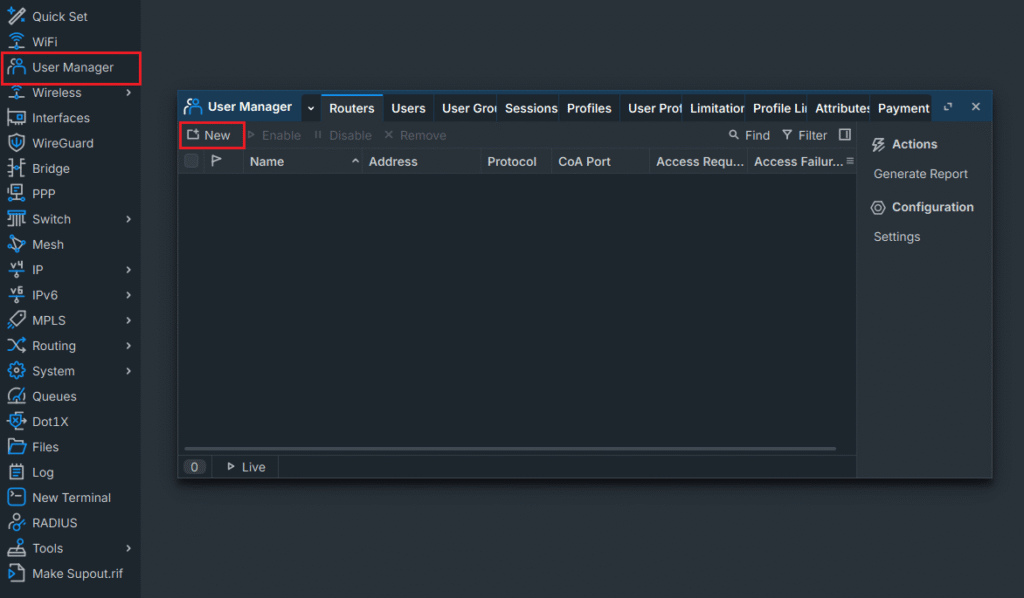
Step 2- Configure User-Manager Router in MikroTik
In this step, you need to configure the user manager router by entering the RADIUS server information, including its IP and the password (secret) you set for it.
1- In the name field, enter a name of your choice
2- In the IP field, enter your RADIUS server IP
3- In shared-secret, enter the secret (Password) you set for your RADIUS server in step 1 of setting up the RADIUS server.
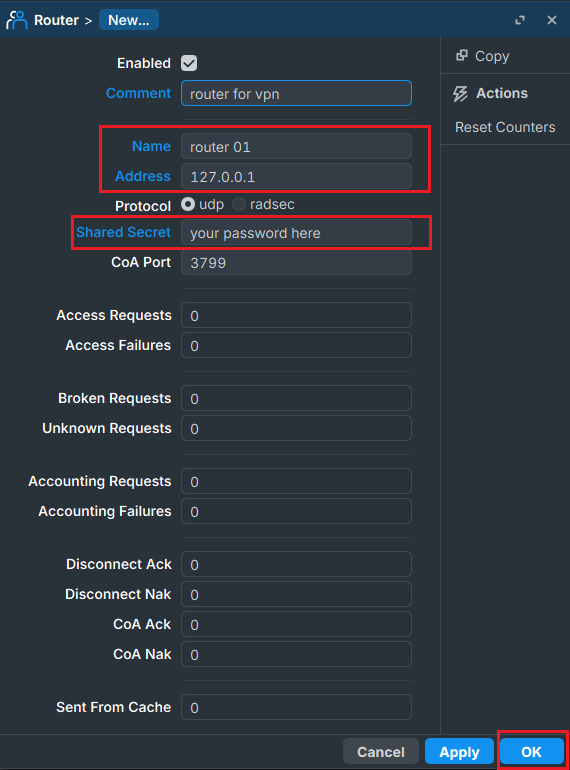
Note: we used a loopback IP (127.0.0.1) because we are using an internal RADIUS server that we built in previous steps. If you are using an external RADIUS server, you can enter its IP instead.
Step 3- Activate the User-Manager Router
In this step, you need to activate the User Manager router you created so it can start working. It should be bound to the IP address used for incoming RADIUS server connections. If you changed the IP address, make sure to enter the same one here; otherwise, the connection will not be established.
- In the user manager tab, click on settings.
- Enable the Router connection
- Enable Use Profiles
- Click on OK
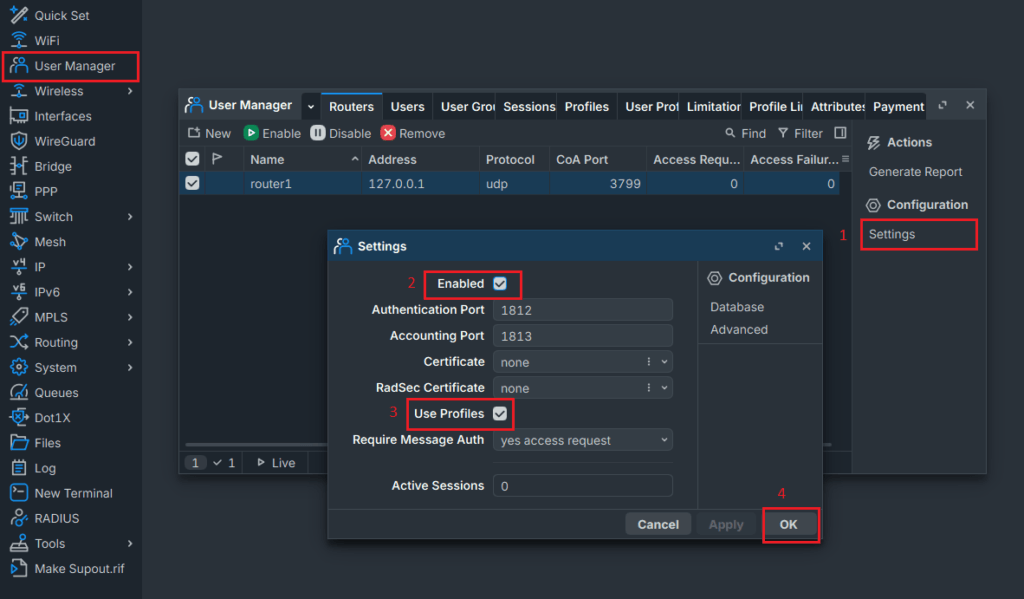
Enable RADIUS Authentication in MikroTik Services
After setting up the user manager and the RADIUS server on your MikroTik, you can enable RADIUS Authentication in MikroTik services like PPP, PPPOE, Wireless, Hotspot, etc….
By enabling RADIUS authentication, MikroTik uses a RADIUS server to authenticate and manage users connecting to these services instead of relying on MikroTik’s user database.
You can choose the service you want to use with the user-manager and the RADIUS server, and follow the steps specified for it below.
Enable PPP RADIUS authentication in MikroTik
In PPP services such as L2TP, OpenVPN, PPTP, PPPoE, and SSTP, you need to configure the system to accept user authentication through the RADIUS server. Once enabled, all Login attempts for these services are verified through User Manager.
When you want to manage a large number of users, apply service limitations, and assign different profiles to them, you can use a RADIUS server to centralize control and make user management easier.
Click on PPP switch to the secrets tab, and click on PPP Authentication& Accounting, enable the checkboxes.
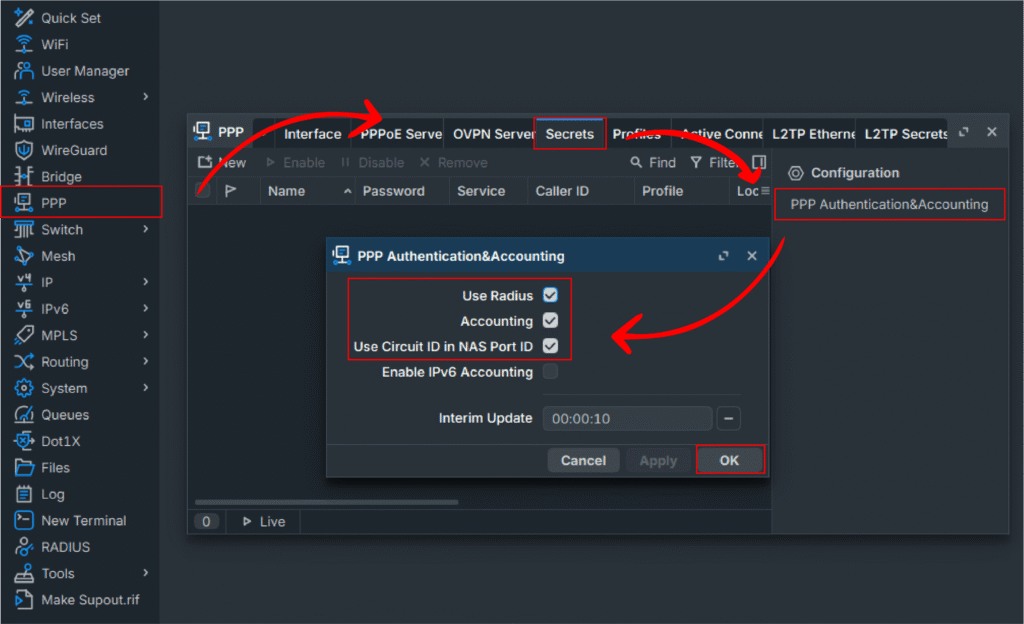
You can test and use it with PPP services like L2TP and OpenVPN.
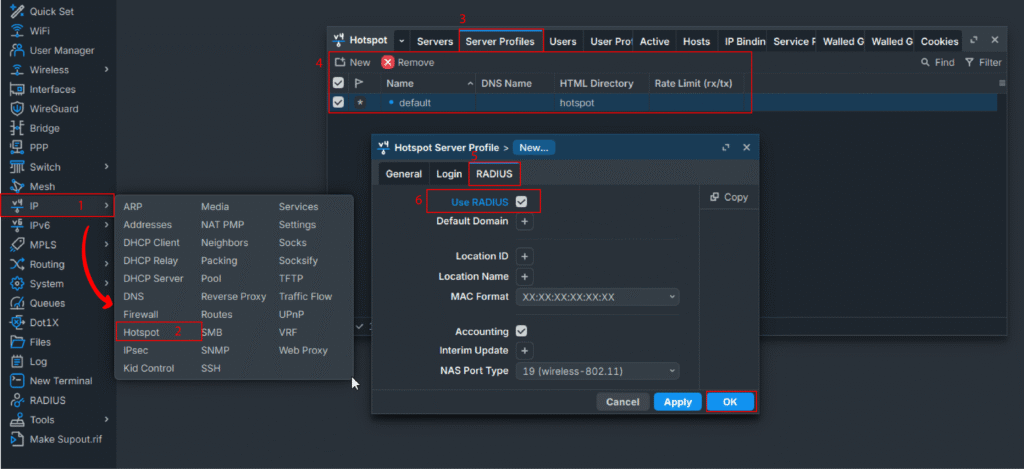
Enable Hotspot RADIUS authentication in MikroTik Router
You can use a RADIUS server (User Manager) to authenticate hotspot users and limit their transmission speed or data usage. It is commonly used in public places such as cafes, hospitals, and airports.
Click on IP > Hotspot in the server Profiles tab, create a new profile or edit the existing ones, and switch to the RADIUS tab and enable the Use RADIUS.
Wireless login authentication with RADIUS server in MikroTik
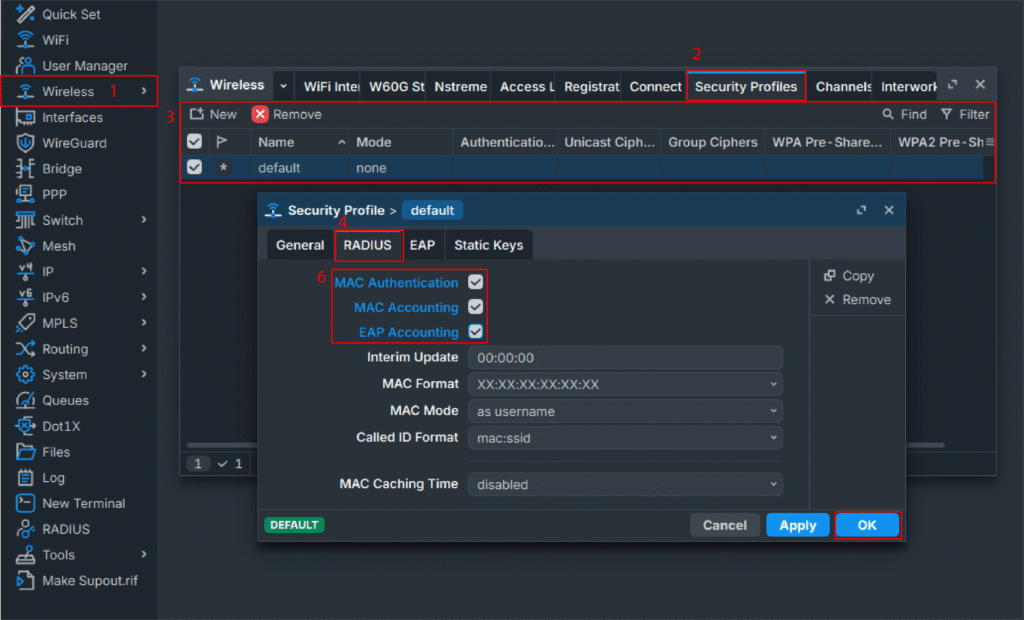
A RADIUS server is needed in Wireless services when you want to use WPA2-Enterprise with individual user logins instead of a shared WiFi password, allowing centralized control and user limits through User Manager.
Click on Wireless in the Security Profiles tab, create a new profile or edit the existing ones, and switch to the RADIUS tab and enable the checkboxes marked in the image below.
What is a RADIUS server?
A RADIUS server is used to centralize authentication, authorization, and accounting (AAA) for users, instead of storing everything locally on the router. It can also be a fully external server that stores and manages all user data.
When you enable RADIUS on MikroTik, the router no longer relies solely on its local user database and instead sends authentication requests to the RADIUS server. which checks user credentials and responds with an allow or deny decision.
You can also apply additional rules to users, such as bandwidth limits, data usage limits, and some other things based on a pre-defined profile.
You can also install a RADIUS server on Ubuntu VPS Server, or other Linux distributions like CentOS VPS Server, Debian VPS Server, and use it here in your MikroTik as an external RADIUS server.
Conclusion
By following the steps in this article, you can successfully configure a RADIUS server on MikroTik VPS router and centralize your user authentication, authorization, and accounting (AAA) service on your network.
If you need to manage a large number of users on your network, it’s better to use an external RADIUS server. Solutions like FreeRADIUS on an Ubuntu server help reduce the load on your MikroTik router and provide better performance and scalability.
FAQ
1- Do I need RADIUS for MikroTik hotspot or VPN?
No, it is not an obligation to use it, but in most cases, it is recommended for better control over your network. In smaller setups, such as home use, you do not need it and can manage users using MikroTik’s local user database instead.
2- What is the difference between a RADIUS user and a local user?
The local users are getting stored in the router’s own database; however, RADIUS users are managed in a certain RADIUS server, like the user manager on MikroTik.
3- What ports does RADIUS use?
RADIUS typically uses UDP port 1812 for Authentication and UDP port 1813 for Accounting, which are the standard ports of the protocol and are known in many devices.
4- What are the disadvantages of a RADIUS server?
Complex setup it needs proper configuration to work correctly on both the server side and router (services).
Single point failure – if the RADIUS server goes down, all logins related to this RADIUS server will fail.
Security Risks (shared-key) – RADIUS uses a shared key for communication; if somehow it gets leaked, attackers can abuse the system.
Hard troubleshooting – you need to check RADIUS logs, router logs to find a simple problem its not easy for non-professional users.
5- Can multiple MikroTik’s use one RADIUS server?
Yes, Multiple MikroTik’s can connect to a single RADIUS server for centralized user managment. This means you can manage all at once from one place, and you don’t need to configure each router separately.

The Author Jacob R
i am Jacob a developer and cybersecurity enthusiast with strong skills in web development and a passion for building practical digital solutions,Working on web development for 4 years. Hope my guides be helpful
More from Jacob R