How to Upgrade MikroTik RouterOS 6 to 7?
To upgrade the MikroTik RouterOS from version 6 to 7, there are two methods: using the Winbox upgrade option or manuall upgrade with the RouterOS file and using CLI.
Upgrading from router os version 6 to 7 is a major change, not a simple update. It modifies system configuration and files, which may affect existing configurations and disrupt your services.
So before starting the upgrade, if you have any important configuration in your MikroTik, it is highly recommended to take a backup of your MikroTik configuration. This can ensure you have a restore point that enables you to restore your previous configurations.
Upgrade MikroTik 6 to 7 using Winbox
In this method, you can use the Winbox application to upgrade RouterOS, which is the easiest approach. However, this method may not always upgrade your RouterOS to the latest available version.
After completing the upgrade, you need to update your MikroTik RouterOS again to ensure you are running the latest version because the MikroTik option of upgrading RouterOS doesn’t update v7 to the latest release.
Navigate to MikroTik System Packages
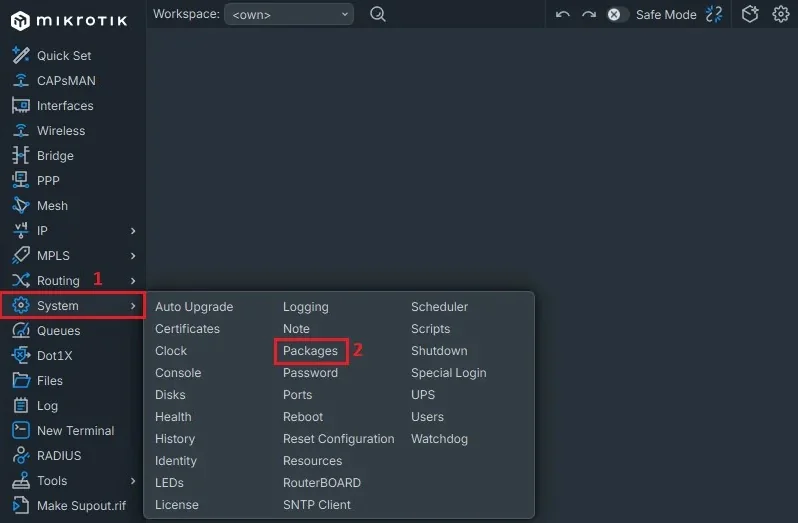
After logging in with Winbox to your MikroTik VPS, in the left sidebar, click on System and then click on Packages to open the Packages menu.
1. Click System
2. Choose Packages
Check MikroTik Available Update Via Winbox
It’s an automatic option for upgrading and updating MikroTik using Winbox, it first downloads, then installs the updates.
To upgrade in the package list, click Check for Update:
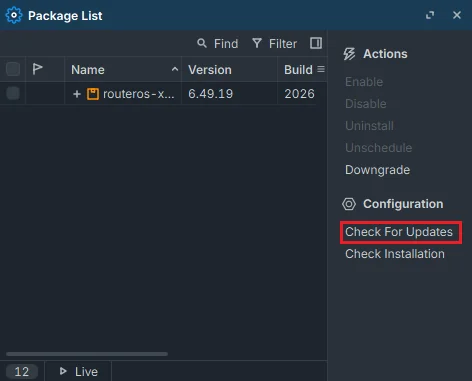
Here you will see the newer versions available for you to upgrade.
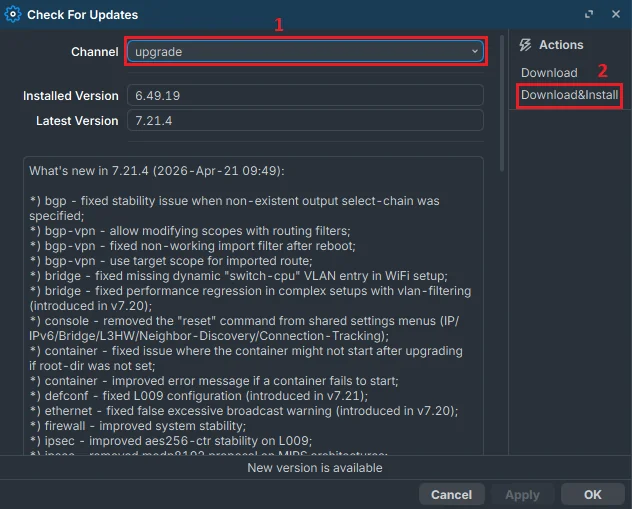
It will automatically download the new NPK file, upgrade RouterOS, reboot the device, and then remove the downloaded NPK file after the upgrade.
Switch the channel to upgrade and click on Download&Install:
Upgrade MikroTik 6 to 7 Manually
To manually upgrade your RouterOS to any specific version, you need to download the MikroTik RouterOS .npk file from the MikroTik web page and upload it manually to your router and upgrade it using this file.
This is an advanced method, but you can upgrade to the latest release of v7 on MikroTik by this method.
Check MikroTik RouterOS Version
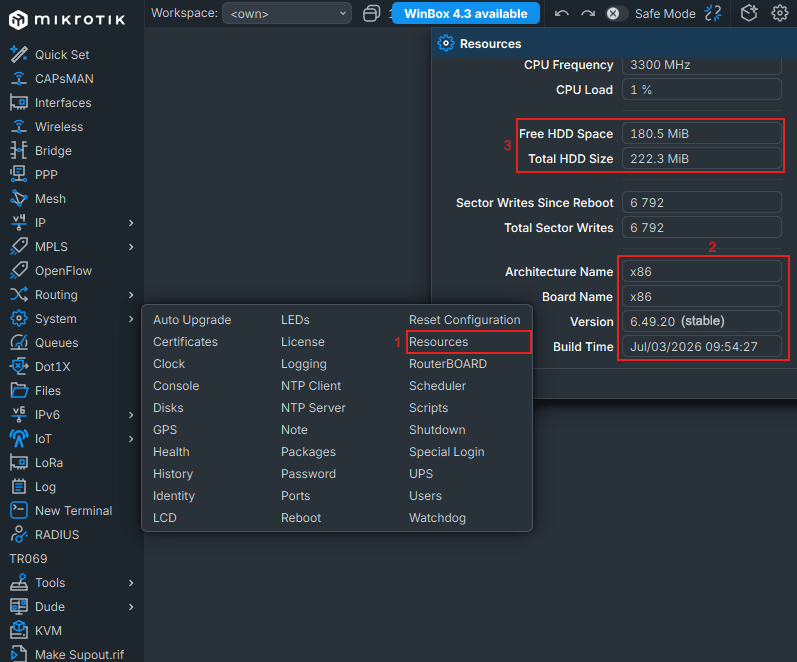
To download the compatible RouterOS version for your MikroTik. First, you need to check your CPU architecture. Also, make sure you have enough space for the .npk file.
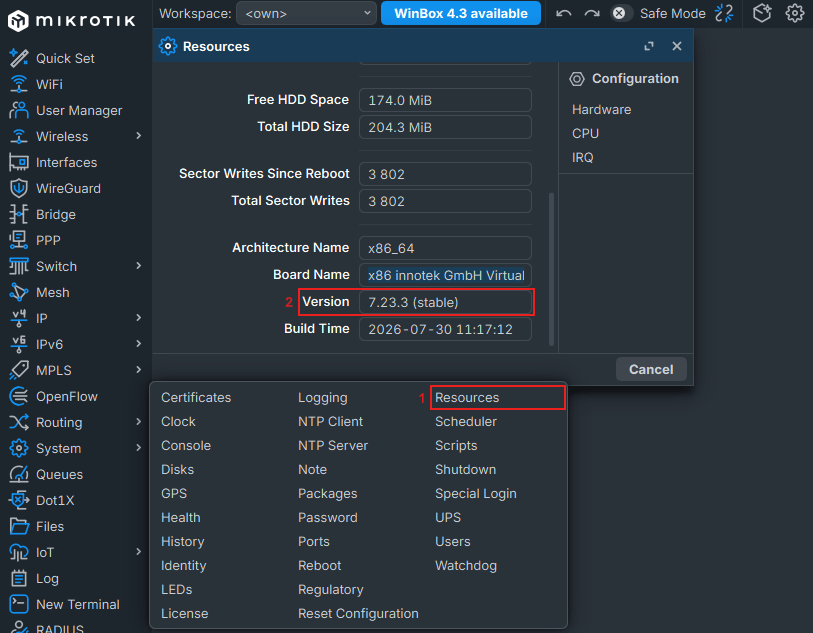
Go to System > Resources > scroll down, then check your CPU architecture and RouterOS version:
Download Mikrotik RouterOS
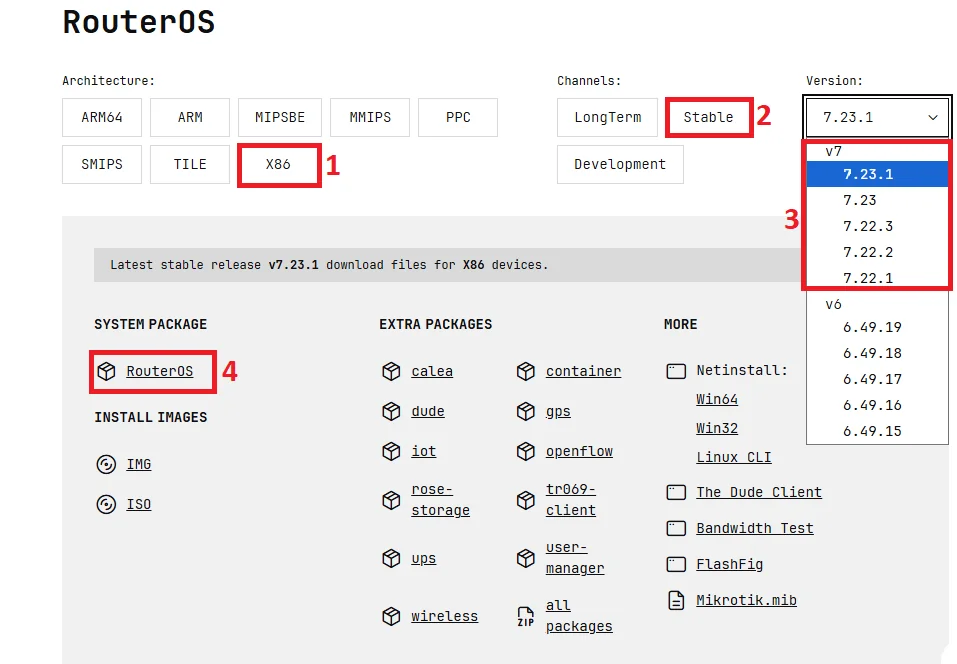
You have to download the .npk file from the MikroTik official website with a version that is compatible with your router specifications.
1. Select the architecture depending on what architecture you have.
2. Select the channel. You have three channels to download the MikroTik NPK package:
- Stable: balanced between reliability and new features. It’s the default choice. For everyday production networks.
- Long-Term: Maximum stability; only receives bug fixes and security updates. It’s for critical networks.
- Development: Unstable and experimental, receives raw and unpolished features. It’s only for labs.
3. Select the version you want to download and upgrade your RouterOS to:
Upload MikroTik RouterOS File with Winbox
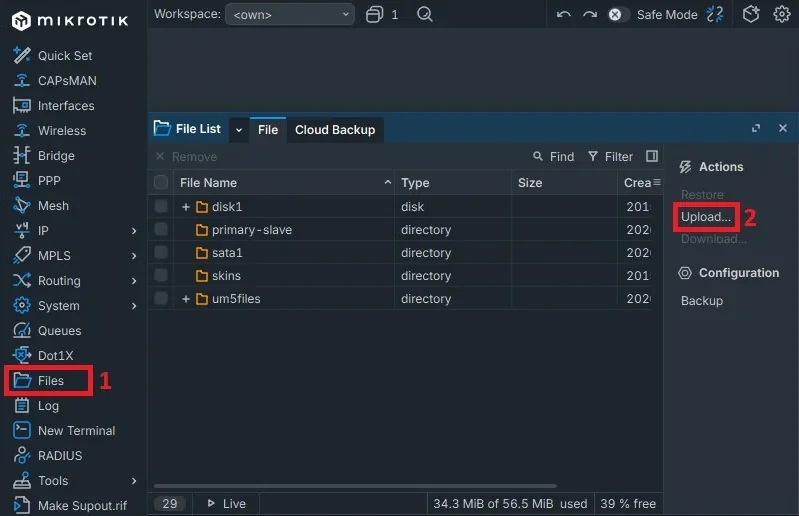
In this step, you need to upload the downloaded NPK file to your MikroTik files. You can upload your file by easily dragging and dropping it in Winbox or follow the steps below:
1. Click on Files in the Winbox left sidebar
2. Click on Upload and select the .npk file
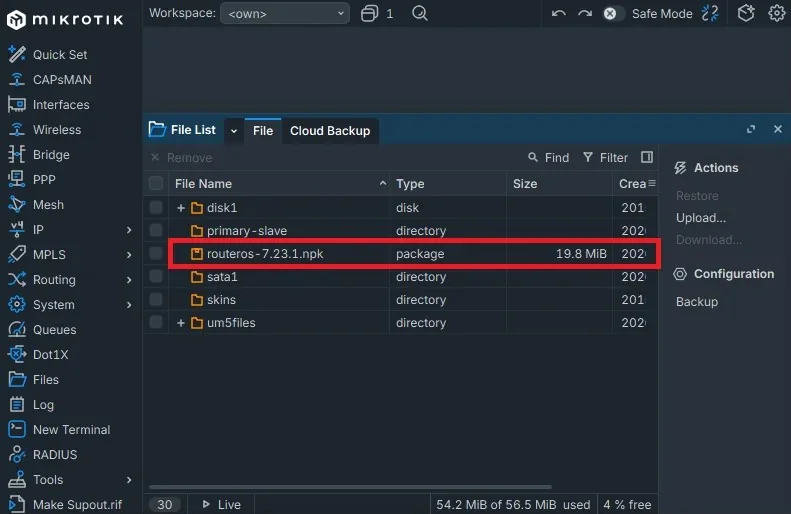
After the file is uploaded, you should see it in Files.
Verify that the file was successfully uploaded to MikroTik Files by seeing it in Files:
Reboot MikroTik RouterOS
In this step, after uploading your downloaded file, you need to reboot your router. It will automatically upgrade it using the uploaded file, then remove the .npk file.
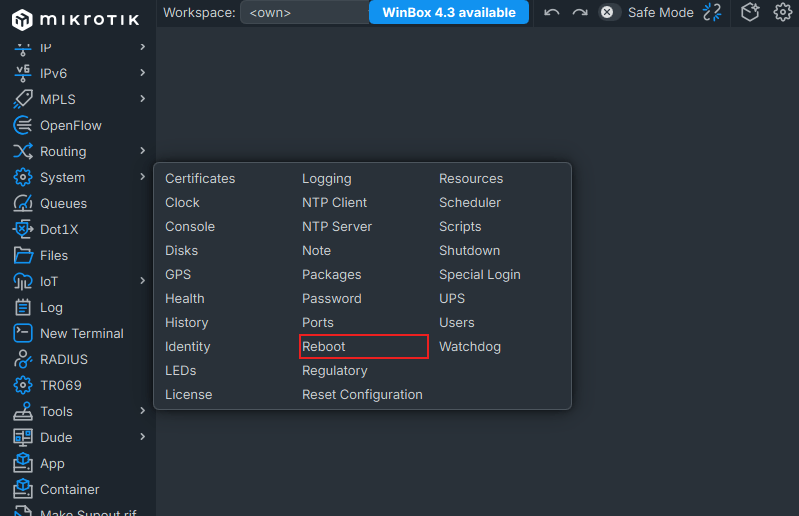
Click on System > Reboot
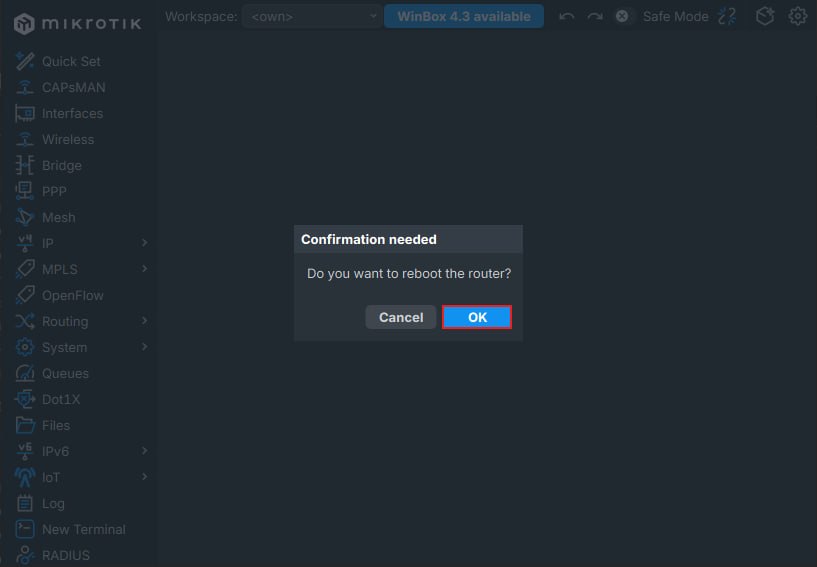
You will be asked if you want to reboot your system. Click Yes to reboot.
Upgrade RouterOS from CLI
You can use the MikroTik Terminal instead of the Winbox options for any reason, like remote administration, automation, scripting, troubleshooting, and managing multiple routers. There are two methods using CLI: use FTP and SSH, or Winbox and File in Winbox.
Because MikroTik v6 uses old encryption methods for SSH, new machines and OS don’t accept those encryption methods, so the connection would not be established; you have to use Winbox Terminal instead or the MikroTik OS own console.
Upgrade MikroTik using CLI Commands
You can use MikroTik’s built-in upgrade option, which doesn’t always upgrade to the latest version. After upgrading from RouterOS v6 to version 7, you need to update your MikroTik firmware again
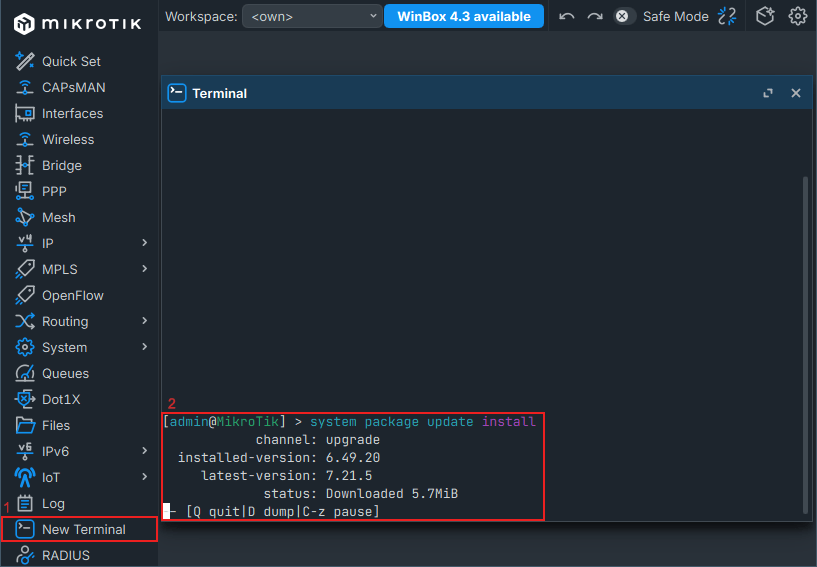
If you are using the Winbox terminal, open a new terminal, or if you are using RouterOS’s own terminal, just run the commands.
system package update install
This command will show you the available version and automatically start to download and upgrade your OS.
Enable FTP on MikroTik
To put files in MikroTik without using the graphical interface, you need to use ftp or SFTP. In v6, you can use SFTP because of SSH encryption issues, so you can use only ftp.
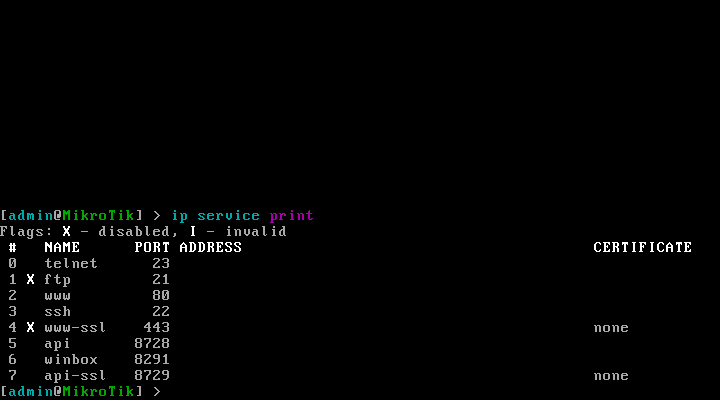
First, check whether FTP is enabled in your MikroTik or not.
/ip service print
This will show the services with their ports and names. You can see here that our FTP is disabled.
Use the command below to enable the ftp service in MikroTik:
ip service enable ftp
Upload NPK File Using FTP on RouterOS
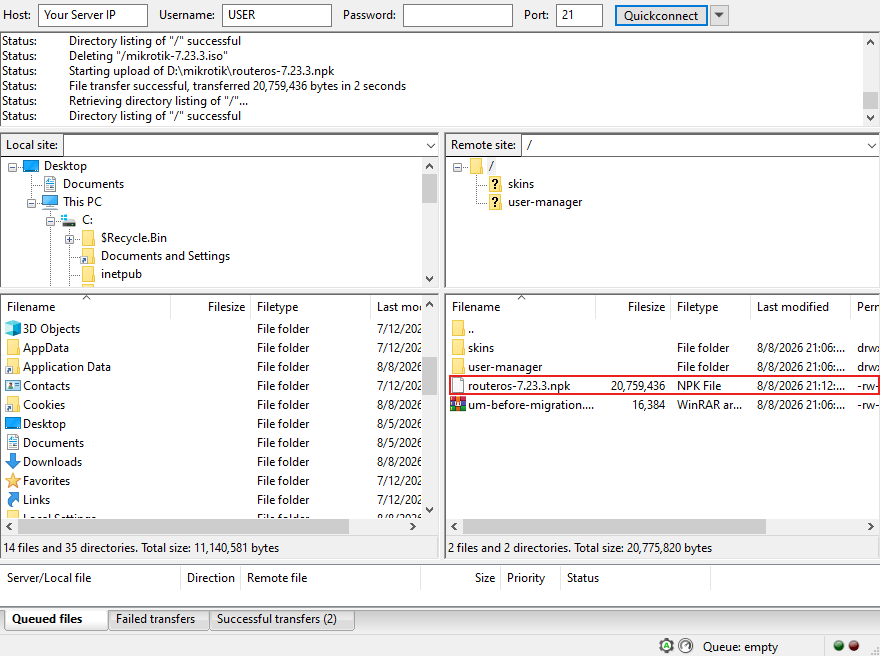
You can connect to your MikroTik with FTP using CMD or using the FileZilla application, which has a graphical interface and is easier to use.
Enter your MikroTik credentials, enter 21 for the port, and click on Quick Connect.
Drag and drop your downloaded upgrade npk file to the / (root) directory of your MikroTik:
Reboot MikroTik to Upgrade RouterOS
You need to reboot your router. It will automatically upgrade it using the uploaded file, then remove the .npk file.
system reboot
You will be prompted: Are you sure you want to reboot? Type Y and press Enter to reboot your router.
Verify MikroTik Upgrade
After upgrading, you need to verify whether your RouterOS is upgraded or not. The version must be v7, depends on the method that you used, it might be the latest release or not.
Verify MikroTik Upgrade using Winbox
To verify the RouterOS upgrade via Winbox, use the following steps:
First, go to Systems in the left toolbar, then choose Resources.
Scroll down to see the Version section:
Verify RouterOS Upgrade using CLI
As mentioned before, the RouterOS v6 SSH connection can’t be established because of the older method of encryption, but RouterOS v7 uses new SSH encryption, so you can connect to MikroTik using SSH on RouterOS v7.
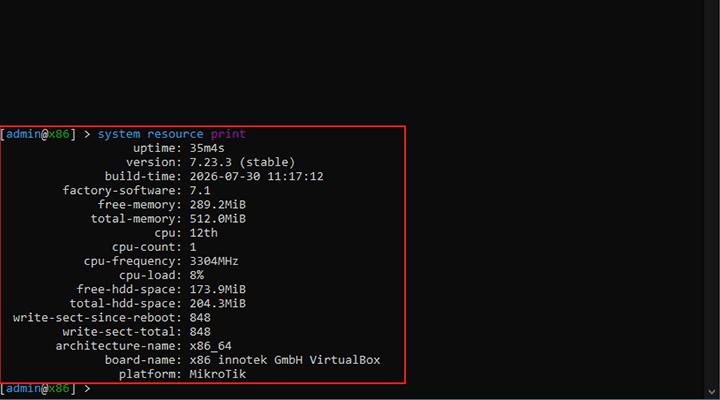
After you upgrade your MikroTik, you have to verify the upgrade using CLI by following the command:
system resource print
Why You Need to Upgrade MikroTik RouterOS?
Updating MikroTik RouterOS is like any other system to keep your router secure and working properly. Updates fix bugs, improve performance, patch security problems, and add new features.
So if you want to use new features of MikroTik, you need to upgrade your Mikrotik from RouterOS 6 to 7. You can see what major changes RouterOS 7 has in the table below:
| Features / Changes | Description |
|---|---|
| New Routing Engine | A completely redesigned routing system that improves speed, scalability, and stability for complex networks. |
| WireGuard VPN Support | Built-in support for WireGuard, offering fast, simple, and secure VPN connections. |
| Container Support | Ability to run lightweight containers (similar to Docker) directly on MikroTik devices. |
| Better Multi-core CPU Usage | It can use CPU cores more efficiently now which can improve overall performance |
| Improved routing system and protocls | Some routing implementations and protocols are improved |
| Modern encryption methods | Added some modern encryption supports for Wireguard, updated IPsec encryption methods, and added stronger SSH security |
Conclusion
Upgrading MikroTik RouterOS using Winbox is the safest and best way for regular users. This easy method automatically changes your settings and takes care of all needed updates. You need to run the update twice to get the latest version, but it makes the process easier.
You can also upgrade manually by downloading the OS package from the official MikroTik website. This lets you quickly update to your chosen version in one step. It is helpful for offline routers or complex networks that need direct control.

The Author Robert Smite
Hello! I'm Robert, specializing in virtual servers and cloud technology. With expertise in managing and optimizing virtual servers, my focus is on delivering understandable and practical content in this field. My goal is to enhance knowledge and assist individuals in selecting the best virtual services for their needs.
More from Robert Smite