How to Update Packages in Linux?
Updating and upgrading packages in Linux is the first thing we need to do before any installation on any Linux Server. This action is mostly the same across Linux distributions, but it has some small differences because of the package manager of each distribution.
In the following guide, you will learn about simple package updates and upgrades, full system upgrades, and how you can use automatic upgrade solutions in both Debian-based systems like (Ubuntu, Debian, Mint) and RHEL-based distributions like (CentOS, AlmaLinux).
In this tutorial, we use Ubuntu 24.04 LTS and CentOS 9 Stream.
Update and Upgrade Difference in Linux
First, you need to understand the differences between the update and upgrade commands, as they often confuse most people.
The update command refreshes your local package manager cache (list) and doesn’t modify any files on your server, it connects to online repository servers to retrieve a newer version list. This action ensures that you get the latest stable version of the program when installing or upgrading.
The upgrade command performs the actual installation. Based on the information from the updated package list by the update command, it downloads and installs the newer package versions, effectively applying the updates and patching your system.
Connect to Linux Server Via SSH
First step, you need to access your Linux system as the root user or any other user with sudo permissions so you should be able to modify system-wide files. If you are using a Linux server, connect to your Linux VPS using SSH, or if you don’t have any online Linux server, you can consider our services: Buy Linux VPS.
Check Your Linux Distribution
As you may know, each Linux distribution has some differences in its commands. So you should check your Linux distribution to verify wheather its RHEL, Debian, or others.
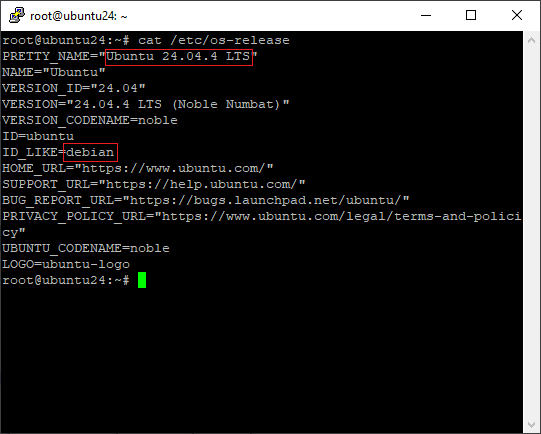
Run this command to get your os release information:
cat /etc/os-release
You will see information like this, which shows full detailed information about your OS version and what distro it’s based on:
Check Free Space on Linux
Before upgrading any packages, you need to verify whether you have enough space or not. Linux upgrades don’t require a lot of available disk space, and it doesn’t have a fixed number, it’s totally based on your packages amount and size on your server.
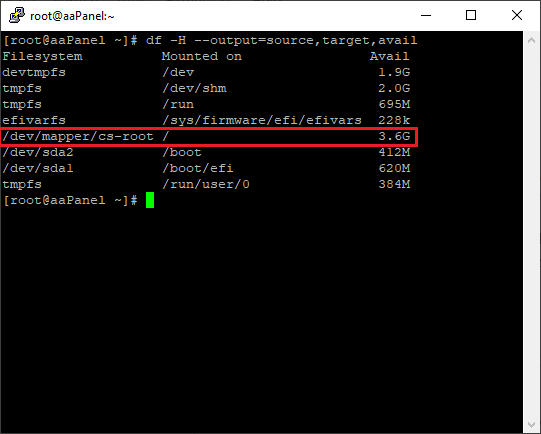
It can be 50MB or even 3+ GB, so it’s better to have at least 1 or 2 GB of free space. Run the command below to check your available space:
df -H --output=source,target,avail
Update Packages on Ubuntu and Debian
In Debian-based distributions like Ubuntu and Debian, the apt package manager handles packages and configurations. It means the whole upgrading and updating process in Debian-based systems is the same.
Update apt Packages List on Ubuntu and Debian
In Debian and Ubuntu, you must first update the apt lists. This temporarily updates the package information to newer versions and does not actually upgrade the system packages.
Run this command to update the package list:
sudo apt update
Upgrade apt Packages on Ubuntu and Debian
After updating the apt package list, packages with newer versions can be installed. apt will show you the required space for upgrading, and now you know how much free space is on your disk.
Use the command below to upgrade packages based on the new list:
sudo apt upgrade -y
Note: You can use the -y flag in your command to skip confirmation prompts, but it’s totally optional, you can remove it if you don’t want.
Update Packages on CentOS and RHEL
The systems that are based on RHEL, like CentOS and AlmaLinux, use dnf and yum package managers, keep that in mind yum is symlink of dnf in CentOS Stream 8 up to 10.
Simulate Upgrades on CentOS
When you upgrade packages in CentOS, by default they are automatically fully upgraded; simulate it first so you can test the outcome safely.
dnf simulation prepares the system for an upgrade and runs tests including dependency resolution, package downloads, signature checks, and RPM conflict checks, but stops before writing new files to the disk. Use the command below to simulate an upgrade:
sudo dnf upgrade --setopt=tsflags=test
Upgrade dnf Packages on CentOS
The upgrade command installed packages to their latest available versions.
Note: recommended to backup your CentOS files because CentOS Package updates can replace config files, restart services, and install a new kernel, so keep a copy of /etc and your data.
Use the following command for upgrading CentOS packages:
sudo dnf update -y
Upgrade Linux Specific Package
Upgrading a single package enables you to fix issues like a patch, a CVE, or a broken dependency, without upgrading the rest of the system, since “apt upgrade” and “dnf upgrade” update everything available in the repository.
List Available Upgrades on Ubuntu and Debian
If you want to list available upgrades and select any package that you want to upgrade alone, after updating the apt list, run the following command to see the upgradeable packages:
sudo apt list --upgradable
Upgrade Specific Package on Ubuntu and Debian
apt has a flag for installing the latest version of packages. For upgrading a specific package on Ubuntu, use the command below:
sudo apt install --only-upgrade <packagename>
List Available Upgrades on CentOS
To check for available software and system updates on your CentOS system and select any packages that you want to upgrade alone, run the following command:
sudo dnf list updates
Upgrade Specific Package on CentOS
dnf is much easier than apt; you only need to give the specific package name you want. You can upgrade the package with this command below:
sudo dnf upgrade <packagename>
Linux Update Packages Command
The following table provides a quick-reference guide for the common update and upgrade commands on Linux. Since command syntax has differences by distribution, you can use this comparison to identify the correct commands for your specific system.
| Operating System | 🟠Debian / Ubuntu | 🟣CentOS / RHEL |
|---|---|---|
| Primary Package Manager | apt | dnf (or yum) |
| Update Command | sudo apt update | sudo dnf update |
| List Available Upgrade Command | sudo apt list --upgradable | sudo dnf list updates |
| Simulate Upgrade Command | apt -s full-upgrade | sudo dnf upgrade --setopt=tsflags=test |
| Upgrade Command | sudo apt upgrade | sudo dnf upgrade |
Note: dnf update is an alias of dnf upgrade.
Ubuntu full-upgrade Command
Using the “apt upgrade” command upgrades system packages without changing anything, such as removing old packages. However, “apt full-upgrade” upgrades packages, removes the old ones, and alters the system if a package depends on those old packages.
Note: apt full-upgrade removes packages when required to resolve dependencies, and it may replace config files or install a new kernel, so back up Ubuntu files and keep a copy of /etc and your data, or take a VM snapshot.
Remember to run sudo apt update first if you haven’t already.
sudo apt update
Simulate Upgrades on Ubuntu and Debian
apt has a built-in option for simulating; it resolves all dependencies and outputs the exact actions it would take, without making any actual changes to the disk or requiring root permissions.
Simulate an upgrade to ensure everything is running without problems.
Run the command below for simulation:
apt -s full-upgrade
Full Upgrade Ubuntu and Debian
To fully upgrade your Ubuntu Linux, use the command below:
sudo apt full-upgrade
A full upgrade can remove packages; you must review the changes before confirming the upgrade, especially on production servers.
apt full-upgrade is used for resolving dependency conflicts and has permission to delete the package automatically.
On the other hand, “dnf upgrade” behaves the same as “full-upgrade”.
Enable Automatic Updates on Linux
Linux automatic updates help keep your server secure by installing security patches and package updates without manual updates. Debian and RHEL-based distributions provide built-in tools to automate this process.
Learn how to automatically update packages on Debian and RHEL systems, manage update schedules, and restart services that require a restart after package upgrades.
Common Issues in Updating Linux Packages
In this section, you may encounter some issues, however, these issues are not that problematic, but if your systems dns don’t configured, you cannot update your system or the settings of repo don’t managed.
Change DNS Server on Linux Server
You may experience connectivity issues while trying to update; your server may not be resolving the repository hostnames correctly. Verify DNS settings and Set DNS on Linux server. It is necessary to ensure the server can communicate with external update mirrors.
Rollback Option on Linux Upgrade
It depends on the distribution, package manager, and what has been upgraded, also read
You can read more about Linux package managers.
By default, apt or dnf doesn’t provide a rollback option. For downgrading, you have these options:
- Downgrading specific packages (if they are still in the repository or you have to install them with .deb or .rpm files).
- Restoring the system from a Linux Backup File
- Booting a previous kernel if a kernel update caused the issue
Check Linux Server Repository
If your internet connection is active but updates still fail, your system’s repository list may be misconfigured or connecting to outdated sources. You need to change Linux Server Repository to fix this issue.
Summary
You learned the difference between updating and upgrading packages on Debian and RHEL systems using apt and dnf. also learned about full system upgrades, upgrading single packages, and testing upgrades. Lastly, this guide gives solutions for common update problems, like DNS, repositories, rollback options, and reboot needs.
FAQ
1. Why Updating Linux is Important?
A critical vulnerability (CVE-2026-31431, nicknamed ‘Copy Fail’) was found in the Linux kernel’s crypto subsystem that let local non-root users be promoted to root, it has since been patched in updated kernel versions. So, updating is important for the security of your Linux systems.
2. What is Better, apt or apt-get?
apt is better for everyday interactive use with cleaner output, progress bars, and simpler commands. apt-get is better for scripts and automation since its output format stays stable across versions.
3. Is There Another Package Installer for Linux?
Snap and Flatpak work on any Linux distro, no matter if it uses apt or dnf. They’re useful for installing apps not found in your distro’s default repositories.
4. Does apt full-upgrade Remove Packages?
Yes, apt full-upgrade can remove packages when needed to resolve dependency conflicts, unlike apt upgrade, which never removes anything. It’s safe, but on production servers you should review the changes before confirming and take a backup, since it may remove or replace packages that depend on old versions.
5. Can I Cancel an Upgrade?
depends on the stage. If you’re mid-download, Ctrl+C usually kills it cleanly since packages aren’t installed yet, just re-run update/upgrade after. If it’s already writing files, don’t interrupt it, you’ll end up with a broken package database and dpkg or rpm in a half-configured state.
On apt, run sudo dpkg –configure -a to finish what got interrupted. on dnf, run sudo dnf history and check the last transaction, it usually recovers on its own with sudo dnf history redo or just re-running the upgrade.
6. Does Updating Require Reboot?
Most package updates apply immediately once the service restarts. But kernel, glibc, and systemd updates need a reboot to actually take effect since the old version is still loaded in memory.
On Ubuntu, run sudo needrestart or check for /var/run/reboot-required, if that file exists, reboot. On CentOS, sudo dnf needs-restarting -r tells you if a reboot is needed.
7. How Do I Update Only Security Packages?
on ubuntu/debian, unattended-upgrades already defaults to security-only updates, check /etc/apt/apt.conf.d/unattended-upgrades for the enabled origins. for a manual update, use sudo unattended-upgrade –dry-run.

The Author Richard.M
Richard started out as a member of the support team and is now a full-stack web developer and support team lead at VPS Makers. He is passionate about providing people with top-notch technical solutions based on his 5 years of experience in web hosting, but as much as he enjoys coding and creating new works, he secretly dreams of becoming a sports star.
More from Richard.M