How to Downgrade Mikrotik Firmware Manually?
There are two ways to downgrade MikroTik RouterOS, one with Winbox and the other way is with the terminal (CLI).
Downgrading MikroTik router OS is not something you usually do, and not recommended if your MikroTik is working correctly.
So, when do we need to downgrade MikroTik OS? Typically, it’s when you update your MikroTik to a newer version, and you face some new bugs, instability, or compatibility issues that affect your network.
You can easily downgrade your RouterOS through Winbox by following the steps in this guide to resolve issues and restore stability.
Downgrade Mikrotik OS Manually With Winbox
Warning: Make sure you take a backup of your configuration before starting to downgrade. The configuration of some features that do not exist in older versions will be removed, like “Wireguard”.
To back up your MikroTik router, you can follow the tutorial How to back up MikroTik configuration via Winbox.
Step 1- Check Mikrotik OS server specifications
To get started, you need a physical or Mikrotik VPS server to connect to and control using the Winbox software. If you don’t have Winbox, you can download and install Winbox from MikroTik’s own website.
Connect to your MikroTik
First, you should connect to your MikroTIk VPS
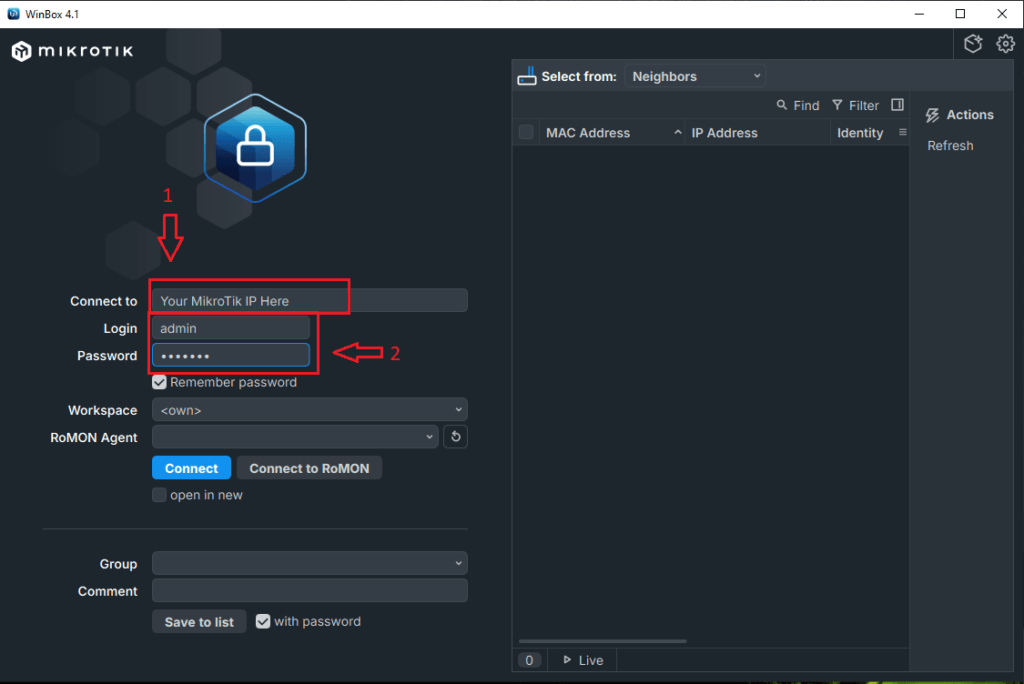
You need to download MikroTik routerOS version that is compatible with your device.
To check your device specifications, follow the steps:
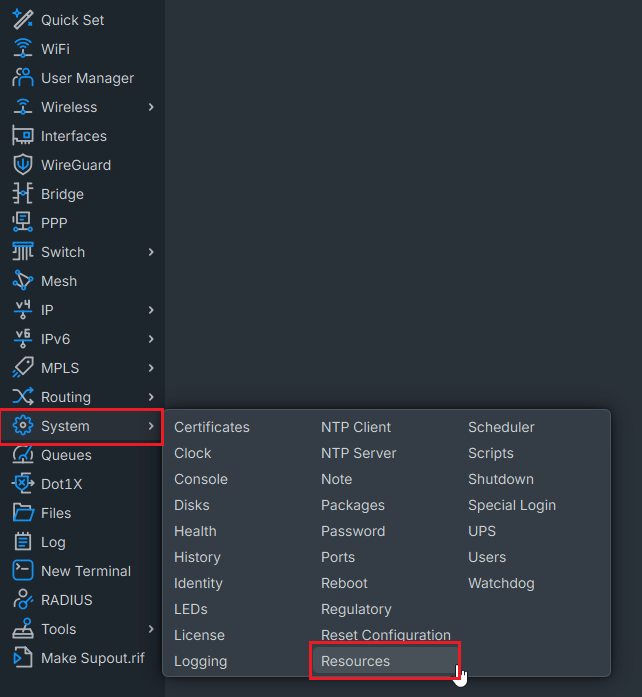
Click on “System” > Resources“.
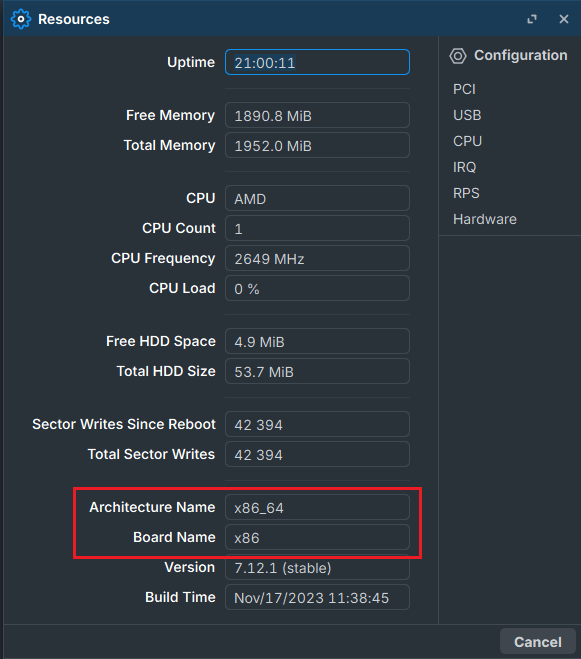
Here you can see your MikroTik’s information about storage, OS version, device Architecture and, etc…
Check your device’s “Architecture.”
Step 2 – Download Mikrotik Routrer OS
Now you can visit the MikroTik website to download the appropriate RouterOS.
- Select your architecture
- In channels, select the type of Mikrotik OS
- Select the version you want
- Click on RouterOS and download it
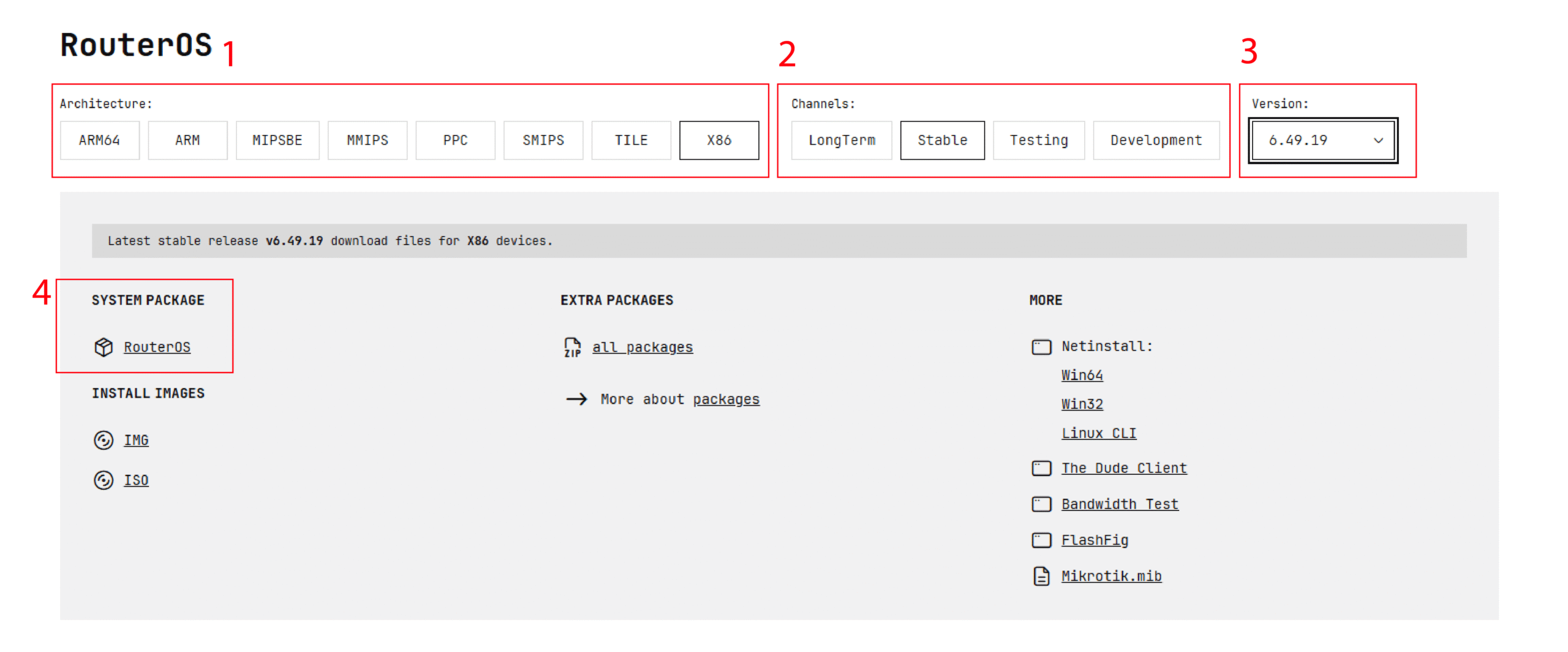
Step 3 – Upload file to MikroTik Router
Upload the desired version file that you downloaded to your MikroTik device. You can easily drag and drop the file or follow the steps below:
Click on “files > Upload“.
Select your MikroTik OS file with the .npk format and upload it.
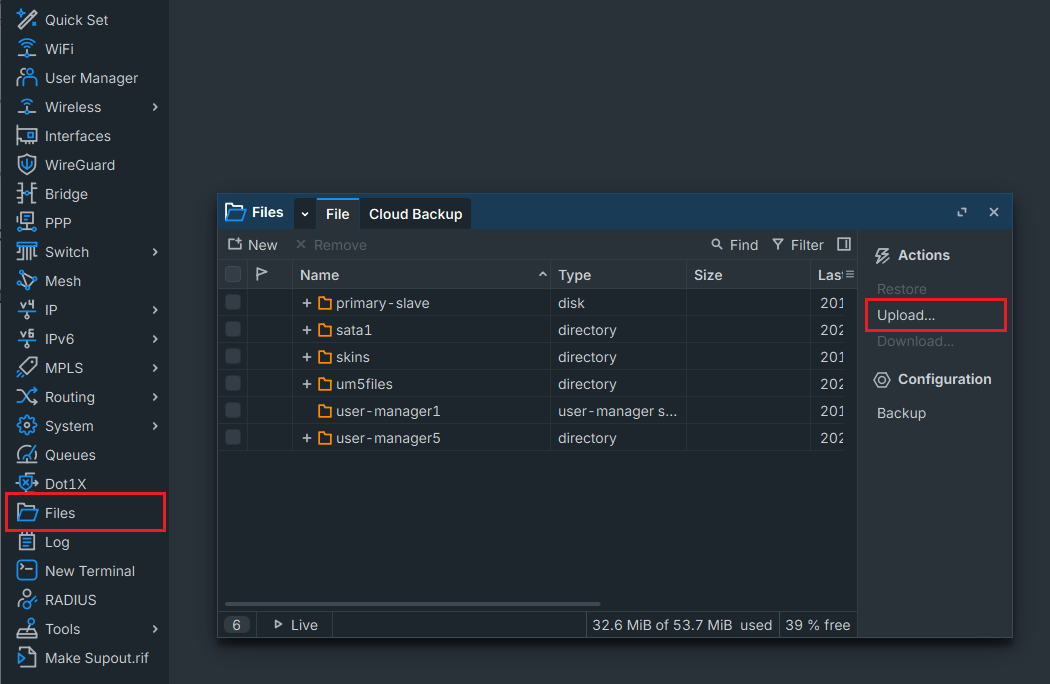
Note: You may encounter storage issues when uploading. To fix this problem, you can delete old backups that you no longer need in the Files tab.
Step 4 – Downgrade your MikroTik Version OS
For downgrading, you need to go to the packages menu and click on downgrade
Click on “system > Packages“.
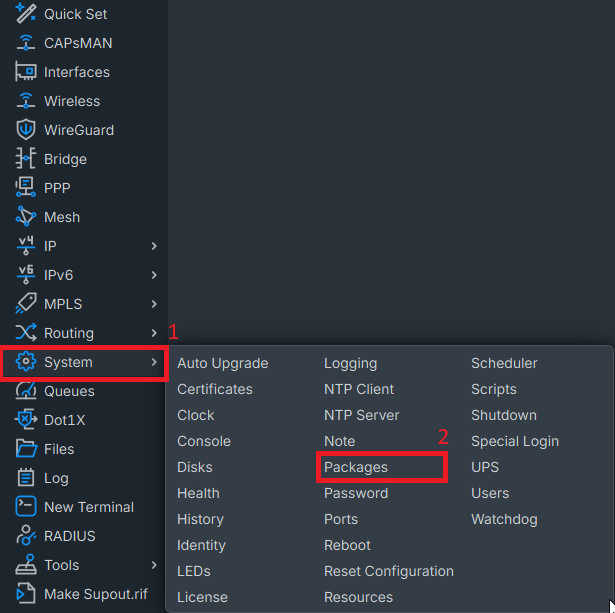
In the “Actions” section of the packages, click “Downgrade“, and it will automatically downgrade your operating system according to the file you uploaded in the files, and automatically reboot your device.
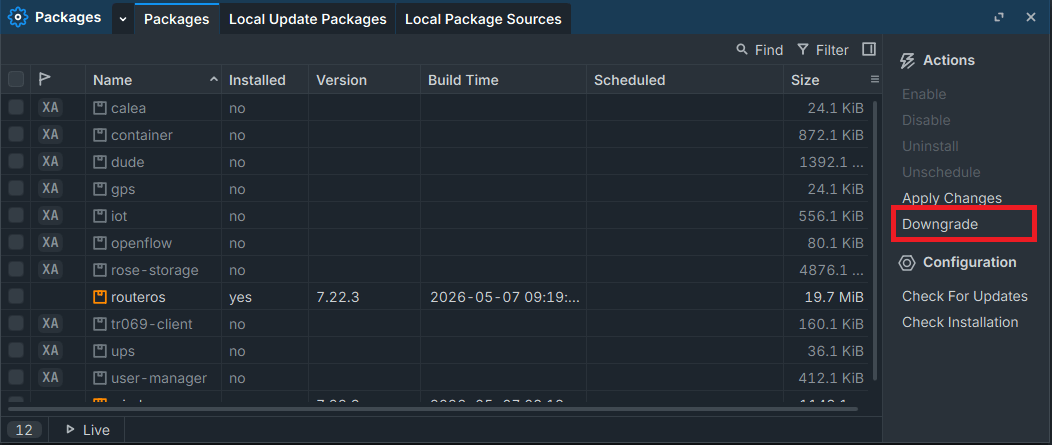
After rebooting, connect to your MikroTik again and check your version, following Step 1
Downgrade Mikrotik Router Manually with Command Line
To use the CLI on MikroTik, you can use SSH or the Winbox terminal.
Step 1 – Check Mikrotik OS Device specifications (CLI)
To know the architecture of the Mikrotik device, we use the following command:
/system resource print
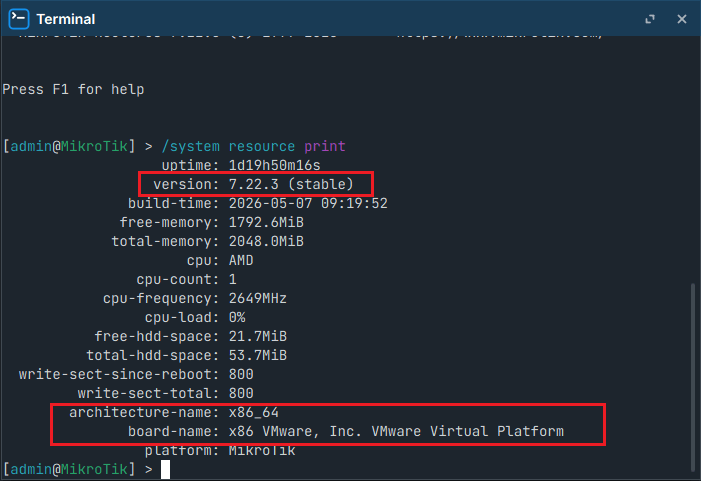
For downloading the router OS, follow step 2 above.
Step 2 – Upload file to MikroTik via CLI
You can upload the old version file to your device using SFTP or Filezilla.
sftp admin@your_mikrotik_ip
Or you can connect to the MikroTik server via SSH port with the FileZilla program and transfer your file.
Or connect with Winbox and upload your file following step 3 of the guide above.
Step 3 – Downgrade your MikroTik OS
To downgrade your Mikrotik version, you should use this command:
/system package downgrade
And reboot the MikroTik router with the following command to apply the settings and downgrade:
/system reboot
Now you can check your MikroTik operating system version with the Step 1 command.
Common Issues in Mikrotik Router Downgrade
FTP Gets Stuck on the PORT Command
Sometimes, when transferring files via FTP on Windows, the connection may get stuck on the PORT command. In this case, it is recommended to use SFTP instead, as it is usually more stable and secure for transferring RouterOS package files.
Uploading the Wrong Architecture File
If you upload a RouterOS package with the wrong architecture, MikroTik will automatically ignore the file after reboot. As a result, the downgrade process will fail.
Before uploading the package, always make sure the file architecture matches your MikroTik device.
Downgrading Below the Factory-Installed RouterOS Version
In most cases, MikroTik does not allow downgrading RouterOS below the factory-installed version that came with the device. If you try to downgrade past this version, the device will reject the process.
Even when using NetInstall, downgrading below the factory-default RouterOS version is usually not possible.
Summery
In this guide, we explained how to safely downgrade MikroTik RouterOS step by step. By following these instructions, you can fix issues caused by newer RouterOS versions and restore stability to your network.
If the problem continues after downgrading, you may also consider restoring a previous backup instead of changing the RouterOS version again, or you can update your MikroTik to a reliable version to see if your problem is fixed or not.
FAQ
1- Is it safe to downgrade MikroTik RouterOS?
Yes, its generaly safe by installing a correct and compatible package for your device architecture. However, downgrading should only be done when needed.
2- Will I lose my configuration after downgrading?
In most cases, it’s safe to downgrade, and nothing happens to your configurations. However, it’s strongly recommended to take a backup of your MikroTik.
3- What happens if I install the wrong architecture file?
The package will usually get ignored, and the downgrade won’t proceed. In most cases, it won’t damage the device and will cause missing features or installation issues.
4- Why do we need to downgrade MikroTik OS?
Downgrading is usually done when a newer version introduces bugs, or compatibility problems with some VPN configurations that you have in your MikroTik.

The Author Jacob R
i am Jacob a developer and cybersecurity enthusiast with strong skills in web development and a passion for building practical digital solutions,Working on web development for 4 years. Hope my guides be helpful
More from Jacob R