
How to Check Open Ports List in Linux
In Linux, there are several ways to check which ports are open and which services are listening for incoming network connections.
There are some common tools, including ss, netstat, lsof, nmap, and netcat (nc). Depending on the tool, you can view listening ports, identify the process using them, or scan a host to check which ports are accessible.
In all network systems, open ports act as entry points for network communication. Knowing which ports are open on your Linux VPS can help you troubleshoot network issues, monitor running services, improve system security, and identify unexpected or malicious network activity.
Check Open Ports Using Netstat
By simply running the netstat command with the right options, you can quickly get a detailed overview of all active network connections, listening ports, and established connections on your Linux machine.
Install Net tools on Linux
The netstat tool is part of the net-tools package on Linux, and it is not installed by default in most of Linux installations; you need to install it manually when required. Run the commands below to install net-tools:
First, update the package repository to make sure you download and install the latest version:
sudo apt update
sudo apt install net-tools -y
List All Listening Ports with Net-tools
After installing net-tools, you can use netstat to display all listening TCP and UDP ports on your Linux system.
sudo netstat -tulpn
There are some options that you can use with the netstat command; here is the list of options:
- -t = Show TCP Connections
- -u = Show UDP Connections
- -l = Show listening Ports
- -p = Show the process using each port
- -n = Display port numbers and IP addresses without resolving names
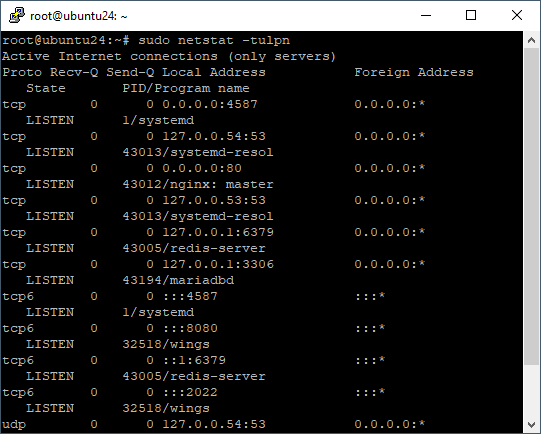
In the command above, we combined these options to display detailed information. You can also use each option individually or combine them as needed, depending on the information you want to see.
Filter Listening Ports with Netstat
If you want to see only the ports that are currently in the LISTEN state and listening to one service, you can filter the netstat output using grep:
sudo netstat -tulpn | grep LISTEN
This removes other entries from the output and shows only listening TCP ports. It can make the results easier to read when you are looking for services that are accepting incoming connections.
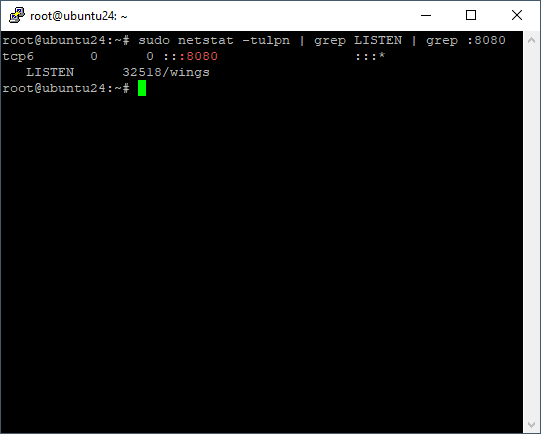
You can also extend the command above by adding another filter to check for a specific port. The command below lists listening ports that match the port number you specify. Replace “:portnumber” with the actual port number you want to search for.
sudo netstat -tulpn | grep LISTEN | grep :portnumber
Check Open Ports Using the ss Command
The ss command is a Linux utility used to display information about network sockets and connections. It provides similar functionality to netstat and is commonly preferred on modern Linux systems because it is faster and more actively maintained.
List All Listening Ports with ss
To display all listening TCP and UDP ports along with the process running with them, run:
sudo ss -tulpn
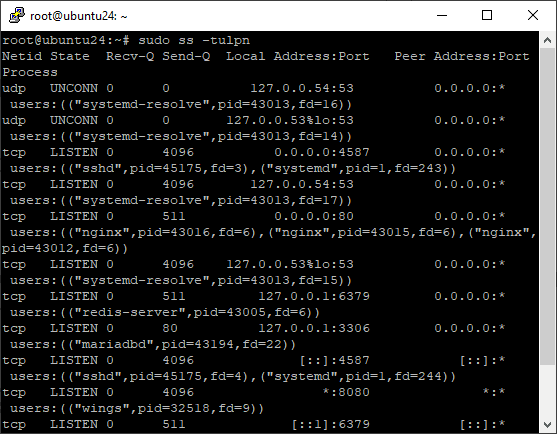
This command shows the listening addresses, port numbers, connection types, and the processes associated with each socket. You can also use the options we used with the netstat command individually here.
Filter Listening Ports with ss
You can also use grep here to filter the output and display only ports in the listen state, and you can add other filter rules to it like the previous one you’ve learned.
ss -tulpn | grep LISTEN
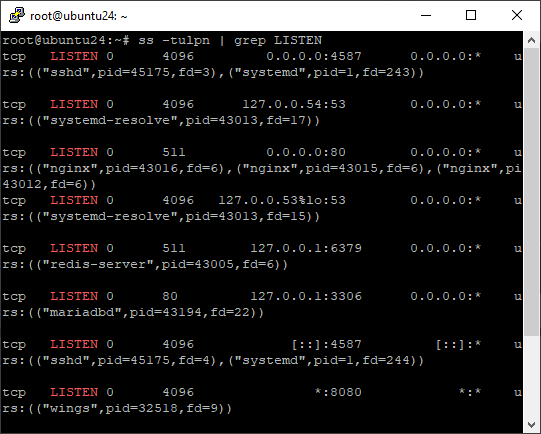
This makes it easier to identify which TCP ports are currently listening for incoming connections.
Check Open Ports Using lsof
lsof stands for List Open Files, and it is a useful Linux utility for identifying which files, network connections, and other processes are currently in use. In Linux, network sockets are represented as files, so you can use lsof here to inspect network ports and determine which processes are using them.
Unlike ss and netstat, lsof is particularly useful when you want to connect a network port to the specific process that opened it. This can help you identify which application or service is listening on a particular port.
List Open Network Ports with lsof
The -i option tells lsof to display network-related open files, including TCP and UDP connections. The -P option displays port numbers instead of service names, while -n prevents lsof from resolving IP addresses to hostnames.
Use the following command to view open ports in Linux with the lsof command:
lsof -i -P -n
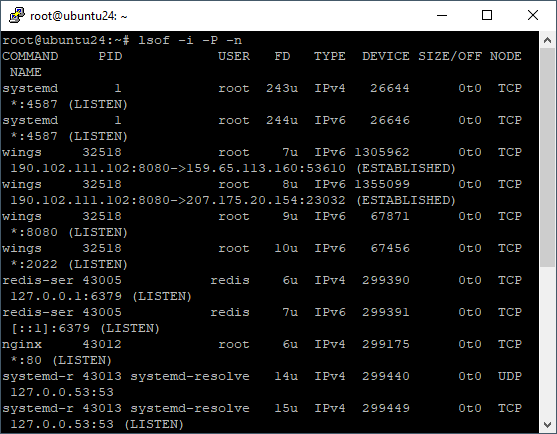
The output includes information such as the process name, process ID (PID), user, connection type, local address, remote address, and connection state. This makes lsof useful for investigating which applications are using network ports on your Linux server.
Find the Process Using a Specific Port
You can filter the output to find listening TCP ports and check which process is using a specific port. Replace portnumber with the port you want to check:
sudo lsof -i -P -n | grep LISTEN | grep :portnumber
For example, to check whether port 80 is being used by a listening process:
sudo lsof -i -P -n | grep LISTEN | grep :80
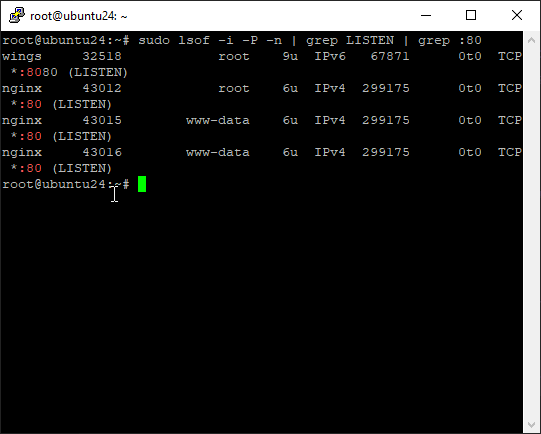
The result can show the process name and PID associated with the port, helping you determine which application or service is accepting connections on it.
Scan Open Ports with Nmap
The commands and tools covered above, such as netstat, ss, and lsof, are mainly used to inspect network sockets and services running on a local Linux system or on a Linux VPS. Nmap (Network Mapper) works differently because it has the ability to scan other devices ports and determine which ports are accessible.
Nmap is a powerful network scanning tool that can perform port scans, host discovery, service detection, and operating system detection. This makes this tool useful not only for checking open ports on your Linux server but also for testing how your server appears from a network perspective.
It can also be used to find server problems and make your server secure against attacks.
Warning: Only scan systems you own or have permission to scan. Malicious or unauthorized scanning using VPSMakers systems may result in service suspension or termination.
Install Nmap on Linux
If Nmap is not already installed on your Linux system, you can install it using the package manager. On Ubuntu VPS and other Debian-based distributions, run the command below to download and install Nmap from the apt repository:
sudo apt install nmap -y
Alternatively, on systems that use Snap, you can install it with:
sudo snap install nmap -y
If you are using other Linux distributions like CentOS or other RHEL-based distributions, you can use:
sudo dnf install nmap
Scan All TCP Ports with Nmap
To scan all TCP ports on your local Linux system, run:
sudo nmap -sT -p- localhost
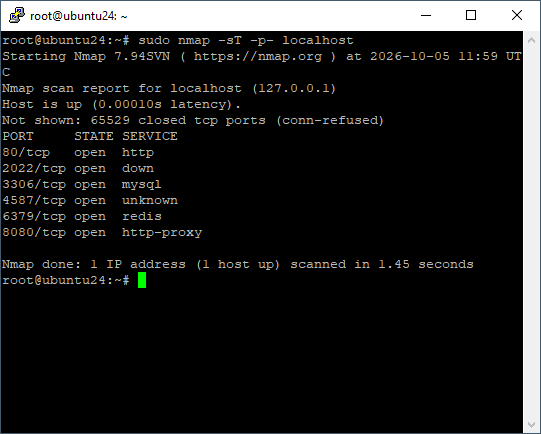
This command includes two options:
- -sT to scan TCP ports
- -p- allows you to scan all available ports. Typically, there are about 65,535 ports, but without this option, the Nmap tool will only scan the default 1,000 ports.
Scan UDP Ports with Nmap
To view open UDP ports, instead of -sT in the previous command, write -sU. And, if you wish to check for open ports of both protocols, include both options in the command.
sudo nmap -sU -p- localhost
UDP scanning can take significantly longer than TCP scanning because UDP does not establish a connection in the same way as TCP.
If you want to scan both TCP and UDP ports, you can combine the two scan types:
sudo nmap -n -PN -sTU -p- localhost
Check a Specific Port with Nmap
If you only want to check whether a specific port is open, use the -p option. Replace portnumber with the port you want to scan:
sudo nmap -p portnumber localhost
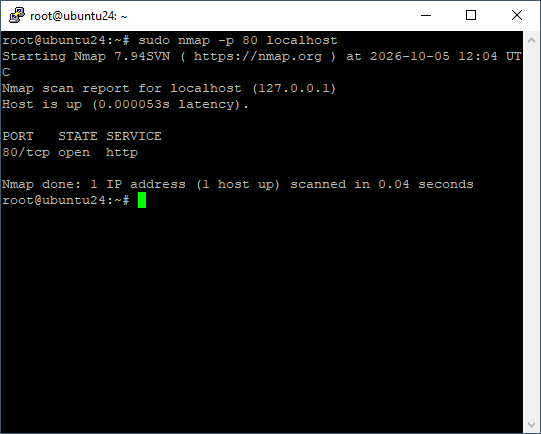
Scan TCP and UDP Ports with Nmap
You can also specify individual TCP and UDP ports when you only need to test a small number of ports. For example:
sudo nmap -sTU -p 22,53,80,443 localhost
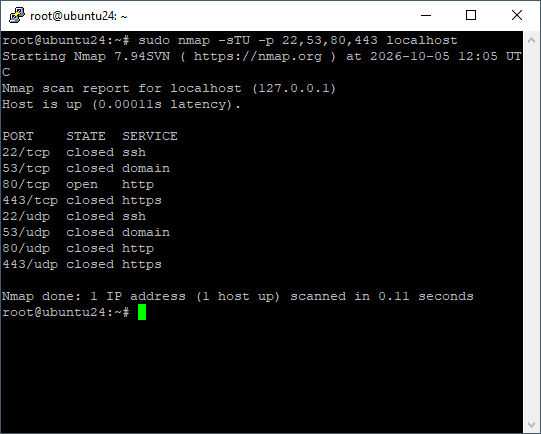
This scans ports 22, 53, 80, and 443 using both TCP and UDP. Using a specific port list can be much faster than scanning the entire port range, especially when you only need to verify a few services.
Scan Ports Using Netcat
As the last method for uncovering open ports on Linux, let’s discuss how to use the netcat command, also called nc. Netcat is a flexible tool used mainly for sending and receiving data over networks, but it’s also useful for listing open ports.
To scan a range of TCP ports, use the -z option to scan without sending data and -v to display detailed results. Specify the target hostname or IP address and the port range you want to check:
nc -zv localhost port_range
For example, to scan all TCP ports from 1 to 65535 on the local system, you can run:
nc -zv localhost 1-65535
Note: Netcat is set to scan TCP ports by default. In case you want to include UDP ports in the result list, add the -u option to the command.
nc -z -v -u localhost port_range
To filter the open ports with successful connections within a specified range on the localhost, just add the grep option to the netcat command:
nc -z -v localhost port_range | grep succeeded
Conclusion
There are several ways to check open ports in Linux, including netstat, ss, lsof, nmap, and netcat. Each tool provides different information, from checking listening ports and identifying the processes using them to scanning ports from a network perspective.
Regularly checking open ports can help you troubleshoot network issues, monitor running services, and identify unnecessary or unexpected network activity on your Linux VPS.
But keep in mind, don’t use Nmap and Netcat tools to scan other systems’ ports unless you have access to them or you own them.

The Author Richard.M
Richard started out as a member of the support team and is now a full-stack web developer and support team lead at VPS Makers. He is passionate about providing people with top-notch technical solutions based on his 5 years of experience in web hosting, but as much as he enjoys coding and creating new works, he secretly dreams of becoming a sports star.
More from Richard.M