How to Downgrade Ubuntu Packages?
Downgrading packages is useful when a newer version introduces bugs, compatibility problems, or unexpected behavior after an upgrade. It’s also useful when you need to install a certain version of a package, especially when you use Ubuntu VPS.
In this guide, you’ll learn to install an older .deb file from the Ubuntu Archive, build packages from source, and use Ubuntu snapshots for downgrading packages and also rolling back packages.
The popular method for downgrading packages in Ubuntu with apt-cache policy and apt-cache madison will not show older versions for packages because Ubuntu removes older versions of packages from its repository, so searching for older packages in the Ubuntu repo will not be useful.
Before downgrading packages, if you want to downgrade packages because the new packages are not working or you cannot use them, check if the packages have a newer version that patches issues.
Use Ubuntu Snapshot Service
The Ubuntu snapshot service lets you view and use the Ubuntu archive as it was on any date and time, so this lets apt install versions that are not available now.
You can access snapshots from any date after March 1, 2023. This means you can turn on the service for the repositories and use apt to check or install packages from any recent date and time.
Also, ensure your apt is the latest update on Ubuntu 20.04 and 22.04. If apt is not updated, you will encounter an error that says: Snapshots are not supported.
Use the command below to install wget with the specified snapshot version:
sudo apt install wget --update --snapshot 20231026T030400Z
Note: The –update argument first updates your package indexes, then installs the package from the specified snapshot instead of the latest version in the archive. Without it, apt is trying to find that version in your current (non-snapshot) index.
Download and Install deb File on Ubuntu
A .deb file is a package that you can install on Ubuntu and other Debian-based systems. It is a compressed file that has everything needed to install a program.
First, you have to go to the Ubuntu Archive site and use the search tool to find the package you want to download.
1. Enter the package name in the Keyword field (like wget)
2. Select any in Distribution
3. Choose any in Section
4. Click Search
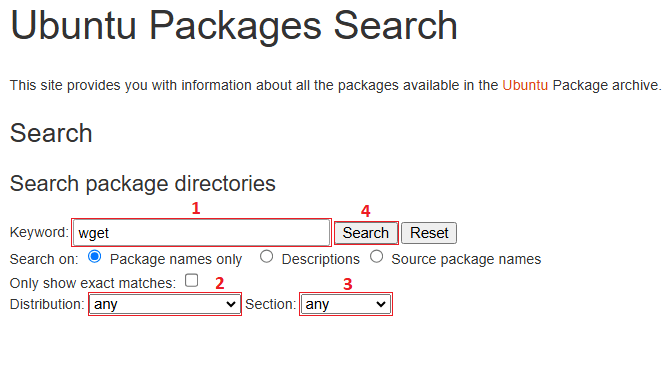
For example, we search for the wget package.
Go to Exact hits:
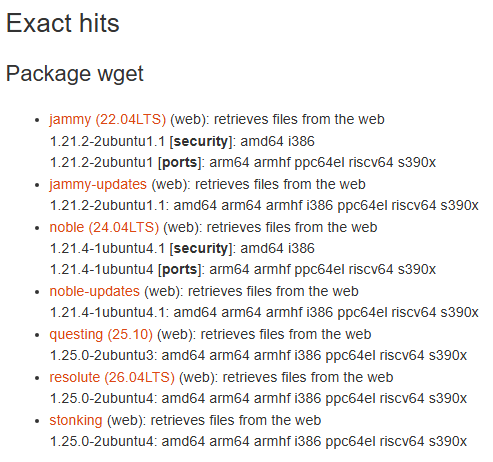
Select the package version that you want to install and downgrade that package.
We choose wget for the jammy release.
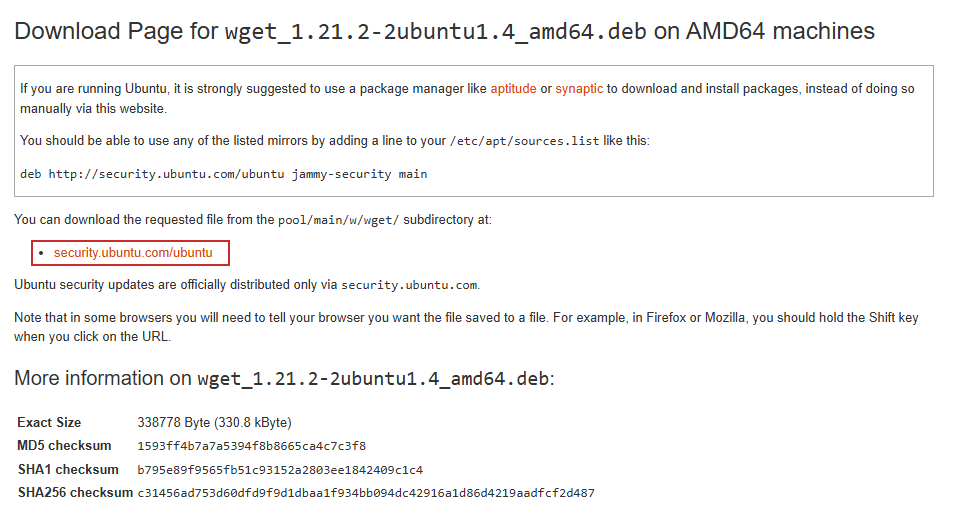
After choosing the version, scroll down to the Download section. You have to select your architecture; we’ll choose amd64. Click amd64:
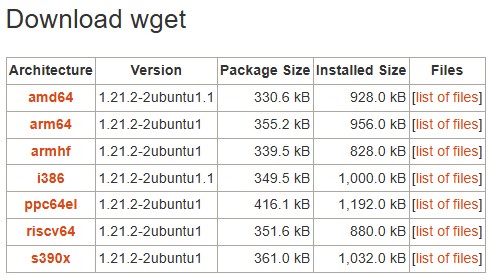
Then you’ll see the search results, and you can download by clicking on that result or copy the download link, then use the curl command to download the .deb files:
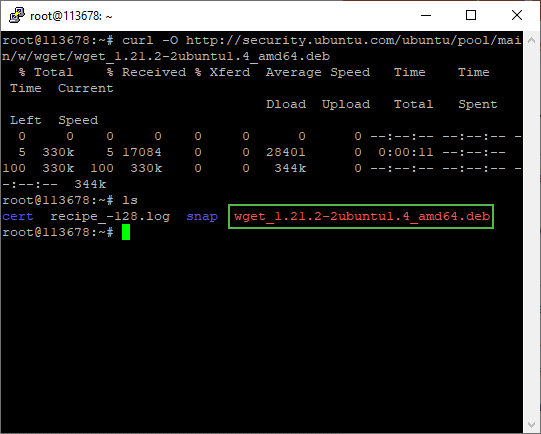
curl -O http://security.ubuntu.com/ubuntu/pool/main/w/wget/wget_1.21.2-2ubuntu1.4_amd64.deb
Now you have the .deb file on your Ubuntu:
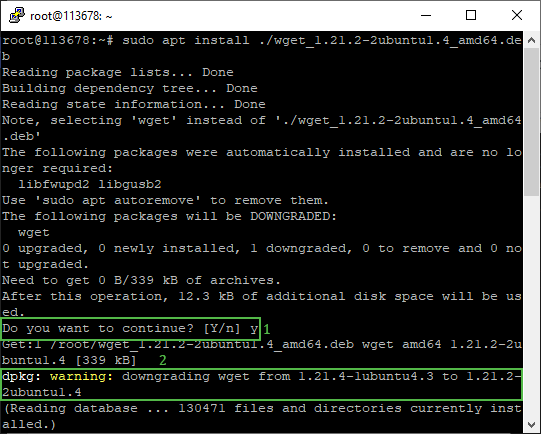
Next, install that older .deb file on your Ubuntu using the command below:
sudo apt install ./wget_1.21.2-2ubuntu1.4_amd64.deb
Using apt to install a .deb package instead of the dpkg command is recommended because it installs any dependencies for that package, and you can remove it with apt if you want to.
1. Press y
2. You’ll see a warning about downgrading packages
Build deb Package From Source in Ubuntu
In this method, if the exact older version you need isn’t available as a .deb file anywhere, you can build it yourself from source.
First, install build tools using the command below:
sudo apt install build-essential devscripts
Then you have to configure the apt repository to have the focal Ubuntu 20.04 and jammy 22.04 deb-src repositories, so apt can download the package tarball source file.
sudo tee -a /etc/apt/sources.list.d/ubuntu.sources > /dev/null << ‘EOF’
Types: deb-src
URIs: http://archive.ubuntu.com/ubuntu/
Suites: jammy jammy-updates jammy-backports focal focal-updates focal-backports
Components: main restricted universe multiverse
Signed-By: /usr/share/keyrings/ubuntu-archive-keyring.gpgTypes: deb-src
URIs: http://security.ubuntu.com/ubuntu/
Suites: jammy-security focal-security
Components: main restricted universe multiverse
Signed-By: /usr/share/keyrings/ubuntu-archive-keyring.gpg
EOF
Note: you’re adding deb-src repositories only, not binary repositories, so adding jammy and focal is only used to download source packages.
After running it, verify the repository config is working well by following the command:
cat /etc/apt/sources.list.d/ubuntu.sources
You’ll see your current Ubuntu version in this list. Confirm you see blank lines if you use Ubuntu Noble 24.04, separating all four stanzas now (noble, noble-security, jammy+focal, jammy-security+focal-security). Then:
sudo apt update
After updating apt lists, to confirm exactly what’s available with your sources right now:
apt-cache madison wget
Choose the version you want; example output is like this:
wget | 1.24.5-1ubuntu2 | noble

wget | 1.21.2-2ubuntu1.1 | jammy-security

wget | 1.20.3-1ubuntu2.1 | focal-updates
That’ll list every version across all your enabled suites (noble, jammy, focal, etc.) so you can pick the exact one. We want to download the source package for version 1.20.3-1ubuntu2.1. This downloads the source package files into the current directory.
Recommended: Create a directory before running apt source, because the command downloads and extracts the source package into the current directory.
mkdir ~/wget-source

cd wget-source/
Then pull the source with:
apt source wget=1.20.3-1ubuntu2.1
Note: During source package download, the following warning may appear:
W: Download is performed unsandboxed as root as file 'wget_1.20.3.orig.tar.gz' couldn't be accessed by user '_apt'. - pkgAcquire::Run (13: Permission denied)
This is a warning when apt source is executed as the root user in a directory that is not accessible to the _apt sandbox user. The package is downloaded and extracted successfully, and the warning doesn’t affect the source code. It can safely be ignored.
After downloading, install all of the packages listed in debian/control as build dependencies:
sudo apt build-dep wget
Next, navigate to the wget source directory:
cd wget-1.20.3/
Then, build the packages; it’ll create a .deb. Follow the command below:
debuild -b -uc -us
After the build finishes successfully, the generated .deb packages will be in the parent directory. Navigate to that directory:
cd ..
List the files by filtering only .deb files:
ls -lh *.deb
The output should be like this:
wget_1.20.3-1ubuntu2.1_amd64.deb
Next, install the package with apt:
sudo apt install ./wget_1.20.3-1ubuntu2.1_amd64.deb
Rollback Ubuntu Package Update
Ubuntu doesn’t provide a built-in way to roll back package upgrades. When a package update causes problems or causes compatibility issues, you have to see the logs to identify which packages changed and were upgraded after the upgrade or install.
First, to identify what changed, use the following command:
grep "Upgrade:\|Install:" /var/log/apt/history.log | tail -20
The output should be like that:
Upgrade: wget:amd64 (1.21.3-1ubuntu1, 1.21.4-1ubuntu4.4)
Older package files may still exist in the apt package cache. Check the cache before downloading an older version manually. Ubuntu may remove older package files after an upgrade.
First, ensure that the packages are in the apt package cache by using the command below:
ls /var/cache/apt/archives/ | grep <packagename>
After locating the older package in the cache, install it using:
sudo apt install /var/cache/apt/archives/packagename_OLDVERSION_amd64.deb
If you can’t see the specific packages, find the changes after the upgrade and identify the packages using the methods above from this section.
Hold Package Version in Ubuntu
After installing the older version of packages, you have to lock the package at that older version, because apt will update that package to a newer version automatically. We use wget, for example.
To lock the package, use the command below:
sudo apt-mark hold wget
Next, verify the hold on wget:
apt-mark showhold
Output like this:
wget
A couple of notes on apt-mark hold usage and ability:
1. Blocks apt upgrade / apt dist-upgrade from touching it
2. Blocks apt full-upgrade
3. Does not stop you from manually running sudo apt install wget=<newer-version>; an explicit install command overrides the hold
4. Does not stop removal; sudo apt remove wget still works normally. The hold only blocks version changes via upgrade.
Summary
Ubuntu doesn’t automatically keep old package versions available. If the required version is no longer available in your enabled repositories, you must use a .deb file, build it from source, or use Ubuntu snapshots.
Snapshots are the easiest method for downgrading because you only need to provide the snapshot timestamp, then install your older packages.
To install older packages and downgrade packages using a .deb file, you have to download the .deb file from the Ubuntu archive, then install it with apt. To build older packages from source, add the deb src, then download the source file, create a .deb file, and finally install it.

The Author Jones Allen
I’m Jones Allen, a Linux Administrator and cybersecurity enthusiast focused on Linux, server management, and system security. I enjoy solving technical challenges and sharing what I learn through practical guides.
More from Jones Allen