How to Install OpenSSH on Windows?
SSH (Secure Shell) is a connection protocol that is mostly used in Linux Servers. But to use it on Windows too, you can install OpenSSH on your Windows Server or Client.
Installing OpenSSH on Windows Server and Windows 10 / 11 is mostly the same, and in most of the modern Windows devices, the OpenSSH client is installed by default.
But if you don’t have it installed or you want to install OpenSSH server to allow an SSH connection to your Windows itself, follow the steps.
Install OpenSSH Server and Client in Windows
In Windows 10 and above, and Windows Server 2019 and above, you can find OpenSSH client and Server as built-in tools in the Windows optional features menu.
But in older Windows versions, you need to install it manually, which you will learn it too in this article.
Open Windows Setting
1 – Go to Windows settings by pressing the Windows + I shortcut or searching for “settings” in the start menu, then click on System.
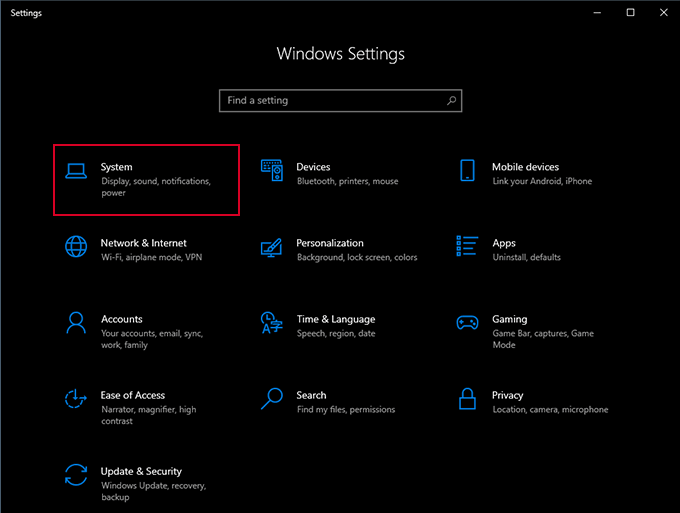
2 – Click on Optional features
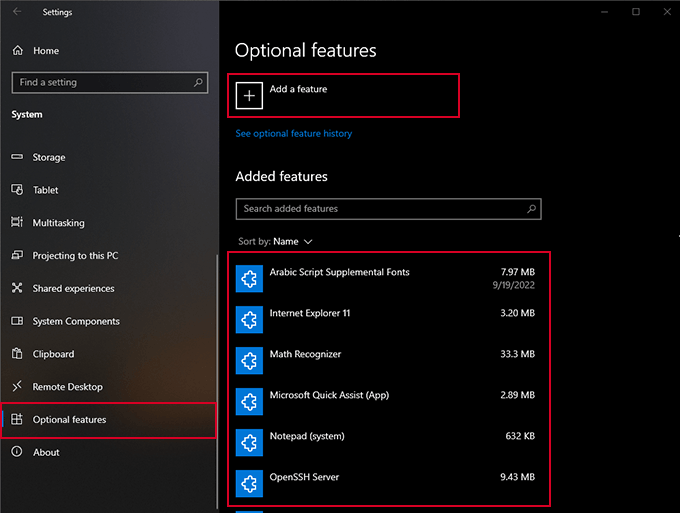
3 – Check if you have OpenSSH client or OpenSSH server installed on your device.
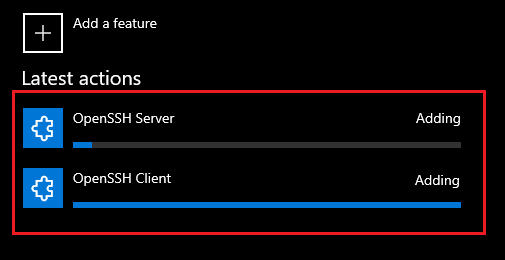
4 – If you don’t have packages installed, click on Add a feature and search for OpenSSH
Add OpenSSH Client and Server Feature to Windows
Search for OpenSSH, select the OpenSSH type you want to install, and click on Add
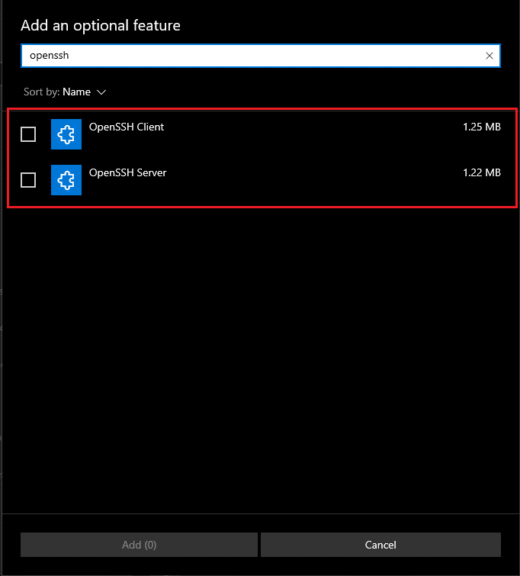
Wait for the installation to complete and restart Windows.
Install OpenSSH on Windows PowerShell
Using PowerShell is a more advanced method that most of the administrators use to automate some actions. You can install OpenSSH using PowerShell on Windows, too.
You can install both the OpenSSH server and client using PowerShell, but you will need just the client version if you are using a Windows desktop to connect to another server.
Check if OpenSSH is Installed on Windows
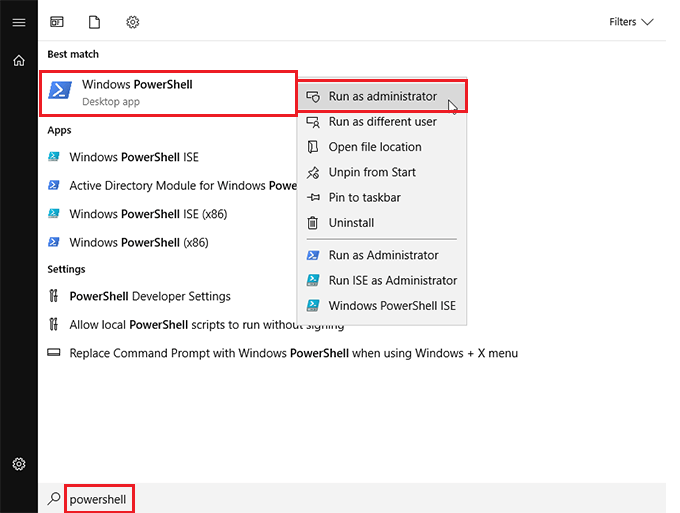
Open PowerShell by searching for PowerShell in the Start menu and running it as administrator.
Run this command to check whether OpenSSH is installed or not.
ssh -V
Output will be something like this:
OpenSSH_for_Windows_9.5p1, LibreSSL 3.8.2
If the command shows a version number, it means OpenSSH is already installed on your system. If you see an error like “ssh is not recognized,” it means OpenSSH is not installed, and you’ll need to install it by following the steps below.
Install OpenSSH Client on Windows PowerShell
By installing the OpenSSH client on your Windows, you will be able to connect to Linux servers using SSH, use secure file transfer protocols like SFTP and SCP, create SSH keys on windows and, etc.
Run this command in your PowerShell as administrator to install the OpenSSH client:
Add-WindowsCapability -Online -Name OpenSSH.Client~~~~0.0.1.0
Install OpenSSH Server on Windows PowerShell
You can install OpenSSH Server on your Windows client or Windows Server to allow connection to your Windows using SSH, which gives PowerShell or CMD environment.
This option can help in Windows Server environments, but it’s not recommended because Windows Command Line (CMD) is not as powerful as Linux Terminal.
Run this command in your Windows PowerShell to install the OpenSSH Server:
Add-WindowsCapability -Online -Name OpenSSH.Server~~~~0.0.1.0
Start OpenSSH Server on Windows
After installing OpenSSH Server on Windows, it automatically doesn’t start its server. You need to start it manually. Use the command below to start the server and set it to automatic startup to start it on every boot.
Start OpenSSH Server:
Start-Service sshd
Enable OpenSSH Auto Start
Set-Service -Name sshd -StartupType Automatic
Install OpenSSH from GitHub in Windows
If you are using an older Windows version or for any reason you want to install OpenSSH manually, you can use the official GitHub repository to download any version of OpenSSH you want and install it on your Windows.
Download OpenSSH from GitHub
You need to go to the OpenSSH GitHub repository release page and download the version you want or compatible with your system.
Click on OpenSSH-Win64.zip to start the download (This version is compatible with most of the modern devices). If you want, you can check you windows architecture to download the compatible version.

Extract OpenSSH Downloaded File
Go to your C drive, create a new folder, copy the downloaded OpenSSH zip file to this folder, and extract it.
Specify a destination for extraction or press Enter to extract it in the folder you are in
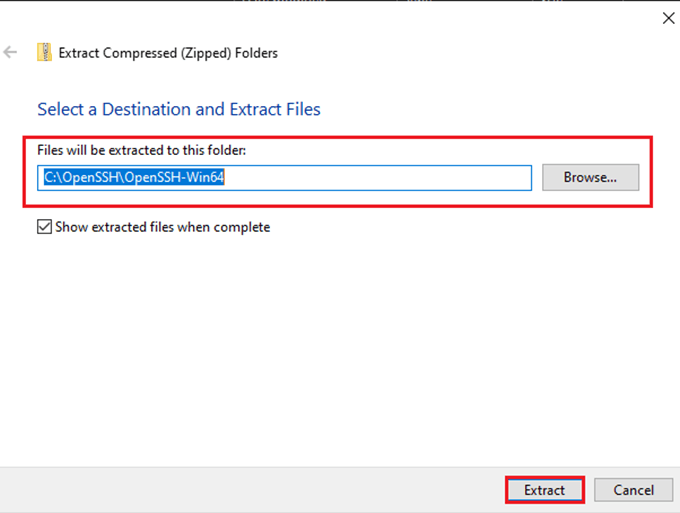
Install OpenSSH Manually on Windows
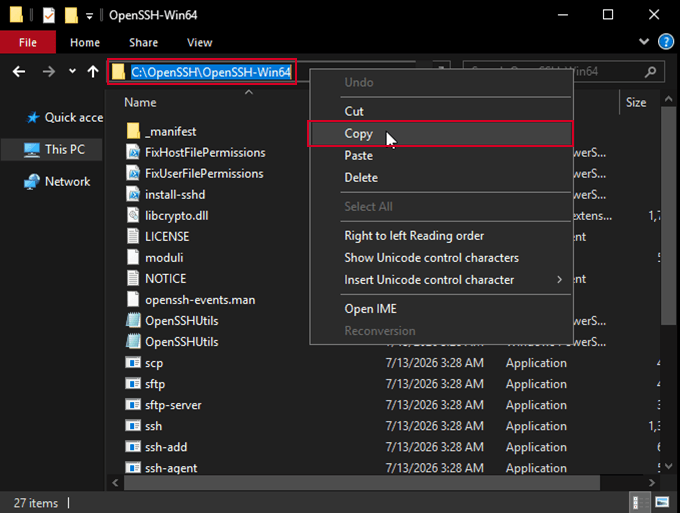
Step 1 – In this step, go to the folder where you’ve extracted your files and copy its location from the address bar.
Step 2 – In the Start Menu, search for PowerShell and run it as administrator.
Step 3 – run this command to navigate to your folder with PowerShell, in ” ” paste your folder location which you’ve copied:
cd "Your-folder-address"
Step 4 – To install OpenSSH from the downloaded GitHub file, run the command below:
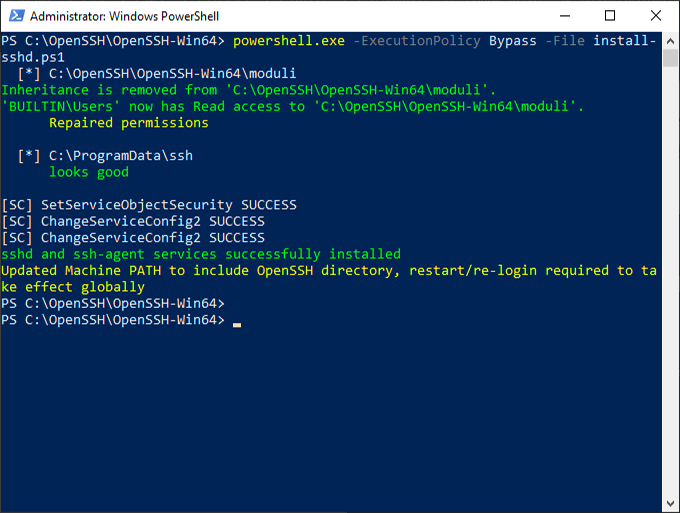
powershell.exe -ExecutionPolicy Bypass -File install-sshd.ps1
After running this command, you will see an output like that, which says the SSH packages are installed successfully and added to the Windows paths.
Why Do We Need to Install OpenSSH?
On Linux devices, using SSH connection is a typical and normal thing; you can use SSH connection without OpenSSH, but for key creation, you need to install OpenSSH on your Linux Server too.
But in Windows devices, using SSH connection is not common, so to use it, you need to install the OpenSSH package, which we discussed how you can install it in 3 methods in this article.
OpenSSH Server VS OpenSSH Client
OpenSSH Client is the part of OpenSSH used to access remote systems, allowing you to securely connect, run commands, and transfer files.
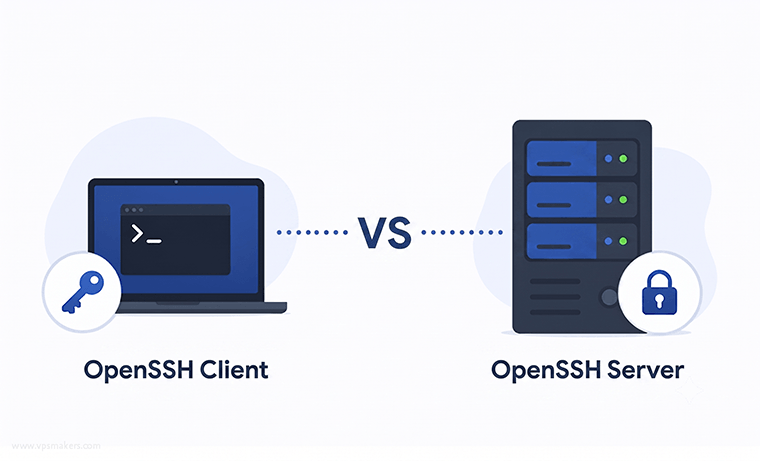
OpenSSH Server is the service that runs on a server or any machine to accept incoming SSH connections. It provides SSH access to the system, and you connect to it using the OpenSSH Client.
| Features | OpenSSH Client | OpenSSH Server |
|---|---|---|
| Role | Connecting out | Accepting incoming connection |
| Direction | Outgoing | incoming |
| Runing platform | Your Computer | Rremote PC / Server |
| Command | ssh | sshd |
| Use case | Access VPS, Github , Linux Server | Host SSH access |
Conclusion
OpenSSH is a useful tool that you can install on Windows and Linux devices to use SSH connections and create SSH keys to use better SSH connection methods.
In this article, we walked through installing OpenSSH with three methods: Windows built-in features, PowerShell, and the official OpenSSH GitHub repository.
All three work correctly, but installing it with Windows built-in features is easier. And if you are a server administrator, it’s better to use PowerShell for efficiency.
Hope it helped you! If you have any questions or opinions, you can contact us in the comments section.

The Author Robert Smite
Hello! I'm Robert, specializing in virtual servers and cloud technology. With expertise in managing and optimizing virtual servers, my focus is on delivering understandable and practical content in this field. My goal is to enhance knowledge and assist individuals in selecting the best virtual services for their needs.
More from Robert Smite