How to Set Permission in Ubuntu Server?
Linux uses a file-based permission system to control access to files and directories. Each file has three types of access levels: owner, group, and others.
Setting permissions in Ubuntu Servers you can manage which users can read, modify, or delete specific files. This permission structure helps keep the system organized and secure.
When creating user in Ubuntu server, an administrator should assign permissions based on the user’s role and requirements.
Check Current File Permissions in Ubuntu Server
To limit access to certain files or important folders, you need to properly configure user and group permissions for those specific files or directories.
These limitations can be set one user, or you can set permissions to groups to apply this limitation to a range of users.
Before starting to set permissions, you should first check what permissions are currently assigned to a file or directory. You can do this using this command:
ls -l
This command will show you the permissions a user and group have on files or directories, the file size, and the date it was last modified.
The output will be something like that:
-rw-rw-r-- 1 username groupName 0 Jun 9 14:15 fileName
Change File Permissions in Ubuntu Server
To change file permissions in Linux, you need to use the chmod command, which has two methods: numeric and symbolic mode.
The chmod symbolic method is easier for beginners because it uses letters for assigning permissions, which is more readable and user-friendly. If you want a more advanced and faster version, you need to use the chmod numeric method, which is more commonly used in real life.
Here in this article, you will learn the more practical way with the chmod numeric mode.
Set Chmod 777 And Other Common Permissions in Ubuntu
The chmod command includes several commonly used numeric permission modes, like chmod 777, which grants full read, write, and execute access to all users in the system. While setting these numeric permissions to your files or directories, you need to be accurate.
Here is the syntax of the chmod command that you can use by replacing your file path and the permission number you want to set to it:
sudo chmod permission FilePath
Example:
sudo chmod 700 ~/.ssh/
This command sets full access to the .ssh directory and removes all access for other users. You can replace your permission and file path instead to run your own command.
Here you can see some of the common and most used chmod number modes that you can use while setting permissions.
| Numeric | Symbolic | User Owner Permission | Group Permission | Other users Permissions | Common Usage |
|---|---|---|---|---|---|
| 777 | rwxrwxrwx | Full access | Full access | Full access | Quick testing or temporary setup |
| 770 | rwxrwx--- | Full access | Full access | No access | Shared projects |
| 760 | rwxrw---- | Full access | Read and Write | No access | Controled team environment (development team) |
| 755 | rwxrw-rw- | Full access | Read and Execute | Read and Execute | Script Files |
| 700 | rwx------ | Full access | No access | No access | Private scripts, SSH directory, or sensitive files |
| 644 | rw-r--r-- | Read and Write | Read | Read | Documents(PDF, Music, Downloads) |
| 444 | r--r--r-- | Read | Read | Read | Static, readable but not modifiable files (.env , wordpress config) |
| 400 | r-------- | Read | No access | No access | Sensitive Read only data that should not be modified |
If you want to learn how you should set permissions in Linux server yourself, you need to learn what Linux permissions are and how they work.
Use Chmod Recursively
Using recursive mode in chmod, you can change the permissions of a folder and all its contents. When you apply recursive mode, it also affects all subfolders and files inside the directory.
To apply recursive permissions, you need to use the -R flag in your command. It can be placed before your numeric permission or after it.
But it’s recommended to use it before the permission because it’s better for readability and more consistent with Linux common command syntax, like the example below:
chmod -R 755 myfolder/
Change File Ownership in Ubuntu Server
To give access to a specific group or user to a file or directory in Linux, you need to change its ownership and assign it to another user or group. To change ownership, you need to use the chown (change owner) command.
Here you can see the basic syntax of the chown command, which is mostly the same in most of the Linux distributions.
sudo chown user:group file
Using this command, you can change a file or directory’s owner and group either at the same time or separately. You can see examples below:
Change file owner and group in Ubuntu:
To change file owner and Group both at the same time, replace your username and group name in the command below:
sudo chown newUsername:newGroup myfile.txt
Change File Owner in Ubuntu:
To change only the owner, you just need to specify the new owner’s name.
sudo chown username file.txt
Change File Group in Ubuntu:
To change only the group while keeping the same owner, you must still specify the current owner’s name with a new group name:
sudo chown oldUsername:newGroup myfile.txt
Or you can use this command to keep the owner and change the group:
sudo chown :newGroup myfiles.txt
Change File Owner Recursively in Ubuntu
Using recursive mode for changing ownership works similarly to the chmod command. You just need to add the -R flag to your command to change the owner of both the directory and all of its contents, including subdirectories and files inside it.
sudo chown -R username:groupName folerName/
Give Permission to Group in Linux
Handling permissions in Linux using groups is much easier than setting permissions for each user individually. So if you want to add permission to a range of users in your Ubuntu Server, you need to add those users to a group and assign this group to a file, as you’ve learned with the chown command.
First, if you don’t have a group to add your users to, you need to Create new group in your Ubuntu Server. Then you should add user to group on your Linux server to assign the permissions you want to the group.
Common Permission Mistakes in Ubuntu Server
Some actions would seem simple, but they would cause big problems. Make sure you set the correct and accurate permissions to avoid disasters.
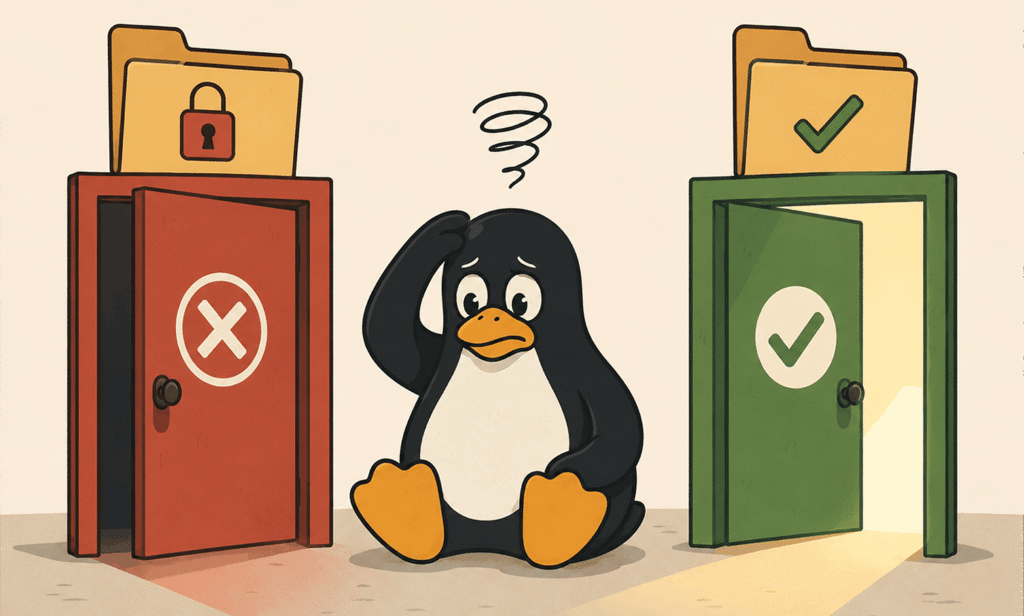
In some cases, chmod 777 can be dangerous because it gives full access permissions to every user unnecessarily. This makes the file completely open to all users, which can lead to accidental modification, deletion, or security issues.
In most cases, it’s better to use more restricted permissions like 644 or 750, or if you are using 777, use it temporarily.
And another problem can be about recursive permissions, which, when working with folders not using the -R flag, can cause inconsistent access behavior inside the directory structure. So make sure to use -R when changing ownership or setting permissions.
Conclusion
Linux file permissions are managed using a combination of chmod, chown, and usermod commands. With chmod, you control what actions users can perform on files and directories, while chown defines who owns them.
On the other side, if you want to simplify permission managment its better to use groups to apply rules to a range at once.
By correctly applying symbolic or numeric permission modes, setting proper ownership, and organizing users into groups, you can effectively control access to files and maintain a secure and well-structured system.
Hope this article helped you to make your server more secure. If you have any questions or problems, we will be happy to help you. Just contact us in the comments section.

The Author Jacob R
i am Jacob a developer and cybersecurity enthusiast with strong skills in web development and a passion for building practical digital solutions,Working on web development for 4 years. Hope my guides be helpful
More from Jacob R